Patrick Moran, Sr Talent Sourcing Manager, BAE - Sourcing cleared candidates
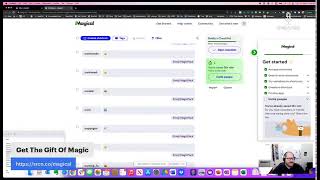
Shally Steckerl demos Magical, a Chrome extension that automates recruiting tasks. Extract LinkedIn data like name and title, build shortcuts that generate personalized InMail messages, and share templates with your team.
Chapters
Hello everybody, happy Friday. We are coming at you live from Shelly's Alley. Hope you're ready for some fun and actually some magic. What do you think? You want some magic today? We're gonna do some magic. I have a little gift for you today. You can see down in the— where is it? Right there. Okay, point to the camera right there. That was awkward. If you look right there, you'll see the gift of magic. Just go to that URL srcn.co/magical. If you're not already using the Magical Chrome extension, you will be after today. We've talked a lot about automation here in the show before. We've talked about automation, we've talked about macros, we've talked about things like text expanders, and this is kind of all of the above. It's, it's, it's essentially a text expander that does a lot more than just expand text. It can also copy paste and it can also merge fields. And why would I want to merge fields? Well, one of the biggest limitations of sending messages via a web page, like say your LinkedIn recruiter account, is that when you're sending an InMail, it's, it's a single screen. There's not really an easy way to, to merge. Now you could use tools, there's, there's paid tools out there that you can use that have you know, some— they kind of get around the rules a little bit and, and do some automation to send messages, but most of them will work really well with LinkedIn vanilla, just the regular LinkedIn. They don't all do so well when it comes to the recruiter interface, especially when you're pulling up a candidate, and so that's where this comes in really handy. It's not the only thing it comes in at, there's a lot of ways to use it. Let me show you a couple of things here and get ready to see some magic. Trying to share my screen here apparently, should have had this set up a little bit better. Ah, there we go. Share screen. Apologies for the window in window thing, trying to go picture in picture. There we go, that's better. All right. Much better. I can go to the other screen. All right, so here we are inside of the LinkedIn recruiter interface. You've got a project, you've got a list of results down there, and what I'm talking about is sending messages. So I have the Magical extension. This is a Chromium-based, so any Chromium application, it works with any Chromium app, you know, whatever Chromium browser you end up using. And it just sort of sits on the side here. You can see that it's come up there. There's a couple of things too. Basically there's shortcuts and there's variables. Variables are the pieces of text that you can use to merge in, and shortcuts are the, essentially the commands, like in any other text expander or anything like that. So I'm going to show you first the shortcuts. Let's shrink this back in. Let's say that you pull up a profile, if you're browsing profile by profile and you hear you've got one and oh, okay, you want to send them a message, okay. So you click on this and now you have to write your message, right? Well, let's take a look at that again. So we click on this and we have to send a message. Now there is a way to do bulk email or in-mail, I guess, with LinkedIn, but it's very limited. There's only one field pretty much. It shows you, um, here it shows you first name, last name, job title, company, and location of your project. But basically first and last name, this is just name, right? Name, name, name, whatever. And then this is like the project's job title and the project company, which would be your company, and the project location, which is where the job is located. There's not a whole lot of options. Like for example, what about their company? What about— well, you know what I'm talking about. So you could do the mass message through LinkedIn, but what if you wanted to add more customization? Well, that's where Magical comes in. You can ask Magical to create variables out of any webpage that is currently open. When you go to edit variables, what it'll do is it'll highlight what it thinks are some obvious variables or maybe other users. That's one of the best things about Magical is that when you're using Magical, magical. You're looking at all of the already mapped variables of other users. Nothing is behind anything that's secure, but they've been able to detect that HTML before. So if other people have already identified that these are variables that they want to use, then you get the benefit from them. If not, you can still add new ones like that, for example. So let me show you how variables work. I've already added a few here. You can see that they've got names. and there's some that are, you know, that have been pre-added by other people. But let me show you how it works. Let's, let's select the name, for example. So that's the, we'll call this first name. Looks like it's already there, and it looks like it's added it twice now. Oh, I guess it just captured the whole name, right? Sorry, let me delete that and start again so I can show you. Okay, so I'm going to go back here and add this as the full name. My mistake. Now I've added the full name. Now I can take this full name and split it. That's what this is here. I can split from the space to the left and from the space to the right. So if I split from the space to the left, I'll call this first name, or I'll just call it FN for short. It'll be the first name. I can then also add others, like say for example, I can use the job title, I can use the location, I can use their industry. We'll call this industry. It's already there, so we'll do that. There's, if there's any other, you know, there's a summary you want to capture their, their job experience, maybe their first job, their company, their dates of employment, whatever, as long as it's a field, right? So let's grab this here and use this as— this is their company. Let's see if there's anything else. Well, you can also grab here, let's grab the— no, we'll grab the URL in, in another example. That's, that's good for now, right? So now we have a bunch of variables here. We have the, um, oh, you know, the city is a good idea. We could do that. We have the company name, we have the first name, which is FN, we have the company name, and I'll show you how you can put all this together. So we're done now. We've added the variables. Now we're going to create a shortcut. To create a shortcut, just click on New Shortcut, and you want to give it a trigger. This is the, the secret code that you, that you put in to execute this or to expand the text. A couple of quick tips on this: use keyword combinations or, or keystroke combinations that are not commonly used in everyday. So don't use like LinkedIn, because every time you type LinkedIn, it's going to expand it. You could use something like, uh, start with like a— I, I use the single quotation mark because it's not very frequently used for other things. You can use the pipe symbol, you can use the angle bracket, whatever it is that you think you're not going to use very often. Maybe you don't use the caret very much or whatever. I'm going to use the single quote, and for this, let's call this the LinkedIn Recruiter Message, LIRM. You can call it whatever you want, and down here we're going to put the text that's going to be pasted into the message in this case. So this is the LinkedIn recruiter message, and we'll, we'll say, hi— let's not say hi, let's say hello there, to be something different, right? Hello there, and then slash slash and their FN, first name. Hello there, FN, just noticed— never mind me, I'm just writing something, it's probably really cheesy. Just noticed you work at //company name. There it is. Hello there, FN, just noticed you work at company name in city. And we can add other criteria here as well. "Can we chat?" Again, I told you this, this is not going to be the best message. I just want to show you an example of how this works, and we're going to go ahead and save it. So remember this, the single quote LIRM, and it pastes those fields. We do have other fields here. We have industry, for example. I can, you know, put that in here. We have the number of shared connections was apparently already picked up. Be careful with that though, because sometimes you have no shared connections, and so it'll come up and say, hey, there's no shared connection, so what do I put instead, right? That's okay. We also have the title. I can say as T for title. I had title in there. It's not. Oh yeah, that. Okay, save it. Now it comes time to execute it, but before I do that, here's another one. You can't really customize the subject. You definitely can't do that with the merge. So how do we do that here? Very easily. We create a new shortcut or another shortcut. So that was the LinkedIn Recruiter message. We'll call this the LinkedIn Recruiter subject, and in this one, just start with First name, let's, or can we talk about slash slash company name, save, and off we go. Now you're ready to send the message. It's not going to be very impressive if I use this one because I've been on this profile for a while now, so I'm going to show you on another profile. Brand new profile that we haven't done anything with, click on the message icon, and here we can do single quote LinkedIn recruiter subject, and it's gonna fill, oh, it looks like they don't have a company name, how is that? There's no, oh right, it's one of those profiles, okay, no problem. I don't wanna show you an example that doesn't have one. That's somebody that I know, another friend, Trying to not do this with people that I already have messaged. That's okay, let's try it with this one here. All right, so there's a message and we wanna do the subject, apostrophe LinkedIn recruiter subject, boom, linked, again LinkedIn recruiter message, boom. Look at how simple that is. So it immediately grabs their first name, company name, and all the other information and puts it in here. Go to the next one. I didn't actually send it, by the way. Click on that, then you've got L-I-R-S, and you've got L-I-R-M, and boom, that's it. Very easy. It's so easy, it's almost like magic, right? So you've got the subject, and, and now you, you're able to merge a bunch of other fields. You can use custom versions. You got LinkedIn Recruiter Message 1, LinkedIn Recruiter Message 2, LinkedIn Recruiter Message 3. Maybe they have different, you know, variations or whatever, and all of those are stored in your shortcuts inside of the Magical app. And you can also share them, so you can share these shortcuts once you've created a bunch of them with other members of your team using a magic pack where you can email them a link and they can install that on their own. Pretty cool. There's a few other things that I want to show you. One of them is your signature, which comes up very frequently, not necessarily on LinkedIn because on LinkedIn you already have that signature file there at the bottom. But what if you're in Facebook or Twitter or just basically anywhere else where you're trying to send somebody a message? Pretend that this wasn't LinkedIn or pretend that this was not the LinkedIn Recruiter, for example, right? I'll go in here, maybe go to the regular LinkedIn, vanilla as I call it. And we'll just go to my network, find somebody that's recently connected maybe, and we'll send a message. All right, so this is a message that doesn't have a signature file because it's a regular LinkedIn message. Well, here's another really good use of Magical. I have my signature set up so that when I use //s, it automatically inserts my name, and I can also have it insert other things, like I can have my, um, signature with the entire— so it depends on what you set it up with, right? You can actually go in there and program it, and I'll show you a couple of examples. In fact, let's just go directly to— this is what it looks like when you're actually editing things in the Magical app, and you'll see here my signature. So this one has my link for srcn.co and my phone number. Then I have another one that, that's the lowercase, and I have another one that has my full, like, phone number and email and everything. So you can have different signatures for different purposes. So basically, when you're in the message app, you can just choose lowercase and it puts that one, or uppercase and it puts the other one. Looks like it didn't add the other line there for some reason. And that can all just be edited here with templates and variables, etc. So even in your signature you can have like the date, for example, right? A few other things that I use this for— there's a bunch of common messages that sometimes, you know, you want to post here. To your friends, you just want to say HBD for happy birthday, say happy birthday. So HBD automatically expands to happy birthday, right? How about typos? Typos and contractions and things like that, that's another thing that I find I struggle with a lot, especially if you use a lot of— so for example, don't. I just type don't, D-O-N-T, I can't even type it correctly. Um, it should expand to can't. There you see it, and etc. All of those are also set up here. So if you have common typos or common contractions, common things that you say all the time— I did one for the day of the week. So sometimes you might say, hey, happy, and then you have to type in Friday, right? Okay, we but if you just do happy, it types in Friday for you. That's basically the single quote dd and it puts in whatever the day of the week is. You can have that put in the date or you can have it put in a month, whatever. All of those are customizations that you can create inside of the app. So now you have the ability to merge in message places. You can even do common phrases like, Let's say you always have, you always use, you know, let me know if there's anything else, right? Easy. Go to create a shortcut and we'll call this one LMK. Let's start with the, let's do colon LMK and the shortcut content will be, let me know if you're, if you need anything else. Cheers, shall we? This will be your let me know if you need anything else signature, right? And now when you go somewhere to put it in, happy Friday, okay, let me know if you need anything else, boom, it expands it. You do the same thing with a whole sentence like directions to our office or prep for interview and things like that. You also might like to do emojis and emojis, you can basically click and look through the whole list and pick one or search for it or whatever, but if you're a Slack user or you know which emoji you want, you can simply use the emoji combination of colon and then happy, for example, and it'll pull up whatever emoji you've determined for that. I've got a whole list of them, so here's the like, here's balloon, here's beer. So happy Friday! Hey, let's grab a and then beer tomorrow. See how that works? You determine which the emojis are, set it and forget it. For those of you that like emojis in the subject lines, you can use this for the black circle, which will add it, or the blue or the red circle, et cetera. And then you also have macros. So macros come in two formats, the date and the clipboard content. The date is the one that I use. See if I can show you here with my DDE. There it is. So this is a macro, and it uses a date formatting that's pretty standard, like a Markdown date formatting. Capital D is the number, lowercase d is the date, stuff like that. So dd.dd is the day of the week versus dd.dd is the day of the year in numerical. So today is the 37th day of the year or whatever, 35th, I don't know. Whatever that is. So these are macros. And the clipboard macro basically inserts whatever is in your clipboard as a text in that message. So if you have something that you wanna paste, paste, paste, paste, you, you know, you copied it from one place and wanna paste it a bunch of other places, you can use the macro. Another useful thing for Magical is when you have sheets or let's say your CRM, you wanna add stuff into your CRM, This one is only going to work when you have a profile page open. It has to be open, but if you're looking at a profile page and then you want to add that information to your CRM, or I'm just going to use a spreadsheet here, we'll put, um, name, company, title, for example. Oh, what I'm going to do here is I'm going to use variables and set some variables. There's already some in here. You can see company name, job title, and so on, but you can actually edit new variables. I think it'll already recognize them. Yeah, see, it's already got first name. Let's see what else it's picking up. URL, first degree. Is it picking up anything else? Headline, yep. Where's the job title? It's not picking that up, is it? Nope, okay, that's all right. So we can add that. So this is— this will be company name, and this will be— oops, this will be job title. So as long as this is open, meaning the LinkedIn page, you can essentially extract from it and go over here and just do slash slash and then first name, slash slash company, slash slash job title, and on and on and on. I don't know why I think I typed 3 slashes on that one, or maybe I included that in the shortcut. So it's going to copy and paste whatever information is— this is not that impressive because it's only 3 fields, but imagine if you were capturing previous job, previous title, education, licenses, and all that other stuff. And it might not be that impressive with LinkedIn because you might be using SeekOut or HireTool, but what if this was Facebook? What if it was Twitter? What if it was your CRM and copying from your CRM to your ATS? CRM and ATS, you just use and it puts it right in. So lots of cool things that you can do with Magical. Once again, if you're trying to find how to get it, just go to that URL there in the— I think I can do it right this time— in the bottom of the screen there, srcn.co/magical, and shoot me a note, drop me a note if you want to find out more about this. All right, I hope you get a lot of magic out of this and have a great weekend. Bye.
More from Shally



Scaling Talent at Hypergrowth: Leadership, AI, and Hiring Excellence with Cindy Nicola







