Patrick Moran, Sr Talent Sourcing Manager, BAE - Sourcing cleared candidates
In this solo livestream, Shelly Steckerl demonstrates how to use the free Start.me browser extension as a personalized landing page. She walks through creating a page, choosing column layouts, and adjusting responsiveness for different devices. Shelly shows how to follow, favorite, and import other users' pages, copy and merge widgets, and edit link descriptions. She explains display options (icon sizes, detailed list, cloud view) and how to prioritize bookmarks with drag‑and‑drop and visibility limits. The tutorial covers adding RSS news feeds by turning Google Alerts into feeds for candidate sourcing, using the notes widget with Markdown and color coding, and building multi‑search boxes that replace keywords with %s for dynamic LinkedIn, SeekOut, or custom searches. She also highlights pro widgets (clocks, social feeds, weather, profile links) and the embed widget for integrating external tools. Finally, Shelly recommends a Chrome “Bookmarks Cleanup” extension to deduplicate and remove broken URLs, and offers practical tips for mobile use and sharing pages. The session ends with a recap of the core Start.me capabilities.
Chapters
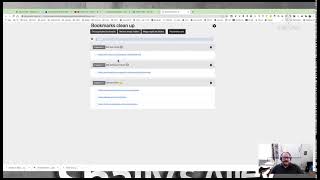
And happy Friday once again. I hope you had a wonderful week. This is Shelly coming at you live from Shelly's Alley. I had a guest planned for today, but as you know, things happen. And so my guest was unable to make it because they got a new job. So they had to do some onboarding stuff and everything. So congratulations to them. Don't worry, my surprise guest will be here on the probably next show, but that's okay because I have a backup plan. And my backup plan today is to tell you more about Start.me and actually walk through a couple of things. Um, we talked a little bit about this last time. Start.me is a free browser extension that turns into a landing page essentially that you can use as your default page for when you open a browser, like for example Chrome. I've got my screen shared here, so I'm going to switch over to this view. In fact, actually, I think I'm going to go picture-in-picture and switch it over. See if I can do that. There we go. Hey, how's that? It should look all right. So I started a Start.me page for Shelly's Alley, and I put just a regular, you know, background image on it, which is my logo. You can stretch it around the background. Again, this is completely free, and it's just at start.me. I will share this with you today. I wasn't able to share the other one at our last meeting because that's one that I'm working internally on with my team, and of course, you know, it is a shared resource, not something that I have at liberty to publicly share. It's a team resource is what I meant to say. Anyway, you know what I'm talking about. So here we go. There's a couple of really cool things that you can do. The first one is you can actually change the format by including the number of rows— sorry, not rows, columns— that you need. If you auto-size it, then it will continually add as it sees fit. Otherwise, you can say, okay, I just want one big column in the middle, or I want two or three. I kind of like having four columns for larger collections. My largest one does have five. It is pretty dense and it's a little intimidating, so I would definitely not— even if you feel like you have a lot of things to share, I would definitely not be starting out with 5. I think a good place to start for most people would be 3. And what happens if you go to add one, it just makes a column on the right and it makes the other 3 a little bit narrower. Now I have a very large monitor because at my age, you know, I'm kind of going blind now, so, um, you know, 3 or 4 is, is not a problem. But what happens when you shrink your screen down a little bit? If you use laptop, for example, and you don't have an external monitor, like when you travel or whatnot, you can see here that it is auto-adjusting. But there does come a point at which your links are like really tiny. So if you plan on doing a lot of travel, you don't have a big monitor, or you know, if you're going to be using this on your mobile— there is a mobile version of this— you might want to limit it to like 2 columns. But for now, let's go ahead and stick to my 3-column format. There's lots of other Start Me pages out there. Dean DaCosta, for example, has a collection of several Start Me pages. In fact, he has a Start Me page of Start Me pages. How meta is that, right? So you might find other Start Me pages really useful, like perhaps maybe one that I might share with you. And you can do a couple of things with it. The first thing you can do with somebody else's page is you can follow it. So if you go to that person's page— this is my other page I was telling you about— and you click on on the star over here. I'll show you on another one here. There's one called OSINT for open source intelligence that is linked from that page, and I'm not following it, so I'm going to go ahead and click on the star, and it's now added to my main menu. Going back to my work one, I can go to the social media intelligence page, star that, and it's now been added to My Menu. And finally, the third one I wanted to show you is the Tutorials page, which is not— it's kind of misleading. It's not a training page, it's just a link to a lot of other, uh, maybe this should be called Further Reading or something like that. Anyways, let's go ahead and favorite that. Now they have all been added to my account. Again, I am still operating under the free account. So here's my main page, and then here's all these other ones that I have access to. Now this appears only to me. If you share a page, only the page that you share will show, not all the pages that you have favorited. But you can import from somebody else's shared page. Say for example, you go to my SOCmint page, Social Media Intelligence, and you realize, you know, I'm not going to do a whole lot with maybe Reddit or YouTube or Instagram. I don't use vContact. I don't use TikTok or whatever for sourcing, but you do find this list of other social networks and this list of basic SOCMINT intel to be useful. Well, that's okay. You don't need to follow this whole page if most of the other stuff is irrelevant because it's just going to cause, you know, confusion, distraction. Click on the little ellipsis here and you can simply add it to your page. If you have more than one page, it allows you to choose the page, and then you can even choose which column you want it on— the first, second, or third. And it does tell you what already is listed on your column, so you can go into like, say, column 2 and, and add this to the beginning or to the end. There's not a lot on here right now, so I'm just going to go ahead and put it over there on column 3 at the beginning. And you'll see once I hit copy, nothing happens to the page that you're following, but This does move it over into your live page. As you can see, it's been copied. Now that it's been copied, you can edit it because this is now a copy, not the original one. And if there's things in here that you want to remove, by all means do so. One thing I don't really like, but you might like, is these big icons. So what I can do with that is just simply change my display settings from icon size medium to icon size small, which is probably what you're more used to. You can also, of course, go the other way. And there's a few other things that you can do. You can make this instead of a list, a detailed list, which will have, in addition to the name, it will also have a description. I can show you how to edit that in just a second. And you can make it just icons only. With icons only, this is where I do find that the small icons may be a little bit too small. And I think these are kind of cool because they're more like buttons. So if there's a few sites that you want to use regularly and you want to have very clear, easy access to that, the icon size on the medium might be good. You can see the largest may be a little bit too much, but depending on, you know, the size of your monitor. But that's the detailed view. And another one that I really like, which I use on my main page, is the cloud. But this only really works for a small amount of links. If you have too many, as you can see here, it is a bit of an eye chart and it's going to be kind of hard to like figure out where things are. So unless they're all related, it's really not the best way to display a larger list. So you can easily make that into a regular list. There we go. The other thing you can do obviously is you can drag and drop. So if you have a few of these that you want to prioritize, say, oh, I use this one more often, I use that one more often, Very similar to how you do folders in your favorites or whatever browser you use. And also, if you have like, say, the top 5 favorites, you can show just those. For example, I'm a huge fan of Social Searcher. I use Bottlenose a little bit, and Hootsuite, if you— there's a free version of it. And let's see, Social Mention. So let's grab this, and I'm going to rename this to just regular SOCMINT, not copy of SOCMINT. Here we go. And I have 1, 2, 3, 4, 5. I'm going to move a Dictamatic. Now I can choose how many are displayed by simply going over here to the ellipsis again and display settings and say, how many am I going to make visible? Let's just make the first 5 visible. That doesn't mean the other ones are removed, it just means that they basically are by nature, by default, contracted, and you can always— anybody who's looking at this page can always expand this to show all. The other thing I wanted to show you here is with the display settings, if you feel like you want more of a detailed view, this does show you the definition of that website, which is something that you can edit by simply clicking on Edit the Link here. And right here you can control what shows up. So you can say find information from whatever or anything like that. So this is a good tool for finding real-time social interactions. Save it and you'll see that that new text is there. So if you're trying to use this as a training portal, you might want to describe what to do with these favorites. If you don't do anything, then it just displays the URL, which is really not very useful because people are just going to be clicking on it anyway. So that's how you can adapt that. The other thing I wanted to share with you is how you can merge some of these together. So we'll go back to the SOCMINT page here, and this is my regular— or not my— this is the list of SOCMINT, and here's the other social networks. I can do the very same thing by adding this to my page, and we'll go over to the right-hand side column and add it at the very end. It's now been copied over, so I can go back to my page and you'll see it right here. I'm going to move this over there just for a second. So now here it is, but I don't really want this to be a separate widget because I kind of see both of these as sort of one and the same. Well, no problem, just simply click on this and then copy, merge, and move, which allows you to, as you can imagine, move the widget, but you can also merge it, and you can merge it with any widget on any of your pages. It will give you a selection of the widgets on your page, choose the one you want, and once you merge it, the original one disappears and the new one is now a basically collated version of all of that. Once you merge, you cannot unmerge, but you can always drag and drop. So if you had another section that you wanted to add— these are bookmarks basically— and you realized, oops, over here, you can then say, you know what, I really meant to have my top 5 over here and then maybe everything else over there. Look how easy it is to just bring these over. Um, OMG, That's the OMG one that I was talking about earlier. OMG, ILY, there it is. Okay, and let's see if I want to bring in a couple of other ones. Nah, that's okay for now. So now I can leave this one as a minimized version that is not going to show everything. I can have this display only the first 5 And there we go. Now I have, let's call this my top or my fave Sock Mint or maybe Sock Mint real time. Now we have a separated list and you can drag and drop and arrange it any way you want. So you can import, you can merge, you can move things around, and so on. That way, you know, you can kind of take advantage of tools that other people have put together, but not have to go to that page and, and you can see, um, no offense to Dean, I love Dean, Dean's a good friend, been for many, many years, but some of his Start Me pages do have a lot of content. Which is of course one of the reasons to use Start.me is when you have a lot of things like that, but not everything is gonna be relevant to you because you might not be in the same industry. So you can use that and build off of it to customize your own version or even just make a copy of it and eliminate the things that you don't want. So for example, I copied this OSINT one from somewhere else, there it is. And let's say I didn't want to have like a, you know, government, record search or soft money search, I could just simply delete it. It's not going to be deleted off of the original owners. So there we go. Now the other thing I wanted to share with you is that besides these bookmark— I don't even know what to call it, I think they just call them bookmarks— they're sections of bookmarks. There are a few other useful widgets. The one that I'm showing you here in the middle is the sourcing news, and that's essentially a news feed which is an RSS reader. What can you use that for? Well, actually a couple of things. So this is all my sourcing news. I've got a search engine that will look for certain sourcing-related keywords so that I can keep track of basically news in the sourcing/recruiting world. But let's go ahead and make a new one. Let's start with going to a Google search and do a search for a particular type of candidate. Like say we're going to use, um, let's program a search for— it could be a LinkedIn search. If you don't have LinkedIn Recruiter, you don't have a way of setting alerts, so this is a workaround for people that use LinkedIn for free. Let's use site:linkedin.com/in to get profiles. Let's limit this to mostly the US by using www, and we'll add to this, um, let's see, I want someone who is a We'll do business marketing manager or something like that. I'm just making up some title. The point is I'm trying to get something that's pretty narrow. And then let's add to this maybe greater Atlanta. There we go. Now we've got— ignore the title, it's just I wanted to get to a small results. We've got a list of about 70-ish or so. Profiles. We can now remember this search as an alert by copying the search itself. Ctrl+C or right-click and copy, not the address but the keywords themselves. And then we go to google.com/alerts, A-L-E-R-T-S, paste the alert there, and you can change some options. For example, you can have this to be immediate, so whenever it happens I usually don't mess with the sources or the language. You can change the region if you want to. It would eliminate some results, but it's not 100%. What I do actually change though, besides the "as it happens," is I use all results, not only the ones that they pick. And to make this an RSS feed, we simply scroll to the bottom. Yeah, I have a lot of email addresses. Sorry about that. We'll get to the bottom of this. There it is. I can eliminate some of these. Anyway, there's the RSS feeds. I'm going to zoom back in here so you can see. So I've selected RSS feed. Now I can create the alert, and it is now an RSS feed alert. This is the feed itself. I can copy that link address, and I can go over here to my Start Me page, add a new news feed, and enter the address of my news feed. Hello, didn't paste. Ah, there it is. Okay, now it's, um, I didn't name it, my bad, so let me go ahead and change this to, uh, Business Marketing Manager, hit done, and Now you're not going to see any content here because Google will only show me in the feed results that are new, things that have not been seen already. So anything that was existing in the Google index at the time I created this alert will not be shown. That's the whole point of this. It's only going to show you new ones. So let me see if I can find another one here. Let's use this one that's probably going to have some new, um, information in it, and I'm going to add another RSS feed. Here we go, and this should have some new content in it. There we go. So there you have it. These are now, uh, tabs, by the way. So the first one and the second one. I guess I should have not called this— I should have called this Google Alerts. That would be more accurate, and it will just show you whatever is new. So that's the RSS feeds. The other one that I wanted to share with you here that's just default, again, this is all part of the free tool, is in addition to bookmarks and news feeds, is called notes. There's a few others, the to-do list, I don't find it very, very effective because I use Google Tasks. I basically grab my Gmail and move it into a task, and I use Evernote to track projects. I don't really need another to-do list, but if you don't have a to-do list and you want to use this, this is a great one. And then the embed, that's a really, really cool tool, I'll show you in just a second, but I do use the notes quite a bit. And notes essentially are kind of like a sticky note, you can put them anywhere you want, and that's a good way to have a, like a piece of text, could be instructions for the user, it could be your, I don't know, your contact info or links to your blog or other things like that. And basically you just write whatever you want here. and that's all there is to it. Now, these all do have the ability to use what's called Markdown. So you can use Markdown in these notes. You can also use Markdown in the titles of these. So let's say, for example, I wanna give this one a little bit more information. I click on this little chat box over here that says Description, And here I can put something to describe this section of bookmarks. That was supposed to be an S. Now it becomes a little piece of text, but it's sort of blah text. Well, I can actually do a couple of really cool things. I can change the background of my entire tile here and I can also format this with Markdown. If you don't know Markdown, it's not a big deal. It's like really basic HTML. And if you just Google the word Markdown, you'll see Markdown guide, which basically gives you all of the syntax. And as you would expect, it's the same as like formatting a Word document. You've got headings, underlines, color, italics, things like that. You have bold as well. So all you need to do is use that Markdown. For example, I'm gonna use color here. I think that is font color equals, there's names for the colors that you can, again, you can also search, but whatever you, if you think of a color, let's say yellow, it's probably a color in the Markdown. And then there's also like goldenrod yellow and light yellow and things like that. And then you close the font there, and this should edit the color so that it shows up as yellow. Likewise, you can do italics, you can do— there's no underline because it looks like a hyperlink, so that's not included. But you can do block quotes, You can do bullet lists, unsorted lists, et cetera. Lists are pretty useful. So if you wanna create like a list, you can use the hyphen, the asterisk, or the plus sign. And simply another one to indent is just a simple tab. So if I wanted to make a list here of, you know, check out these other sources. There we go. 1, 2, 3. I wish I could count. There we go. And you can see that becomes essentially a list. And any one of these that has a tab under it will be a secondary, you know what I mean, a second list, indented list. You can do unordered lists and you can do ordered lists. So you can have 1, 2, 3, or you can just have slash slash slash and so on. You can even insert images. Only challenge with images is that the The original image needs to be located somewhere where it's permanent, like your Flickr account, or— and it has to be public. So you have to upload it somewhere where it will always be and be visible because you need the address for it to copy over. You can also change the color of the notes, just like you can with everything else, and there's a pretty good selection of colors. However, you can always just add your own color. All you need is the, um, digits here. So let's say I want BEBEDE, which is basically kind of a blah color, but you can put whatever code you want in here. I did this with Reddit to use the Reddit orange. With DuckDuckGo, I use the DuckDuckGo red. You kind of get the drift. So I also sorted my pages— not pages, I'm sorry, my bookmarks— in chunks of color. See, there's Reddit They're, you know, organized in color so I can see that they come in, in sort of sections. The other thing I was gonna do is add notes, but then I realized the notes take up a lot of space, so that's really not necessary when you can just do colors and when you can easily have a description under the section like I did over here. So that is the note. If you click on the plus and go to More widgets. There are a few more. These are pros, so these do require that you upgrade to the annual plan, but there are a couple in here that you might find interesting. Clock. I have clocks everywhere, I don't really need another clock, but multi-world sites or cities would be interesting. There's also a Facebook feed, there's a Twitter feed somewhere in here, there it is. There's weather, and there's a profile link, which is kind of cool. If for those of you that don't have a calculator, you can get a free calculator. The profile link allows you to create a little sort of about me section, and it's different than the note because it comes pre-configured for you to be able to add like a, you know, icon, could be a picture of you, and then it has text and it also has links. So it's kind of a, like a notes plus. The other one that I wanted to show you here for more widgets is the search, which I think I talked about before, but here it is, Shelly's Alley search. All you have to do is click on that search box and it asks you to provide the criteria for a particular search engine. So for that, I'm going to go back to the one that I already have here, and you can see that this has several searches included. That's easy to create. Once you have one search box, um, let's— I'm going to rename this to Shelly's Alley Multi-Search. You can edit it by adding a new search engine, and I'm pretty sure I showed you this before, but it's worth showing it again. Anything at all that has a URL for the search, including like a custom search engine, DuckDuckGo, your own inbox, which only searches your Gmail when you're logged in, by the way, because even if you share this with someone else, it's not gonna search your Gmail, so don't worry. But anything that is searchable, let's say that you wanna search LinkedIn, not a problem. You go to your LinkedIn account, hopefully I'm not locked out. There we go. And let's go ahead and do a search here for business analyst in the people, section right there. All I need is the address. This time I do need the address, not the keywords, but the address, and I'm going to copy that. Again, right-click and copy or just Ctrl+C, and what we need to do is we need to replace the, um, the, the terms that I used, business analyst, with the %s So in this URL here, you can see LinkedIn search results, then it says keyword equals right there where it says business analyst. You're going to change this to %s, and once you do that, we'll call this LinkedIn network. These are— it's my network. As in not like the LinkedIn recruiter search or whatever. Okay, and done. So now if I choose that from here and I type in, let's do something else, let's do advertising sales manager and hit enter, it's going to take me to LinkedIn and conduct a people search for those keywords. It's going to be taking me to my LinkedIn, and whoever uses it will be taking them to their LinkedIn, obviously. Um, suffice to say it's not going to be logging into your LinkedIn when someone else is searching. So you can add as many of these as you want, and the user just selects them. They can also be separate boxes if you want. I do have that separated out on my main page because I do have collections. So for example, these are going to search SeekOut or Indeed. This will search search engines. This will search the different custom search engines. I just have it cataloged for myself, but that doesn't mean you have to do it the same way. Anything at all that has a search box, basically. Once again, you can even, you know, color this to separate it out from the others. The last thing I want to share with you is the embed. So embed widget, basically think of it as anything else. Pretty much anything at all that you could possibly embed as you would embed it with any other web page or anything like that. You can embed some frames from your internal content. Let's say you have an internal company page, it won't share publicly as long as you're logged into your account. You can embed other tools, other widgets from other places if there's a widget that you like to use. For example, maybe you wanna share, uh, make it easy to share. You can take one of those like, uh, uh, share, um, widgets. I think it's called AddThis. I haven't used this one in a bit. Yeah, there it is. So there's a widget for AddThis that adds these. You can embed that right in there. You can embed a custom search engine. We already have that on the other one as a link, but, but the difference is that this is going to be looking at the custom search engine by a link that it follows. So if I put in here Shelly Steckl, it's going to go to the custom search engine and paste that in. But if instead I use the embed link, or let's say my code metasearch, Oh, they changed this just a little bit. Go to the search features. Nope, okay. Basic code meta— there it is, there it is. They moved it a little bit for me. Okay, so here's the embed code. You can click on this to copy it or just Ctrl+A and copy or whatever you need, and then we're going to embed that in here. Basically just paste the code. Now this becomes an actual embedded Google search. It also inherits whatever settings your original search has, so if you have custom logos and stuff like that, it'll do that as well. What I don't like is that it creates a lot of white space, but that depends again on the settings. That's a particular issue with Google Custom Search. I think there's a way to change it to mobile, but I'm not going to do that right now. You can also, um, you know, modify the, uh, the code if you know how to do that to change kind of the configuration of it. It only embeds one widget though. So, you know, if it's a widget like add this, kind of put it at the bottom because the add this won't actually show anything. It'll just be like a blank widget. What it's doing is it's adding that overlay of the add this buttons. So there you have it, and you can just move things around to wherever you want, organize them, display as much or as little as you want. I'm gonna be building this one out and probably talking about it again at our next session when I don't have a speaker or a speaker bails out for reasons unexpected, and I'll probably just share this with you, you know, once I have a little bit more in here. I'm just kind of goofing around, around to share you— to share with you what this all looks like. But this would be a good one to populate out there and, and have people just use it as a testing ground or playground for different things. Those are my favorite Start.me tools. To recap, you can just add bookmarks, import, merge, copy them from somewhere else. You can add a news reader. You can add regular notes to basically have plain text. You can add an embed widget and embed anything else, and if you go to more widgets, there's the ability to import Twitter and Facebook, have a profile and a search box. There is actually an import bookmarks. I'm gonna not do that right now. What this would do is it'll actually import all your favorites, but your favorites may be a little bit disorganized, or you might have a lot of duplicates, So for that, I'm going to show you something else here. Where is my— there it is, Bookmarks Cleanup. So check this out, this is a Chrome extension that you can use to click on it and then it will read your bookmarks and find duplicates, remove them, and find broken URLs and remove them. So I'm going to do find duplicated bookmarks. Look at that. I kind of— go figure, right? I'm a little bit of a bookmark hoarder, so there's a lot of duplicates. And then it allows you to delete them here in bulk. It can remove any empty folders. It can also merge duplicate folders, so there's folders that have the same name. And it can also find broken URLs. This does take a little bit of time if you have a lot of bookmarks, so it will show you the process. And what it does is it says, hey, this page wasn't loading. I'm getting a 505, uh, 504, and the 404, or some other kind of error. It does organize them in errors, so you can— sometimes it's a matter of like a malformed URL or whatever, but this will then show you all of these bad links so you can delete them as well. And that's just called, um, bookmarks cleanup in the Chrome Store. I don't want this to run, so I'm going to close it out. Well, that is what I had prepared for our chat today, so I'm gonna go back to my screen here and stop screen sharing. And hopefully, yeah, the name of the website is start.me. Me. Let me put it in here. GoToStart.me. There it is on screen. Any other questions before we say our goodbyes? Well, I hope you have a good weekend, or if you're watching this on Sunday, you had a good weekend, and have a productive week week. We'll see you back here on Friday for the next Shelly's Alley. Thanks everybody, bye-bye.
More from Shally



Scaling Talent at Hypergrowth: Leadership, AI, and Hiring Excellence with Cindy Nicola







