Power Automate Desktop Example: Extracting a Speaker List
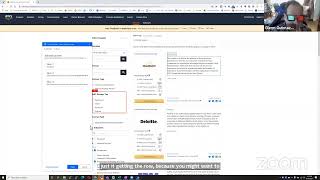
Vital-Baritone and Glen show how to use Power Automate Desktop to scrape speaker lists and partner data from websites. They extract fields like name, title, company, and LinkedIn URL into Excel, and troubleshoot a common Chrome issue where multiple instances prevent the browser from attaching correctly.
Chapters
Welcome to Shelly's Alley. Today we are going to take one step deeper into the mysteries of PAD, Power Automate Desktop. And with me is my buddy Glen, who is going to help me co-host the meeting. You might see him waving there. Hello. He's going to be here to contribute his two cents and see if we can show you guys some fun stuff today. On our last session, we went through a tour of all of the different actions that you can do within Power Automate Desktop. Sorry, I forgot to take my rainbow-colored glasses off. I'm going to do that now. Here we go.
Glasses.
You're keeping your 3D glasses? Awesome. So what I want to do today is show an example of just a basic scrape. Now many of you have used or are familiar with Instant Data Scraper or Data Miner or some of the others. This is a function that is basically just built into Power Automate Desktop, and because it's built in, there's also a lot of power in using this in combination with other things that you can do. For example, Glen has a converter that will take the data that you provide, such as a LinkedIn URL, and it manipulates that information and grabs those people's, uh, LinkedIn addresses and goes and gets their profile, etc. So this is something that you can do on your own with Excel. And in a future broadcast or future Shelly's Alley, we'll actually take this and put it directly into Power Automate Desktop. So if you're wondering, well, why do this if I've got Instant Data Scraper? Because Instant Data Scraper only really works with flat web pages where you can just grab the data from the web page. Once you have to click on things, then you need something like Data Miner. And with Power Automate Desktop, you have the advantage of being able to do all of that with, say, cognitive automation and converting information into lists in SharePoint, publishing it directly to your CRM. You know, you can basically right-click, extract, and export everything right into your CRM with one click. So really powerful. But what does it all mean? Well, let's take a scenario. First, I have to share my screen. Here we go, sharing. And then I'm going to show you this web page here, which is the ODSC virtual conference. Is this showing up, Glenn, on the screen there?
Yes, we see the browser.
Good. Okay, so this is the ODSC virtual conference, and more importantly, at the conference here there's a list of speakers, and this list is actually growing. When Glen and I tested this out the first time, there were like 80-something, and then we came back a few days later, um, and that's over 100. So it's, it's a list that's growing pretty quickly. It's a, it's, it's a vital, you know, list, and there's a lot of information in here about people that are thought leaders in data science. Every single one of these has, when you click through a bio behind the scenes with their name, their title, their company, and a bio description, as well as their LinkedIn profile or a link to their LinkedIn profile. Well, almost everybody. There may be some in here that don't have it. So here you have kind of like a two-dimensional page, right? Normally, if it's a page that just has names, um, and titles, you can just use Instant Data Scrapers, but because this has an extra click-through, it essentially poses a little bit more of a challenge, which is how do you go into each one of these, click in it, open it up, and grab that information. So that was the challenge that was presented. What we did is inside of Power Automate Desktop, we created a simple two-step process. For best practices, you might want to launch a new browser instance, extract the data, and then close the browser instance. But that's a little bit more complicated than what we need, just the bare essentials. So I'm going to just show you how to basically just launch a tab or go to a tab in your browser and extract the data, assuming that you already have that open. So the first step is to extract— sorry, the first step is to launch the browser, go to the page, And then the second step is to extract all the information and put it into a spreadsheet. I'm going to run this right now so you can see it real time, and then we'll go ahead and build one together. And then I have another example that Glenn and I are going to troubleshoot right here live on, live on stage. So I'm just going to run it. This has been pre-programmed and saved as a flow. This is my Power Automate Desktop, and you can see here it's a brand new flow called List Scrape Enrich with SeekOut. The idea is that we are going to scrape this, send the information to SeekOut, enrich it, and then get it back. But we only got this far because we then realized not everybody has SeekOut, so maybe we need to, you know, rethink that. I'm going to hit play now and you can see what it actually does. Yeah, I think that's what it did because it just opened two different browsers.
Yeah. So go, go to settings and then— oops.
There you go. Here? Yeah.
Near the bottom. Yep. Settings. And then on the left, you wanna click system under advanced. And then where it says continue running Uh, apps while Google Chrome is closed. We want to disable that. Yeah.
Good. Do I have to save it? I don't think I have to save it. It just kicks in right away, right?
Yeah.
Okay.
And you can do that also in the Edge browser if you want to.
Let's try and see if that actually did it. If there's in the tax, tax, tax manager. Tax season in the task manager, if there's any Chrome apps. Nope, it's completely closed the Chrome apps. So that may be it was pulling two different Chrome instances and it didn't know which one to load. So that may be the reason. That gives me hope that we can start over from this page now. Let's try it. Extract data, browser spreadsheet, no data specification. Click on the window. See, now it does let me click. This is definitely new. Before, it wasn't even doing that. Remember, it just like stopped. It was doing it at first and then it stopped doing it. Now I can see the tags.
So that's more promising.
Yeah, a lot more promising. Okay. I'm gonna right-click on the name. It stopped for a second there. It showed the, the tags, and now it stopped. That is strange. Very strange behavior. I mean, I was just on here and it worked, and then it stopped working.
And is cloud versus desktop helpful here to try?
No, no, this is desktop. Can't do it with cloud because cloud doesn't do web recording. All right, set element as pager, open element. There, we got it back. I don't know what I did, but now we got it back. So there's the name, there's the title, there's the company, there's the bio, just like we did at the very beginning. So far everything is the same. Except we got the error. Now the HTML— oops, back up a little bit. There you go. Right-click HTML href. Got it. Okay. Now go to the new pager. Move to the next page. Right-click on the second person's name. And if it brings up the table with everybody in it, then we know that it works. So right now it should be thinking about all the different tags and— oh, look at that, Glenn, it came up and put the table in here. So this is where we were before when we saved it and then ran it and it didn't work.
Are there any advanced settings you should be clicking at the bottom there?
Not— we didn't do that the first time we ran it and it worked. So I don't know why I would need advanced settings the second time around. I think the only problem was that thing about the multiple Chrome instances, which I guess we need to make sure we talk about. Okay, so now I'm gonna run it and see if it works. We solved the multiple Chrome instances. And it's able to capture the information, and it is now running, and it created it. It's done. It worked like magic this time. See?
And you still have the page open where you left it on the second guy.
Here is all the information, just like last time. See?
Well, that's great.
And it captured, let's see how many, 161. Wow. It was like 80 the first time we did it and about 100 the second time. Now there's 161. Look at that. So there's your— now one thing it did not do is it did not create the headings for the spreadsheet. So this would say name, title, company, bio, and LinkedIn, but you can easily do that. And one of the things you can do with regex is actually create that, that row. So we could have told Excel what to do with it. Bottom line is this now works, and it works the first time. I mean, it works the same way the first time we did it. I'm curious now if we can get that other one.
I mean, that data is fabulous and for those of you who wanted to take it to the final step of importing it into a data enrichment tool, we had said SeekOut, but that's only one of several ways to do it. You could get their email and phone number after that.
Yeah. What would you really need? I mean, you've got name and LinkedIn, although most of the time you really only need LinkedIn, but if you grabbed this and imported it into one of those tools, it would then be able to append the other information. Now what we're going to do is we're going to show you how to do that inside of PAD now that we figured out the double browser problem. But since we're here, let's go ahead and try this one as well real quick because we've got a little bit more time. So let me try to create a new one. I saved this one so we can close it. And I'm going to create a new one. And this will be Amazon Partners, I think it was, right?
Yep.
Great. Very similar in a lot of ways. Basically, it's going to be browse to a web page and then tell it what to do when you get to that web page. So the first thing is web automation. Launch Chrome, running instance by URL, and then our title. Oh, I remember this, this was the long one that it didn't like. Let's go down to the partner one. There we go. Produces the variable browser, extract data from web page, save it to a spreadsheet, and let's go browse to that web page. There it is. Okay, see, now it did bring up all the tags and everything. Okay, you were saying you wanted to capture what? The name of the company, you said?
Yeah, and the URL that, uh, I think that's linking to.
So we want that. And then we want the— this one, the, um, partners URL.
Yep, that'll be a specific page for them.
Yeah, perfect. Then we want the company kind of, um, description.
Yeah.
Okay. And anything else? Any of these?
Well, yeah, those, uh, competencies are— that's useful, helpful.
Yeah. So this might be an interesting way to— remember I showed you before where you can do the parent. So it's got these competencies, but you can also say go up to the parent. And if that's still not the parent that you want, then you can go up to the parent again and see if you can get to the point where it, you know, selects basically everybody in that like this.
I, I like it the way you had it where it was just getting the row because 'cause you might wanna filter on different competencies, but either way, just to illustrate it.
Is there a limit on how many, or do they all have 1, 2, 3, 4, 5, 6 competencies?
Some have fewer.
Ah, okay. Well, that's the thing with patterns is if you tell it to look for something and there's only 4, it won't. So let's just, we can always process this after the fact. And break it up. But right now it's giving us their 9 competencies, 7 partner programs. Anything else in here that we want to grab?
No, that's enough. Um, those links are just to share it on your own network. It doesn't go to their, to their link.
Uh, right. Okay. So then what we need to do is copy the exact same order by starting with the name of the company here. And now as soon as you do that, It says, oh, I recognize this, and it grabs all the information. But what's missing is that it doesn't have paging information yet. So we do have to set a pager, which means we gotta find the pager. And what you look for is basically is that there could be text that says next or an arrow or a button. That's what you want. So you're gonna say that this is the element That is the pager. And now we can finish it. And remember to change it to all available, not only the first, because it'll only do one page.
Well, just to warn you, first, in this case, there's a zillion pages. You might want to stop after some number.
Oh, okay, I can do that. So I can do all available, or I can do maximum web pages to process.
Yeah, why don't you just do 3 or so just to make sure it's working?
It's running. You can see it just did the next page and the next page after that. So it, it went 3 deep or 3, um, I don't know if I'm saying that right.
Um, 3, 3, well, if you have paginations deep, if you have 30 different companies here, then it worked because that's 10 per page. See? Yes, you do.
So 3 deep on that. Now, if we had said all and not set a max, it would have— I don't know how many pages there are— would have done, um, oh well, there's only 9. It would have gone all the way to 9. Hold on a second though, this is without the government, so let's Oh, 9,000. Strike that. 903. Yeah, that would have been a lot. But hey, if you need to do all the heavy lifting, might as well let a computer do it. So there you have it. Okay, so next time let's take the data that we got from the spreadsheet and do some processing using Glen's fabulous formula here. And, you know, we can even show you how to do some enrichment using a couple of different options. Like SeekOut or one that they, you know, we could do Swordfish, for example, or Kendo app, et cetera. So, well, thanks for sticking through with us today, guys. I know it was a little touch and go there for a moment, but we did learn one important lesson. And that lesson is if you have more than one Chrome instance, maybe a good idea to start fresh and not have any background apps running for your Chrome. And if you want to change that permanently as a setting, Glen showed us how to do that. So bottom line is best to do this with a single Chrome browser or really any browser. All browsers that have Chromium are going to have background apps, which means even with Edge you might still run into the same problem. It's looking for a browser that it recognizes, and if there's two instances, apparently it just doesn't know what to do. So, um, all right, well, thanks everybody. We will
More from Shally



Scaling Talent at Hypergrowth: Leadership, AI, and Hiring Excellence with Cindy Nicola







