Shally's Alley Live
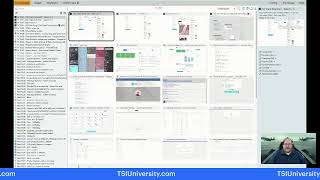
Vital-Baritone demonstrates Vortimo, a free browser extension for OSINT research that extracts names, emails, and phone numbers from web pages, archives them as screenshots, and visualizes your navigation paths. AutoVort automates scraping infinite-scroll sites like X to capture hundreds of aliases and domains at once.
Chapters
All right, friendly people of the internet, welcome to Shelly's Alley Live on Friday, January 19th. I got the date right this time. I did not get the date right last time. And, uh, well, I don't have a guest today, but I still— I am going to have a fun time with you. What I plan on showing you is a little tool called Vortimo that I have been goofing around with, and this is something that anybody can use— recruiters, sourcers, it doesn't matter— as long as you use any kind of Chromium-based browser. So Firefox, Chrome, even the new Safari, or if like me you have already made the switch to Arc, which is, by the way, I am completely infatuated with Arc. Maybe that's a topic for another time, or if we have a little bit of time today, I'll show you this browser. It's free and it is so much more powerful than anything else I've ever seen out there. But anyways, I digress. Let's talk about this tool called Vortimo, V-O-R-T-I-M-O. I know it sounds like something that should be in like, uh, like Hogwarts or some kind of magic school or magic academy or something like that, but actually it is, it is not. It's just simply a browser extension. So I'm gonna post a link here. Technically it's not a link because I can't really do links directly on the scroll screen thing, but it's a short URL and you can go check it out in your own time here. It is called Vortimo. There we go, srcn.co/vortimo, Vortimo. I'm going to leave that up for a minute before I start sharing my screen and just kind of give you an introduction. What this is essentially is an OSINT tool, and OSINT is open source intelligence. It's a fancy way of saying things you can find for free on the web without having to pay for a subscription or log in with some kind of username. So, um, it's, it's one of the many tools that we use in researching the deep web— not the dark web, but the deep web. So content that is not usually indexed in search engines. But it's not just deep web, it's also just regular web and other things like that. So what more— what What Vortimo does as an extension is it resides in your browser and allows you to right-click on content, and it's context-sensitive, meaning that depending on what content you are browsing, the choices or the options that pop up with Vortimo will change. So, um, a couple of things that this can do. Let's, let's see, it's, it's got the ability of, it's got the ability to instantly look up things like, for example, the history of a web page. So if you're on a page and you want to see what that page looked like in the past, a year ago, 6 months ago, 3 years ago, etc., you can use a Wayback Machine lookup directly from inside there. And essentially right-click and Wayback on that page or on a link on your website. Why would you want to do that? Well, a couple of reasons. One of them is, let's say that it's a conference and you know how conferences, if it's, you know, the 2024 conference, they're going to start marketing this year and the 2023 conference, they've already taken it off or archived it or whatever. You can use Wayback to go back to the 2023 website. Same thing with like lists of members of a board or bios of people, etc. Another thing you can do with a domain, so when you're on a web page, not only can you do Wayback, but you can also use BuiltWith. BuiltWith is a tool that tells you what technologies that website runs on, and it will— if you're in any way, shape, or form in, in tech recruiting, it will tell you what tools that competitor, for example, uses, and also what other companies use those tools. Great way to build some lists for competitive intelligence, target companies, and things like that. If you're on a social media website, Twitter, LinkedIn, Facebook, sorry, X, you can use it to analyze the ID. And what it'll do is it'll use that username and look it up and see if there are any other pages with, uh, created by people with the same username. So kind of find more of this person's IDs out there. And you can also get information about a link. So these are all domain-based tools. Then there's more. If it's text, you can use, uh, right from inside of Wordimo, you can use Wolfram Alpha, you can do a custom search engine lookup, um, you can search WebMe, Social Searcher, which is one of my favorite places. You can do a DNS lookup, you can find with an analyze ID, uh, with the user handle, for example, you can find that person on Instagram, Twitter, or even do a WhatIsMyName search as well. So there's a ton, a ton of features that, that allow you to kind of rapidly search. Most of these, you know, you can always go to Wayback, you can always go to BuiltWith, you can always do What'sMyName, you can always do Social Searcher on your own. So you don't need a place to hold all of those, but it just makes it really easy. However, here is where the fun really starts. You can turn on the ability for it to track all of the websites you visit. So for example, if you are about to start on a sourcing project or a research project and you want to remember everything that you looked at, it will actually save your trajectory. So with, with just turning this on, every web page that you visit is bookmarked and saved as an MHTML, which is a full file that shows you exactly how that page appeared when you saw it. If you're a job searcher and looking for work, this is a great way to save all your jobs. So every job that you apply for, it will remember the date, the time, and exactly what the page looked like. So that's something that you can turn on or off. It's great for tracking your projects, project work, etc. It also automatically saves the URL and a screenshot, a thumbnail, so you can see it when you do at-a-glance lookups. I'll show you that when I switch to screen mode here. It also allows you to capture any part of a screen to save it and find it later. So it does instant screenshots when you're on a page. So you found a page and you want to remember the page, it saves that. But you want to take a little piece of it, or you don't want to remember the page, you just want to remember a section of it, it can do that. Then it can search through all the pages that you've ever been to. Now you can do that with Google, but it only works on your Google search history. It doesn't work on pages you visited. To do that, you have to go into your Chrome history. So now you've got two places to look. Well, this actually saves— if you want, again, you can turn it on or off— saves all the pages and the URLs and tells you where you've been so you can search. You can also tag the pages so you can do further investigation. And tagging is really cool because then you can basically tag it with anything you want. You can tag it as something to do later, you can tag it with a project name, you can tag it with a rec number, you can tag it with a job ID, whatever, right? In addition to that, it also allows you to extract objects from inside of a page. So if you're on a page, it will extract names, email addresses, phone numbers, hashtags, aliases. If it's geolocated, it'll extract the GPS coordinates. It'll extract the IP address. There's a bunch of others. It also allows you to filter on an object to see where it occurred on any pages that you visited. So you can go into your archive if you turned on the ability to remember where you've been and go into that archive and filter by names. So you can see that name on any page you visited or email addresses or whatever other object you want to look for. You said, but wait, there's more. You can copy a list of objects from your history to a clipboard to paste into a report or directly import into a database. So let's make it really simple. Go to LinkedIn, see a list of URLs, you can copy all those and export them directly into a report. So it works as a bit of a scraper too. It only does flat pages, so it doesn't follow the links and go to those pages like a robot would, but it will allow you to extract all of that content and put those URLs into a report. But also, if you're browsing and you click on a page and then follow it to another one and another one, you kind of follow the, the, the pages yourself, um, even though it doesn't scrape that, it is remembering all of them. So it does archive not just the URL but also the content. So you can sort of scrape— it's manual, but you can sort of scrape pretty deep content. If, you know, if you hover on something, it'll screenshot that and so on. And then of course you can search for extracted objects. And there's more. You can also enrich the objects. So if you extracted an email, you can enrich it directly from the app while you're on that page. Boom. Enrich the name with email addresses or aliases. You can do a reverse image search natively. Google, Bing, and TinEye so far are supported, but there's the ability to customize and add any search engine you want. So you can customize the menu and add whatever search engines you normally would use, even if they're not already in there. There's also an EXIF, that's E-X-I-F, viewer. What is an EXIF viewer? Well, an EXIF viewer is a little tool that allows you to, um, see inside of like the guts of an image to pull out information like the GPS location or the author and other things like that. Now some of the, um, for example, LinkedIn, uh, images, if it's a person's profile on LinkedIn, there's not going to be a lot in there because LinkedIn does sanitize that. But when you look at pages that have images that are on people's blogs and websites and other things like conferences and events. The amount of information that's contained in them and in those excerpts is significant. Um, you can even find pages that use the same code using the built-in plugin. So you're on a page that uses some kind of code, you can say, hey, find me other pages that have the same code. Pretty cool. It will do a visualization or a graph of how you navigated from one site to another. It'll graph relationships between objects like email and phone and so on. And you also have the ability to do pretty advanced find inside of your history. So you can do, for example, type in a name or a job title and it'll find all the objects and pages and everything. And lastly, one of my favorite things is it has the ability for you to highlight things in 4 different colors. What things? Well, for example, you can choose the color blue and have it highlight on blue every version of the word Golang or the word resume on a page. So no matter where you go, if you click on a page and that word is there, it'll highlight it in blue. And you can have a dictionary of words for blue, yellow, green, and red and have the, these, these pages actually light up with the colors that highlight the, the keywords that you're searching for, whether they be job titles, company names, and so on. So here it is once again, srcn.co/vortimo.com. And as I mentioned, it is a simple plugin that runs on your desktop or your Chrome extension. So let's see if we want to— let's do an example for like data engineers, maybe, you know, something that's— or data scientists. right? So I'm gonna do data scientist and something simple like conference, conference speakers. I'm typing something into Google here and I wanted to show you how, how Vortamo comes up and what you can do with it and so on. Okay, here we go. I gotta refresh. Come on, Vortamo, don't let me down. Where are you? There you go. Okay, well, I need to share this page too, so let me share that one as well. Share. Bordeaux. So I'm gonna share this. That's one, and then I think I also need to share the other one as well. Let's start with this one here first. Okay, this is a little bit overwhelming, so what I'm gonna do is I'm gonna kind of see if I can zoom in on some of these things. These are the thumbnails I was talking about. And so you remember, it remembers everywhere you've been, your LinkedIn and all that. These are over here and you can search, like I said, for names and entities and objects and all that. So this is one view. The other view is the graph view, which graphs how you went from one page to the other. So you went here, you did a search and you landed on this other one and it lays it all out for you in a visual format. So you can kind of track the path that you took. Then here's the highlighting I was talking about. I just started experimenting with, with this on my, my second machine, which is my presentation machine. So this is not my production machine where I have all my recs and everything. But you can see here, these are the 4 colors that it has, and you can put the names of, or the phrases here, and then it will highlight those words in those colors on any page it visits. Of course, you can turn that on or off, make it visible or invisible. You can have it rotate or wobble or invert, etc. So there's a bunch of things you can do to get your attention with these, with these pages. I'm not really a big fan of black on black because a lot of times text is black. So, you know, you might want to do like what they call alpha, which is to make it transparent. And so it'll be more like that. Otherwise, it just looks like it's being redacted, which is a little weird. And then here is the OSINT tool that allows you to customize. So here you can add any additional widgets that you don't already have. For example, for searching images, if you use something other than the ones that I mentioned, it'll allow you to add those here. I'm not really sure this actually showed up on screen, so, uh, let me see if I can do that. Differently. Maybe I can do this. This might be one of those like weird picture-in-picture-in-picture-in-pictures, sorry about that, but it's the only way I can think of switching back and forth because here's the thumbnails and highlights and here's the actual customization that I was trying to show you here before. So now let me go to that one that I was typing in, where was that, just a basic Google search. Right? Here you can use— come on. There it is. When you highlight a word, I should have done principal scientist. There we go. Principal scientist. You can see Vortamo come up. So here's the contextual menu that comes up when it's plain text. It is— sorry about that. Ah, there we go. There's the Vortamo CSC, WebMe, social searcher. The DNS, which doesn't apply here. Onion, which is Tor, the Onion Network, which is the actual dark web. And you can also change the type and say, hey, this is not text, this is a name or something like that. And you can also open all of these, which open all of them at the same time. You can tag and you can also take a screenshot. Now the other one here is the name. I'm assuming Jasmine Batia is the full name, not machine learning because that's the title. Here's the name. We highlighted the name and you can see that it should recognize. Come on. There we go. It should recognize it as a name. Or if it's an alias, it pulls up whether it's a name or an alias or a hashtag or something like that. If you want to change it, you can change it to, you say, oh wait, this is not recognizing it correctly. That's fine. You can say, hey, this is a name. and then it allows you to do a search on, you know, all of these. I'm just going to hit open all real quick. It's going to open a bunch of them, and some of these like, uh, Tor probably won't make a whole lot of sense, so I'll close that one out. But it does show you WebMe— didn't find anything. Here's a Social Searcher, which I definitely like. I use this one a lot. It's a real-time social search engine, and it allows you to— without even being logged in, allows you to export the results. Here's a reverse WHOIS lookup on the, um, on the domain and so on. So you can see how powerful this tool is when you apply it on something like that. Now this is the last but not least, this is the custom search engine that, um, Vordemo itself has. So this is not mine, it's theirs, but you can see here that it has tabs for social, Instagram, LinkedIn, Reddit, Twitter, Facebook, Telegram, and so on. So you can search that whatever you highlighted in, in all of those pages as well, right through the extension. So that's what you can do with a, um, with a, uh, text search, right? So there's a little button that keeps coming up that's very annoying, and I'm not able to just— there we go. Sorry about that. Okay. I'm just going to try it. There we go. It keeps— the button keeps making it so that I have to look through the whole page. Okay, whatever. So let's go to one of these women in data science. There we go. So this is probably going to be a little bit easier. There it is, much easier. Sorry, it's a little small, but then you can see it's looking that up. If it's an image, you can see the reverse image. Oh look, they just added Yandex. So it's, it's Google, TinEye, Bing, and also Yandex. That's recently added there. And here's the EXIF information. I'll show you what an EXIF looks like. It's probably not going to be a whole lot on here, but it does tell me, for example, you know, what machine was used to take the picture or whatever. Oftentimes what you're looking for here is the name of the author or, um, you know, where the file might be stored, things like that. So it does give you some pretty useful information, and it remembers everything that we looked at here. So if I'm browsing on these, I can take snapshots of them. I can just simply open them up and copy the content. So even though it's not scraping it like you would expect, you can have it remember all the URLs that you clicked on, and you can have it remember all the text. That you looked at. So those are some of the tools that you can use. I'm trying to find and see if there's an alias here or like a username. Well, you know what? We can just do a quick Twitter search. Let's see, data scientist, and we'll do site:twitter. Should work. There we go. So there's a potentially an alias, and I should be able to just highlight this and have it recognize it as an alias, which then pulls up what's my name, user search, and a few others. So let's do what's my name first here, and just does a search on that. On that alias on what's my name, and you can see that that alias is used in a bunch of other places. Kaggle, PayPal, TikTok. Here's a Google search and here's a document search. Likewise, you can do the same thing with the alias and choose user search, for example, which is a different search. I could have just opened all of them, but then I have to close a bunch. So yeah, getting a little lazy here. Looks like it found it on Pinterest. And that's pretty much it. That's okay. We now have a few— Gravatar, Kaggle, PayPal, TikTok, Twitter, and Pinterest for the username NickSinghTech. So that is my, my tool for the day. You can see here the extension page when you, when you land on it for the Chrome Store, and it does have a little bit of an overview, but it doesn't really kind of tell you a whole lot. There's a, there's an actual user menu— not, sorry, menu— a user manual here. Let me see if I can find the documentation. There it is. So if you go to the osint-tool.com website, you'll be able to see the documentation on it, which allows you to learn more about how to use tags and learn more about how to customize the widgets that you may not have already done. It looks a little raw and kind of homegrown, but that is exactly what it is. This is, uh, somebody developed this tool for free for their own use, and they thought, you know what, I'm going to share this. Um, and they, they were starting to, you know, build a new kind of browser, and they're like, wait, do I really need a new browser? And maybe just a tool that enhances my browsing, and there you go. So here's the dude that made it, and you can see all the information that he has on how to, how to build it out. Pretty sweet. I've been using this a lot because it's contextual, right? So my biggest, my biggest use is the highlighting and the, the history. So it remembers all the pages when I was there and makes associations with them and everything. So you can see here are the names that it extracted from that conference. So this was the data scientist conference. So like I said, although it doesn't scrape the content, it does grab all of the URLs, and this can be exported right here. Not only can we navigate to them, but we can also do, you know, searches directly from here, and we can export all this into a CSV, which we can then put in somewhere else. And we can actually use one of these. You can do Aaron Kinworthy, for example. We'll do Kinworthy here. And search and see if there's any other pages where that result might have come up and so on. I just did this today, so there's nothing else. But if I was doing a data science search, I might have had other objects and so on. You can see the, uh, the usefulness of it. Pretty slick. Uh, huge fan. All right, so let me check and see if we have any Questions from the group. We have a happy Friday. Yes, happy Friday indeed. When I do these kind of tools, I like to keep them to 30 minutes because it's kind of a lot to take in. So I'd love to take any questions that anyone has from kind of the audience, or, you know, whatever might be going on out there. Otherwise, I'm just going to do some plugs here. Don't forget to check out my new ChatGPT course. That's srcn.co/gpt, which is, um, on sale for $49. Let's see, don't forget to go to my start page. That's still a lot of content that is in there. srcn.co/startme, and that has all the tools that I talk about along with some resources for job seekers. I'm gonna— we're gonna be doing an unemployed recruiter special in a couple of weeks. It'll be a panel, and we'll have a couple of folks that are, um, you know, helping job seekers in our industry. So we'll have that episode to kind of discuss ways and things and advice that we can talk about to help each other, you know, find jobs for those of us that are still out there on the market. So we're going to be doing that. Pretty soon. And, and don't forget, the other one is my TSI University, tsiuniversity.com, where you can take all kinds of courses on sourcing and recruiting and even earn a diploma or a sourcing certificate. So that is all I have for you guys today. I'm still waiting for anybody to ask a question, but it doesn't seem like we have anyone here. That is asking a question for you guys. Are there any other open-source intel kind of tools that you've been playing around with? This, this guy that did Wordemo also has another tool called AutoVort, which is like more of a scraper that I just installed and been kind of playing around with. It has the ability to actually grab all of the— it reserved— it not reserves, it saves or preserves the pages. So it's much more of a scraper than, than Vortimo. It's the same person who did it, but it essentially automates that kind of aspect of it. And it does have more of an infinite scroll tool. So when you have Google search results, for example, you can continue, um, you know, filtering and grabbing the URLs. So I haven't really done a whole lot with it, but it's kind of like Hunchly if you're familiar with Hunchly. Let's see if I can grab this real quick and show you. So let's go to home and do a search for data scientist. And people— oh yeah, obviously I'm not sharing my screen. Duh. Do that again. Where's that? There it is. Okay. Here we go. So I just did a search for like just straight up data scientists. I know, pretty, pretty basic search, right? And then I clicked on people. And so this gives me a list of profiles, people's profiles, mostly, not all people's profiles, but it gives me a list here on X and it's one of those infinite scrolls. So this is where Autovork comes in and allows you to do either, you know, infinite scroll, or extract the URLs. You can see it's, it's— I'm not doing this, by the way. I am completely hands-free. It is going to continue to scroll and will just go until, um, until there's no tomorrow. Now what's happening in the meanwhile is it's actually saving all these links using essentially Vortimo. So I'm kind of out of— Vort is the scroller part of it, and Vortimo is still running and remembering all this. So it's now building an index of all of these pages which I can then later search, I can export, etc. Wow, I was actually not expecting this to be that, um, deep, but it just continues to go. I'm still hands-free, by the way. It's just going and going. I'm gonna have to stop it at some point here. You can customize the settings and tell it, you know, when to stop or so. Ah, there we go, finally it ended. Okay, now let's go see how much of that actually got captured. I wouldn't be surprised if all of it got captured. Gotta go over here to Vortimo and data scientist search. It's— see if— wow, it did. Wow, look at that. That was pretty fast considering, right? Nope, there it goes. So it went up to here, uh, it grabbed all the domains. Now the domains can be the URLs that are on those, uh, bios, right? So when you, when you— oh shoot, I just realized I'm not sharing this either. Dang it, sorry about that. I was showing you wow and you're probably thinking, wow, what? So here it is. Um, Here's that search that we just did, right? And then on the right-hand side, here are all the aliases it picked up. So it picked up 357 aliases, 40 domains— these are the URLs that are in the bios— a bunch of hashtags, and a bunch of names, 104 names. That's interesting. Oh right, because some of the aliases might just be an alias without an actual recognizable first and last name. It did pick up a few email addresses. And, um, a few other URLs, even a quote-unquote phone number, which is not exactly a phone number, but that's all as a result of that one little thing that we just did. So now you can see how Autovore sort of sits on top of Vortimo and allows you to— I don't want to say scraping is too generous, it's, um, it is kind of a scraping. Anyways, so that is it for today. All right, folks. We are a little bit past the half-hour mark, so here we go again. Have a wonderful weekend. For deep thoughts, I wanted to leave you with what else can you use for OSINT, and maybe you can come back on the show next time and tell us about it. And for our next guests, I can tell you that our, our next guest next week is Brendan Cross-Williams. And then after that, we're going to have a show on a panel on job seekers. And after that, well, who knows, right? Check out Shelly's Alley. See if you want to nominate someone to be a guest. And please be kind to yourself.
More from Shally



Scaling Talent at Hypergrowth: Leadership, AI, and Hiring Excellence with Cindy Nicola







