Sourcing Automation with Microsoft PAD - Part 4
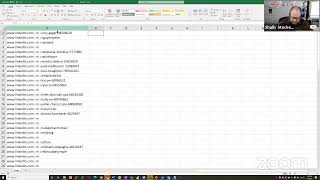
Vital-Baritone and Glenn Guttmacher build a Power Automate Desktop flow to scrape LinkedIn profile URLs from Google search results. They use Chrome DevTools to find the CSS class wrapping profile links, extract data with PAD's web scraping action, and use Excel formulas to convert breadcrumb text into clickable URLs, pulling up to 300 results across pages.
Chapters
And there we are. All right. Hello everybody and welcome to Shelly's Alley. With me today, again, I have the distinct pleasure of being joined by my buddy Glenn Guttmacher. Glenn, can you say hello? I think you've got the big screen there in front of you. Hello. All right, if you're wondering why I have the confused look on my face here, there's a good reason for that. Glenn and I have been trying to troubleshoot that capture of the LinkedIn href since last week, and we still haven't quite finished working it out yet. So we want to show you something a little bit different today while we continue to work out that other one, and I think you might enjoy this one just as much. Or maybe even a little bit better. So for this today, I thought, you know, there's something that I do all the time, which is to go to Google and type in a search for LinkedIn profiles using the site:linkedin.com command, right? I mean, that's pretty common. We all do that at some point, I'm sure. So let's go ahead and show you what we were thinking around that topic.
So here I go.
I'm going to zoom in just so you can see better. I just typed in site:linkedin.com. Now, if you wanted to make this a little bit more narrow, you can add the www, which might bring back US-only results, although you might still have a few others that kind of sneak in. Then I just put in a job title like tax manager and the phrase people also viewed so that I can limit my results to profiles and not end up scraping a bunch of like job postings or company pages and things like that. So far so good, right? This looks pretty familiar. Maybe we want to add a company name or something like that to make this a little bit more narrow, or maybe a location perhaps. So we can add Minnesota and narrow that down a little bit more. So now we have our list of results. What I was thinking about doing is, well, wouldn't it be nice if I can just grab the LinkedIn addresses? Because then we can take those LinkedIn addresses and run another process that Glen has been working on where he converts the LinkedIn address into the additional information. So when we solve for that, we'll be able to do both directly inside of LinkedIn, hopefully, and over here on the public search as well. So let's see if we can get this to work. Uh, the first thing that I did is I created a new pad for this and started Launch New Chrome. Now in the last 3 sessions, we encountered a situation where when there are multiple Chrome instances on your computer, it doesn't know which one to go to. And if you try to create a brand new one, sometimes it doesn't know which account if you have multiple accounts. This may be just something a few people encounter, but I discovered that a much easier problem— I mean, a much easier solution to the problem is to basically just use the attach to a running instance instead of launching a new interface. So same as before, you grab launch new browser, whichever one is your favorite. Then instead of launch a new instance, I choose attach to running instance. And then instead of a URL, I choose foreground window. What this does is that when I'm on a window, it's going to use this window to run whatever scripts we're going to run, which eliminates the problem of choosing a Chrome and all that other stuff. So here we are, ready to capture. I'm going to now add the next step, which is to extract from a web page. And as before, we're not going to actually save it. Choose Spreadsheet, of course, and we're not actually going to save it. We're going to go into the extraction mode over here. And as soon as we do that, you can see the extraction window come up. Now, this is where I was in need of Glen's assistance, and he said that Google doesn't really do a good job of showing the actual URL. So right now I'm able to capture the person's name title from the, from the, um, the first line there. So I can capture that, but I'm not able to capture the HTML attribute that is behind the scenes because it's sort of hidden in some, um, Glenn, what did you call that, a stylesheet? I think you're on mute.
Okay, yeah, it's— so every element on the web page has a CSS selector associated with it.
So CSS is a style— cascading style sheet, right?
Yeah, I mean, basically you're tapping into the classes and other tags that all parts of the page have surrounding them. So as long as you know what that particular class or tag is that contains the content you want, then you can target it and output it.
So to do that, what we did is we clicked on— in Chrome, you can right-click on the part of the page and click the Inspect. So you can also do Ctrl+Shift+I if you're into shortcuts. Ctrl+Shift+I will then bring the inspector window up, which kind of gives you a sneak peek behind the scenes. And wherever you hover your mouse is highlighted down here in the inspector. So here's that first one, and if we go to the next one— oops, I didn't mean to click on it, sorry about that— if we go to the next one, there it is. You can see it right there. So what we need to do is figure out what these are called, what these styles are called. And let's see, this was Caitlin. So right there you see the class, and above that is the href that is their profile. So if I hover over, you can see that that's actually a link to the profile. If I click on it and open it in a new tab, you'll see that the profile— that person's profile actually shows up. Well, in a minute here. So we know that that's the right place. So far so good, right? So this is what we were working on here. So Glenn said what we need to do is confirm that the class of this Cascading Style Sheet style is the same for all of the other ones. Well, we think it is. So let's take a look at this and See what the class is right above the hyperlink. It is Y-U-R-U-B-F. And Glenn, is it case sensitive? I have a feeling it is. So it's lowercase y, lowercase u, uppercase R, uppercase U, lowercase b, and lowercase f.
Yes, it is. If you want, I mean, we could be giving them a short course in JavaScript here. I put in the Zoom chat what you would actually enter on the console tab to start to generate the links that we're seeing here.
Alright. Let me grab it from the chat.
So that line of code, you're probably gonna wanna zoom in for people to see it, or we can put it in the main chat later. But that line of code is what you would paste in the console, which is the tab over from where you just were in the inspect area, which is known as the developer tools or dev tools in your browser.
Yep, gotcha. Well, what I can do is I can actually open up a, um, a Notepad here and copy that, because like you said, it's, uh, it's fairly small, but with this I can actually do a font size that's a little bit bigger, maybe like something like that, and that'll be easier for folks to see. So this is the code that Glen just gave me, and right here is the class that I was reading out to you. So that's the class that we discovered. I was just about to show you as a way of confirmation that if we go to the next profile, the very same class. Actually, I would have to expand this one here. There we go. Expand, expand, expand. There it is right there. I'm sure it's not very big on most of your monitors, but there's that YURUBF. And if I expand that, there's that like hyperlink, and below that, um, is the information that we were looking for. So there's confirmation that it is the same. So now we know that that code is the code for all of the— sorry, for all of the div tags that contain the hyperlink. So let's go back to— I think we're ready to actually do this, right? So we go back here to extract from the web. Change this to spreadsheet, and then before we hit save, we're going to go over here and ready. So when I right-click here and it's— and say extract element value, normally you would see the, the, um, hyperlink in here, but we don't. So what are we going to do now, Glenn? We're going to do what? Custom attribute. Is that right?
Wait, you're trying to do this now in here? Yeah. So the attribute name, it should be whatever the class name is. Well, no, that's not going to work there. This one's going to— what I gave you is what you would be putting in your browser's console.
Ah, gotcha.
So I, I— let's make sure it works in the console and then we'll figure out how to put it into—
oh, okay, I guess I left the console a little bit too early. Then let me go back to that and relaunch the inspector. All right, right-click, inspect.
Now that tab that you default to is called Elements, which means it's showing you the source code. But if you want to do stuff onto this code, that's when you go to the Console tab, which is just to the right. There you go. And you paste what I just gave you at that bottom triangle prompt that you see in that screen. Yeah, paste it right there. And then when you hit the Enter key, it's going to run that command. And what it's telling you here is that it looked for all of those Y-U-R-U-B-Fs on the page, and it's telling you how many there are. So yours says 28.
Yep, it says 28, and there are 28 results. Good.
So I mean, that is a good sign. That means that it is finding the 28 things we want. So the next piece of code we're going to do is going to say, okay, now that we found the right 28 things, grab the href within each of those and spit them out. So for that, it's a slightly longer set of code, which I can take people through with you. And I just put it in our Zoom chat. So you may want to copy and paste that into that doc you had before so they can see it better.
All right, let me grab it.
And I'll explain briefly what's going on before we show everyone the magic here.
But I gotta grab the chat. Um, whatever it's called, the chat, the code from the chat. There we go. Got it. Now I'm going over here. And so this is the first one. Here is the second one.
Yeah, so I included the earlier line so you don't need it twice. But basically what it's saying is, okay, now that you've found that. Well, you're going to need to paste the whole thing when we do this because you, you need to remind everyone, or you need to remind the browser, that yes, you need to know what all the links are. Then you want to find all of the a href tags within it, which is the, um, that line that says querySelector a href. Yeah, so that's basically saying loop through all of these uruboofs on the page and pull out the a href value from those. And we're going to add them to a little variable called strings. And then we're going to output it on screen. That's what console.log does. It outputs your variable to your screen.
So we're going to have it look for these tags. Yeah, and it counts them and it finds 28. Then we're going to say, all right, go back to those 28 and look for this and put that— store that in a variable called strings and then output it. So we're going to grab this whole thing, put it in here and run it. And it's now output— outputted or whatever the hrefs that it found. So now that we're here, if I was to run the automate, would I run the automate off of this page then? I believe that's what we would do, right?
Well, somehow we have to translate the JavaScript that I gave you, which does the right output, to what the format is that PAD wants. Um, and it should be something like that.uruboof, and then you might have to do a.a href after it. So it's a slightly more condensed syntax that pad wants.
So it'll be something similar. Do we need the quotations or not?
No, you should be able to do a.a after that and then.href. Now that may not be the exact syntax, and that's the piece I need to figure out. Let's try it.
Let's give it a try. Never know until you try. That's how we do it, trial and error, right, Glen?
Yeah, well, hopefully there's some help here that will, uh, allow us to figure this out.
All right, so we're gonna go here and right-click, extract custom attribute, and it would be this one, right?
We hope so.
Let's see. Well, it got 27 of them. That's interesting. Let's see what happens when we finish.
The problem is it's not capturing any values, which means we don't have the syntax right. It knows that there are 20 28 things. It just doesn't know what to grab within those 28 things. So our syntax is slightly off. Oh, here we go. That is helpful.
I just opened the advanced settings.
Yeah. So that's good because what it's doing for the selector is it's, it's basically doing a really long path that is— it's equating to what we're doing.
With all the div tags that preceded it.
Yeah, but you don't really want that really long string. What you want is that CSS selector field, and that is where you would put the Yorubuf thing.
So I'll copy—
I'm hoping you don't even need that long field. It's— yeah, what you have is the attribute. That should just say a href in there. And the urubooth part should go to the field just to the left, the CSS selector. So.urubooth is what you want there. You don't need anything else.
Let's try that.
I don't think you want all the h3 and all the other stuff that's in there.
It looks like it's building it off of the top div tag over here. So we'll try it this way. See if it works.
See, I don't even think we want that top div tag. I would get rid of that also.
Oh, we don't? Okay.
Because when you do that exact selector of your Rubuf, that's the only thing it should need for the page. You don't need a base selector, I don't think.
So we don't even need any of the div tags is what you're saying?
Yeah, you should only need to put your Rubuf there, and it does need a dot in front to tell it it's a class. So you have that period and then the a href. So this should be good. And if it doesn't work, I have another idea.
Let's try it and see what happens. All right, we're going to run it off of this page here and see what it does. For those of you that are wondering, I just hit run and it didn't extract any data. So that's an outcome. All right, let's see what we can do to edit it.
What I would like to do is go back to the selector that you were in before because it had a little help button in there next to the field, which I think may tell us the proper syntax. Yeah, click that little I in the circle at the right of the base CSS selector. Not that one, the one after it.
Curious though, do we want to extract a list or a table?
Well, no, it definitely is a list of values. It's just a list based on that CSS selector. So can you click the little eye in the circle there? Yeah, let's see.
Yeah, it's not doing anything when I do that.
It's not. That's not—
I know there's an eye there, but it doesn't, um, Doesn't actually— it's not clickable.
So I'm gonna have to do some search for pad help on that because I know we're close because it was able to find the 28 things. It just didn't pull the right data out of it.
So let's see, page CSS extraction mode. Okay, it doesn't really explain what these are. Just tells you what these are, but it doesn't explain what they are. Here's the input parameters. There's no explanation as to what each one of these are. So that's not very helpful. All right. Let's try it. If it's looking for— it's looking for it to actually be a pattern based on these div tags. And when we did it the first time, it found 27 of them. So how far down are we on this? We are at 1, 2, 3, 4, 5, 6, 7, 8, 9, 10, 11, 12, 13, 16 tags in. Wait, no, that's this one but not the one above it. 14 tags in. So it's the 14th level into the page that it's finding.
That's the whole point of having a CSS selector that's a unique value like that, your root div. It allows you to avoid having to dig 16 levels. You're just saying look for every instance of that.
Of that. Then immediately following that, a href. And is there anything else? I see this in here, Glenn. It's also got a ping. Do you know what that is?
It looks like there's different attributes that it includes along with the href, but frankly, you don't need that. The only thing you really want is the a href value, and that's why I did the a.href, although they probably use a slightly different syntax for selectors that I'm going to try to give you next, which I have seen used. And I think that's what they do here.
I'm— You need to tell it the length?
No, the length I only did for us just to make sure that we knew to go all the way to the end of the last one. I mean, yes, you need that in the code to tell it when to stop.
It also gave us one error on that tag.
Yeah, there may be one where the URL is undefined, non-standard for some reason. I mean, it doesn't prevent us from getting the other ones, at least. Yeah, all the examples, unfortunately, that I'm seeing have really long things. But I see what syntax they're using. So maybe we can still do our shortcut version anyway. Hang on.
So it's looking for that. Oh, that's not supposed to be there, sorry. All right. I wonder if— going to try something here. Not sure it's actually going to work, but let's see if it does. Probably should have disabled my extensions, although I don't think that's doing anything really. You think there's a way to grab the address from the URL bar up here?
Yeah, maybe. I mean, frankly, the URL of a web page is its own thing. You don't, you don't really need to dig for that when you're on a page.
Yeah, I was just wondering if we could grab it. You know, if our Power Automate desktop would actually grab that. Okay.
I think I've found the syntax that they're looking for.
Let's see. I'm going to do only the first 5 for this test here and see what happens. While you're doing that, see if I can get this one to work. Yeah, well, I got to grab one, so I can do it this way, Glenn. That's— that was kind of a weird workaround, but it worked. See that?
Well, obviously I want you to have something that'll grab the entire—
right? Yeah. So obviously I was just testing to see if that actually would work, and it looks like it did. I'm kind of surprised that it did, but there you have it. So that one will grab the profile information from the profile page if we can give it a way to switch the variables and paginate. The thing with that is that it would have to be two paginations. One would be for the next, or, you know, one for, one for the profile and then another one for the next. So let's go back. Do you have that code yet?
Um, I think so, right?
I'm going to reset this. There we go. Okay. When it's— when it asks to set element as pager, It is definitely capturing the href because it did click on it.
All right, let's see if this works.
All right.
So this thing I just put in our Zoom chat, you can try entering in that CSS selector field in PAD.
Okay.
I'm sure it's just some tiny difference in the syntax that they're expecting. So hopefully this is the right format.
All right, grabbed it. Back to sharing again. And I'm going to put it over here. So this is the original one up here. And this is the one that we tried second time around. Here's the third one. So this is the one you want to try now, the whole thing?
Yeah, just that line should be enough to put in the CSS selector field.
All right. I just wanted to show you this.
Yeah, I mean, you clearly got a lot of stuff, so I guess whatever that is is pretty close. We'll probably— I probably should look at that format of whatever code is behind the scenes that generated that much, because that's—
see, I was able to extract the search results. It doesn't— not all of them have accurate data, but I think that's just because people format things with a, you know, different— like there's pipes on some and not pipes on others, but that's easy to clean up. So that one worked. Now let's go back to see if we can modify this to, uh, edit. Let's see and reset it.
Yeah, we definitely saved that earlier version separately in case we want to go back to that.
Okay, so I reset it. Now we're going to do— so we're still going to use this, but we're going to do custom attribute. And you want to put that in here?
Yeah.
Okay, let's see if it finds it. Same as before.
Damn. So it's definitely finding the elements, but I'm Clearly, whatever I had you put in there is not quite right in grabbing that href. See what it—
maybe it's grabbing a space before. No, it's just literally blank. Okay. That's all right. Let's do the original one and I'll show everybody how to do it. So we can do that one, and then we can figure out how to add the other one. Just the same problem that we're having before. So what we're going to do is, as we started, we're going to launch a new Chrome, but we're going to instead of, um, go by URL or whatever, we're choosing use foreground window. That's where we were. Then extract data from page. Make sure you change this to a spreadsheet. And now we're going to— oops, I did not mean to click save. There we go. Now we're going to come over here and tell it what are the elements that we want to extract. So I was able to grab this element, which is the name, and in most cases the job title. And then I went, I went down to grab this element, which in most cases is the location, although you see some of them don't have it. That one has it, this one doesn't. And here's another element that I'm able to capture and a third. Not all of them have the same elements, however, so I'm going to grab this one as well. All right, then start back up again with the next one. And that automatically detects the pattern. So you can see here, I'm going to expand this a little bit. You can see that it's grabbed the same pieces of information from each of the results from value 1 through 6. And as you can see, some of them don't have a location, which is why it's missing. And that's because the location isn't there in the HTML results. So at the very least, we may not have the HTTP, um, href tag parsed, but we have all the data parsed. So when we click Finish and Save, then when we go and run this, I'm going to go ahead and save this here. All right, now when we go and run this on a page that is live, You'll see what happens. Okay, here we go. Run on this page, and I'm going to flip back so you can see it. It's running, it's in the background basically loading that page and grabbing all the data and then putting it into a spreadsheet, which is this here that you can see. And here are the different fields. The location, the title, the company, or at least most of the time. Um, with some, you can see here it has company but it didn't parse it. That's okay, we can still extract that from the information that we captured using a, a formula. You'll be able to create— there's a quick formula that allows you to pick the second set of data from after the tag. So it'll be a formula that can grab the tax manager and put it here, and then another formula that can grab the Johnson Johnson company and put it here. Um, so essentially you're just going to use a find command, which we can show you next time, but it'll look inside of this row and grab whatever there is there. And that's the spreadsheet that Glenn already built, um, for another project. So we'll, we'll show you that one. The only other thing I wanted to share with you here is we can actually do this now that we have this with pagination. So let me reload this and see. Make sure that you have your page set to— um, in your settings you can change so that you have 100 results per page. That's important because it's going to load 100 results before going to the next page. And we do want to capture all 3 pages. So this will allow you to get up to 300 pages of results. But the one thing that we need to do is we'll have to edit our extraction to include pagination. So I'm going to go back to our extraction, double-click on it and edit it, and come back to the page that we were parsing. And I have to scroll all the way to the bottom of it. So that I can select that next as the pagination. Right-click and set element as pager. Now it knows to go to the next page. Now I'll hit finish and I'll say all available, save it. And now we can run it and I'll show you what it does. So this one might take a little bit longer because it's going to do 3 pages of 100. Well, we think at least 100, um, on the first and second, probably not 100 on the third one, but we'll say run and sit back and wait for it to run. Nope, it's not in the foreground, right? I forgot. Had to have it in the foreground. Okay, there we go. So it's doing its thing. In a minute here, a few seconds, you should see the spreadsheet pop up. So it's now on page 2, extracting the data. Hopefully there's a page 3. There we go. Now it's on page 3, and there's only 3 results on page 3. So we're gonna have somewhere around 203 results possibly once we, uh, pull this up. And there it is. So all of that worked great. We just need the last little piece, which is the URL.
I got one more thing for you to try. Okay, go to the chat again.
You have to show— Got it. So that's going to be the same as before?
Yeah, in that CSS selector field.
Okay. So we've changed this one that didn't work for this one that We're going to try now. That's the new one. And we're going to go to our extraction, edit it. I'm going to reset it. So it's basically a brand new one now. Don't worry, I saved the other one. And let's go to the top. I actually don't really think it matters which one we do, but we're going to do custom attribute. That and hit OK. Custom attribute. That and hit OK. Let's see if it grabs it. Ah, they look blank again.
Oh, and all right.
Yeah, well, actually, hang on just a second. Let me look at something else. Site. So what is this one?
Oh, that's just the text thing you were highlighting before. That breadcrumb path is the URL.
It looked like it, but when I extracted it, it's got—
but all you're gonna have to do is replace those right greater than signs with slashes.
Let's see. Maybe you might be right. Let's see if we can convert that data. Finish, save, and bring it to the foreground. See what it actually grabs. Well, I forgot to paginate, but that's okay. All right, so this is what it grabbed. Um, it is not quite a URL, but you're saying that we could convert this into our URL. So let's see what we can do. It would be basically—
it's a substitute formula.
Replace.
Yeah, for every space brackets, uh, right thing, space, and replace it with a single slash.
So, right, so I'm going to substitute which text? The— I'm going to substitute the—
well, first you have to tell which cell that is. It's A2 is the first thing it wants.
Oh, I don't need to say the text first. Okay.
Yeah, the SUBSTITUTE formula says which cell Okay, A2, then now the text you're replacing is the space greater than space and pub, right?
But we still need the pub, right?
Yeah, no, you're just replacing— no, you don't need to replace the pub. Yeah, you're just going to replace all of that with a single slash. So within quotes, just put a slash.
Let's try that. Is it going to do it for—
throughout the cell?
Yeah. Darn it. Let me capture this because I don't think this is the same character.
Yeah, you don't need the pub, just highlight that character with the spaces.
Yeah. Let me see if I paste it in here, if it's going to be different. It might not be the same character. Oh, it's a different character, that's why.
Now it should work.
Yep, it's because this little, uh, whatever greater than sign is a different ASCII character. But now what about that plus CPA? That doesn't sound right.
No, I think that's part of the URL.
Really?
Because you're not grabbing individual profiles, you're grabbing these weird pub pages, so No, that's a search.
It's not actually a URL.
Well, can you change your original search to be a LinkedIn.com/in just so that we know we're getting individual profile pages?
Yep. URL in. All right, we don't really need to change anything because this— the parser still is going to do the same thing. Yeah, so I don't have to edit the parser. I just edited my search that I was doing. So let's make sure this is in the foreground. And again, I didn't do pagination, so it's only going to grab the first 100. Which is fine. Oh, it stopped. Didn't do anything. Hmm.
Okay, we seem to have this problem a lot when you run something and then you run it again, and I don't know why.
That's okay. I'm gonna just— I think because the other structure was different.
I mean, it looks like you had it showing in that window just before you hit reset, but—
Which one? Over here?
No, no. When you were actually showing the data, it was correct.
Oh, OK. Then let's try to run again. I didn't save it, so nothing changed. It's doing something. It did something, but it didn't do anything.
Yeah, see, there is— I can— that's correct, all that data. We just need to get that exported.
Yeah, why didn't it export? You're right, it's all in here. It should work. Oh, I forgot to put it in the foreground again.
That seems a little bit buggy for me. I wish that it did The foreground thing. It should detect your window better, but yeah, that's—
I mean, we can probably go back to the launch in browser, but, um, I think we got it. Look, it's, it's got the data. Yeah, so now we'll still do the substitute.
So you want A1?
Yep.
And this time you better copy the character because it is a weird character.
I learned that lesson. So I'm going to copy the spaces before and after it as well. Okay, substitute— wrong bracket— this, then—
yeah, paste it right there. That's good.
Then the slash and— okay, looks like that worked.
And if you want to be really fancy, you could even add the hyperlink Excel command as part of that formula at the beginning, and then all those cells would hyperlink.
Let's do that. Yeah, that goes, um, right where you are.
Yeah, just around here. Yeah, yep. And then you'll surround it with parentheses right after the word hyperlink in the very end of the cell.
Yeah, it's surrounding the entire Substitution. So, um, for those that can't see, I've put in the hyperlink formula around the substitution formula to convert it into an active hyperlink so that, you know, you could just click on it. So there you have it. Then the next step would be to grab this information, send it into Automator to go to those pages and scrape the information from them and then put those into, you know, it could convert each one of these into a PDF, for example. So you would tell Automator to go into an Excel file, this one, go to the column, and then follow each of these URLs, and then use the PDF converter to grab the text and save it into a PDF, for example, or to send it into cognitive processing or something like that.
And so I imagine we could have put something into the, uh, Pad Automator to say if the URL doesn't have anything after the slash in to skip it because there are some blank values there.
Oh yeah, how did that happen?
Well, it's grabbing every URL, but not all the URLs are valid.
Well, hang on, how many are there? 97, and there's 97 results. So how are some of these not valid? How is this one not valid? Uh, it didn't got— it didn't get all the information. Let me see which is the first one that happens with the fourth one. Okay, so the fourth one down, 1, 2, 3, 4. So this is actually not grabbing all the information.
It's funny because when you mouse over it, you can see the complete URL in the status bar at the bottom, right?
I know, but not the rest of it. Well, we got pretty far. I think I'm happy with this. We're three-quarters of the way to solving the extract and extraction of the full URL.
I apologize, I did not spend much time on this over the past week because as you know, I'm job hunting.
Yes, that's right.
I'll take leads.
Anybody who's looking for a genius-level sourcer, sourcing leader, you know who to call. No, I don't mean me. I'm talking about Glenn.
Yeah, I need the leads more than Shelly.
Yeah. All right, buddy. I will see you later. Thanks everybody for joining us today.
Thank you.
Take care, everybody. Bye-bye.
More from Shally



Scaling Talent at Hypergrowth: Leadership, AI, and Hiring Excellence with Cindy Nicola







