Sourcing Automation with Microsoft PAD - We cracked the code!
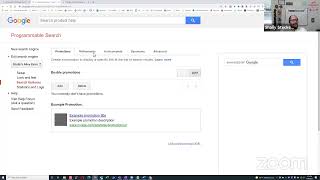
Shally Steckerl shows recruiters how to build Google Custom Search Engines to find candidates faster. Learn to configure advanced settings, create synonyms across multiple sites, exclude job boards, and use structured data to surface specific profiles. The workflow automates high-volume sourcing without relying on LinkedIn alone.
Chapters
choice. Ah, there we go. Hello everybody, this is Shelly's Alley Live. It's Friday, it's 1 PM. It happens every week, and here we are. Today I am inviting some folks to join me on the live presentation to do some sourcing. We did this last week and it worked out pretty well, so hopefully we'll get some folks to join us in the next little bit here. Feel free to comment on Facebook in the group, or Twitter, or wherever you want to comment. I think it's on LinkedIn, Twitter, and Facebook Live. Probably not a good idea to wear a white t-shirt today. I just realized it sort of looks, um, kind of like it blends into the background there, but that's all right. So what do you guys want to source for today? We did some interesting deep web sourcing last time for scientists. Should we keep going in that direction, or do you guys want to do something a little bit different now? What do you think? No, not a lot of commenting on that. Okay, no worries, that's all right. How about this? Let's go do some sourcing from Hmm, I have an idea. We can do custom search engines today. I haven't talked about that in a while. Custom search engines are really powerful because, especially the ones on Google, allow you to do some things that you actually can't do with Google. Let me illustrate what I mean by that. So I'm going to share my screen and go live. Here we go. 3, 2, 1, and we're live, coming at you live. Okay, so let's say that you wanted to do a search on Google for two different file types. You wanted to search for file type PDF or file type doc. And something like IT project manager for education. While this looks like it actually works, and you might think it does, really it doesn't. As we scroll down, you'll see all of these are PDFs. In fact, you can get quite far and you'll never see a Word doc. That's because basically Google is just throwing out the second one. It's only taking the first command and searching for that doesn't really allow you to search for both file types. So this is something that you wish you could do, or even if you wanted to do it with more than just two, you could do file type, um, XLS and/or PPT and so on. Sadly, it doesn't work. Or what if you wanted to do a search for content from two different websites? Using the site command. Let's say that you wanted to search for content on SlideShare and also on docs.google.com. As a habit, I always put brackets or parentheses around these, although they're not required, but it helps me keep things kind of in order mentally. So it's more of a visual aid for me. Um, although you don't really need it. So if you wanted to try and do this, you might find that you'll get results again from the first one but not from the second one. What's going on here? Well, they don't really tell you, but essentially they're just picking the first one and eliminating the second one because it's not a search that is enabled. However, I have some good news. We can actually do this with custom search engines. To do that, we'll go to google.com/cse. That's custom search engine, Google custom search engines. And we're gonna make a new one here. Let's take this example of SlideShare. I'm just gonna start with one website, slideshare.net, and why not, let's also do docs.google.com. Why not? And I'm just gonna call this my Shelly's Alley example live search. Click create, and we have now created a custom search engine. That's it, you've made your brand new custom search engine. Okay, that's not exactly it. Let's go to the control panel and try to imitate these other examples that we did here, this one and the file type. So you'll notice is that because I'm searching these two websites using the custom search engine, I actually am able to get results from both. I put IT project manager, and you'll see that I'm going to be getting some results. This is just an example search here from SlideShare, as well as if I click through some of these others, you'll see results as well from docs.google.com. But there's a few things that we want to do. One of them is in the advanced, we want to actually change our search features. I'm sorry, in the search feature— I do this all the time— in the search features under advanced, you actually want to change the web search settings so that you get, um, you enable your browsing history so you can look in your browsing history for it, and you get structured data. Don't forget to save it. And on the restricts, you want to increase the result size to 20. I wish I could do more, but 20 is the limit. However, even 20 is better than just 10. That's double, right? I also want to sort by date so I get the freshest results first. Now you can sort— and sorry, you can eliminate languages if you want. Not going to help you a whole lot because your searches are going to be in whatever language, but sometimes you will see that it makes a small difference. And then finally, I'm going to turn the filter off so that there's no site compression, meaning multiple results from one website will come back. Again, don't forget to save. You've got to save each of these sections. So I just basically enabled history and structured data, set my results to 20, and saved it. I also prefer tabs, but that's just a visual aid. Let's go back to our setup now. And for the look and feel, one of the things I like to do is instead of getting the overlay I like having it be a Google-hosted result, so it basically shows up in the current window. Again, just a look and feel. So let's take a look at what this is— what's going on live right now. Here's the actual custom search engine publicly, and it is IT project manager. We have somebody up. Nadim is joining us. Welcome, Nadim. Let me know if you have any questions. As you can see here, we are doing Google Custom Search Engines, and I'm now getting results from both SlideShare. Of course, there's a lot more on SlideShare than on Google Docs, but I am getting results from both. And you can see the layout has changed a little bit, as well as the fact that it, it has structured data. So this is going to start building, um, a structured data profile. You can see for For this example, the structured data that's picking up is the address. So this is the location. It's also picking up some meta tags as well. Unfortunately, there's nothing in here that says anything really particularly useful. Like for example, well, here's an hCard with a name. That's not bad. It does give us the person. So that's something we can use. I'll show you what this does in a minute. So we're learning from the structured data what we actually could use in our search engine as settings. So it looks like person, definitely, and hCard. Uh, where'd it go? There it goes, right there. We'll come back to that. Returning to our search engine, remember I said that if you wanted to do a search for both file types or multiple file types, it really isn't possible with Google. Well, not with Google Search, but we can do that with a custom search engine. The way to do it is under search features, we're going to create a refinement. A refinement allows us to add query terms to a search and it becomes a tab in our search engine. Right now there are no tabs, so we're going to add one. We're going to add one called file type. Just call it file type or whatever you want. And we're just going to give priority to the sites with the label. We're not going to limit it to only the sites with the label, just give priority. Um, you can turn on facet refinement if you want, but the key is down here we're going to have a parenthesis with file type PDF or file type DOC or file type PPT. You can add another one if you want. Let's add FileType, RTF for rich text format, and so on. Now remember I said people and hCard, that's where we would put that in here in another case that I'll show you in a minute. For now, we're going to stick to FileType, and we've got a few file types here. I really don't know why I put PDF in capitals, doesn't really matter, it's not case sensitive, but let's go ahead and save it and refresh our search. and you will now see a file type tab, which limits my search to documents in that format. Let's go ahead and refresh. Now it's not going to find anything because I'm only looking in Google Docs, showing you that right here, and SlideShare. So I have two options. I can add more websites and search on those, or I can just simply search the entire web, turn that on. And if I turn that on now, I'm going to be searching all of the Google Archive, which means that when I click on file type, I will now start getting results, and there will be results from Docs, from spreadsheets, from PowerPoints, etc. So you've learned so far websites, a little bit about settings, and your first refinement. By the way, refinements and also synonyms are located in the search features. Here's the refinement we just added. Now we're going to add a synonym. A synonym is basically any collection of words that you want to group together that can replace each other in a search. So where you would have a whole bunch of OR statements, you would put synonyms. So here, let's try and search for the word resume, but also include CV, vitae, vita, bio, profile, about me, about us, our team, our staff, our people. Um, geez, I can't think of any others. Uh, speakers. All right. And ah, I can't save my changes. All right, let's try that again. Sometimes when that happens, it could be two things. It could be too many And that might be the case here. And you also actually have to refresh the page just like it says. And see if it works this time. Nope. Okay. So it's probably too many. Let's go ahead and cut it off at speakers and see if that works. I think there's a limit of 10, but sometimes I can get away with a little bit more. 1, 2, 3, 4, 5, 6, 7, 8, 9, 10. Ah, there it is. Okay, I had gotten a little bit past the limit. There we go. So now we have the keyword resume that will invoke all these other words. Another idea for a synonym could be something like, for example, job titles. So we can call this job titles if you want, or you can call it, um, well, let's just stick to job titles. And we're going to look for software engineer or software developer or software architect or SDE or SDT, just to put a few on here. Now we've got two synonyms, job titles and resume, but we only have one refinement, which is the file types. Let's add one other refinement and focus in on social networks. For this, I'm going to strictly limit it to results from the websites that are labeled with this. Turn on the facet refinement and hit OK. And now we need to go and add some social networks. We've really only added two right now— website, SlideShare, and Docs. So let's add a couple more. Rather than adding them one at a time, you can actually include sites in bulk and simply type them in or paste them from another list, for example. So we got Facebook, LinkedIn, Twitter, um, and Pinterest, and then we're just going to hit save. Now since we created that label in the refinement section for social, let's go ahead and group these together under that label. And let's add these file types to the file type search to make sure that those are included in that refinement. So we'll reload this again, and now we see that we have file type and social networks. Clicking on social networks will bring back results from LinkedIn, Facebook, Etc. If this is not powerful enough, there's one other thing that you can do that might be pretty mind-blowing. Sometimes you'll get results from LinkedIn that are job postings or company pages or other content that you don't want that are not necessarily people profiles. The same thing might happen from Twitter. You might get careers, uh, careers.twitter.com content and so on. We can eliminate that going down to the bottom of the sites to search and clicking on the advanced, where you see a little feature that says sites to exclude. Here we can exclude all of those offensive websites. For example, if you don't want any jobs from LinkedIn, you would type in linkedin.com/jobs. If you don't want any careers tweets from Twitter, you can eliminate that, that as well. And let's say you don't want any company pages from LinkedIn. I forgot that one. So those have now been eliminated. Let's go back and refresh our search. And let's get a little bit more specific and use our synonyms. Remember those two synonyms that we created before? One for resumes and one for job titles. Let's start with the job titles one and see what it does. Just searching for job titles brings back results where it has the word job title, but then also it adds those other keywords as well. It's too generic though, 3 billion pages, because it's searching all of Google. So if we limit it to just social networks, now we're getting, um, results that are only from LinkedIn, Twitter, and Facebook. Ah, I see another one that we might want to remove here, which is Pulse. So that is linkedin.com/pulse, the blog posts essentially. No problem. Let's go back to our setup. And add another one. You'll have to go back to the advanced again. They basically hide it each time you leave. And we'll add one more, linkedin.com/pulse. And hopefully that'll get rid of those. Looks like it got rid of a few. Some Twitter status. Great. I think I put in job title, not job titles. Let me correct that. Double check. Oh, it is job titles. That's okay. Um, I don't really like using something like that generic, so let's try something a little bit different. We'll try, um, How about we call it accounting titles, and then we'll do accountant, finance manager, CPA, CFA, CMA. I'm sure there's a bunch that I'm missing. Accounting specialist. Accounts payable, accounts receivable. Running out of space. Okay, we'll stop there. I could also add accounting titles too, and so on. I want to show you how this works a little bit differently than the other, and it's the reason I kind of avoid the word job titles because it does get misinterpreted. Now I'm going to use accounting job— oops, you know what, it's probably better if I just copy it because apparently I'm not able to type today. So There we go. Counting job titles, search social networks, and it starts to pull up CFA, CPA, CFA. I don't see any CMAs yet, but there you see the examples. So that's the power of synonyms. And for refinements, similarly, it's now looking for those same accounting job titles, but amongst documents that are either a PDF, Word doc, PowerPoint, or Excel spreadsheet, or whatever you specified in that command. So you can see how powerful this is. You've got synonyms and refinements. They can work together or they can work independently. And with refinements, you can add keyword searches to the end of a refinement. Those are invisible when you actually run the search, or you can simply create a label, which is a refinement that serves only to gather up a number of websites that you're going to be searching. So the 3 components are basically this: websites that you add here or remove in the case of the exclusion ones. So websites, then you've got refinements, and you've got synonyms, and you're well on your way. For the time being, you can ignore a lot of the other things, although there are some advanced settings that you might want to consider, um, which we can talk about a little bit later. However, I made mention of the structured data, and there were some interesting components, like for example, people. Uh, let's see if I can find another piece of structured data here. Author— nope, not much there. Okay, so let me show you what happens when we build a refinement with structured data. This is going to be just an additional refinement. We're going to add one and we'll call this people. And down here for knowledge graph entities, we're simply going to choose the knowledge graph entity people. Make sure you don't choose People magazine. So that's been added. Let's refresh our content. I mean, uh, our search. And let's choose people, which now has the added knowledge graph entity. So we've got accounting titles, which is the combination of keywords for the different CPA job titles, and the refinement, which is actually a knowledge graph refinement. And see what it produces. Hmm, not much. Okay, let's try accountant and see if that I don't know why I had to type it twice, but there we go. Accountant and people. Nothing at all. Okay. Probably not a very good knowledge graph refinement to use then. Let's try something else. Oh, clicked on the wrong one. How about we add something like, Let's see if we can do the age card, see what that produces, because that was the other one that we saw earlier. I have never tried this before with age card, so I have no idea what to expect. That's weird, I got a strange result there. You know what, sometimes it's better to just go ahead and start over. I closed it out and I'm gonna open the public URL search one more time. It may have gotten stuck in a loop or something, so all right, we'll try accountant and people. Nothing, huh, okay, well, we tried. Interestingly enough, when we had this over here, We did get some— oh, that's company, although we're not supposed to be getting company results. I'm not sure why that's coming up. See that? It says company. That's not supposed to happen. Why is it happening? Oh, wait a minute, is it company? Oh, it's company, that's why. Ha! Try that again. My mistake, I put companies, but it's actually company. So, all right, here we are. Social network accountant. That's working now. So it is picking up structured data. Let's see what it says for structured data. There's meta tags, Twitter title. Okay, locale, platform, org type, profile. Okay, maybe we can try that. Twitter description, that gives me a good idea. Let me try something with that. CSC thumbnail. Okay, so people is not coming up here. That's interesting. I would have thought people would come up with LinkedIn profiles, but there's no structured data item called people. There's profile last name, but that's last name. App name, okay, that's interesting. And URL, hmm, can try the URL, but that's going to be the same as in URL. I like this Twitter description. Let's try that. So I'm going to add another refinement just for the Twitter one. Refinements, add Twitter description. It is Twitter description, right? Why isn't there Twitter— Twitter description? Yeah. But it doesn't let me add it. Oh, well. It was worth a shot. I do want to get something out of here though. Maybe we can just use Twitter. There's two Twitters. Well, since we can add 5, let's go ahead and add both, see what we get. Refresh the page. Accountants and Twitter. Well, didn't bring anything back, so that's very interesting. Oh, wait a minute, did I add Twitter as a social network? That may be why it's not bringing that back. Yeah, I did. It's right there. Okay, well, encourage you to experiment with that. Graph search is something I haven't quite completely mastered. I've been able to use it in a few examples. Let me show you one so you can see what I'm talking about here. Graph or schema base, there it is. So here's an example of one. What I did is I added the schema.org types to the front of them. You can add up to 10 here. So this is looking for Schema.org types as opposed to the knowledge graph, which is a refinement. This is the one that I'm used to using. I haven't played too much with the refinement one, but I encourage you to try the refinement one as well. Um, for the knowledge graph to work on schema, you basically add them here, and this becomes a search engine that only looks for these elements. So the keyword that you enter has to match the description in one of these elements in that structured data. If we look for accountant here, for example, let's see, we can choose— well, I'm going to leave with all results. You can see it's bringing back profiles and bios and people pages and things like that because it's limited to that structured data type. So there you have it, folks, custom search engines refresh. Hopefully you've enjoyed the session today. Stay tuned for next week, Friday at 1. We're going to have a special guest speaker. I've invited another industry leader to come and join me and talk about things like what keeps them up at night, how they're structuring their sourcing teams, and so on. So we'll be having Jim Miller from FullStory joining us next week on August 6th. So stay tuned. Have a great weekend, everybody.
More from Shally



Scaling Talent at Hypergrowth: Leadership, AI, and Hiring Excellence with Cindy Nicola







