Sourcing Automation with Microsoft PAD - We cracked the code!
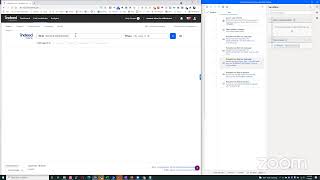
Shally Steckerl walks through building a Power Automate Desktop workflow to search Indeed for wind technician resumes, filter results, and email candidates. The team hits a snag: unique button IDs and an iframe block the final steps of adding candidates to a project and sending emails, but they solve the search and filtering part.
Chapters
Okay, we are live. Excellent. Happy Friday, everybody. We are live on Shelly's Alley. I have Glenn with me today, and we also have a mystery guest. Dennis hasn't said anything, but he's here in the meeting, so hopefully if he's got some questions, he'll pipe in momentarily.
Hello, can you hear me?
Oh yeah, hey Dennis!
Hey, getting used to the Zoom here on this other computer.
No worries. Yeah, you want to introduce yourself real quick, or—
Oh sure, I'm a sourcer with Boeing. I've been here 7 years or so, and I work mainly the engineering market side of things.
Oh, excellent.
Mostly secret, top secret, um, specializing kind of in electrical. That's the way we have it broke up at Boeing.
Oh, interesting. Wow, I think we have a lot, a lot to talk about.
So engineering is kind of tough.
Yeah, it is. Yeah, the hard sciences and the hard skills. Yeah, definitely. Yeah, I've worked with several of your competitors in, in different capacities over the years, including, you know, some of the big ones that you might recall, but I've never had the pleasure of working with your particular organization. I do know a lot about your field though, so I can feel the pain. Well, welcome. Hopefully we can work on an example that will benefit you today. I do have one quick little thing that was planned some time ago. Corey in the group had asked us if there was a way for us to automate Indeed, and I got pretty far, didn't complete the whole assignment, but I thought today would be a good time to just give it a try, change things up a little bit. So that's what I'm going to focus on today is we're going to automate Indeed searches and putting them into a project. So that's, that's kind of the, the premise here. So in other words, here was the request. Corey said— we invited him, but, but obviously he's, uh, not available right now. Maybe he'll join us later. If not, he'll have to watch himself being recorded here. But here's what he said. He said, I want to be able to search Indeed, filter the resumes, put the filtered resumes into a project and then email the candidates with, with Automator. So I was able to get about halfway through. So let me share my screen and show you what I have so far. Here's the little requirements there, and the example that he gave me was wind technicians. So let me break down what I've done so far. The first part of this is pretty straightforward. We're going to launch a new Chrome browser and we're going to send it to the Indeed resume search. That's just resumes.indie.com. And if you have an account and you're logged in, it'll just go right there. If you are not logged in, it'll ask you to log in. And let me know if that's happening for you. There actually is a subflow you can run to log into a web page. Or down here in Advanced, there's a— if a pop-up dialog appears, you can press a button. Um, but again, only if it's a pop-up that's challenging you to log in and you already have your, like, some sort of password mechanism that will automatically input your, your user ID. Like, you might have LastPass or something like that. If you don't have that, then you'll have to create a subflow that will pop up when, um, the login appears. However, I don't have to do that because it's— I'm already logged in and Indeed pretty much remembers you. So where we are right now is we launched a new Chrome window and we directed it to search resumes. Then I'm sending this— the command of adding the keywords wind technician to the what field right here. That's the search box. I'm also then sending another command to check the box for job title only, because that's for this particular example. I'm just looking for the words wind and technician in the job title. You don't have to do that. You can search skills, or you can leave them all blank and it'll search everything, etc. So for this example, it's filling out wind technician, checking the job title, then Indeed will actually start searching, but I'm not going to go with the original search because the original search is pretty broad. It brings back 13,000 resumes. So I'm actually asking to filter a little bit by doing a couple of things. The first filter that I wanted to do is to focus on results that are from the last day. So let's say that this is a routine that you run daily to picture any new results. And you can set this on a timer that runs every, let's say, 24 hours at, um, you know, 9 AM. So every day at 9 AM, it opens this and runs the script and, you know, adds to project and sends an email. So that would be the objective. So I've selected the last day. I can also select to exclude any contacts that have been messaged in the last 60, 90, or forever. But in this case, I just left it at 30. My idea there is, you know, I'm thinking Corey's not here, but my thought is if I haven't contacted them in 30 days, um, but I did contact them, you know, a few months ago, I can certainly send them another message now. I don't see why not, unless there may be a reason to avoid that or, or whatever. But you can certainly use the same technique for selecting last day and also use, uh, select, you know, don't, don't contact anybody that's ever been contacted before. Then I'm going to send a message to check the box for more than 10 years of experience. Again, this is just a preference, but Corey's request was to filter, so I'm assuming he meant some of these filters here. I just randomly picked more than 10 years of experience, and then it will execute that search. So where I was stuck was in the adding to project, because there's a couple of different ways to do this, and that's why I invited Glen to see if he and I can probably troubleshoot it. But let me go ahead and show you what I have so far by just hitting the run button and see where we go. So I hit run. It should open a new window. Go to Indeed search resumes, type in wind technician. There it is. Check the job title box, within last day, and then go down to the— oh, I forgot, I also checked ready to work, sorry. Then go down to the more than 10 years. Actually, I think 6 to 7 years. Sorry, my bad. Anyways, I forgot to mention I also checked the Ready to Work box. So this is now essentially executed as a search with 4— wait, no, 1, 2, 3 different filters. And this is where we are. I was at the step where I wanted to add all these to a project, but I ran into a problem. And let me show you exactly what that problem is. So right now, if I was to say click this button, which is what you would do manually, would be to click this button. If I do this with, with Power Automate Desktop, I'll show you what happens. I'm adding the press button on the web page, and it's gonna ask me to add a UI element. I go over here to add the UI element and choose this button. It seems like it makes sense, but the problem is that this button has a unique ID because it's the button associated with this Essentially candidate profile. So what happens if I— yeah, go ahead.
So the good news is if you inspect that in, you know, the, the dev tools, there is a common ID for all of the add to project buttons. So we would need to substitute that CSS selector, and I put that in a private Facebook Messenger message to you.
Okay, so this element, aside from having the unique ID for this user, also has a common ID, and you found that by—
if you right-click it and select Inspect, that's just your normal dev tool option in your browser.
Let me see if I can do that from another window. Inspect. All right. And there it is, button. So it is—
it's that value that starts resume_card. That whole long thing there between the quotes is a unique button value that Well, it's unique to all the buttons you want, right?
Okay, got it. Let me see if I can grab the text from over here. All right, there it is. Resume. All right, you saved me a lot of work there. Thank you. Okay, so now we need to go to the original page that I was working off of, and now we're going to select button. We might need to nest this inside of a loop, I'm thinking, but yeah, for now, let's see here. So we've got UI element, add new UI element.
And that leading pound sign probably will need to be dropped.
Let's see if I try to add this. Oh, there we go. Okay, so, uh, here's what— remember last time we tried this, couldn't figure out how to go in to do the advanced on this. So let's see if we can get it to work now. All right, there it is. Oh, oh, okay, right there. Oh, it's not letting me edit it. Hmm, it's this one, right? Yeah, that's the problem we had last time, remember? Once you select it, select that one, um, I'm not actually able to add or modify this value here. Shoot.
We seriously have to talk with Microsoft about this because what it's giving you is the class value associated with that button. And unfortunately, the class varies between all the buttons. The only thing that's consistent across all the buttons is this other attribute called data-c-auto-id, and it'd be— Yeah, if we could just tell it use that attribute instead of the class attribute, we'd be all set.
Which we can do. We can edit these fields in other actions, but in this particular action of pressing a button, it doesn't seem to allow us to edit the, the, the UI element or the mask. So maybe there's another way to interact that we could use. Let's see if there is a UI automation. No. Click UI element in a window, select menu, drag and drop, maybe click UI element in a window. Let's see if that does something different. Okay. Add new element. Same thing. And I don't think it's going to let us edit it either. Yeah.
Yeah, this is the problem that it's only letting you select things based on their class value, which is— sometimes that's good, but sometimes not.
Yeah. And I tried to put that— in here and it's not— that's not a possibility either. So it's not going to let me do that. Okay. What else can we think of to add the project? Let's see, would there be—
Well, I could definitely automate this in the browser as a JavaScript bookmarklet, but that takes away the value of Padlet.
Right. But you would do that through essentially writing a script that selects all the objects that have that that class name, right?
Well, basically, I would effectively tell the browser to click all those buttons using JavaScript, and then that would do what you're thinking.
Let's see if there's another thing we can do. No. No, no, no, no. Nothing there. I was hoping there would be something in the UI.
So Corey, just so you know, when you finally view this later, I'm going to give you the script that does that in case we can't figure it out in PAD, because I want you to have a solution that works somehow that's free, which this would be in your browser.
Also, by the way, you know, we're trying to do this in PAD, but we can actually have that script running here on this, on this, um, project. And all we have to do with the Pad workflow is add either a wait or add a subflow. So for example, let's say, let's say, Glenn, that we were going to do the, the JavaScript function. Um, I'm assuming that would be essentially a button or something that you would click, or how it would— how would you activate it?
So typically you— well, you can do it one of two ways. You can have it saved as a bookmarklet, meaning you could just select it out of your top favorites bar or bookmarks bar, or you can paste it in the area that you were in before when you did the inspect. There's another tab called Console right next to that, and you can paste JavaScript right there.
Okay, so if it's a bookmarklet, then that would be something that we could do. We can have the system wait for us to manually click the bookmarklet, or we can actually have the, the pad system send the same command that the bookmarklet would be sending, essentially, right? Which would be essentially— it would be JavaScript. I believe that we can do the script.
Oh, that would be cool.
I see there it is. Right there. So we can run a JavaScript on this page that would essentially do that.
Well, hell, while you're going, I'm going to see if I can just give you that line of code because I think it's only going to be a line or two at most.
Right. Okay. So that's, that's one workaround is to run the JavaScript because basically the bookmarklet is a JavaScript and then continue. The other workaround would be for the system to wait for confirmation from the user. And this would be my preference, would be that the user would have to choose Add to Project. And the reason for that is I don't know if I want to trust my keyword search and filter and add all 7 of these people. What if some of these people, like for example, here's a forklift operator, right? I may not want to add this person. So my preference would be for the system to wait for me to actually choose the few that I want to add to project. That's my suggestion. But, um, if you trust your search and, you know, you've got a, a really accurate search that's only going to add the exact people that you want, then you don't have to worry about that. Obviously, this person here is accurate. This one's accurate. Um, but as we go down, this delivery associate does not seem like it's accurate. Maybe that's my fault because I put wind technician without quotations. Maybe I need to do that. Let's see if that makes a difference. The thing about Indeed is every time you do that, you reset these filters. So that's okay. All right, we got better results now. It's— there's a, there's a correctional officer here. See, that's, that's the thing that I'm concerned with, is you would automatically add people that are maybe not a good match. So, hmm, let's do this. Let's add one other checkbox, and we'll actually check this box right here. It should work. Yeah, it should work. All right. So we were at these two here. We can actually copy these and paste. If you're super lazy, you can also just drag it from the UI on the actions over there. And then we're going to edit this and we're going to add a new UI element, which will be the clicking of wind technician. All right, so let's see where we Corey's here. I'm going to let him in. Hey Corey, you're in the meeting. Says he's still connecting to audio. Okay. All right. So I got a little distracted. I don't know where this stopped working, so I'm going to restart it. Launch new Chrome, go to resume search, put in wind technician, check job title. Choose within last day. Should choose ready to work.
And hey, Sally!
Hey, Corey! All right, and it shows traveling wind turbine technician. Okay, good. So here's where we are. We got everything up until the point where we filtered. So we put in the keywords, we choose job title, we choose within the last day. Ready to work, the years of work experience, which, um, I, for some reason it's saying 6 to 10. I thought I had selected 10 years, but it's choosing 6 to 10. And then we were about to create a function for add all to project, but we found out that, um, we'll have to probably run a JavaScript, which we can do from within PAD, that will check all of the— or not check, but click all of the add project boxes. However, I am curious as to whether or not we really want to do that. The reason I'm asking is because what if you don't want to add— let's say you've got 28 resumes in here. What if you don't want to add all these people? The first set of results look really good, see? But once you get towards the bottom, I saw like a forklift operator. Maybe you don't want to add this person. So, so Corey, the question for you is, Would you want to add everyone, or would you want Pad to at this point wait for you to select the ones that you want to add so that it doesn't add everybody? And, and, you know, and a follow-up to that would be, would you want to just filter this down to the point where only the exact perfect matches appear?
The ideal match would be anybody with at least maybe like 1 year of wind experience. I mean, the forklift driver, I'm definitely not interested in speaking to, but anybody with like wind experience, I definitely would be interested in speaking to. So I don't know if that's possible. If it is, that would be really cool.
All right. So for now, I'm resetting the filters and the keyword is wind technician with job title. Would that be— would you want to use job title or just skills or anything?
Probably job title would probably give the cleanest results, I imagine.
All right, that's where we are so far. So we got wind technician in job title. Sorry, what was the last piece?
Oh, I was just going to say when I use like skill and try to search for wind technicians, it doesn't come— it will bring up like engineers that design and stuff.
All right, and then I'm assuming within the last day because this is something you might be running daily, right?
Yeah, pretty much, because we have like a traveling wind tech that we recruit for. So I mean, that's pretty much what we like to do is try to reach out to anybody who comes in, you know, as quickly as they come into Indeed to reach out to them to see if they're interested in traveling.
Right. Okay. So we got within the last day. And do you normally check ready to work now?
Yeah, I was before because they used to give you free credits for it. But now I think that's changed. Got an email from Indeed saying they're not doing that anymore, but I mean, if you have WIND experience, I definitely would be interested in using a credit to email, to message them.
Okay. All right. So we definitely don't need— I don't think we need to work. Okay. That was one of the ones that I had in here. So let me go ahead and remove that one. All right, and actually I'm just going to remove these for now and choose the new ones that we want. So, so far what we have is within last day, and, um, if they have more than 1 year of experience, that's basically going to be pretty much everybody because only 1 of these people has less than 1 year experience.
Yeah, pretty much, you know, most of them, if they're on there, they'll have— or even 6 months, you know, even then, I mean, I'm interested in speaking to them.
Okay, so let's not check that then. Um, all right, so how can we filter this down to a little bit more accurate so we don't get these ones down here, these product technicians? Um, let's see, can we do job title? I believe there is a way to put job titles in the command line here, I believe, right?
Yeah, if you do, I think title and then a colon and then I think you can type the— and then you type the job title and you might have to put brackets around it. I think it's like colon bracket, then wind technician and then like a close bracket. Closing bracket. I think that is how you do it in the command line.
Let's see if that works. Title wind, title technician, and last day. Wind turbine, wind turbine, wind turbine, wind turbine. Let's see if anybody came up. Perfect.
Okay, nice, that works. Okay, cool.
That alleviates my concern of adding everybody to a project that may be sometimes not an accurate match. So now let's update our Populate Text Field in Window with the new text, and it's going to choose Within Last Day. It's not going to choose Ready to Work anymore. Basically, it's going to be right here. Now we're just waiting on, um, Glenn to come up with a solution for the JavaScript, or you would essentially choose the people that you want to add. Okay, let me hit run and show you where we are so far. So right now, first thing it's going to do is launch Chrome, go to the search, then it's going to enter our new title:wind and title:technician. Then select the, um, within last day. And I think it's going to end there. Oops, fields to set checkbox state. Oh, you know what, we don't need that anymore because that's actually in the command now. We don't need to check the job title box because we put title in the, uh, yeah, because in the search box.
Yeah, the command instead.
Yeah. All right, so we should be where we need to be now.
And did anything come up?
It's still in the middle of it. Okay, there we go.
Oh, okay.
And All right, nice.
That's pretty cool.
Oh, wait a minute, it didn't choose the last, uh, last day. I wonder why it didn't do that. Interesting. Okay. It's supposed to be choosing.
Yeah, I mean, that's basically how I do it. I, so I usually pick the last day and then run the search like once a day and then try to email anybody who's come into Indeed.
Let me try this. Right, exactly. Yeah, so we're almost there. We just need the solution of the JavaScript if you want to run it from JavaScript. And what's that— what that would do is essentially it's the same thing as Glenn's bookmarklet that clicks all the buttons, but you would normally click on the bookmarklet yourself. In this case, the bookmarklet essentially is built into the actual Power Automate Desktop.
Okay, so the JavaScript is running from within there to click all the Add to Project button.
Exactly.
Okay, I got you. Interesting.
And so what was the next step after that? So let's say we're, we're waiting on this while we're waiting on the JavaScript. We're here. And actually, I should probably Do this manually.
So after I add them to a project, I would, you know, I mean, normally go through and look at them. Well, no, I would look at them while I'm adding them to a project. And then I have a template, so I—
Well, they're all being added automatically. So that's the key here is we're working on actually adding them all to the project automatically. So you're not really looking at them because—
No, you wouldn't have to, hey, because they all have wind experience. Yeah, that works fine. So I mean—
So now they're all in a project.
I would just select— I have a template, so then I would go in and select the template and then push the email button and then email them all.
Oh, okay. So in the project— so let me go ahead and I'm gonna manually add a couple people here to the project. So that one and that one, and I'm just, I'm just adding a couple manually while we're waiting for the, um, Hopefully the JavaScript that will work. So now I've got two. So you're saying then after they've been added to the project, the next step is to go to the project and within that project, yep, you would send them all an email. Okay, so the next step would be for us to go to this project and we would probably— normally you would check each box manually.
Yeah, yeah, I would go through and check the box to add them to a project.
And then, um, yeah, they're in the project now, so we check the box to email them, right?
Yeah, I— well, yeah, I usually email them separately.
I didn't—
oh, I didn't ever realize that you could just check the box and email them all at once, right?
That's what I was wondering if you did that, or— no, that was my question.
I didn't know that was possible, actually.
Oh, okay.
No, separately, but I mean, if you can just check the checkboxes and, um, email them all at once, that would make more sense.
Well, that was my, that was my question. So one, one way to do it, let's cover both. One way to do it would be from the project, you click on the, you know, each of the links, right? And then the, and then you click on email And then we would have Power Automate Desktop fill this out. So it would put in your name, your company, um, and, and paste in the template and then send the email. So Power Automate would basically click this link here, then click this link, then fill out this form and hit send email, close, then go to this link click email, fill out the form, and so on. It went and it would do that for as many as are on the project. That's option number 1. Option number 2 is to use the JavaScript to check all the buttons. Let's say there's 20 of them, and then click email once. We still have to fill out the form, but when we fill out the form, we're now not, um, doing it one at a time. And this would be the most time-friendly or the fastest way to do it. So Power Automate would fill out your name, your company. Um, if you have a template— I don't know if you do— you could choose it, or you don't even need to do that because it's saved. So we can have the, the form filled out here where it would actually use the Power Automate, would type in or paste in, I guess, candidate, uh, first name like that, right?
Yeah.
And then you—
right.
And then it would say, hi, blah, blah, blah, blah, blah, right?
And then experience, I'd love to talk to you, blah, blah, blah, blah, blah, right?
Cheers, Corey, etc. So Power Automate will paste all that in here, select the job title, paste the job description, And then send the email. Those are the two options.
I just looked at my Indeed account, and this is kind of strange, but I don't have the checkboxes when I go into the project that I use that you have. So like, I don't have the option to go and check, click that checkbox and email them all at once. So I— and that's why I, I mean, that's why I go to each one separately.
So you click on this one. Okay, yeah, I don't know if yours has the checkbox feature.
Mine doesn't have that.
I don't either, but that's okay because I can still— Power Automate can still do this and click the email box. Not a big deal. So that would be the next step here, right?
So that would be exactly how I do it.
We're in the project. Let me, um, let me just kind of build it out here. So we're in the project called Wing Technicians. Let's see if I can browse to this directly. So this will be, uh, web automation, launch new Chrome, go there, save. Yep, so it's going to launch a new Chrome and go to this project. Excellent. Then it's going to extract from web page, and what it's going to extract is— see, this is browser. Uh-oh, I think it's browser2. Yep. Okay, so this will be browser2. And not to make it too complicated, but there's— there's the original search is still open behind here, so Browser 2 is going to store it as a variable, which will be— let's call this variable the candidates variable. And oh shoot, of course I didn't select what data to extract. Okay. And then it's going to extract the data, which is going to be the individual user. It's calling that a button, huh? Okay, let's see if I can— nope, no HTML. It's all right. Sometimes when I see that, I just select the parent element, and there it is. Oh man, I browsed away from it. So sensitive. Okay, that's the parent element. See if that has the link. It does not. Okay, it's not letting me go one level up from there. Maybe the div does. Nope. What about this one? One level higher. There we go. Still not letting me do it. Okay, that's all right. Um, what I was trying to do was extract all of the links for all the people that are on here. Okay, but that's okay. We don't have— just use the JavaScript and essentially click the buttons. Um, Still want to— yeah, I still want to do that. I still want to be able to do that. Hold on a second. Let me try something. Is this a class that we can use? I'm opening up another window so that I can do an inspect and not mess with the original one. So we're here. Let's inspect. Resume card location. Okay, yeah. Oh wait, no, that's not the right one. This one. Nope, this one. That one. Resume card name. Okay, so the, the script that Glenn is creating for the other one will also work here. Okay, because it'll use the resume card name instead of the class. But we found out earlier that Indeed assigns a class with a unique ID, but it also has a data-c-auto-id that is the, um, the main element that's going to be the same for all of them. So Corey has the same name as if we browse down here to this one, you'll see Austin has one as well. Okay.
So if you use that first one, then you can select them all.
There it is. See? Yep, exactly. You can select them all. That's right. And then it'll, and then it'll be able to launch from here. The next action will be for it to— oops, wrong place— for it to click on this button and then fill out a form. So now we're, now we're in form fill mode. So once we have that JavaScript to select these, then the next step here is to click UI element, which will be email. And that's the button, button, button, button. Where is it? Click, click, click. Hey. Oh, here we go. Button. There it is. Okay, so press button. And the UI element will be this. Oh, no. I didn't— hold on a second. Am I in the wrong UI element? Yeah, I think I might be.
It's pretty impressive how you can do that all live on camera.
All right, I got the right button this time. So now it's going to press that button. So we're here, it's— the machine will, will, um, press this button. And this will pop up. So now it's essentially form filling, right? And now it's really no different than any other, pretty much any other form. You'll just put in text field here for the first element, and that one is going to be the— your name.
Yeah, so it's just Corey Clark.
And then you put the text in. CK?
Uh, C-O-R-Y-C-L-A-R-K.
Okay, okay, got it. All right, um, excuse me, an error. Parameter extraction parameters can't be empty. Oh, right, okay. Yes, that's because I'm sending it to extract. I don't need this anymore because we're going to use the JavaScript anyways. So it's going to populate that, then it's going to populate this. So it'll be the, the next one will be populate text field again in a new element. Which will be company name. Oops, I did it twice. Sorry about that. Okay, and then it'll be, uh, company. I don't know if you want to tell people what your company is, so I'm just going to say company.
I do, it's fastest, so I put in fastest into that field.
Say that again.
It's V-E-S-T-A-S.
Got it. All right. Now you don't need to choose a template and you want to put in the message. Hi, this is Corey's message. I'm actually not going to send this. Of course.
I think you have wonderful wind experience. Please call me.
You're very windy. Yeah. So once again, populate text field and choose the browser. We haven't chosen the UI yet, so let's go ahead and choose the UI. There it is. Message required. And the text of the message required will be that. Pretty simple. This is probably the most straightforward part of it. Then I think the last set— I actually don't need to choose a job title, do you? Oh yeah, you do. Or no, or you could create a new one. What do you normally do? You choose a job title?
Uh, let me, let me, let me just open it up and see. So yeah, well, let's see. So I usually just select the template and then it autofills the job title. So where it says create a new job title, I just type in wind technician and then, and then the job description is pasted below like that.
Okay. So we'll, we'll do another one more text fill, two more text fields. This one is for the job title. And then the next one will be for the job description. So browser 2, UI element to be selected, which is this one. And we'll put this in— oh, you didn't choose it. Nope, that's not it. Oh, is this one of those that is considered a window? Yes, considered a window. I don't know why they do this. Sometimes it's considered a window, sometimes it's considered a web element, and I don't really understand the difference for that, like why it considers some a window— see where it's listed over here— and some a web. But anyway, so there it is.
No, what is that?
So yeah, this one— let me back up. This field, your name and company fields, they were both web page. Oh, for some reason, for some— I don't know why— reason it thinks this create new job title field right here is actually a window, not a web page. I don't even know why, but it Yeah, but that's what it hap— that's what happens. So when you click on it and you see it's not— when your UI element is not selectable on the web, it's because it's treating it as a window. And I don't really know the difference, but I'll show you one more so you can see. Here, this is going to be the job description, and let's see if it shows up as a window or web. So we're going to add the element, choose it from here. See, there it is. Job description required. Then look, it's not on here. See, that tells me that it's treating it as a window. So that's okay. I'm just going to go up here and choose window, and look, it's going to be in this list. Watch. See, isn't that weird?
Yeah, it's really weird. Job this Will it still work if you select the window?
Yeah, it's, it's a mystery, but I've had this happen several times where some are treated as web pages, some are treated as windows. And so then the last thing that will be necessary to do is to click the button. So for that is once again press button. Let's hope that it's a web page button, not a window, but we can still choose that. Okay, browser 2. UI element, add new element, select button. Whoops, wrong one. There we go. Okay. And it should appear here. It does. Okay. Now I'm actually going to delete this one because I don't want to send the message.
Okay.
But I showed you how to add it, so it's there, but we're actually— we're going to end before we get to that point. So now the, the process that we've got going on is it's going to start from here, click on the email, open up that interface, and fill out the— populate the, the stuff that you have to fill out. So let's see where we are. We're populate, press button, email, populate text field, populate. There we go. Okay. So from here, let's run from here. I think I can run from here. I thought I could. Doesn't let me run from here. Okay. These two, it says they have errors, but I don't know why. Mm-hmm. Can I run from here? Nope. All right, let's see if this will work. I'm going to delete these other steps because they're the ones that got us here in the first place. So it should start with this project itself. So it's the The process that we have going on now, which is a continuation of the previous one, is it's going to launch a Chrome and go to the project wind technician. That's this. Then press the button for email and populate the field. That's what it's supposed to be doing. Okay, let me check on Glenn to see if he's— Not seeing anything from them.
Sorry, I'm not that fast. You got to pay Andre Bradshaw for a quick answer.
All right, I think you guys can do this live on camera. We'll call him next. But so this is as far as we got, Glen. Basically, we would attach this one to the previous one, and what it's going to do is it's going to click on each of these here and then click on the email button.
All right, that's interesting. I'm noticing if you add it to a project, you really have two different clicks. The add to project then brings up a dialog for another click, right?
Yep.
So you get two different scripts, probably.
So you can't run it as one script?
Well, yeah, maybe I can. Yeah, because you're saying click this button, then click this button, and if it's in a loop, yeah, okay, probably. Let me work on that.
Okay. All right, so this is telling me this one's— this element is empty. I don't know why. Which one was this? It was click email, populate text field. Okay, hold on a second, let me back up. Clicks the button email, then the first one is your name, then the second one is your company, then the third one is— oh, this is the one that's blank. Okay, this is the one that's blank, so this would be company. I know we have it here somewhere. Your name, send email. Huh, okay, I don't see it, so let's recreate it. 5643, all right. So now it's working, and it's telling me the same thing over here with this one. And we know this is the message, this box here. So why is it not populate text field message? Oh wait, was that it? Yes, that was it. Okay. All right, let's try it. Should click email button. Oh, didn't click the email button. That's not a good sign. Oh, is this an iframe? This is an iframe. Hey Glenn, I think this is an iframe.
Okay, well that would explain why it doesn't look like it's doing the button clicking that I think my script should do, right?
Because it's an iframe. I just realized that. Okay, that's a whole nother problem.
Oh boy.
Corey, sorry man, we're gonna have to get back to you on this one because I just realized that this here is an iframe, and I think Glen is finding the same problem with the search, and that's why we can't figure out how to click that button.
So, hey, yeah, it's basically an iframe.
I, I, it's like a window inside a window. Best way to explain an iframe is, is think of it as this page, this web page here is loading another web page inside of it.
Oh, okay. All right.
And so the web page that is on the outside is the one that we can see, and we have no problem with that one. We were able to use the dropdown, we were able to check the boxes, no problem. But as soon as you go into this here, uh, let's see, can I draw? Is there a way to draw with Zoom? I think there is, actually. Let's see.
I'm feeling a little better because I was starting to tear hair out, and I don't have that much left to tear anyway.
I know, right? Me either. Here we go. So I can draw. There we go. OK. This here, that horribly not straight line, basically everything up here is the website. This is the website. And then everything here is now loading as an external web page from somewhere else. Oh, so essentially it's, it's invisible. It's like a window within a window. So the outside wrapper we have no problem interacting with, but the inside wrapper is an iframe that's pulling data from somewhere else. And so we have to essentially break the iframe in order to be able to interact with this. That's why Glenn wasn't able to choose the, the project or anything, because essentially it's invisible, right, to, to the, to the, to the browser. It's invisible. This, this is almost like having a second window. So we're gonna have to get back to you on, on how to solve that particular conundrum.
All right.
Yeah, but we did solve everything else. So right now what you have is a functional script that automates opening resume search, putting in criteria, choosing the last day, um, and, you know, checking the boxes on the left, and you end up with an accurate search. But then you'll have to manually add the project until we can figure out how to add that iframe. But I got a 2 o'clock meeting I gotta run to, so—
Yeah, well, I'm impressed. It's pretty cool.
We'll get you there. We'll get you there. Okay, come back on next Friday and we'll finish it up.
Okay, sounds good.
Thanks. Bye everybody, have a good weekend.
See ya.
More from Shally



Scaling Talent at Hypergrowth: Leadership, AI, and Hiring Excellence with Cindy Nicola







