Sourcing Automation with Microsoft PAD - We cracked the code!
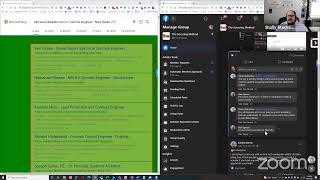
In this live tutorial Shally Steckerl demonstrates a practical "tool‑stacking" workflow for sourcing candidates and job listings. He starts by using Bing site:linkedin searches to collect LinkedIn profile URLs, then employs the Chrome extension AutoPagerize to concatenate paginated search results. The URLs are scraped with Instant Data Miner (Instant Data Scraper) and saved to a plain‑text file. Shally then builds a Power Automate Desktop (PAD) flow that reads the list, launches Chrome, iterates through each profile with a foreach loop, extracts fields (name, title, location, summary, first two experience entries), and writes the data into a single Excel workbook. He shows how PAD can sort the list, remove duplicate URLs, and manage row indices via variables to avoid creating multiple Excel files. He also applies the same approach to scrape job postings from a company's iframe‑based career page, highlighting limitations such as LinkedIn rate‑limit checks and the need to handle duplicates. Throughout, he answers community questions, clarifies that PAD is free, and shares supporting resources (PDF handouts, PowerPoint). The session blends live coding, troubleshooting, and community interaction, illustrating a repeatable, low‑cost sourcing automation pipeline.
Chapters
All right, happy Friday! It's Shelly's Alley coming at you again. Sorry, I'm a little bit late today. I had a meeting with a client and it ran a little bit over, and you know the old adage, right? Business first. So I had to take care of that conversation before I went into doing some of that fun stuff that we all like. So here I am doing the fun stuff. Welcome, welcome, welcome, welcome. Today I want to do something a little bit different. I'm actually— I started playing with different tools and combining them. Some, some people call that tool stacking or stacking, yeah, I don't know, stacking resources, whatever. But anyway, the point is I started experimenting with some tool stacking, and my buddy Glenn had turned me on to this tool called Instant, um, it's called Instant Data Miner— sorry, not Instant Data Scraper— which is pretty neat for when you have a simple page that you want to scrape. And actually, if you have a couple of pages, you can just scrape one at a time. It works really well too. So either way, it's a pretty good idea. And then I got to thinking, what could I do with that? One of the things I could do with that is I could use the information that scraped and do something with Automator, um, with Power Automate Desktop or PAD. So that's kind of what got me started down this route. Let me share my screen here and show you a little bit here of what I ended up doing. As in previous episodes, you might remember that I find Bing to be just a little bit more user-friendly when it comes to being able to get, uh, say for example LinkedIn results, um, or something like that. So I started using Bing to do some of my LinkedIn URL scrapings, and I know this looks like something that we've done before, but actually is not quite the same. I started with a Google search, and then I thought, you know what, this would be a lot better with Bing. Fortunately, the same kind of thing works, and what you can see here is pretty simple. It's a site:linkedin.com command. That's all it is. And then I added a job title, controls engineer, and then I added a city, New Haven, Connecticut. So that's producing the results that you see down here. And one of the things I like is that it already kind of has a little mini summary, a title, location, connections. Not that that's all that important, but it does give me some extra tags that I can take advantage of. So the first thing that I did was, okay, let me use Instant Data Scraper, and I'll show you exactly what happened with that. By the way, I did have this set to 50 results per page. So here's that Instant Data Scraper right there. I'm just gonna hit the button and it just does its thing. It opens up, it grabs the table, and it basically just parses all of it. Now this might be enough because I can grab all this information and put it into somewhere else. I can easily take this in Excel, for example, and then, um, convert that into the name and company and all that other information that you see on there. Sorry about that. We found a problem. Hmm. Yes. Okay. I don't know what the problem is that you might've found, but there it is. So pretty simple so far, right? There's the name, there's the company, there's the URL, there's the title and a few other little bits of information, including the location in some cases. Um, when it's available and all that. But then I got to thinking I could do more with this, and this is where Power Automate Desktop came in. I have a list of URLs, so I just grabbed that list and pasted it into a notepad. Now, by the way, Instant Data Scraper will actually continue to do this on the next page if you wanted to. So you could go to the page after that Then go back to your Instant Data Scraper and— oops, there it is. Locate the next button. It's thinking about it, I guess. Thinking about it too much. And start crawling. No more results. Okay. Maybe it didn't recognize it. That's okay, because I can simply just go ahead and crawl this again, hit the button and load it up. So like I said, there's some limitations. It's fast, but there's some limitations that you don't even have to put it into an Excel. You can just grab the whole list of URLs right here. All I'm doing is Ctrl+C, or you can right-click and copy, but I just did Ctrl+C and then I went to my Notepad. And pasted it there, Ctrl+V, and there's my list, all these URLs. Save this file somewhere and then I can use it from Padt, which I already did. So I'm going to save us the time of doing that and close all this out. Okay, so that's where we are now. Then I went to Power Automate. And said, okay, I'm going to open each one of these. This is what you see happening here. I'm going to open each one of these profiles. I will warn you that if you're going to do this for like 1,000 profiles, LinkedIn is counting how many profiles you load. And so if you load or view a lot of profiles in one batch, they might, they might put up one of those like screens that say we're checking that you're human or something like that. You're visiting profiles, so you're not doing anything wrong. But if you do it too fast or too many of them, the server is like being defensive or protective. So I really didn't do it for 1,000. I only actually did it for about 100. And for this example, I have a little file with only about 5, I think, of them, which is what this is here. So my first command was just simply go and read that file. That's the file right there that has— it's a plain text file and each URL is in a separate row, just like what you just saw me do where you— where I copied it and pasted it, copied right out of DataMiner and pasted it right in there, saved it, and I'm browsing to that file. Then I select, instead of the single text value which is the default, I select list, which is each item on there is an item in a list. It's basically one carriage return in the notepad. So every item is an item. That's why it's a list. Shouldn't have to change the encoding unless you do computing in a different language or part of the world, but usually that's the same. Save that. Then I'm going to launch a new Chrome window. In this case, I'm actually launching a new Chrome from scratch. I'm not doing the append to existing Chrome, and I'm going to whatever page you want to go to. You can put in here HTTPS. //www.linkedin.com or whatever, just to kind of get things started. So it opens a browser and then from there it goes into a foreach loop. This foreach loop I got from up here. There's different kinds of loops. There's a loop that just has a start and stop. There's a loop with a condition, if this then loop. And then there's a foreach loop. And of course you can go to next loop if you want to loop something, go somewhere else, do something else, then loop something and so on. I just used the foreach, which is going to grab for each current item in that list that it read up here. So this list here of profiles is stored here and it's going to go through each current item, meaning the next item on that list, and then it's going to go to that page on the browser we just opened, and then it's going to extract data. This is what I've shown you before, basic data extraction, and this is no different than any other scraper, so you should pretty much already know how to do that. But then it's going to loop and go to the next one and the next one and the next one. The nice thing about this is that it is essentially going to every single one of these pages and scraping the information that you weren't able to get from the Google result or the Bing result. And then when it's done with the loopy-doopy, it's going to put it into an Excel file and write the data. You can also put this somewhere else if you want. I'm just putting it in Excel. So it's a little deviation from what we've done before, but it works really well. See what happens. I hit the play button. First thing, it's going to open a Chrome browser and just go to like regular old LinkedIn. Then once the page loads, it's primed, right? The browser is ready to go. So now you should see it in the background going through the script. It's going to go to the first page on that list. So it's going to browse to that profile, Kevin, load the page, scrape whatever information I told it to scrape. And to keep it simple, I just said name, title, location, summary, and the first and second positions. Or, you know, experience number 1 current and experience number 2, which may be current or maybe past, but it's just scraping those for the demo. That's it. And I think I only gave it maybe 5 or 6 pages. So let's go ahead and let it go through the cycle a little bit here. That should pretty much do it. I think that's number 4. And I think that's number 5. And then it does, it finishes and it opens up an Excel. So this is a little bit different than what I've done before. Normally it's just right to Excel when it does the scrape. So the, the extract data from page itself, normally I would choose Excel, but in this case I'm storing in a variable because it's looping and it's storing lots of different data, and then I want all of that data at the end to get written into an Excel. So that's it. That's the only real main difference other than it's now browsing to each one of these pages one at a time. So that's a pretty nifty little tool that I, um, that I was playing around with there, and I think you can find it very useful. I actually have done more than just LinkedIn profiles with this. For example, There's a project where I needed to understand the patterns at a company where they had 400 jobs posted on the career page. So the first thing I did is I went to the careers page and did a blank job search for, you know, all keywords basically, which produced a set of results. Sadly, it was in an iframe. And so, I mean, who uses iframes anymore? Well, iSIMS, that's who uses iframes. So it was in an iframe, but that's okay. I was still spreadsheet that had the job title, location, and the, you know, must-have requirements, the nice-to-haves, all that, because all the jobs are formatted the same way since they're all in the same ATS. And I was able to get a spreadsheet that essentially put all of those into spreadsheet, and I could analyze things like the requirements and the job titles and how many jobs per location and things like that. Obviously, if it's your ATS, you can get all this report from inside your ATS, but this is not my company. I don't have access to that, so I'm actually building it or reverse engineering the report through regular public web access and then putting it back together and piecing it together using the robot. Now, it's not going to show me any jobs that are confidential or not posted, which of course, if you are in the ATS, you would still see. I'm only going to see the ones that are actually posted. So, um, that— there's a limitation there. But then you can do lots of other things with that data. So, um, that's kind of all I wanted to share with you today. I was hoping that we might have some Q&A and may even have some folks coming over from the Facebook group. So I'm going to go to Facebook group and see if we have anybody hanging around there or on LinkedIn. By the way, if you want to join the conversation, let me give you a URL. All you have to do is go here. That is srcn.co/zoom. Go there and it will actually drop you directly into the meeting. I will get a knock knock in the meeting here and I'll be able to add you in. So Let me put here, join Zoom live. There we go. All right. See if we have anybody. Doesn't look like we have much activity here. Or in the chat. Oh, Glenn did say something. He said I could use AutoPager Chrome extension so all the Bing Pages results appear on one page. Oh, I see. So in other words, um, I gotcha. You're saying that would be when I'm doing the Bing search. Let me grab that over here. This. So I think what Glen is recommending is that with Auto Paginator as a Chrome extension, I wouldn't have to wait for the page to load. It would just essentially kind of stitch together, I guess, as many of these pages as possible. Is that right? Is that what you're saying? If that's the case, let me try that. I think that's what you're saying. Let me grab it from Chrome. I should have probably put Chrome extension there. It's not one that I use because it's built into Power Automate Desktop, right? I mean, it's— there's the Page Finder there, but this is actually for using with Instant Data Scraper. So let's grab it. Let's see, I hope this is the right one. Auto pagination. It looks like it. Yep, it says yes, install it, and it becomes an automatic infinite page. Okay, I like that. Thank you, Glenn, as usual adding a lot more flavor. Okay, it has been added to Chrome. Now let's see if I can— first of all, I gotta pin it. Where'd it go? Where'd it go? Auto-pagination. Of course it's alphabetic, but I don't see it in here. There it is. Pin. All right, now I got to turn it on. Oh, not that one. Dang it. Okay, send me the, um, send me the link then. Or is there, is there another one? Let me see. Auto Paginator. That's what you typed. No. Okay. Do you have the link for it, Glenn? AutoPagerize. Oh, auto page rise. Ah, okay, that one. That's the one. Glenn says yes, this is the one. Okay, add that one. In that one, not the other one. Okay. Does it automatically just work or do I have to click on it when I'm on search? Let's see. Nope, I think I just clicked on the settings. Oh no, I just clicked on the Okay, never mind. Let's try this again. See if this will work. Aha! It is stitching them all together. I didn't even have to do anything. Basically, it's showing that that's— sorry, that's page 4 right there. And I keep going and it adds it again and again. So I'll put this up on the group, I think. Or Glenn, if you're in the group, are you, are you in the group? Can you push that to the group? Actually, I'll just do it here. This is the one right there. Oh, okay. That's a long one. Hopefully it'll work for you guys. Yep, there it is. All right. So with that, then going back to Instant Data Scraper, I don't even have to do the page by page. Um, come to think of it, I probably don't even need to use, um, Instant Data Scraper and then go to Power Automate Desktop. I can just stay here with Instant Data Scraper, or I can just use Power Automate and essentially load each one of these pages one at a time and scrape them doing that multi-level scrape that we did before. So let me show you what I'm talking about. Because of this extension, there's now no end, um, to the— now what I'm noticing, Glenn, is that I have to keep scrolling in order for them to load. So I'm gonna probably wait until we get to the bottom of this. I like that we're getting to the bottom of it before I actually hit the button. It's now we're on page 13. Okay, am I starting— I'm starting to see repeats. That's interesting. Christian Herring. Oh, it's adding a bunch of repeats. Okay, well, anyway, still should work. Let's click on Instant Data Scraper. It's doing its magic, probably taking a second longer because there's a lot of results here now, something like 14 pages of results. Wow, really taking a long time. That's okay, it's going to be amazing. There we go. So there's the whole list right there. I do think I see some duplicates, so Let me try something I haven't done before. This might be interesting. I'm going to go to that place where I had the jobs— not the jobs, I'm sorry, the profiles, this one— and I'm going to paste it there, right there. So I just saved all of it from the Instant Data Scraper. And now let me go to Power Automate. And show you something that we can actually do with this. So there's a built-in feature in Power Automate that allows you to remove duplicates. You can even do things like sort lists and so on. So it's, it's basically a way to manipulate lists. Once it comes up here, I'll show you. Since we already have that file right here, we can do something else with it. So up in here in variables— this might be a little small on your screen, I apologize for that— but where you can see here, it says different things that you can do: clear list, remove item from list, sort list, merge list. So we can do things like, for example, sort the list. So it's read text from the file and it's put it into a variable called profiles, which is essentially the big giant list. That's what I determined here as— that's a variable that I named it. This could be profile list, whatever you want. So we're going to grab that, and first thing we'll do is sort it, sort list, and the list that you want to sort is the list called profiles. Then after it's sorted— I mean, just showing you cool things you can do with it. I'm not saying that you would need to sort it for this, but after that you can then remove duplicates. Trying to drag that over here. There you go. Come on, drag over. Hey, all right, there it is. So I've sorted it. Now I'm going to remove duplicates. And again, same thing, I'm just going to choose profiles. You can ignore text case, but these are URLs, so I don't think they should have any text. So now what's left is a list that's been sorted and the Duplicates have been removed, and I can just start the process as I did before to grab each one of those profiles and extract the information right off of the, um, the web page. Now let me show you what can— I think if I change this from variable to spreadsheet, um, I'll show you the reason why I didn't do this because I didn't show this before, and you're probably wondering why am I doing that. It's because of what I'm about to share with you here. So I'm going to delete this and delete this. So instead of storing the data that's been extracted as a variable, what I'm doing is I'm creating a spreadsheet of it. But here's the problem. When I run it, it's going to go to each one of those URLs, extract that page, and then put it in a spreadsheet and then start the loop again with the next URL. But it's going to then add it to a spreadsheet again, which means I now have 2 spreadsheets and it'll continue doing this. So if you have 100, um, URLs, you're now going to have 100 Excel files. Now there's actually, now believe it or not, there's a way to capture all of the data from all of the Excel files and merge them into one. But why create that extra step? You'd be creating 100 Excel files, then you'd have to extract the data from the 100 Excel files and put it into one when you could just as well have written it into one Excel file. So it— by the way, the reason I know that is because that's what I tried to do the first time around. Whoops. Because it opened a new spreadsheet every time and I was wondering, why is it doing that and how am I going to help bring this all together? So By the way, you can see it's alphabetic now. It started with the first URL that has a number. So in /30, that's going to be the first one on the list. Numbers usually get alphabetized ahead of letters in computerese. Now it seems really slow, so it's not proceeding on to the next page for some reason. But here you can see the information that it captured. As I mentioned before, I just basically grabbed name, subheading, location, and, and experience. But what I wanted to share with you is see what happens. It's going to, it's going to go to the next URL. It's going to open another book called Book 2. So don't do what I did. I learned the hard way not to do that. Instead, I had the loop store everything as a variable and then put everything from the variable into an Excel. Not sure why it's taking so long, but there it is, proof that it's creating multiple Excels. There is another way to solve this, by the way, which is to add the data that it just gathered into an Excel and then go to the next row. For that though, you would have to create a variable. So let's do that. Let's change this back to a variable here. And so now what we're going to need to do is we're going to need to take that data from web page and write it to Excel. So to do that, we will have had to have opened an Excel in the first place. First step then would be launch Excel before we go into the loop with a blank document. Now we have an Excel file. It's supposed to have a new Excel file, but I moved the wrong thing in there. So grab it back out of here. There's the Excel file. You leave it in the loop, it's going to launch a new Excel file every time, which was actually the whole problem. So here's the, um, I did it again. Okay, apparently my mouse and my brain are in two different places. Now we have an Excel file that's been launched. Go to the web page, extract data. Then we need that variable. Set variable. Let's call this variable row, and it's now set to 1. Then it's going to go through the profiles and add the data by writing to Excel. And we're going to point it to the Excel instance that had been opened earlier. That's why we had to launch the Excel first, because that, that's how this appears here. The value that we're going to write is the value that's temporarily stored in the variable data from web page. That is the second step here, from first go to web page, then extract data, then grab this, and then write it on a specified cell, which will be in the first column, and it'll be the first row. But we're actually not going to call it the first row, we're going to call it row, which the first time around will be number 1 because that's what we set the variable to originally. So this is row number 1 right here. And then the last thing we do is just increase the variable. Which variable do we increase? Of course, row. And we increase it by 1, so it goes to the next row. And now the variable is set to 2 when it starts over here, and it goes to the page, extracts it, writes it to row 2, and then it makes the row variable 3, and so on. So this is another way to do it rather than storing everything This may be better if you have a lot of pages, because I don't know how big the storage is inside of Automate when it's storing, you know, large amount of data into a single variable. I've not actually figured out what that limit is. I'm sure there is one. So rather than storing it, it's literally just getting rid of it and putting it right in here, and then it'll reset that data from Data with Webpage every single time. Save that for the future. Well, nobody joined our, uh, our meeting, so let's see if we have any questions from the Facebook group here. Paul's asking, do we need premium for MS? No, no, it is actually, uh, part of Microsoft now, and in future versions of Windows, Power Automate Desktop will come installed in the machine. That was an announcement that Microsoft made, but it is free. So, uh, you can go to the previous recordings here in the group and see it, or actually let me do this. Um, I think, I think I can attach a PDF to the chat. I may not be able to, but what I know I can definitely do is put it in files. So how about this, let me grab this presentation that I created from the first introduction to Power Automate Desktop here that has the links for where to get it. So there's your download and setup and a couple of other sort of tutorials. This one also has a few screenshots as well of a directory scrape and extracting files. So I think you might find this pretty handy. Let me drag this over into files here in the group. So for those of you that are looking for this later, you go to the sourcing method And inside of the Files section, we have a library of PowerPoint presentations and handouts and so on, and the, um, the, the very excellent notes that Mr. Guttmacher takes during our sessions here. So I'm going to upload this file called Power Automate Desktop. So you can just grab the link from there. Can't type today. Here we go. Post. All right. Going back to the group home here, see if we have any other questions. Thanks for asking that. I should have probably mentioned that before. Let's see, anything else? Any other comments? Don't look like it. All right, well, thanks everybody for joining us today. That same URL is going to work next week, so if you want to hop on, just go to srcn.co. That's this right here, and you can join the meeting with me. So you'll be in the presenter room. You don't have to share your video, but I can hear you and you can ask questions and you can share your screen. And I'd love to just kind of run through an example of something that you want to try. Let's just try it. Um, somebody had asked us to try an Indeed, uh, automation, sending emails and things like that. I'd love to try that if, if you guys can jump on. I just want to understand a little bit more about what you're looking for. So hopefully we'll see you there next week. Have a great weekend, everybody. Bye, see ya.
More from Shally



Scaling Talent at Hypergrowth: Leadership, AI, and Hiring Excellence with Cindy Nicola







