Sourcing Automation with Microsoft PAD - We cracked the code!
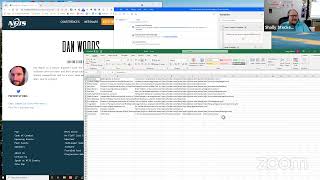
Kristen demonstrates how Microsoft Power Automate Desktop automates sourcing tasks like extracting speaker profiles from conference pages. A simple flow pulls names and titles in under two minutes; a complex one loops through 400+ profiles to capture bios and social links. Sourcers can build these automations without coding skills.
Chapters
I think we're live. It's Friday. It must be Time for Shelly's Alley. Here we are, Shelly's Alley coming at you live today, Friday, 1 PM, June 4th. I have a very special guest with me today. Kristen is a sourcer, a researcher in my organization. And funny story, I met Kristen many, many, many years ago when she was at mid-career transition. She wanted to get out of the industry that she was in, which was basically quickly deteriorating, you know, times change, etc. And she wanted to do something new and different. She had really good marketing skills and computer skills. So our foundation, the nonprofit foundation, Sourcing Institute, picked her up, and we taught her a few things. And before you know it, off she went. She has been a sourcer for some pretty top brands. I think Jet Propulsion Labs at NASA was one of them. Kristen, what other brands were you with? Yep.
Raytheon, Accenture, those, you know, the good ones.
Just a couple of blue-chip companies. Yeah, no big deal, right? So she learned sourcing at the Sourcing Institute through the Foundation, through a scholarship, and then went out and did some really amazing things. And I had the opportunity, fortunately, to reconnect with her recently. I don't know, a couple months ago, and found out that she had recently ended a contract with, with the current project and was available. So I knew what a catch that was. I snatched her up and now she's part of our team. And so today I asked her to be a guinea pig with a couple of things. Kristen is doing a very difficult search for a skill that some of you might know. It's called Kotlin, and it is an Android development language, kind of like an evolution on Java for Android mobile apps that are native, what they call NDK or the Native Development Kit. Anyway, don't need to confuse you with all that information. The point is there's— it's only 9 years old, and there's not a whole lot of people in the world that, that do this because, you know, first of all, it's Android only. And it's a derivative of Java and it's mobile development and it's a particular language that's a subset of that. So there's a limited market. Fortunately for us though, because of that, there are only a few ways that you can identify someone has Kotlin experience. One of them, of course, is the keyword Kotlin, but then there's a few others. For example, the fact that they do native development or NDK, Native Development Kit, in Android and, you know, Android mobile development and so on. So we actually did a little bit of research and we found this conference called KotlinConf. They held a meeting in 2019, um, and we're going to have one in 2020, but unfortunately that did not work out because of COVID So I was able to go back to their 2019 page. Here's what they look like today. Um, you can see that they've postponed it, but 2019 isn't that long ago. And I'm sure a lot of these people that were doing Kotlin then are still doing Kotlin now. So these are the speakers at that conference, and it's a pretty big page. Now, what Kristen would normally do is she would go into these profiles and read them and determine which ones are in the United States, which ones are, you know, go look them up in places and, you know, reach out and everything, which is everything a recruiter does and a sourcer does. But imagine having to go through each one of these one by one. So when I saw her doing that, I was like, you know what, I might have something for you. And I said, hey, let's get together on a call. It just happened to be on Friday. It just happened to be on Shelly's Alley. I didn't tell her this was coming, so she's being thrown into the fire here. Thanks for being a good sport, Kristen. And I said, you know what, we can do this live. And literally, uh, I mean, Kristen, you've never seen this before. You've never seen Power Automate Desktop before. You just saw it for the first time 15 minutes ago. How long did it take me to scrape this page with Power Automate Desktop?
Oh my gosh, even with talking me through it, like less than 2 minutes.
Exactly. And would you say you're a programmer? You have developer skills?
No, I would not say that.
You're very technical. I know you're a techie, you're, you know, very good with computers, and so you have a comfort level with that. And, you know, but, but you're not a programmer. You don't need to learn how to code. There are a lot of sourcers out there that feel like they have to learn how to code, and that's great. It'll help you write JavaScript for your bookmarklets and things like that, but you don't need coding skills for this. That's the whole point that Microsoft Microsoft wanted to get across with the citizen coder or the no-code coding with Power Automate Desktop. So this is a very easy two-step approach. It's already here, but I don't want to show you how it works. I want to show you what we did and how simple it is. So I'm actually going to delete these two steps. No, don't worry, I have it saved. That's okay. First thing that we need to do is we need to go to a browser. We need to tell the robot, hey, we're going to a browser, because there's a lot of other things you can do with Power Automate. You can do cognitive recognition, you can do user add and removes, you can create permissions, you can convert files. It says a ton of things, 400 and some odd activities, but all we're going to do is a simple web scrape. Which is one of the easiest tasks that Power Automate can handle. Um, in other words, there's a lot more complicated things you can do, and I'll show you another one that's really complicated, but it's pretty cool. First, let's just do this. Number 1, we gotta go to a web page. So we're gonna go to the web automation and we're gonna launch a browser. Pick your browser— Edge, Chrome, Firefox, Internet Explorer, doesn't matter. And then you're gonna tell the robot what you want to do with the browser. So we're going to launch Chrome, but I'm actually tricking it. I don't want to launch it, I want to attach it to a running instance. I can launch it, but this will open a brand new window, which is fine. I'll show you that in the next example. But for now, I already have this open, and I'm not going to do this over and over with lots of different websites. It's kind of a one and done, so I'm just going to attach it to this. And rather than choosing the title of the tab or the URL, which would be this, over here. I'm just going to use the foreground window, which means I'm going to tell the robot to go to where I'm actively, you know, right now what I'm actively viewing, which is why I have it opened up over here on the side so I can show you both. That's it. That creates a variable called browser which says, okay, this is the browser. That's it. PAD needs that in order to do the next step, which is to extract data from a web page, because it needs to know where to go. This is an extraction, but it doesn't know where to extract from. So it's saying, oh, okay, I'm gonna go to the quote unquote browser, which is this. And then it gives you two choices. You can use the variables and store it inside of a temporary file, which you can then later manipulate and convert and do all kinds of things. Or in this case, we just want this to be a quick one and done. So we're gonna grab it and put it into Excel. And now that creates our third variable, which is Excel instance, meaning basically a brand new Excel. If you've ever used Excel before, you know that when you open Excel and it pops up, the first thing that it does is it creates Book 1, Sheet 1. That's always the default, as long as you already have a Book 1, Sheet 1 open, in which case it'll be Book 2, Sheet 1, and so on. But it'll just open Book 1, Sheet 1, and it knows that, so it's going to just automatically assume it. Before you save this though, we're going to go over here and we're going to teach teach it what we want to scrape. This is a pretty simple one because there's really only two things on here. There's the name and the title. The title in fact has in many cases the company in it as well. Now since I don't want this to be too sophisticated and it's supposed to just be a one and done, I'm not going to teach it to separate the job from the title using regular expressions. But if you wanted to, that would be one extra step you can add where before it pastes things into Excel, it looks for certain characters. And with a regular expression, you can tell it to look for specific characters like the symbol, the comma followed by a space, or the space space. And those 3 things would tell you that it is a job title on the left and a company on the right. That's something you can easily do in Excel as well. So I'm just going to go ahead and grab the information first. And not worry about teaching everybody how to do regular expressions, because for that you do need to know a little bit of coding. So I'm giving you the no-code option. Back to extracting the data. First thing is we're going to tell it to go grab the name. There's a red box around it, and if you know a little bit of HTML, you know that div is basically a division, which means it's a piece of a page. We're going to right-click and say Extract, and you can see that person's name is right there. We're going to grab that, and there it is in our recorder. And the second piece is the job title and company. Again, extract, and there it is. But here's where the magic happens. As soon as I go back here and right-click on the next one and extract it, Power Automate automatically understands that there's a whole page of these and fills them all out. And if there were multiple pages of these, I could tell it to click on the next page icon and it would go to that page and so on. For example, there's past conferences 2018 and '17. I could teach it to go there and grab the same thing. We just want this one for now, so I'm going to hit finish and we're basically done. That's it. Now we're going to run it. As Kristin said, if you didn't have to listen to me jibber-jabbering, you could have already done this in literally about a minute flat. and you would be doing this right now, which is I clicked run. It's going to go grab the data, and you can see it working right there. And boom, there's the Excel. This is what I just showed Kristen, and as eloquent as she is, I believe she might have been speechless for a split second there. The one thing I didn't do is I didn't add column headers here. Again, because I'm not going to save this as a function that is repeated often because it's just this one page, but I do want to have a name and let's just say title and company. Here's where you would use Text to Columns to split up, for example, all of the @s and commas. You can use regular expressions, but if you're familiar with Excel, super easy. Go to Data. As columnar delimiters and hit finish. And boom, there it is. There might be a few kind of wonky ones because it— oh, you know what, I just realized I used the space as well. I did not mean to do that, so let me do that over again and do it correctly. Text to columns, delimited, comma, and other. That's what I meant to do. There we go. That's much better. As I was saying, some of these might be a little wonky because there are, um, text things in here that got picked up, like severely colorblind, coffee addicted, mistake-driven developer. Okay, that's not exactly company title or whatever, but you can easily pick those out. And there are a few that did not get picked out, like for example, Android at Google. That's okay. We can still use Excel to find and replace and grab what's left of the and what's right of the and that would be title and company. So that's pretty much it. Any questions, Kristen? You feel you can do this?
Yeah, I just have to say this is amazing. I'm really excited about this.
Great. Now I'm going to show you one other thing that hopefully will really blow your mind. While I do that, if you find another conference or something, or meetup or group, and you want me to pull it up, we can do that as an example with, with the time that we have left. But right now, let me close this out. Um, I, I did already— I had already saved it, so I'm not going to save it again because it was already saved. And let me pull up the other one. On our last episode, Glenn told me that there was someone who raised an issue about one of his favorite scrapers, Instant Data Scraper, not working for, for a day, or I think it was Data Miner, not working for a day or two, and they had to extract information from this Data AI Summit. But it was really complicated to do it with the alternative scraper because the alternative scraper required that you use XPath, and for that you do need to know a little bit of coding or scripting. And because of the level of sophistication it was a little bit out of reach from folks that may not be comfortable with programming. However, it's perfect for Power Automate Desktop. So I created a solution here. It looks a little bit more complex because frankly, it is a little bit more complex. One of the pieces that make it more complex is the fact that this is a multi-page situation. So first things first, we launch Chrome, and in this case, I am going to launch a new instance, but we could just as easily have attached to a running instance. And I'm going to open this page for a moment just to show you how complicated this actually would be with other scrapers. The reason for that is once again the fact that it's multiple pages. So I'm going to go here, meaning to the URL that we're about to scrape, and show you what that looks like. At first glance, you think, oh, no problem, right? Name bio, something, you know, a little bit like title and company like we were just dealing with. Sure, but it's actually not that simple. A lot of these don't have companies or titles or anything. However, when you click through, these are all separate pages that open up, and there you have a full bio, even their sessions, as well as their Twitter and LinkedIn. That's on the next page. The other thing that you'll notice is there's no next page navigation, so you can't do this with a simple web scraper, which is where Power Automate Desktop comes in. I'm going to go back to the original page here. In fact, I'm actually going to, um, just leave Google open and, you know, close this out so you can see what happens from the very beginning. Now I'm going to play this and then I'll go back and explain what happened. I'm going to hit run. You'll see the first thing it does is open a new Chrome browser and it goes to the speaker page. It waits for the page to load and now you'll see it start to go through some steps. The first one of those is to extract all of the data from that original page and it stores that data as a variable. Those data are the individual web pages for each of those bios. Then it launches Excel as I'm speaking, and it now begins to go to each individual one of those pages using a for each loop, loads that page in the background. Let me move this out of the way so you can see it actually doing the work. It loads that page in the background and it parses the information that I taught it how to parse. And then it goes to the next item on the list. And it adds that to the Excel by appending it below. And then it goes on and on and on. Now, this is 406 bios. I want you to imagine for a minute that these are LinkedIn profiles or Meetup bio pages or GitHub profile pages. Anything that you can do with a search where you can extract the results by extracting the HTML link to those pages, storing them as variables, and then going to each individual page. This is essentially doing exactly what Kristen would have done, only it's doing it rapidly, one after the other. It's loading them, scraping the information, and putting them into Excel. As I mentioned before, there's a couple of things that you could do to make this a little bit more sophisticated. For example, I could have added column headers. That's very simple. Before you start extracting data, you give it a command to name column 1 this, column 2 this, column 3 that, etc. And that's— and you're done. And then it just picks up from there. Another thing you can do is you can also teach it to start parsing in any content that is additional. So for example, here we've got the full name. We could have said take the first and make a first name, take the second, and that's a split command. So it'll split the text and put A first name, B last name. Likewise, it could do the same thing by splitting the comma, so you would have job title and company. But these are all very simple to do in Excel, so I didn't really take the time to program it. However, that would be the next evolution. As you can see, it's beginning to extract all the names, companies, titles, and bios. And in the event that there are LinkedIn links and Twitter links, it's grabbing those as well. What you'll notice is not all of them have a LinkedIn link. Many of them don't, but those who do, we grab it and the Twitter one as well. And those who don't, that's okay. We can then use any one of the data append services. There's lots of them out there. Clearbits. You can even use SeekOut or some of the other tools to upload and and grab the other information. There's a lot of different ways that you can enrich the data for the profiles that are missing. I'm not going to let this run all the way through to the end because it is 400 pages and it is taking about a second, maybe a second and a half per page. So that would be a pretty long time, and I think most of you would be passed out or asleep by then, or probably making placements somewhere else. So I'm going to go ahead and stop it. You can see what it's doing. It just keeps going and going and going. All right, let me stop it. My interrupt, nothing happens. It exits gracefully and it leaves the data here. Had I not done that, when it finished, it would have saved the file. And I can actually also use Power Automate Desktop to give it a name and put it in a particular folder. Or even use it to upload to SeekOut and append data, or go somewhere else like Swordfish and append data. I can even use it to create a list. So you take the Excel data and make a list in SharePoint, which then becomes a to-do item. So you can start calling each one of them. You can convert each of them into contacts as a list and so on and so on. There's so many other things that you can do. Really, the universe is, is your limit. It's whatever you can imagine you can do. The basic part of this was though being able to solve for the problem of we have multiple pages and it's not easy to do unless you know how to pull XPath or, or, you know, look behind the JavaScript. Or Glenn also found another way of listing the speakers that's a little flatter, but you still need to have multiple levels. So now let me show you what we did. It starts out the same, launch Chrome. Just goes to this page instead of attaches to running instance. That's the only difference. Then it also extracts, but the difference here is that what I'm extracting instead of name, title, and all that other information is the actual HTML tag that's behind this that points to that person's profile. So if I was to right-click and open in a new tab That's what I'm extracting right there. And that is inside of this div tag. If you right-click on it with the extraction here, you'll see— it's going to take a second here to load— you'll see that it's extracting the HTML address of all of those pages. Here's a little interesting factoid that I haven't quite Put my— oh look, it's 406, not 404. Ha! Maybe they added 2. That does happen. They do, you know, these speaker pages do change. So there you have it. So a little bit of a head-scratcher. When I first did this, I was a little greedy and I wanted to grab the name and bio and the extraction URL. So I would already have that and then I would be able to append additional information. By scraping each page. That would have been really nice and really elegant, but the problem is that we ran into a limit. It only loaded about 200. It stopped halfway through, and there's nothing I could do to figure out how to let it run all the way through to the end. So I was thinking there may be an extraction maximum of how many things it can store in temporary memory or something like that. I'm going to research that and get back to you on it, but for now, suffice to say It was only half the data, so I said, you know what, we don't really need the name and title because we're going to get that on the next page anyways. And I just tried the HTML URL and it grabbed all of them, so it didn't exceed any limits. And that's one thing that we did notice. So that's it, we grabbed the information and stored it. Now another thing that's different is that normally I do this as an Excel because I'm just going to use the data, but in this case I'm storing the data as a variable called data from web page, and you can see it has 406 rows, 1 column. That's temporarily stored. The other one had 404 rows and I believe 3 columns, but then— sorry, 200 rows and 3 columns, which is why we did it this way. After that, it takes next step to launch Excel, just open Excel, and it makes that Excel the active window. Then it initializes, initializes a variable called row. This is so that it adds every HTML link that's scraped as a new row in Excel. You'll see how I use that later. The variable starts as 1. Pretty common practice to start a variable that's incremental and just start it with, you know, 1 or 0 or whatever. Then I use a loop, but instead of looping indefinitely or looping under a condition, I loop for each. What that does is The foreach loop is going to go into row number 1, do that, come back, row number 2, do that, come back, row number 3, and so on. Which is why at the end of this loop I increase the variable row by 1. So the next time around it's row 2, next time around row 3, and so on. And it will do that until there are no more rows. So I don't even have to find the last row or anything like that. From here I go back to the same thing as before. I'm going to go to a page which is now the actual profile, and I'm giving it scraping instructions like I would from scratch. So this is essentially what's called a subroutine. One other thing I can show you is in here you can actually create subroutines or subflows. So I would be able to have a main flow that's this if it's a little bit more complicated and there's more steps, and then have a subflow for that that shows up only as one step. That makes it cleaner for you to be able to edit, view, export, et cetera. This was not that complicated, so I didn't use a subflow, but you could create a subflow that then hides this information behind another window. So it goes to the page, extracts— you already know how to do that. It selects the active Excel in case something else has happened, like a popup and whatever, it's forgotten which Excel it is. It then goes to that Excel. And writes the value profile data, which is what was extracted here. So the first extraction produces data from web page, the second one produces profile data and temporarily stores the row and the 5 columns. Now it's going to grab first row, put it on cell 1, increase the variable, rinse and repeat 400 times. That's it. Again, no programming skill. What do you think about that, Kristen?
I mean, this is pretty dang magic, honestly.
That's what I thought when I first started using it and thinking about what we can do with it. Yeah. So now your job is to think of ways that we can extend this, right? Do more with it now that we have— all the work is being done for us by scraping the data and and we're doing it on our machines. So imagine this was LinkedIn, for example. We would be doing it on our browser from our account on our machine. There's no third-party software. You're not in violation of anything, and you can load one page at a time. You can even, if you wanted to, create a wait period here before it loops back and that waits for 5 seconds, 10 seconds, whatever you want it so that it's not doing anything in a kind of velocity or speed that would send up any flags. You're not doing anything wrong or illegal, but you definitely want to make sure that you're not exceeding the, uh, you know, the bandwidth limits that they have, um, which is one of the ways that they try to control this kind of activity. There's nothing wrong with it, but it works, right? You can do the same thing with LinkedIn profiles, LinkedIn Recruiter meetup pages, anything that has multiple levels of pages, including Google results. The one thing that you have to be careful with regarding Google results is that, remember, if you're getting a list of URLs and extracting that, all of the URLs have to open up to pages that are identical. So if they're all a particular type of profile, that works. But if one of them is something else, then the machine stops. There is a way that you can do error checking where you add if error, try again, or if error, just skip to the next page. That way, if one of them doesn't work, it just continues and goes on to the next one. But it's really when you're going to do a scrape off of a Google search or Bing search, you want to make sure that those links are almost— most of them are, you know, the same kind of format. So you could do that with Google results, you could do that with your ATS, you can do that with your CRM. You can extract from your CRM, store them as variables, and paste into your ATS with a function that does the extraction and pasting in two simultaneous flows. Extract, copy, paste, extract, copy, paste with two flows or a subflow. Lots of different things you can do with it. Did you find anything, Kristen, on your Kotlin that, that was another thing that we could test out?
Yeah, I put a link in the chat.
Yeah, okay. This happened to me before. I'd like click on this to try to find the chat, and it doesn't seem to come up when I'm in presenter view, probably because it doesn't want— oh, you know what, that makes sense. It doesn't want me to be sharing my screen in case the chat is private. Ah, I finally figured it out. Let me stop sharing and then I can grab the chat. There we go. You would think that they probably could find a way not to show the chat as a window, but I got the link. There it is. Going back to sharing. Okay, so here we have a list of speakers. Uh, now did you find that this links to a bio. That's— oh, look at that. And these are her presentations. Yep. And podcasts. Ah, look at that. Okay. Lead engineer and bio. Let's see if this is repeated. It is repeated. Okay. So the difference between this one and that one is the other one has the LinkedIn and Twitter handles, which we do want to grab. So we'll basically do something very similar to what we did here. Why not take advantage of what we already have and pretty much just duplicate it, right? So we're going to grab this one and say NFJS. Yeah, what it's called, No Fluff Just Stuff.
Yeah.
So I opened the previous flow, the Data AI Summit flow. I guess I should have kept that open. And now I'm going to save as— see if I can do that. I'll— I'm not sure if I can do Save As from here. I thought you could. I didn't want to have to redo it all. So let's see. That's okay. We can work on it later. All right. So we're going to grab this page. Launch new Chrome. And go to this new page, save it, and we're going to extract data from this page. In this case, it's going to be that. So we're going to open the Extract from Page, right-click over the— oops, that got in the way— right-click over the name, and there's the href. We're going to grab That. Then the next one. There's the address. And oh, look, it sees a whole bunch of them. Great. We're done. That's it. Save it. Then it's going to launch Excel, set the variable. Now we need to tell it what to look for in the subsequent pages as they open up. So we're going to grab Extract from Page again and retrain it. And this time we're going to train it to— oops, it keeps coming up right in the right place where I don't need it to come up. There we go. All right, first things first, name. All right, Jessica. Second, title. Here's where if you're going to do this a lot, you probably want to build either a split text function and process it as you're processing this, or you can do a split after when you paste in Excel, or third option is use a regular expression and it hardcodes it into two separate fields. So we got name, title, company. Now we need bio. Then if there's a Twitter, we'll grab that. Oh, it looks like it's not See, there it is. There it is. Okay. Twitter, GitHub. Make sure you inspect it, make sure it's the right address. Okay. And website. By right address, I mean it's not like a blank or something like that. Er, okay. When it's this frustrating, sometimes you just have to select parent and try it again. There we go. All right, now we got that. Kristin, do we want the presentations and podcasts, or are you happy with this so far?
No, I'm happy with this. This is all I need.
That's all you need. There you go. All right, finish, save. The rest is the same— set active Excel, write to Excel, increase variable, and so on. I think I can actually save this as something else, but I'm not sure if I— I want to change the name. Let's see. Edit. No. Tools. View. Help.
Huh.
There's got to be a way to change the name of it so I can save it as something else, but that's all right. Let's go ahead and run it and see what happens. First time we've ever done this. So run. Keeping my fingers and my toes crossed. Browser goes to speaker page. Remember that one of the settings that we configure is wait for page to load so it doesn't start doing stuff with a blank page. Waits for page to load, grabs the data. It's stored it in the background as data from web. You can see 51 rows. Now it's opened the Excel and it's now visiting each one of those rows. Well, each one of those websites individually, which are representative rows of that data. And here we have name, title, kind of a long title there. All right. And bio, Twitter, GitHub, and website.
Amazing. Absolutely amazing.
Did you see any of these have LinkedIn or none of them did?
Yeah, for some reason they didn't include LinkedIn on their speaker bios. Kind of weird.
I It's not for some reason. I mean, I've known for a while now that people in the tech space, developers, they use their Twitter as their, you know, about me much more than they use their LinkedIn. And, you know, it's— this has been going on for a while, so I'm not surprised that they don't even— they chose not to even have LinkedIn in here because most of them will either have GitHub, right, if they're engineers, developers, or Twitter, or both. And a lot of them will have a website that's like their their blog or whatever. So this just goes to show you, folks, these are 51 people that either don't have LinkedIn accounts, or they're not publicizing those. If they do, I mean, they may still be on LinkedIn, but it could be obsolete or whatever. Goes to show you how important it is. Now, this is now down to 30. And we've done about 2 minutes. So let's see, how much time have I saved Kristen? Hmm, let's say it took— what would you say it would take you to grab one page?
Oh God, about this, about a minute maybe, at least. Yeah, maybe.
Let's, let's be generous and say a minute, and there's 50 of them. So it would have taken you darn near close to an hour to do what this machine has done in Under 3 minutes, it's almost done. Like, quite literally, it's on 40, 41, 40. Oh wow, it just jumped to 48. You can see in the row what the row counter is right there. So it's literally almost done now.
Oh my God, amazing.
I don't even think it's going to break 3 minutes. Look at that, under 3 minutes. We didn't even break the 3-minute barrier. 3 minutes to extract 51 profiles of people from this page. How cool is that?
That is darn cool.
Remember the same trick, right, as, uh, splitting this up, because some of these might have company names like Okta and Oracle and so on. But also some of them might not, just as independent consultant, right? The other thing I notice sometimes is that the bio is where they have their where they work kind of information. So it might not say that in the title, but it'll say in the bio, you know, Llewellyn is a consultant for blah, blah, blah, etc. So there we have it. Curious to see how many of them have Twitter. 3, 4, 5, 6, 7, 8, 9. 9 of the 50 do not have Twitter. So 40 essentially out of the— no, 41 or 42 out of the 51. How many don't have GitHubs? 1, 2, 3, 4, 5, 6, 7, 8, 9, 10, 11, 12. 11, 12, 13, 14, 15, 16. 16 don't have GitHub. So Twitter is even more popular than GitHub. I can see a lot of them don't have websites, but all right, next step, I got to email this to you. Or I can have Power Automate create an activity that takes the saved Excel and attaches it to an Outlook item and sends it to you. How cool is that? Oh my gosh. Or adds it to a SharePoint list, or, and so on and so on. I mean, it literally, you can even get this, if there were email addresses on here, you can even have Power Automate send an email to each person using their tokens. So it'll grab first name and merge it into the email. So literally you can extract an email from the same flow, or you can have a subflow. Yeah, how cool is that?
Incredibly cool.
And it'll open obviously in Outlook, so it's going out of your Outlook or whatever your, your mail app is. Well, thanks for being such a good sport, Kristen. I appreciate you spending some time with me today.
I appreciate all of this. Thank you.
Thanks, everybody. That's it for us for Shelly's Alley.
More from Shally



Scaling Talent at Hypergrowth: Leadership, AI, and Hiring Excellence with Cindy Nicola







