Sourcing Automation with Microsoft PAD - We cracked the code!
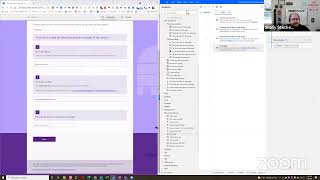
VITAL-BARITONE builds a Power Automate Desktop workflow to auto-fill web forms, hitting a snag when dropdown selectors fail. The fix: Tab navigation and arrow keys instead of name-based selection. Focus actions turned out to be unnecessary, and timing delays matter more than expected.
Chapters
Okay, we are live again. It's Friday after 1 PM. What that means is it is Shelly's Alley time again. Well, hi everybody. So, um, kind of been a rough week this week. I almost didn't make it today because my, uh, Facebook account got hijacked, so I had to try to deal with that. But anyway, I was able to get on create a new account and start broadcasting to the group. Thankfully, I had the foresight of, um, deputizing a few administrators to the group, so that way I was able to be allowed back in under my new profile. Anyway, if you get an invitation from Shelly and you already had Shelly on your Facebook, it's legit more than likely. Just make sure that it's me. You can always ask me how we met or whatever, and I'll, um, I'll reply back. But it is actually me. I don't know what's going to happen with the other account. I'm going to try and recover it if I can, but I didn't have enough time to do that. So I'm in a new account, but it is still being broadcast live on Facebook in the group and also on LinkedIn. I said last time that I was going to help finish or, or wrap up the form filling, the web form filling. So that's exactly what I plan to do today. Where we left off was where we had— where I had a, a challenge with selecting from a dropdown. And I don't know if that's something specific to just Microsoft Forms because I didn't go and test it on, on other, you know, dropdown menu items. Since I was really feverishly trying to solve this one particular problem. So it may or may not be something that you, uh, are going to encounter. However, I still think there's a lot of value in solving the problem because if you do encounter this, you'll know how to do it and how to work around it. So I devised a workaround for it. If you recall, we're using Power Automate Desktop or PAD to fill out a form. The point of that would be that you have information that always has to be filled out on this page to submit a rec request or add a candidate or anything like that. And so you don't want to have to type it all in over and over again, and, you know, basically starting from scratch each time. So that's the idea. By the way, how do you like my new, um, How do you like my new background there? Just uploaded a new background because, um, we had the change in name of the company, and so it's now Aspirant, and a little bit of a change in logo. So there you have it. Remember, if you want to join me live today, you can go to srcn.co/zoom, and I will meet you here. I'll let you into the room. Happy to have a chat if you have any questions. Meanwhile, I'm going to go ahead and share my screen and show you what I did to work around the problem. So here's where we were before. We had a form, we successfully managed to fill out all the information in the form with saved information. So as a quick recap, the first item launches Chrome, and basically in this case I'm attaching it to the foreground window, but you can always just launch it directly into a, you know, go to this website and fill this out. If you're not logged in and don't have a cookie or whatever to that website, then it will prompt you for login information. But you can also put that in here. So if you launch a website that requires a login, you can create a subroutine that says if there's a pop-up, then do this, put in username and ID and continue. Otherwise, um, you can just go ahead and, you know, launch it and it should just work. In this case, if I went to this form, it's not password protected, so because it's just collecting information, so it'll pretty much just open up. So launch Chrome goes to this page. Then the first thing it does is it focuses on a text field, the first text field. So that brings the attention of the robot basically to the form. And then after that, it populates the text that I provided, my name basically, into the first field. So it focuses on this, puts my name in, then it goes to the next one and it puts my email address in, and then it goes to the dropdown. Now here's where we ran into problems. I tried to select the dropdown and have the robot put in the choice that I wanted by, um, naming it. So I tried to name it, and for some reason the name that I gave it and the name in the dropdown just weren't matching, and it was erroring out. So instead I decided that since we're already focusing on this view and we're already in this box, all we really need to do is tab. And tab is really easy. So if you were in a form and you were completing the form, you could tab through the items in the form by just hitting the Tab button. And since we just— the robot just completed entering this, what it's going to do is it's going to tab one more time, and it'll tab to the dropdown. And then it's going to use the selector or the arrow buttons, basically, just like you would if you were doing this manually. To go down, down, down, down, or however many times you need it in order to select the right item. Hopefully this is not, you know, hundreds of choices. It's usually only a few, you know, choices. But if it's a longer one, you might be able to name it or use a serial number for it. That was the problem that I had, as it didn't work. Um, but you can just as easily, you know, Tab Down or whatnot. And I'm going to give you cheat sheet for what these commands are in a minute. So Tab selects the dropdown, then down, down, down goes to the right name, and then Tab again and I'm in the next button. Push the button and it goes to the next screen. So from scratch, here we are. I'm going to refresh this so we have a fresh load of the page as if we had, you know, just landed here basically. And this is a multi-page form, so I didn't completely finish the whole thing. In the future, or for your own use, you would actually continue with the workflow and fill out information on the second page. But for now, let's just complete the first page. So watch as we hit the robot's play button. We're going to run it, and it should just focus on the screen. You might see it move a little bit. Then it'll enter the information, go to the next one, enter the information. I believe it also highlights it in yellow. Um, I think that's just a Power Automate Desktop thing. There you go. Then it goes to the next one and— oh, it looks like it blanked it out. Interesting. Okay. See, I did use emulated typing. Maybe I don't need that. Let's try that and see if that did it. I'm going to clear out this information and refresh the screen. Believe me, it's not like I don't test these things in advance. I actually tested it several times and it was working like a charm. But of course, as soon as I go live, you know, there you have it. All right, so run and it should just work. My little shot of espresso for Friday afternoon. Okay, it put it in, it highlighted it, then it deleted it. Don't ask me why it's doing that. I just don't know why it's doing that. Okay, it doesn't do it when it fills out the first information, so maybe it just has something to do with how quickly— so it's putting in the information just as I asked, goes to the next one. Puts that information in. Nothing else is changed. Unfocus text box after filling it. Okay. I'm going to try that. See if the unfocus makes a difference. It shouldn't in theory, but it might. So let's go ahead and try that again. Here we go. Is it me or is it running a little bit slower than usual today? Hmm. All right, focus, populate, tab, populate, and still doing that. Okay. So I'm going to have it wait for a second if that may be the issue here. So there's a wait, um, action here. You can wait for file, a process, a service, any number of different things. But you can also just plain old wait and give it a time frame to wait. By the way, if you hover over here, it'll tell you what, what the time frame is. It's in seconds, and you can use fractional, so 0.5 would be half a second. I'm just gonna have it wait 1 second and see if that waiting is enough to Allow it to stop. Seems to not have a problem with it when I do it manually, of course. Populate the field. Wait one second and then get to tabbing. All right. One more time. Launch, focus, enter text, enter other text. And it just— I don't know why. All right. I'm going to go ahead and recreate this. Item here because it seems to be causing us problems. I don't think I need the wait. That was really just there as a troubleshooting measure, so I've eliminated it. Let's go ahead and populate text field in a window. I don't know if I've showed you this before, but you can actually copy things. Um, by things I mean steps in your workflow. You can copy and paste, you can cut, move, et cetera, all of that right from here. And I think I did show you this before. You can run from here, which means it'll start in that workflow step already. But actually for this, what I want to do is I want to populate the text from scratch. Here we go. Web form filling. Populate text field on web page. In the browser, in the UI element that we want to capture, which should already be registered here, is the one that says input texts. I think it's this one, actually. Yes, that's the one. We had already mapped these before, so that's why it was in the dropdown. Okay, save. And let's try it again, see if just recreating this gets rid of whatever error I had caused from my previous fiddling with it. Perplexing how sometimes these things just don't work even though they were working literally just minutes before. There we go. Yay. Okay. It put it in. Oh, it put it in and then it deleted it. Okay. Why is it doing that? It seems to be somehow focusing on— I think maybe I need to focus text field in window. Maybe change the focus immediately after it types it in, although I didn't need to do that before. So don't ask me why it's doing that, but there we go. So here we go. I'm going to try to do focus on something else now. Change the focus away from it and maybe that won't blank it out. And since I haven't selected anything, I'm going to need to do a new UI element for this and focus on something else. Now that I changed the focus away from the field that I was populating before, it should prevent it from filling it in, which it's doing, and then immediately deleting it on the next action. So let's watch closely. There's also a log that you can turn on so you can see exactly everything that's going on. But it's really tiny text and verbose, so I don't want to mess with your vision and do that. So you can see it just typed in the first field. Oh, not doing it again now. It failed to write. That's interesting. That's never happened before. That's before the second focus, so something else completely going on here. Isn't discovering new stuff wonderful? Give it one more try. Enter text, go to the next one. Enter text, go to the next one. There we go. All right. Oh, did you see that? It put it in and then it went to the next thing and then it deleted it for whatever reason. Well, everything else is working. The new thing that I tried now with the tabbing is working because I can see it's giving me the, hey, you need to fill this out before you can move on. So, hmm. All right. Well, as I said, I'm going to just try it one more time. And since it's not working, I think the best thing at this point would be just to pretty much recreate it. Start new because it's— there may be some other stuff going on that I changed and didn't even, didn't even track. Okay, I just deleted it, didn't I? Yeah. Oh, there it goes. Good. All right, new flow, form completion. I guess at the very least you guys get to see it from the very, very beginning. It won't take very long. Just have to launch the robot here, which is taking a little bit longer than expected. All right, it's opening up. First things first, we got to launch Chrome. I'm expanding all these menus here. Okay, launch Chrome or whatever your favorite browser is. Attach to running instance, use the foreground window. That creates our browser variable so you can tell the robot which browser you're using for the next thing. Then we're going to focus the text field on a web page in the browser, and we need to select the UI element that we're going to focus on. You do that by Control and then left-click. So Control or Command if you're on a Mac, and then left-click, and it goes right there. Enter recruiter name. It's now focused on that, should be focused on that. Okay. Oh, I remember this before. The focus is on a window, right? Form filling. Okay. This is the other thing that I didn't know why it was doing it, but it actually is using the window focus field instead of the web. Don't ask me why. See? It's appearing over here in the window, not in the web UI or the web form filling. Okay. Either way, we've got focus text field in window. Now we can actually populate text field in window. I've got to add the UI element because I haven't selected that particular box. Input text. Okay. I guess I have to switch to the web UI now. Strange as that may be. There it is right there. And what are we going to put in? We're going to put in my name or your name or whatever. Save it. Then it should go to the next field. So once again, populate text field on a web page, add a UI element. Oh, I might have clicked on something accidentally here. I don't know what I did, but I think I clicked out of the form or maybe tried to click on some link or something, and then it gave me an error. So that's entirely me. All right, here we go back to the form again, and where I was was trying to choose that element, which apparently it actually did choose it, but that's all right, we'll figure out why it didn't work, so shall we? Okay, save. Let's try it out and make sure that this is working. I don't want to keep going if it's not going to work. So theoretically, we should be able to focus on the form, fill out the name, fill out the email, and it basically would just end there because we haven't done the, the tab, tab, tab. Focus. Enter text. Ooh, that is really slow. Not able to focus. Okay. Do I even really need that? I was wondering about that before, if I really need to focus on that or not. Um, I wasn't sure. I just put it in there because I thought you needed it. But let's see what happens if we don't use it. And now it's just going to go to the active window, and it literally should just fill in the text in the two fields. Yep, it's doing what it's supposed to be doing, and it's working this time. And notice it's not deleting it like it was before. So all right, learn two things: you don't need to focus, so we got rid of that, and whatever it was that was going on that was wrong is gone now. So it was something in the, um, in the configuration that I had messed with and forgot to maybe correct or whatever. So We started off from scratch. We launched the Chrome, we go to this field, fill it out, we go to this field, fill it out. Now we're going to do the same thing with the keyboard that we did last time, and that is mouse and keyboard. And what we're going to do is we're going to send keys. And I believe I don't need to focus because I'm already focused. The, the robot is already in this um, uh, field already. So if I just tab from here, it should go to the next one. And then I'll do the down, down, down. Let's see, how many do we need? We need 1, 2, 3, 4, 5. Okay, so how do you do keys? This is the part that I wanted to get to today. And I do have a whole list for you right here. These are the key codes. Obviously, you know how to type the letters of the alphabet. I don't have to tell you that A is A, etc. But when they are special characters like these, you just need to include them inside of curly quotes. And if it's a special character combination like Ctrl+F, you do curly quotes, curly quotes. So let's just do the tab for now. And the tab is actually exactly what you would, you would imagine. I'm going to put this up in the files section, but it basically is just tab. So we need curly quotes, tab, and curly quotes. Then we want to do down arrow. I think I said 4 times. So the same thing happens with that. It's down, but you need curly So that's down and curly quotes. And since I'm extremely lazy, I'm just going to do that 3 more times. And then I'm going to put in another tab. And finally, I'm going to do enter. Might as well do it all in one fell swoop when I'm here. The delay in this case between keystrokes is actually not in seconds. This is in micros— oh, sorry, milliseconds. So this is pretty fast. It's not going to be, you know, tab, wait a second, down, wait a second. It's actually going to happen very, very, very quickly. So save, refresh. If you're going to experiment with this, one other tip When you have a dropdown menu that has a default for blank like this, select your answer, the first time you use it, it's going to go to whatever the first one is. And from there on, if you keep testing it, you're always selecting that first one. So whatever routines you create, make sure that you remember to have to reset that page, reload that page so that the dropdown menu is returning to the original select your answer default as opposed to whatever the first selection was. I ran into that when I was trying to solve this the first time around. So let's go ahead and test it out. This should be pretty flawless now that we've worked out all the kinks. Launch Chrome, fill out field, fill out field, tab, tab, tab, tab. Nope, it went backwards. Don't ask me how I did that. It tabbed backwards. Hmm. Let's start from here and see what happens. Tab. Tab backwards. Okay, so tab, tab, tab, tab. Should only be one tab. I don't know why I did that. That's also a new one. So far so good. And then it somehow manages to tab backwards instead. Of forwards. Interesting. Is that because of the key code that I used? Pretty sure it's tab. Okay, I'm trying this other thing here to see if there's a difference in the way that I you know, typed in tab or whatever it is. But there doesn't seem to be any difference. And last time I did this, I had all of the keys together. So just humor me for a minute here and I'm going to separate these out. Meaning I'm going to get rid of the, the other keys and see if that makes a difference. Now it's only going to tab once. That's not very useful because that's only going to put me in the dropdown menus. But that's what I'm checking is, am I tabbing too many times and going too far or Okay, see, it ended up there. All right. So I put in a few extra tabs because for some reason it's starting from behind. The field. Oh, now it's going back to deleting the thing where it was deleting it before. Okay, well, I just created another error. Interesting. Let's problem solve this another way. What else can we use aside from Tab since it doesn't seem to really Um, want to focus on that. Let's try maybe bringing the focus to that. Let's try that. Focus. Where's that? Focus field on web page. There we go. And we're going to focus on this. Hopefully it picks it. Yes, it is the right one. Focus on that. And then if it's focused on that, it should be 1, 2, 3, 4, 5 down arrows. So now we'll do send keys and down. See if that works. If that works, then we'll do one more and hit the next button. Text, text, focus, down arrow. Ah, it did not. It just focused on it, but it did not select it. Okay. Well, still needs some more work. So I think I'm just going to troubleshoot this again and come back with a better solution for filling out the forms. I'm also going to try to fill out a form that is not a Microsoft form, make sure that this is not a Microsoft form-specific problem. And the other announcement that I wanted to make is I'm going to start trying out something a little bit different for Shelly's Alley. I'd like to start bringing some guests and just have someone, you know, kind of to banter with here and there. So I would like to just extend the invitation. If you're interested in coming on live and just asking me questions or trying something, you know, we can even run through a specific search and just work on a search for, you know, 15-20 minutes. I'd love to do that. So let me know by sending me a message either through LinkedIn or Facebook, or you know how to get in touch with me. I'm sure you can always go to srcn.co/me, and that's my online card. So, all right, thanks everybody, and have a really good Fourth of July weekend, extended weekend hopefully for some of you. Take care, everybody.
More from Shally



Scaling Talent at Hypergrowth: Leadership, AI, and Hiring Excellence with Cindy Nicola







