Sourcing Automation with Microsoft PAD - We cracked the code!
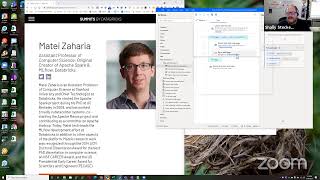
Shally Steckerl builds two automations in Microsoft Power Automate Desktop: a persistent Alt+Q shortcut that copies a calendar link to clipboard, and a web scraper that extracts speaker names, titles, and bio links from the Data AI Summit website. He walks through XPath extraction, Excel storage, and looping challenges, leaving the bio scraping loop incomplete.
Chapters
All right, we are live. Okay. Welcome everybody to the newest episode of Shelly's Alley Live. Keeping it a little casual today. I was hoping that possibly Glenn might be able to show up today, but he has another commitment that is more important. So while he is taking care of that, uh, business, I'm going to take care of business over here. I did invite a couple of folks and sent them the link to the Zoom. So if you hear them knocking, I'll try and let them in, and hopefully we can get some additional participation. If not, then I am going to just jump right into a couple of things that I wanted to share with you today. The first one is a quick and easy something that I've been working on for, for a while, trying to figure out how to do, and I finally was able to solve it. So I wanted to show you kind of what that looks like. And if you're wondering, it is, um, wanted to be able to execute a keyboard shortcut using Power Automate Desktop or Pad and keep it simple. For example, like a signature file, right? So I would be able to paste your name, phone number, email, etc. into any kind of web, uh, application or whatever where your signature isn't saved. Obviously in your email it's already default there in your Outlook or Gmail or whatever, but if you're on, um, you know, filling out a form or one of those contact us or whatever— and if it's not a signature file, it could be any one of a number of other things as well. It could be, um, other stuff like, for example, your calendar link or something like that. Looks like we were joined by Tom, welcome, Tom. I think you might be unmuted if you want to speak. Happy to— hey there, how's it going? Happy to take any requests today. If you have any requests, I'm happy to take that on. You thinking about anything in particular?
No, my wife and I are sharing an office. I'm just trying to be quiet.
Oh, okay. All right, I'll let you get back to being quiet. You got it. All right, so let me share my screen here and show you the, um, little example that I was working on. So basically the trick was I couldn't for the life of me figure this out until very recently, um, and then it hit me. Okay, so what I need to do is I need to wait for a shortcut key. I was looking at other things like WaitForProcess, WaitForService, etc., but none of those were really doing what I what I wanted to do. So I kept looking and I found WaitForShortcutKey, and then it hit me. I was like, okay, all right, now here's the trick. When it says WaitForShortcutKey, there are a few keys that are system keys that are reserved, that are like just Windows shortcuts. So if you know what those are, you avoid them. I chose to use Alt+Q to just totally random. It happened to be basically right there on my left hand so I could still be using my mouse with my right hand. So pretty much just for practical reasons for this example. And I am saving the Alt+Q as a way to paste my calendar. So when I press Alt+Q, the system is going to wait for that. And when I press it, then what it'll do is it's going to set the keyboard shortcut— not the keyboard shortcut, I'm sorry, the clipboard— to my calendar link with some text in there. It says, to facilitate coordinating our meeting, please kindly select a convenient time for you at— and then a link to my calendar. So this is something that I end up pasting into all kinds of things, LinkedIn messages and so on. And I can obviously get rid of the text if I don't need it, but it helps me having to type out the calendar URL And I can just do basically Ctrl+Q. Hey Glenn, welcome! I finally figured this out. You can take the next step after this, but I'm going to use your example in a minute here. Okay, so I, I'm going to just cancel this and show you what it looks like. Let's go to a pretty much go to a notepad, although really I should show you what I do, which is put this on LinkedIn, but I don't want to be sharing my internal LinkedIn messages. you know, on the recording. I don't mind sharing with you, I just don't want it to be like out in the public. So right now, if I was to, let's say, um, hit the paste button— Control— not the paste button, I'm sorry, the paste shortcut, which you might know is Control+V. For those of you that use Windows shortcuts, Control+C copies, Control+X cuts, and Control+V pastes. So if I wanted to say copy this text, I would hit Ctrl+C and then go over here and Ctrl+V would paste it. So on my keyboard, you can't see this, but I'm hitting Ctrl+V. Now look what happens when I execute the shortcut, which is the Alt+Q key. So I'm going to run my process and now it's basically just sitting there in the background pending, waiting. If I Hit Ctrl+V right now, it still pastes the old thing that I had before, but I'm going to hit Alt+Q. Now it's executed the process behind the scenes, and if I hit Ctrl+V, it pastes my calendar link. So at any time, it's going to listen for Ctrl— sorry, Alt+Q, and when it sees those keystrokes, it loads that text into the clipboard. You can also have it open up It can be a shortcut that opens up a Word document if you have a bunch of different templates, for example, and then you can just copy and paste so it can open up your template document. But for this, I just wanted something really quick that would just paste my calendar link. Sorry, it doesn't have word wrap there. So it just immediately executes that. Nice and simple. So Glenn, what do you think about that? We finally figured it out. That's awesome. I love it. So right now what I am hoping is that, um, the next step basically is going to be to— I just solved this today, so I haven't taken the next step, but for the next session is to create this in a loop somehow. So when it executes— so right now it waits for Alt+Q, then it copies to clipboard, and then it stops. What I wanted to do is to reset back to wait for shortcut again. So I'm assuming that I basically have to copy this here and then— or actually, I don't know if I have to do that. I probably have to create some sort of like reset that loops back once. And so every time it gets here, it goes back to the beginning and waits and then it goes back and so on. That's, that's what I'm assuming. So let me try that just to see if that works. Let's see, loop. I don't know if it's going to work, but Then what do you think? Doesn't that make sense? That would be the next thing, right?
Yeah, you only have to loop it once, I guess.
Start from 1, I guess, right? Or do I need— I guess I don't really need a very— well, yeah, I guess I do need a variable. Let me put that in. So I'll just do that as a variable, and then n to 1 and increment by 0, I guess. Can I increment by 0?
No, I think you'd have to do one.
Yeah, I think so too. All right, let's see what happens. So there's the loop. It's basically— I need to just encapsulate this. Oh, or I guess I have to do it the other way around. There we go. So there's the wait, there's the clipboard. So theoretically, when it ends, it's going to write back to that. So let's see what happens. All right, it's playing right now, which means it's going to wait for me to hit, um, Alt+Q. So here we go, I'm going to hit Alt+Q and paste. Okay, it pasted it. Now the test is let's see if it actually started up again. Oh, it did. Okay, right back. So that's it, we got it solved. Um, from now on, basically I can close this and it stays active. Now somebody asked me a question earlier today Um, they, when I was showing them some, some pad activities, they said, can you have multiple flows running at the same time? Yes, absolutely. If I close this while it's running, it's going to stay active. And I think I told you guys this before, as long as this is open, as long as Power Automate Desktop is open, if I shut down Power Automate Desktop, then the flows that are active will also be closed, but I don't need to keep this on the top of the screen. I can, and, um, it'll be constantly monitoring for that. So let's move on to the much more fun and exciting challenge. So Glenn sent me this example. He said that there were some— Glenn, you might want to explain. You said that DataMiner was not working, and so you had to find another way to scrape this page of Data AI Summit speakers. Am I getting that right?
Well, I don't want to take credit for this. There were some other folks on Facebook who discovered that this was a problem yesterday, and Greg Hawks, who a lot of you know, does a YouTube channel called Sourcing IRL, In Real Life, and he said he would tease another scraper that will remind you of DataMiner. He didn't put too much in the teaser. I think his actual full video is coming, but I recognized which scraper he was substituting, and I thought, all right, well, why don't we just get ahead of this a little bit and show how that could be done in case, once again, DataMiner ever conks out, or you just decide you want an unlimited scraper, which this other scraper has an advantage over.
DataMiner has a limit, right? Okay, so the scenario is possibly DataMiner doesn't work on that page, or the scenario is Data Miner is not functioning because of some sort of bug or, or outage. And, um, there may be also a limit to how many pages you can, you can use. And all that can be overcome with Power Automate Desktop, which of course is free and has no limits. So you sent me the link. Here's the link to the event page. Now the thing is that with these we can grab the name and the bio, and it'll also tell us— and if you can, I'm going to zoom in here real quick— it tells us the, um, company in some cases, not always. It's sometimes the last, the last item, but not always. However, the real meaty content— I zoomed in too much there— is in the what are called cards behind the scenes. So if you were to click on one of these, it would load up a page that shows a little bit more information, more like essentially like a bio. So Glenn, so far so good, right? I've got, I've got a page that has a bunch of links to bio pages, right?
Yeah, and I think this other scraper that he was showing would probably have difficulty with going that one level deeper.
Ah, okay. So that's what I wanted to solve for. All right, so the first part of it is going to be we need to somehow store the addresses in a temporary text file. So all of these fortunately have addresses. We could grab the name and then recreate the URLs, but it's easier just to scrape the addresses. So the first thing that we're going to do is, well, we have to launch a Chrome browser, and I'll just stick to my, my good old lazy way of, you know, appending to a current instance so that I don't have to launch a new one. But you can always launch it from scratch. I'll just use the foreground window, which now I know how to use. And then it creates the browser, and then the next thing is to commence the web data extraction. That also is another thing that we can do with web automation, which I believe is, um, get the details or get links or get data elements from a page. But right now I'm going to go ahead and extract the data because I do want to gather a little bit of additional information. Don't forget to set this to spreadsheet. And now we go over here and start captioning. So as soon as I click on the page, the recording window should open up. There it is. And now I can start telling it what I want. The first thing I'm going to want is the name. So extract the name. Then the second thing is the essentially mini bio, which is kind of like job title and company, um, hopefully most of the time. So you see job title come a company, although in some cases it doesn't say the company, it might say something different. But we have those two pieces: name, job title.
You could potentially grab the image as well.
I can, that's right, I can grab that actually. So I can extract the, um, element. Sorry, I can extract the element of an image, although I don't want to put that in the text file because that's what we're going to be doing is scraping. And I'm going to put these into a text file. So the next thing we do is we need to find the href, right? So it's not here, it's not here. If you remember from our lesson learned in Google, what we ended up doing is going up to the parent to see if we could find it that way. And it's not on that one. It's possibly on the next one. Still not that one. Okay, now Glenn, you found the XPath, so is the hyperlink revealed somewhere in the XPath?
Uh, let me go there and verify that for you. Hang on.
It's not on the image, which makes sense because it wouldn't just be the image. It's not on the— I lost it, darn it. It's not on the— well, it might be here actually. This might be it. Yep, I got it. It was on the a tag. So they put a little, um, a tag around the image and the footer. So basically the div tag for the image, the h4 for the name, the, the heading 4 style for the name, the paragraph for the title, and the div tag for the bottom of the body are all encapsulated in an a tag, which is an a href, and that's where the hyperlink is located to the bio. So now that we've got that, the next thing I'm going to do is just You just grab another name and then you'll see the system automatically recognizes everybody else on the page. There you have it. So these are all of the links that are on this page. Now that may be as far as you want to go. Wait a minute, that's not all the links.
Oh yeah, this is one of those infinite scrolling pages where I don't know if it's going to grab everything until you get to the true bottom. Gotcha.
Okay, that's okay. Let's reset it and we can do it over again. No problem.
It's a different format of the page at the URL I just put in the Zoom chat, which you may find easier to work with. I don't know.
Oh, okay. All right, I'm just going to recreate what I did. First name, Last name. And then now that we know it's the A, just need to sensitively get to that link again. Not easy to select, but it's in here somewhere. All right. I'm just going to do parent. Darn it. Tricky. If it doesn't work, I'll try yours.
This just goes to show, when you get it the first time, save it as an action step so you don't have to rediscover it.
I know, right? I should have done that. I thought it would be easy now that I know where it is, but it's not as easy as it— as I thought it was. Wait a minute. Nope, that's not it. I'm sure this is twice as frustrating for you to watch as it is for me to do it. And I'm just trying to get the right ones, uh, so I can go to the parent element. And finally, okay, all right, now I just need to do one other one and then hopefully it'll bring everything into the page this time. Uh, how far did it get? Andy Dang. That's interesting. It got about a third of the way. It stopped there. So let me go grab that other URL. Does the other URL that you sent have the full page?
It should have. Yeah, you can link to their bios by clicking through.
Yeah. Uh-oh.
No, you have to click on the speakers in the top navigation, I believe. Uh, oh, you know what, maybe you do have to be logged into the event to, uh, it's a free event, but, um, oh, but you have to create an account or something. Well, I'm, I'm willing to give you my info here to do that. Let me paste that.
I mean, just try one other thing and see if this works. Nope. Okay. All right, let's try it. So I'll go to that, the one that you just sent. Oops, wrong one. Trying to get to the chat. There we go. Okay. So we're going to go to the speaker page, but it's asking me to log in, so I'm going to borrow Glen's account real quick here. All right, log in. Oh, I guess it needs a confirmation number.
Okay. Yeah, I just put that in the chat as well.
Yeah, there we go. I have agreed. Count not found. Okay, I think I probably didn't type it incorrectly. Oh, doesn't like it. Darn it.
Yeah, because it's not even prompting me to log in. I'm surprised you even have to do that. Oh, sorry, my mistake. You're going to need a different password. I did change it.
Oh, it's an actual password, not a registration link.
Well, it was originally, and then they said go change it. So try this for, um, click the login. Yeah, I think it probably— see, it's not the confirmation number. You should be able to just log in.
Um, I think it says reset password. I already logged in, reset password. That's okay, that's all right. I think we can pretty much capture the, uh, the general idea here without the extra page.
Yeah, you had enough, uh, rows grabbed before, I think, to finish it.
Yeah, in fact, uh, what I was going to do was, was do another copy and see if it works. But you see, it did grab all the information. All right, so now it's put all that into Excel. Then the next thing we need to do is grab them from Excel and go to the page and load it. Or actually, maybe I don't want to— maybe I want to put that into a variable. Let's see if that works. Let me try that and see how it gets stored rather than putting it in Excel, because I don't really need a temporary Excel file since I'm not trying to keep that data. Failed to assume control. Oh, right, right. I didn't go to the foreground window. That's, that's a Shelly boo-boo. Okay, there we go. Uh-huh. So it put it in there and 406 rows, 3 columns. Okay, there it is. So it was first name— sorry, it was name, company title, and then the URL. So we need the third column. All right, so now we can do is go to a web page, or essentially, um, browse to a web page. So we'll take the existing page and Navigate to— see, get details section launch. Nope, I want to navigate to— go to web page. There we go. I want to go to web page that is the URL that is the first thing on that list. So we're going to have to set a variable that is going to select from this list the next one, right? So I guess we need to do a variable sort merge reverse from— let's see which one of these is it— retrieve data table column into, into Convert the contents of a data table column into a list. That's probably what we want, huh? That looks about right. The data table is data from web column name or index. It's 3. Well, let's see. It is rows empty. No, I think it's third. It's the third column, I think. All right, then it's going to go to the web page from that list, right? So now we need a loop. Retrieve the data, put it, put the list, put it into a list. Now we need it to go to a web page based on that variable. Wait a minute, how are we going to tell it to go to the first one? Let's see what it does. Let's see if we can just start from here and see what happens. Oh, right. Nope. It's wanting to go back to that. Okay. Column index 3 is out of range. Hmm, wait a minute. I clicked on view to try to see it. Didn't, it didn't load it, or it's thinking about loading it. Oh, it's thinking about loading it. Okay. All right. I think I might have broken it. Oh, there it is. Okay, value 1, value 2, value 3. Now why is it saying value 3 is out of range? You know what? I'm going to just get rid of the first and second because we're going to get that over the year anyway. Right? You with me? Let's get rid of it. So, yeah, yeah, we don't need it. We're going to get that from the page itself. So let's edit this and remove the— can we remove value 1? Okay, cut it. Oh, maybe I can. Nope. I'm just going to reset it. And we just really need that href. That's it.
That's too bad though. So it— you're saying there isn't a way to edit the elements of the extraction in the action itself?
I didn't do it. I mean, I guess there should be a way. Let's try it. Oh, wait, cancel. Now let's try it. Let's see, maybe there's a way to do it under advanced settings. There's that one.
Yeah, you just want to delete the column you don't want with the trash can and the far right of that.
It's the first and second one, right? First. Oh, shoot.
Well, hit cancel.
All right, try it again.
This time only delete the row you don't want.
I don't want these two.
All right, try deleting the lower one. Let's see what that does.
OK, let's see if it saves it and then if we can advance it again and do the other one. Nope. Hmm.
It may be that one is dependent on the other. I don't know. That doesn't make sense though.
That doesn't make sense either because it can identify the href. Let me try to just capture the a again. Maybe I can zoom in a little bit. That might be helpful. That was easier. Okay, a lot easier. All right, now it's getting only that. And oh, that's interesting. Maybe there's a limit to how much data it can store because now it go— it goes all the way to Shaoli.
Look at that. Wow.
So I wonder if it just has a limit on total number of like cells or something. I'm going to have to investigate that because now it's grabbed all 400 of the URLs. Okay, now we still want it to go over here, but instead of going to the third column, we just need the first one. So now let's see what happens when we— when we hit the play button. All right, grabs it, stores it. And now the first one is out of range. Okay, how does that work? How's the first column out of range if it's the first column? Maybe we need to put in the column name. Was it value 1? I think it was value 1, right? Wait, is it value 1 or value number 1? Oh, last time I clicked on view, it took a long time. Too bad. Okay, maybe it won't take that long this time. Should have written that down. I think it said value number 1. Oh no. It says results. Okay, so variable value data from web page results. Well, maybe I'll just use results then. Okay, save it. That's out of range. Ah, it's not. But now what it did is it put them all in one. See, it says URL too long. So there's the first one, there's the second one. So now we need to make the, make the loop happen.
Yeah.
So how do we do that? Let's see. There's a load the first results, then increment, right? So it'll be a loop that is going to start from 1 and on whatever it was, 406, increment by 1.
Now, I don't want to make things harder for you, but you know, the foreach type of loop means it will just do it for everything in the list and you don't need to know the start and end.
Oh, actually, you know what though? Um, that's a good point, but I also just realized we don't want to do for all 400 right now because it's going to take a long time. So maybe we just do it with the first 3 or so.
Yeah, that makes sense for testing. Yeah, yeah.
So we don't end up trying to grab all of them, right? So what you're saying is if I didn't increment by— or no, you're saying if I was going to do all of them, I don't need to have, uh, foreach, or you wouldn't have picked loop, you would have picked foreach? Yeah. Okay, I would have used that one and then it would iterate for as many as there are in the column is what you're saying.
Yeah, that's standard, uh, programming language. The for each—
go back to that. Yeah, let's test it and then we'll go back to that. I think, I think I understand what you're saying. We don't need to count, we just use the for each. Like, that was a solution that you had for the other one as well, right? Okay, so loop, and then how is it going to go to web page? See, let me get URL advanced. No. Okay. How are we going to— oh, wait, it has to retrieve. That's part of the loop, right? Or is this what we're going to increase? No, we're going to have to increase by 1 after the loop, right? It's going to loop. Through the list, the column as list that we created. So we extracted the HTTP references and they're in this list. Now we want to retrieve the first one and then loop again. So it's going to increment by 1, right? So we want this to, to, to choose the next variable. How do we do that? I think it is inside the loop and we make it the variable column name or index result. Hmm.
Well, if it's a variable, you're going to need percentage signs, but you're saying the column name doesn't need that.
I'm wondering if it can just go down the column input parameters, data table column name. Column names are defined, or the index number of the column to retrieve. Index. Okay, so that would be 1, but that's still the column. Does it need a row in order to increment by 1? That's my question. So we need to set it at— set a variable that increments by 1 and then goes to that one, or is it going to just do this over and over again until it Let's try it, see what it does. Right now it looks like it's going to grab the first one, go to that page, hopefully loop around, grab the second one, and go to that page. But what I'm wondering is, is it going to go to that page and— well, let's try it, and hopefully it'll just go to the next page in the same place, because then we can insert the scraping in between and scrape the page before it goes to the next page. So it should navigate to the first one. Aha, okay, it is going to all of the URLs at the same time. So we do have to indicate a row. It's grabbing all of them, so we want to retrieve a row, not retrieve the data, right?
Yep. Okay, so this is putting the results into a list, but I think that may be the problem because once it puts it in the list, it's too much.
Ah, so don't do that. Don't put it into a list, you're saying? Just keep it in here because this is being stored in— let's see, delete that. This is being stored as data from a web page, right? Yeah. So it'll go to the URL is data from a web page. Okay. But how do we tell it to go to the next one? Well, let's try it and see what happens. Trial and error, right? That's what people want to see. They want to see how we actually arrived at this stuff.
Okay, I apologize, I'm going to be called away, so you may have to do the rest of this yourself. Sorry.
No worries. This might not work. We might have to do a second episode. So— oh, interesting. I think it went to all of them the same time again. All right, so we do need to have a variable that increments by 1 that goes to the next row. That's what we're going to have to do, I think. So basically, we're going to need to have something that grabs row 1 and goes to that page and then changes the variable, grabs 2. So it'll be a variable that, that extracts the first row and increments by 1. So let's see. Copy. Nope, we don't want copy, we want read. You want read, right? Read texts, read from CSV. Is it a CSV? No. Is it a shuffle, merge, reverse, remove duplicates, find common, subtract, retrieve, add an item? Well, this is decreasing the variable, so we can set the variable and tell it to go to a row and then decrease it or increase it. But then how do we tell it to go to a row? Go to web page, but we don't want that. We want the first item. Rows count. Interesting. Maybe that's what we need. We need the rows count. All right, well, while that's, um, while we figure that, I think probably the best thing to do would be to try to get to the next place. Once we figure this out, we can just plug it in. But what I think I'm going to do is expand this out so that it grabs one row goes to that page, the loop will then increment by 1. Or we might use the increase variable by 1, which is the variable is the row. So it'll go row 1 the first time around, then increase to row 2, grab it, go to the page, scrape it, increase to row 3, grab it, go to the page, scrape it, and so on. That's what I'm thinking I'm going to do. In the meantime, I think I lost the list. Is this it? This is it, right? Yep. All right, so let's grab the rest of the information that we need now, and then I can just build it out by creating the loop. So we're here, we're going to extract Again, web automation, web data extracting. It's going to be in that page and it's going to do another extraction where it'll grab the name, then hopefully The next thing would be the title. I don't think everybody's going to have Twitter, but we can try and grab that. Let's see if it— if everyone— well, not everyone is going to have it, but I see how many people do have it. We also can grab the LinkedIn. Maybe we want the bio, or actually, no. Yeah, yeah, why not? Let's grab the bio. Okay, and then sessions, sessions. I don't think we need any of this. Well, that's a lot of sessions. I guess he's spoken at a lot of these conferences. All right, good. So now that we have that information, I'm going to call this speaker bio and save it, and then that'll be what gets saved to a table. So if I'm going to run this, I'm going to run this without the loop. I would just move this up here temporarily and then click run on this page here, and it should just extract that data and save it in as a variable, which is called speaker bio. And I'm now going to view speaker bio. Oops, view. There we go. So we've got that part. Now all we need— the missing pieces. I'm going to move this back in here. We need the missing piece that increases the row by 1 value, and that's what I'm going to work on for next time. Well, at least we got 1.5 things done today. One was the calendar shortcut, which is now continuously looping whenever I hit the Alt+Q button, it pastes my calendar shortcut. Yay! And then the other one is we got the extraction done, we just need to increase it. So the idea is it's going to go to each one of the pages in the previous page, go to each one of those pages, and then grab that data. All right everybody, well, I hope it wasn't, uh, too mind-numbing today, but we will see you next time and we'll have a solution for you to to get the incremented rows. Have a good Memorial Day weekend, everybody. Take care. Bye-bye.
More from Shally



Scaling Talent at Hypergrowth: Leadership, AI, and Hiring Excellence with Cindy Nicola







