Sourcing Automation with Microsoft Power Automate Desktop - Part 2
Shally Steckerl walks through Microsoft Power Automate Desktop, a free Windows automation tool, covering variables, conditionals, loops, UI automation, and integrations with Excel, email, and databases. He shows sourcing examples like scraping resumes from Indeed and auto-responding to candidates, plus operational constraints like screen-size dependence.
Chapters
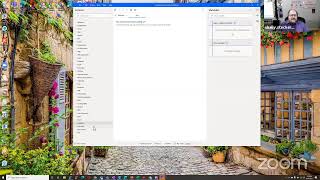
All right. Hello, everybody. Welcome to Shelly's Alley. We are back and live again. It's April 16th today, and I think this is going to be the first time that we use the new Zoom system. So as you can see, the screen looks a little bit familiar here using the Zoom platform, and I am broadcasting through Zoom to Restream. So kind of cool. Well, what are we going to do today? Today I am going to continue, uh, I guess this is part 2 of the tour of our initial, I guess, exploration into Microsoft Power Desktop Automate. My buddy Glenn said that we should probably abbreviate it and call it PAD. I love that. I can think of like Launchpad or something, but yeah, let's call it PAD for short because that is a bit of a mouthful when you say Microsoft Power Automate— Power Desktop I'm sorry, Power Automate. See, there I go. Power Automate Desktop. So there it is, PAD from now on. Okay, so let's go ahead and jump into the message. I'm going to see if Zoom— I mean, if Glenn wants to join the Zoom or not. I see that he's on right now. Let me see if he wants to join us. Just a second. No, looks like— is he— let's see. All right, not gonna be able to join us today. That's okay, he will be taking notes as usual and doing a fantastic job of that. So let's take a look at Power Automate Desktop. First of all, in order to do that, I'm gonna have to share my screen here. There we go. All right, we are sharing. So what you see here is the initial welcome screen of Power Automate Desktop when you launch it. By the way, if you're new to kind of this idea, this concept, what we are talking about here, is a free tool that comes with Windows. In fact, Microsoft has announced that they will be releasing this with future builds of Microsoft, but right now you can download it. If you watch the recording from the last session, you'll see the links there and the information on how to download it, but it is completely free. So all you got to do is set it up on your, on your Windows machine. If you are a Mac user and you're wondering, oh no, this doesn't— isn't going to work for me, that's okay. On Mac, there is a similar tool. It's Auto the Automator that has been built into Macs for a very long time. So much of what you can do here, you can replicate with, um, the Auto the Automator. But I digress. So When you first launch, as you see here, you see the Power Automate desktop window that shows the environment that you're in. You can choose from any of the environments. Basically, this refers to your license, and this could be your personal Hotmail account, for example, or your work account, wherever it is that you have an Office 365— actually, it would be Microsoft 365 now. So whichever one you can select. And the reason for that is this is now going to save your flows to that environment. So that if you open a flow from another machine, you can still join the same environment and reinstall or launch or reimplement those flows on that machine. And that's, that's the way that it can be portable. So choose that. Then to start a new one, basically just click on New Flow. You'll have to give it a name. Let's just give this example because we don't really know what it's going to be just yet. And then you'll see it begins to load some of the services behind the scenes and will bring up an edit window that shows you all of the available services. Give it a second to catch up. There we go. So these are the services on the left-hand side. What I wanted to do today is just, um, you know, this is a little bit deeper of a dive than last time. Last time I just showed you kind of the basic concepts. I want to show you what some of these are on the left-hand side, and then on our next session we can do some live examples. There's been a few suggestions. We've got 3 suggestions that have been made. One of them is automating the ability to search and scrape resumes on Indeed. In fact, search the resumes, download them, and send an email and even do automated responses. So it's a, that's a pretty Pretty cool use case. We're probably going to work on that one, and there's a couple of others as well. But before any of that, I just kind of want to give you a tour. Now, you might remember last time we talked about there are basically desktop automations and web automations. That's what these two are right here. If you're going to use a web automation, you need to install a browser helper object or a extension for whichever browser you use, whether it's Microsoft Edge or Chrome, Firefox, or even Internet Explorer. The new Edge is Chromium-based, so a lot of the same kind of things that you can do with Chrome, but you do need to choose one. And then once you choose that browser, you, you have to have the extension installed already. That link to that is also in the PowerPoint slides from before and in the handout section. But you'll choose which tab from that browser you want to automate. So you, you know, select the tab and you can give that a name, etc. I'm not actually going to go through and, and show this to you right now. I just wanted to kind of get you an introduction there. So you choose your browser, you choose the tab or select new tab, and then go to the next window, and it'll actually open up a page that allows you to start taking actions. If you remember macros, this is basically the same idea. So you, you do something on the screen and then it records those actions and plays them back depending on whether you set it up as a timer, a function that gets triggered at a particular time, or with a keyword, keyboard shortcut or something like that. So you record the action and then you tell the system whether you wanted to start when you do something, or start when you press a key, or start at a particular time, etc. The desktop recorder is much the same way as the web, but in this case it just goes right into the recording and says, okay, let's start recording. So when you click on Start Recording here, it will remember whatever you do with your mouse, with your keyboard, if you open an application, if you go to a website. Keep in mind that this is on your machine. That means this desktop. So it's recording whatever is available on your computer. If you then transfer this workflow or this automation to another machine, it has to have the same applications. And things like the size of the screen also change. So it's tracking how your mouse moves, which means if the other machine has a different screen size, for example, you'll have to adjust that— those actions. So those are the two web and desktop recorders. But on the left-hand side, there's a bunch of actions that you can use to create workflows of all different kinds. There's in fact so many, I think there's over 400 in here. There's so many of them that we really don't have time to go through all of them. What I wanted to do is, is give you a preview of some of these. The first one that you see on the left here are variables. So this is where you can start creating variables, such as, for example, a random number creator. You can merge lists or shuffle lists. For example, when you have lists of information, you can do things like subtract. You can create a new list so that the variable itself could be a new list that is created from data that you input or from data that you provide here, and so on. So these are all different kinds of variables, including just the basic set variable. This is the very first step in creating a basic variable, where you just say, hey, initiate variable, and then set variable. Um, you know, give this variable called my variable a value of 1, or whatever it is. So this is how you can use variables, and you can drag these directly into your actions right in here. And you can see that here it says set variable, which is just called new var, and you can obviously change that to something else to give it a name, and then change it to have the default or the initial setting for that variable. And then you can have formulas that change that variable depending on the input, like the, uh, CSS ID on a page or HTML code on a page and so on. Much more about that later. Aside from variables, we also have the second most powerful thing, I think, in my opinion, that is going to be a building block, which is conditionals. This is where you have, um, controls. If you remember the Flow automation that I showed you on the Power Desktop— I'm sorry, on the Power Automate or the original Flow, Microsoft Flow— those were called conditions. And you can have a condition that is essentially a switch where things get split up into A, B, C, D, or whatever depending on a criteria. Or you can have conditionals like if this, then that. So if a folder exists, if a file exists, if an action has happened, if a service is, is turned on, or if an image is, um, you know, in the window, all of these different things. And you can also have, along with the ifs, you can have elses and sub-ifs, or else-ifs, basically. So let's say if a file exists in your workflow, okay, if, if this file exists, then do something else. That would be an if. And then the switch would be more along the lines of depending on the value of something, like say that there are um, there's a dropdown, and in the dropdown there's 5 choices. So depending on which value is it— choice number 1, then go this way. If it's choice number 2, then go that way. If it's choice number 3— so for example, you use a list, generate a list based on the dropdown selections in a menu on a web page, then each of those items in the list becomes a value, and then you can check the value. Whichever value is chosen, it follows that path. And then goes on to the next step in the automation based on that decision. So those are the different kind of conditionals. There's also case conditionals. These are more advanced expressions that are like a block of actions or a set of various different actions. I'm getting a little bit more complicated there than I intended. Sorry about that. Then you also have loops. Loops are when things basically repeat. So if you want something to happen over and over again, like say go to LinkedIn, grab this particular code, copy that into a list, and then repeat. That's where the loop comes in. And you can do a loop that says for each of these, do this, or you can have a loop that basically just keeps going over and over depending on the number of times. Let's say that you know that the page that you're looking at is always going to have 25 results. Then you can have this loop 25 times. And it will always loop 25 times. But be careful with that, because if the results sometimes come back as 7 and not 25, your loop is going to try to go an additional set of times, and it'll just fail each time until it gets to 25. Remember, the computers are really going to do exactly what you tell them. So if you say check this thing 25 times, it's going to check that thing 25 times, even if it— there's nothing there, or even if it errors out. You can also have loops based on a condition. So if this, then loop, and if not, don't, and so on. So loops are repetitions. And then wait is waiting for a particular, um, action. So it could be waiting for a file. Say someone is going to upload a file to your workflow, then this workflow is going to wait for a file to be created. Once that file is created, then it executes whatever the next step is. So you can start with a wait. You can begin your action with wait for a service or a process or a, um, particular time or a particular set of, you know, minutes or hours, etc. You can even wait for a window to be activated or for a web page to have content or for another service to come back. Let's say you sent a file like a resume to one of the contextual analysis that I'll show you in a minute, and now it's got to wait for that analysis to come back. So these are all different conditions that you can say wait for. You can also wait for a keyboard instruction, which is how you would set up a workflow that would activate based on a combination of keystrokes. Say that you wanted to insert your signature into a web page wherever you are, You would have a wait for keystroke, and then the keystroke would be whatever keys you assign to your signature. Um, I don't know, I'm going to make something up. Let's say, um, Ctrl+Shift+S or something like that. Make sure it's not a keystroke or a key combination that's already assigned to something else in your system. Um, and so it waits for that. When it notices that combination of skill, uh, of keystrokes, then it pastes the text from a text file. For example, that's very basic two-step automation. Wait for keystroke, when keystroke, then paste text wherever the mouse, uh, happens to be, wherever the cursor happens to be. Okay, so that's wait. From here on in, I'm not going to go into all of these. You can see there's things related to your system, for example, what's happening on your machine. You can do things like take a screenshot, you can start an application, run an application, and an application. Likewise with files and folders, um, etc. And there's also UI automation, which is where you actually interact with stuff on your desktop. This could be Windows desktop automation, such as clicking or selecting, or it can be data extraction, getting things out of a window, or it can also be form filling. So one of the ideas that I mentioned before is to grab text from one place and paste it in another? Well, you would grab the text by using a, a website capture script that grabs all of the data from different fields, assigns that data to different variables, and then you would have another automation after that that follows that would then take the text from those variables and paste them into particular fields in a form. That's an example of basically copy and paste which allows you to say copy all of the fields from your CRM and put them into variables and then paste all of those fields into your ATS. So you would have like a simple, you know, click of the mouse action that grabs data, copies it, paste data, and submits the form, such as migrating data from like, say, a CRM to an ATS, or from like a LinkedIn project, or from your InMail, or something like that, into your CRM. Easy way to copy notes from responses on emails and things like that. I showed you the web automations here, as, as you saw before. That's what these are. And then of course, this is Microsoft, so we're going to see some Microsoft services in here like Excel. There's a lot of different things you can do with Excel, like run a spreadsheet or do some calculations on a spreadsheet or add data to a spreadsheet or or extract data from a spreadsheet, and so on. You can even run macros and modify information. So you can convert cells in an Excel. I find this useful sometimes when I scrape information and the, the text gets a little bit jumbled up. There might be some special characters from other languages that get imported, and I want to clean that up. So those are the kinds of things that you can do. With, with inside of an Excel file. Databases, basically anything that has a SQL connection. Email, this is going to be from your, your Outlook. You can process inbound or you can send email messages if you have Exchange or Outlook, same thing. Then there's mouse and keyboard, which is different than the UI automation because this is actually sending commands specifically to your mouse and keyboard or getting commands from your mouse and keyboard. So you can see here, for example, wait for press or release of a key. That's how you wait for a keystroke. Or you have a, a trigger that will actually move the cursor, or that would paste things based on pushing keys or sending keys on the keyboard. These are all different things that you can do. Sometimes interfaces require keystrokes rather than mouse clicks, so that's where it would be very useful. You can send things and get things from the clipboard, copy to clipboard, or grab from clipboard, or reset clipboard, etc. Likewise with text, this is what I was mentioning when I said you can paste text from your, from your data. So you can have text stored as a variable, grab that, and then paste it as text somewhere. Now we're getting into some of the fun stuff. For those of you that are looking for PDF conversion. You can do extraction of PDFs into Word documents, for example. You can do merger of PDFs, multiple PDFs. You can split up PDFs into multiple pages, and so on. And then there's optical character recognition. That's what OCR means. This is where you are able to use some of the online services to detect text characters inside of image files, like a PDF that doesn't have embedded text. This could be, um, similar to like a scanned in or faxed in item or something like that. You can use the various services here. Cryptography, not going to get into that. Active Directory, this is for like creating users, looking up users in your system, etc. There's a lot of AWS automation built in here as well. For those of you that are interested in that, along with of course Azure. But one of my most, um, interesting ones come out of this, what's called cognitive automation. These are cognitive operations. There are a number of different cognitive operations. They come from Google, IBM, and Microsoft. Each of these companies has developed a unique expertise in in areas where they do a really good job of processing information of different types. For example, let me open up these. I'll bring up Google, Microsoft, and IBM. You can see that some of them are repeated. So there's natural language here as well as there's also language here. And the reason for that is that they excel in different areas. So for example, Google has developed really good algorithms for detecting text and labels inside of images and doing recognition of properties inside of an image. So detecting kind of the properties of an image. But Microsoft has done a really good job of analyzing images for the purposes of describing them. And that's a little different. So on the one hand, you're doing text detection or logo detection or looking at the properties of an image, like, so, you know, for example, size, format, density of pixels, those kinds of things, you know, even the colors and so on. But with Microsoft, it's able to describe an image, which is pretty cool. So let's say, you know, you give it a picture of me and it'll say man with beard and glasses. Brings that back as the output for the file. So it gives you like a description of the image. It's not, you know, very lengthy description, but it's very useful for some of the cognitive automation that we have to do. Then there's other things like, for example, translation. Let me shrink the vision here. So you can give it an email that is perhaps written in another language and use the translator from IBM to translate it. If you know the language, you can just simply send the email to the translator and have the translated document or text sent back and insert it as a variable, for example, or paste it somewhere or sent as an email or whatever you want. But it also can detect the language. If you don't know what language it is, it'll come back and tell you which language it is. So you can actually chain these together. You can send the message to detect the language then come back with whatever language it detects, and then send that to be translated to, you know, from that language to another language. That's IBM. And on Microsoft, there is key phrase, which is really useful detection, and sentiment detection. Sentiment detection is a little bit different than the tone analyzer. So you You're gonna have to play with this for yourself to see what the differences mean to you in your processes. But this one in Microsoft, it's detecting the sentiment and extracting that a little bit closer to subtext than just kind of pattern detection. Whereas the tone is looking for like positive tone, angry tone, those kinds of things. And let's see, what is the other one that I was looking at? Ah, here we go, spell check. So you can do spell checking automatically through Microsoft, which is really good. And there's also transcription. You can send an audio file to have the speech-to-text transcribed so that you can get the text back. Say you have recordings of calls with hiring managers and you want to extract the notes, or you have a recording of a webinar and you want to get the notes, those kinds of things. You can send the audio in to be transcribed. I'm not sure, I've been looking for— if somebody knows this out there, let me know— but I've been looking for the opposite of that, which would be text-to-speech. So I've been looking for a way to send text to a service to have that text read into audio and then sent back out. The reason for this would be really cool to be able to do a token-based merge where you have text and merge fields that are combined, then sent to a voice translator. I don't know if that's the right word, but where it becomes a voice message that can then be sent or dropped as a voicemail, perhaps using a service and so on. Those are the different cognitive automations that you can use here. All of this is free. These are free. Now, if there are any premium services, they, for example, may come from a solution that you already pay for. You might have, let's say, a subscription to Salesforce, and Salesforce may have their own API. That would be a service that you'd be able to add. That would be a premium service. But everything that you see in here is built with or built inside of the Power Automate Desktop. Solution. There's a few other things that we didn't cover here, but don't want to get into too much detail on this one. Just kind of wanted to give you a tour. As I walk through this, let me know if you have any ideas for what you would like to automate. As I mentioned, we have a few suggestions already— automating Indeed resumes and sending messages, for example, it was one of them. So if there's anything else that, that this triggered drop me a note through one of the channels and I'll be sure to add it to my list of things to experiment with. And then we'll, we'll do— we'll record it and, and use it as an example for a future session. So that's pretty much it. Don't forget to download this, and the slides are in the handout section on the Facebook group, so you can go in there, grab the, uh, the 3 or 4 slides that are in there with all the links to download and to configure it. And also you need to have a— you do need to have a Microsoft 365 account for this right now. In the future, this will be part of Windows. So that is it for today. I hope you enjoyed the second tour of PAD— Launchpad, as we're going to call it. And we'll see you next Friday where we'll dive into some more detailed examples. See you soon. Bye-bye.
More from Shally



Scaling Talent at Hypergrowth: Leadership, AI, and Hiring Excellence with Cindy Nicola







