Sourcing Automation with Power Desktop Automate - Part 3
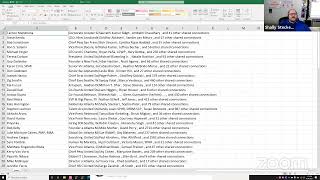
Shelly and Glenn build a Power Automate Desktop flow that scrapes LinkedIn search results, extracting names, headlines, locations, and shared connections. They troubleshoot browser control issues, set up pagination to loop through pages, and save the data to Excel. Profile URLs require CSS selectors or JavaScript to extract.
Chapters
It should be Restream. And here we go, here we go. Hello world! Oh, it's showing you.
Me?
Oh, let's see if it shows me now. There we go. Hello world, welcome to Shelly's Alley, LinkedIn scraping edition, part 3 of our series on PAD, as we like to call it, Power Automate Desktop for Microsoft, which is a free application. Go back to the previous episodes if you want to find out how to install the application, although in the future this will be coming in basically built in with your Windows. But for the time being, let's just go ahead and install it, and hopefully you can follow along today. What we wanted to do— with me here is my colleague in crime, Glenn Guttmacher, who's going to help everybody. Hey, Glenn! He's going to help me figure out some of these things. Now, we got a little bit stuck last time, but that's okay. We're farther away from— or we're farther into the process now. We I think we got a pretty smooth solution. So the first thing we're going to do is go to a LinkedIn set of results, which could be your network search or search for, you know, connections, first-degree connections, or really whatever you want. There's so much you can do with Automate. You can do a search and then send messages by doing paste text. You can do a search and then you know, click on buttons and all kinds of things. So let me go ahead and start by sharing my screen here. And here you see my, my business account and just a brief search for connections, which is this URL right here. You can activate any other kind of search with filters or other criteria. So we're going to go to our Power Automate desktop and we're going to initiate things by creating a— or launching a web page using whichever browser, whether it's Explorer, Edge, Chrome, Firefox. I'm currently using Chrome here, so I'm going to go ahead and launch a new Chrome. And you can launch a new instance or you can append to an existing instance. I'm going to go ahead and launch a new instance and tell it to go to that address. With a maximized window. And that's pretty much all we need for now. Then from that page, it will— the next step will be to extract the data from the web page so we can train the robot how to identify the pieces on the screen. So we'll change this to Excel because we don't want to store these as variables, we actually want an Excel output. But But before we hit save, we're going to go to our page and begin training it. Now, if this happens to you where you click on the page and you have the extraction preview, this is the same thing that happened last time. It's not recognizing any of the div codes or any of the headings. So that means that it basically doesn't really see this browser for some reason. So I'm going to go ahead and change this to Append to existing instance by URL and see if that changes it. Hopefully it will. Then again, extract from web page and change that to Excel. Now let's see if it recognizes it. Oh right, I didn't mean to close that. There we go. Okay, is it changing it? Nope, it's not. All right, so Glenn, last time we did this, what— remind me again what we had to do when it wasn't recognizing the browser? We had to close the browser all the way from scratch, right?
Yeah, we, uh, there was a setting that you did in your browser, but that shouldn't have reset itself.
Um, No, I left that the way it is.
Okay, so I don't recall you doing anything differently here.
Uh, well, let me close this out and see what happens and just go ahead and launch a new Chrome to see if it'll actually launch a new Chrome, and then we can use that instance there. Okay, so launch a new Chrome window that goes to this address, save it, and let's see what it does. It should launch a brand new Chrome window. We'll see which, which Chrome instance it launches. There we go. Okay. Oh, look at that, it launched a new Chrome but it didn't go to the page. How about that? It errored out there. Failure to assume control. Okay, so we had closed everything out of Chrome basically, right? That's what we did in the Task Manager. There shouldn't be any Chrome because the setting that we changed last time was to, um, have Chrome basically close out any services that were still running when we, when we exit the browser, which we've already done, right? So that's not running. So why is it doing the same thing again? Launch new instance.
Do some searching in Help World.
Hold on. Help World. Help me, world. All right, let's see if this actually runs now. Let's try it. Launch new Chrome. All we wanted to do is launch a Chrome. And go to that address, which it looks like it now did do. Okay, excellent, we're there. So now we can go ahead and add our Extract from Web Page and see if it works this time. Once again, change it to Spreadsheet. And before you close this out, go to your window and start recording The sequence is— nope, it's not. Wow, it really refuses to, um, to recognize the, uh, the browser instance, huh? Just doesn't want to do it. So curious.
Okay, well Yeah, there are some additional help steps they're recommending that are a little bit involved, but you can try this hard.
No, it shouldn't, shouldn't be this hard to launch a Chrome browser and go to a web page. So there's definitely something strange going on here. All right, I just opened a new Chrome window on my own without the automator here, and I'm going to go to LinkedIn, bringing the automator over. So far we haven't started recording any steps, so let me just go to my network and browse my connections. Glenn, I'm sure you can think of a faster way for me to go to my, my connections on, um, LinkedIn, right? But it's taking a minute here to load.
Yeah, you can definitely make a shortcut to things like that. In your—
you would think I would already have that, right? Okay, here we are. Connections, finally. So launch a new Chrome. But instead, attach to a running instance, attach to a Chrome tab by URL. What does foreground window do? Does it do something different? Let's try that because that's going to be this window. Maybe that'll be a difference and it won't, it won't crash this time. So instead of doing launch a new Chrome and then launch a new tab, I'm going to use the foreground window, which is the one that essentially right now is the only one that's running. Let's go ahead and extract. And don't forget to change the spreadsheet, otherwise it stores it into variables. And let's see if this works. Okay, for whatever reason, this worked. So now we have the little selector. This is what was missing before. Now that we're here with the selector, you want to decide what it is that you want to scrape. Do you want to grab the names, titles, locations, um, of, of this data, or do you actually want to go right into each of these individual profiles and, you know, perhaps download it as a PDF, etc.? So there's many different things that you can do. For now, because this is part of a search, I'm I can just go ahead and click on one of these, just start with the first one. And there used to be a way to browse to the next page. Is that no longer visible?
Well, wouldn't you rather work at the top level and get everything that was there? Do we want to dig in? The first—
oh yeah, let's do that. That's a good idea. We'll start with that. Okay, so we'll start with just basically like Glenn said, grabbing the information that's coming up here on the search. So first things first will be the name. Right-click and you see Extract Element, which will show you the text, and that's the name. Then you can grab the heading if you want. This would be the basically right below the person's name. It's not the job title, but it's their headline. So we'll grab the headline and then we can grab— let's see if there's a— is there a URL? We can grab—
it's going to link. Yeah, it should link somewhere.
Hmm. I wonder where the link is.
Yeah, LinkedIn is notorious for— oh, there it is, these elements. There you go.
Media. Nope. Okay, that's media. We don't want that. Oh wow, they're really hiding it. It feels like this might be it, but then it isn't. So let me go to the parent element and see what it does. See, nope, not there. All right, let's go Up one more. That's the parent and another parent. Nope, still not letting me grab it. Let's see. Oh wow, it's just not letting me grab the LinkedIn URL. I think we might have to extract it. From here.
Yeah, we're gonna have to find the CSS selector. Now I can see it when I inspect the page.
What's it called?
I can, I can tell you what it is. So it's the href within a certain div class. So if I give you the class name, And then under fiddle. Yeah, so where it says attribute name, yeah, if you type a period, MN, like Mary Nancy, hyphen connection, hyphen card, double underscore details. And then You want that href within that.
I think we tried just this attribute and see what happens.
Okay, I mean, that's— there's a lot in that div. Hmm.
Seems to have picked up another one here.
Hold on, I have to do this a slightly different way.
It's almost— it's like a blank value.
Yeah, we have to be able to specify the href value specifically within that. Hang on.
Should we go back? I just reset it. I'm going to try the, the search with filters and see if there's any additional data in here. See if it lets me load this, this page here. There might be more information on these. All right, so here we have the name again, extract name. Now we have the title, which we didn't have before, and location, which we didn't have before. There's even who you're connected to. That might be interesting information to grab, right? Your connections in common, I think, is what this is called.
I don't think any sourcer will mind if you grab more stuff.
Yeah, looks like there's almost always at least one, but there may be some that don't have it. So let me see if I can grab the whole— by right-clicking and going to— right-clicking and going to the parents, if I can grab the whole thing. Sorry, I keep— my mouse is kind of sensitive. It keeps running away from me. There we go. There, got it. I got it. So here's the connections in common. Now, did you find the, the link?
I'm doing a little digging to figure out— I know how to do it in JavaScript. I'm just trying to figure out in Power Automate Desktop what format they want you to enter it as.
I suppose we could use the JavaScript because there is a JavaScript automator, believe it or not. Well, let me go to the next one. So this is— we got first name, title, location, connections in common. So as soon as you do a second one with the same pattern, you'll watch over here, it'll recognize the rest. So extract. And you see immediately it goes, oh, I see the pattern, and it grabs all of the rest of them. Now, one last thing you'll need to do is tell it— tell LinkedIn what the next page looks like. So you can use either this element down here or this element over here, shouldn't really matter. Um, this one may be a little bit more obvious. And what you'll do is you're going to highlight the button and say set element as pager. Which then tells LinkedIn that that's how you go to the next set so that it can extract the next group of 10 results. Now when we go and run this, we can actually tell LinkedIn— uh, not LinkedIn, sorry, the automator— how many of the pages you wanted to go and get. You can say only grab 1, or grab the first 10, or grab as many as possible, for example. Perhaps, uh, Glenn, we can come back and edit this when you have that. So here's what I was talking about here. Extract from only the first or all available up until, um— so if you did only the first, you can choose however many maximum. Let's say you wanted to do 10. I'll just do 10 so that it doesn't take too long, but it looks like it goes all the way up to 100, so you could even do 100 here if you wanted to, or you can just say everything that I can get, which is it's going to keep paginating until it gets to, you know, the maximum, which I believe is 100 here. For today, now let's just do the first 10 and save it. So let's show you how this one works, and while Glen investigates potentially adding the HTML link so that we can extract that as well. And here we go. Well, I'm going to save it first in case we want to make some changes to it, and I'm going to run. So I'm hands-free at this point. The robot should be running and grabbing to— oh, look at that, failed to assume control of Chrome in the foreground. Exactly what it was doing before. Interesting. Now it's going to the next page and the next page and the next page. Hopefully, uh, now there is a setting in there. It says wait for page to load, which was just built into the script, as you might have Recalled, so when I started the launch new Chrome and, um, put in that, that original command, there was a little setting at the end of that that said wait for page to load. That's reasonable because if you didn't do that, it may try to go to a page and extract nothing because the page hasn't quite loaded, and you'll just get essentially a blank— a bunch of blank rows in a spreadsheet. Looks like we're pretty close to the end here. That was— I think that was 7, 8, 9. This may be the 10th one. Let's see. Well, I guess that was the 9th one. That was the 10th one. The next thing you should do is bring up a spreadsheet. As you can see, that's all automated. And here's the spreadsheet with all the elements that it created. There you have the name, the title, the location, and the first— it looks like the first 2 connections plus however many other shared connections. This would be very easy to transform. What we can do in another session is show you how to transform this into, um, columns using Automator. But for those of you that are familiar with Excel, you know, you can just simply go into Data and then hit Text to Columns. Although normally I would actually build this right into the scraper so that as it's grabbing the information, it'll parse the, you know, the pieces that you want. But for now, let's go ahead and do that one little bit manually. And here is the text to columns with comma as the delimiter, which should now create basically 3 columns, one for the first connection, then the second connection, and then the however many others you have in common, uh, you know, role. Oh, looks like this one got parsed because of the comma. So this is the kind of thing that you could do with regex inside of Automator, as you would say, if this is not a, you know, and, then don't count that as a comma. But that's a little bit more sophisticated than what we can handle right now with Excel without doing additional scripts here. So right now we have all the pieces that we wanted: the name, the title, the location, and whom, whom you're connected with in between, and how many connections perhaps you share, which is enough to start sending messages to the tune of, hey, we're connected through Sanjay, we have 450 other shared connections, etc. So now we got that to work. Glenn, did you find anything with regard to actually being able to grab the HTML itself? Or are we going to have to do that next time?
Yeah, it's a little complicated. I will figure it out, but I don't want to take up too much time here.
Gotcha. Okay. One other thing that I want to show you is you can also click directly into one of these profiles and manipulate this data here. There's a number of buttons that you could click with Automator using either the UI or just simply the, um, there's a click a link on the page command right there. It says click a link on web page. So you could train it to grab information from this page and then go to the next one and go to the next one. That's That would be an activity that we would do on our next session. So that would allow you to scrape information such as the text, the education, their skills, their interests, and even the people that you may know in common and those other kinds of things. It would even allow you to extract any notes that you would have in here and et cetera. So much the same thing as what we just did. You would activate the extract, then start right-clicking to grab the elements. And then you can also use the, the click on web page link to tell it which one to click so that it would pop up, say for example, the action to write a message or the action to save as a PDF or the action to, you know, recommend or etc. Even remove connections and so on. Glenn, anything else you want to show? I know we're just a little bit over time, and we went way over last time, but let's keep this one to our 30 minutes. Any, anything else you want to show real quick on this, or are we good?
Yeah, I think we'll, uh, have more of it pre-made so that we can just take people through the steps. Might be more efficient.
Great, so we'll start with this one next time. And add the extraction of the LinkedIn URL from this window here with, with the search so that you can grab the links. And then from there, we'll be able to open each one of those links one at a time and do something else with it, like parse the information or manipulate the, uh, the buttons, etc., as we talked about. So that is it for scraping LinkedIn on a budget today. Thanks very much, and we will see you next week for part 4. Bye, everybody!
More from Shally



Scaling Talent at Hypergrowth: Leadership, AI, and Hiring Excellence with Cindy Nicola







