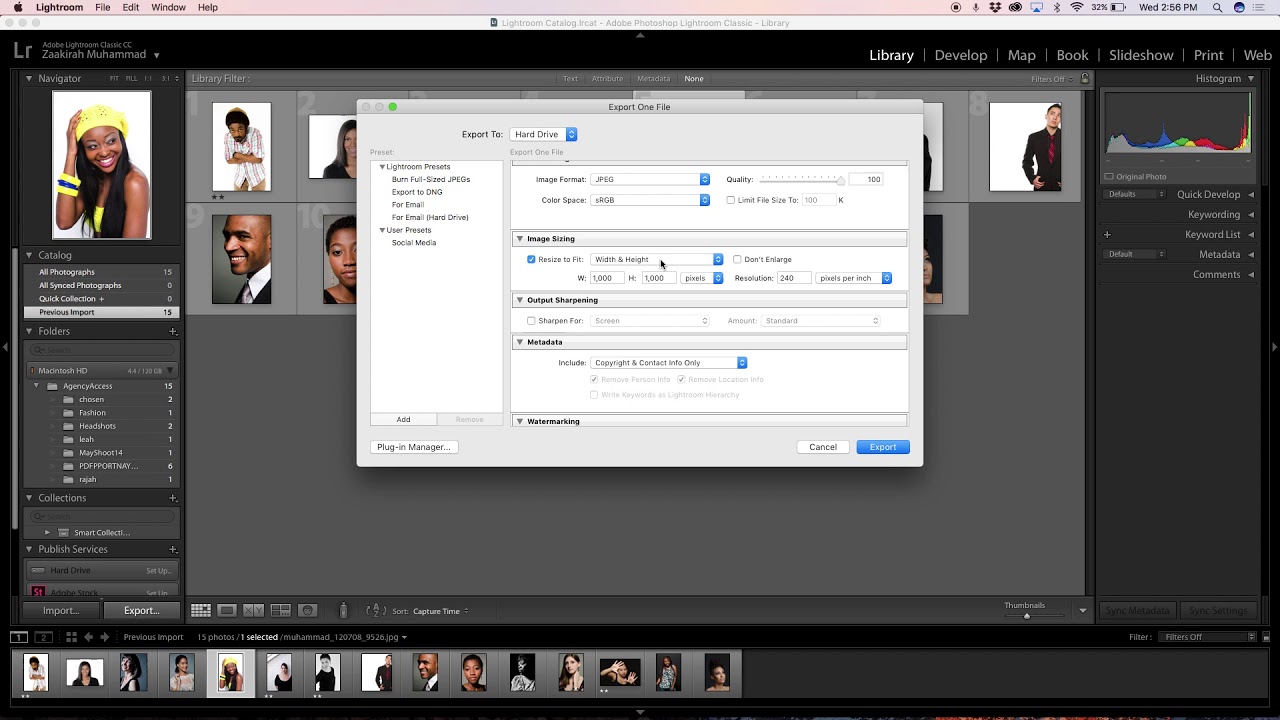
Zaakirah of Nyraal Photography shows how to export photos from Lightroom for social media. She creates a reusable preset, sets files to 1080 × 1080 px at 240 ppi, and saves them to Dropbox. The preset ensures consistent sizing and quality across posts.
Chapters
Hi, this is Zaakirah of Nyraal Photography. I am just answering a question in regards to how to export images for social media in Lightroom. So, this is kind of a tricky thing, but it's also rather simple. Right now I'm just going to show you how to just simply export an image. So, say I'm going to grab this one, I go over here to Export. In here you can begin to set presets, 'cause that's what this setting is over here. So there will be presets that you can kind of add over here. So if you click over here and go to Add, you can kind of rename it to Social Media, and then click Create. So there it's gonna be by default. So here is where you can kind of Share where you want to export. You can choose your specific folder. That's where you can go and choose and look at all your files and choose where it is you want it to go. Let's say I wanna put it in Dropbox and I'll make my own folder, and 'cause these are all my pictures of headshots right now. So you can always, of course, rename your images, and you can always choose what kind of format it's going to be. So this is where you kind of can adjust the quality. Quality is, you know, how much, you know, quality is going to show. And this is the most important part. This is where you would choose where you want it to go because you can do it by pixels, which is actually what we're going to do because I'm going to show you a document right here. If you look at The— sorry, let me get away from this. If you look at— I went to this website called About Social, and they have by default what's the updated pixels for social media. So by default, I always make my images 1080 by 1080 pixels, but of course, you know, that's like the highest resolution. Of course, the lowest resolution can get down to 612 by 612 pixels. So I'm gonna do— I'm gonna make an image exported into that size. So here is where I would do the megapixels is 1080. Right, sorry, okay. Try this again. Okay, there we go. Width and height. The width and height is going to be 1080. You're gonna be width and height, it's by pixel. 'Cause here's where you can choose the inches or centimeters. That's more important if you're printing. Resolution is 240, that's the default, that's the highest, sorry, that's the highest quality. So there is a way to make sure it's even on both sides and make sure it's a square. Here we go, long edge. If you make it by long edge, by default it will make it to the longest size of 1080 pixels. So as long as you don't want anything else, of course you can always add watermark, all of that. This is where you click export. So now it's exporting, already exported. It's synced to my Dropbox. I'm gonna take a look and see what it looks like. It's gonna open up. Let me see. Okay, headshots. Open that. And that's big enough. Quite okay. So I hope that answers your question.