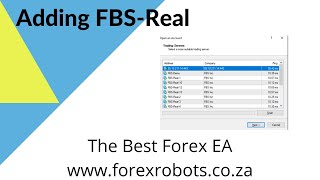
A short step-by-step YouTube tutorial by Alan Solarsh showing how to add FBS real servers to the MetaTrader 4 (MT4) client running on a VPS. Key actions: find the "MetaTrader Server IP" on the FBS dashboard, copy it, open MT4 on the VPS, choose "Add new broker" (Open an Account), paste the server IP, press Enter to add the server, select the added server, paste your MT4 username and password into the "Existing account" fields, finish the dialog, and confirm the connection via MT4's status indicator. The presenter repeatedly tells viewers to pause the video and perform each step before resuming.
Chapters
Before we get started and we connect the vps to your MT4 account, you may need to just check that the.
MT4 session on your VPS has the correct servers so that you can connect your FPS account to the MT4 platform. Okay, so what I'd like you to do is I'd like you to go to your dashboard and then click on your account that you just created to get to the screen over here. So please log into your VPN now. Or rather log into FPS now. Go to this screen. Once done, you can come back to.
This video and resume the video.
Now, over here, where it says MetaTrader Server IP, you can just copy that.
So please pause the video.
Please copy this.
Please pause the video.
Once done, you can come back to.
This video and resume the video.
So now my. My server here says 13. So when I log into the VPS, what you can do is you can just close any, any login screens that you've got here and you can say file and you can say open an account.
So please pause the video.
Please go do that step. Now, once done, you can come back.
To this video and resume the video.
Now in this section here is the real servers. Now, as you can see here, I don't have real 13. I need to add it. So this is where we need to add it. So you would scroll down to the section over here and where it says Add new broker, you double click there and you just paste in that IP address that is over there.
So please pause the video.
This is only if your real server is not here. If you're using Real3, then obviously you don't need to do the step and you can go on to the next video. Okay, real 13 is not in the section, so we need to paste in the IP over there.
So please pause the video.
Please go and copy and paste that IP address and paste it in the section. Now, once done, you can come back.
To this video and resume the video.
The next step is you can click on the Enter button on your keyboard. Keyboard, don't press Scan, just hit the Enter button. Now what will happen is that you'll hear a noise like that and then you can scroll up to the top and you'll see that the server has actually been added it.
So please pause the video.
Please go and do that step. Now, once done, you can come back.
To the section and resume the video.
Okay, so what you can do now is you can just highlight this over here and you can click next.
So please pause the video.
Please go and do that. Step now once done you can come.
Back to this video and resume the video.
Now over here where it says existing account you can just copy. You can just.
Highlight this so that this section becomes live and then you can go back to your FPS and you can just click on the copy button and then you can click on the paste button in the section go and do that for both of your your username and password and just paste it in there and then you can click on the finish button.
So please pause the video.
Please go and do that step. Now once done you can come back.
To this video and resume the video.
Now over here in the bottom right hand corner you can see that you're now conn to the You've now connected your MT4 to the FPS platform. Okay so I hope that you found this video helpful. If you did, please subscribe to my channel, give me a thumbs up and I'll see you in my next videos.