FXBlue MT5 EA Publisher
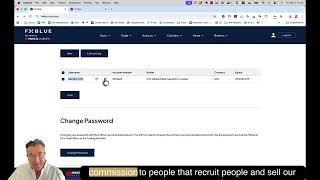
Step-by-step setup for the FXBlue Publisher EA on MetaTrader 5, covering account creation, VPS login, EA configuration with your FXBlue credentials, and publishing settings like period and history range. The tutorial also shows how to verify successful publishing, troubleshoot errors, and customize your account on the FXBlue web dashboard.
Chapters
This video tutorial explains to you how to set up your FXBlue on MetaTrader 5. So below this video, there's a button to access FXBlue. So please go and click on that button now. You can pause the video, go and do that step.
Once done, you can come back to this video and resume the video.
The next step is to create your account, or you can just log into your account. So for those of you that don't have an FXBlue Blue, you can click on register.
So please pause the video, please go and do that step now.
Once done, you can come back to this video and resume the video.
Please fill in all the information here. Please take note of your password and your username because you're going to use those details in the FX Blue EA on MetaTrader 5. So please go and populate these fields now. Pause the video, go and do that step.
Once done, you can come back this video and resume the video.
Once you've done that, you can click on the registration button, and then where it's got the details over here for Chrome, it asks you to save them. I suggest you save it, just click on the save button.
So please pause the video, please go and do that step now.
Once done, you can come back to this video and resume the video.
Now it's going to send you a code. Go and find that email in your inbox. If you're on Gmail and it hasn't arrived, maybe it's in the promotions folder, and the promotions folder you can find on gmail.com on the web browser, not on your local email client. So go and find that code now, enter the code here, and then click on confirm.
So please pause the video, please go and do that step now.
Once done, you can come back to this video and resume the video.
The next step is to log into your VPS that you're going to be using.
So please pause the video, please go and log into your VPS now.
Once done, you can come back to this video and resume the video.
What I like to do is I like to separate my blue banner from my normal trading charts by putting the FX Blue between the two different charts. So to do that, you can just open a new chart, any chart you like. So you know how to do that, you can right-click and say Chart Window, and on any one of the pairs, and then Your chart will probably open on the right here, and then you can drag it to where you want to be. And I like to put mine in between, as I said, the blue banner and my normal trading charts.
So please pause the video, please go and do that step now.
Once done, you can come back to this video and resume the video.
So I've already set up my FX Blue, so I'm not going to be working on this chart over here. I'm going to be working on this chart. And you're going to be working on the chart that you have put in between the two different charts. So the next step is to click on Tools, then click on Options, and then click on Expert Advisors.
So please pause the video, please go and do that step now.
Once done, you can come back to this video and resume the video.
Now below this video on the training website, there is a text box with a URL, and you're going to copy that URL and you're going to paste it in here.
So please pause the video, please go and do that step now.
Once done, you can come back to this video and resume the video.
Once you've pasted the URL in this section, you're just going to take your mouse and click anywhere in the white area so that it's not white anymore. It is blue banner there.
So please pause the video, please go and do that step now.
Once done, you can come back to this video and resume the video.
Now make sure that your algorithmic trading is on for this section, so go and do that step and then click on the OK button.
So please pause the video, please go and do that step now.
Once done, you can come back to this video and resume the video.
The next step that you're going to do is you're going to click on Experts, on the little arrow there, and then you're going to find the FX Blue Publisher EA. Now if it's not there, just send me a PM on the EA setup group on Discord, and we will then add the publisher to your VPS. Now the publisher will only be there once we've actually received your TC docs and we've received your Forex Sent account number. Then the robots will be loaded. So if it's not there and you've done all that, you can just click on the refresh button and then the EA should be 3 days.
So please pause the video, please go and do those steps now.
Once done, you can come back to this video and resume the video.
The next step is you can add this to the chart that you want to be working with. So you can just say Attach to Chart, and then you can just make sure that Algo Trading is clicked. Then you can click on the input section.
So please pause the video, please go and do that step now.
Once done, you can come back to this video and resume the video.
Now we want to expand the input, so you're going to hover your mouse over the top line of the input so that you get a diagonal line with the two arrows, and then you're going to double-click to expand the input.
So please pause the video, please go and do that step now.
Once done, you can come back to this video and resume the video.
Now over here, you're going to enter the username and the password that you had created on your FXBlue website. So I hope that you took that down. If you didn't, let's go to the website and go and find it. So So here is mine. If you don't know what yours is, you can reset it by going down here and it says change password. So when you're on this page for your— so it's FXBlue Publisher. I'm going to put this URL also below the video. It's a separate button so that if you want to come back to this area, you'll know where to go. If you scroll down and you need to reset your password, you can just click on change and then enter a new password over here. This will be your username that you're going to copy. So if you need to change your password, pause the video, go and do that step. If you've got the password and the username, just copy your password, go back to the VPS, and you're going to paste it into that section over there, and then paste your password into this area as well.
So please pause the video, please go and do those steps now.
Once done, you can come back to this video and resume the video.
Now I like to change the publisher periods. I like to make it every minute. You can just go through all the settings here and then leave the history. The history will be on the longest date, and then put in here your deposit. So whatever deposit you started with or the last deposit that you made, it'll then give you the results based on the last deposit that you made. You can change the date here, so if you only want to see what you did for specific dates, you can do that as well. So go and populate this area now. So pause the video, go and do that step now.
Once done, you can come back to this video and resume the video.
The next step is to save the preset. So click on Save and then call it FX Blue, and if you've got your own folder, then save it in your own folder, and then click on the Save button.
So please pause the video, please go and do those steps now.
Once done, you can come back this video and resume the video.
So, and then you can click on the OK button. I'm going to click Cancel for now. Now, to open the FXBlue, if you ever need to open the FXBlue again, like change the settings if you want to, you right-click on the chart and then you click on Expert List. And then where it says FXBlue Publisher, you say Properties. Just A side note, the next step that you need to do is you need to set up your history. So if you want your full history to display on the FXBlue website, then you need to say All History. So please pause the video, please click on your History tab, right-click anywhere in this area and say All History.
So please pause the video, please go and do that step now.
Once done, you can come back to this video and resume the video.
So once you've done that and it says here that it has in fact published, then you know that you have done it correctly. If you get red writing here that says that you need to read it, it could be your username, could be your password that's incorrect, or you haven't set up the tools, options, and expert advisors. You haven't set this up correctly, okay? So make sure that you don't have any red writing on here. If If you've still got red writing, it means that you've definitely done something incorrectly and you need to then rewatch this video. Okay, let's go on to the next step. So the next step is to go back to the FXBlue website that you had, and then if you want to see your results, you can then click on this icon over here. Okay, now before we do that, you can see here now that it's rendered. All right, you can see it automatically rendered and my information is here. So now I know that when I click on this icon to— I'm actually going to click it in a new tab and so that it's there just to show that the information has rendered correctly. And then everything is correct and your results will show. Now, if you want to share this with a friend and show them your results, which I highly recommend because we do pay commission to people that recruit people and sell our robots— if you are happy, you know, you are having brass, tell your friends about this. You know, it's important that we grow the community. Just a side note. Okay, so click on the gear icon, and then over here you want to just enter some information so that when your friend goes on to this website and you— if you want to become a recruiter and you want to make extra money as an affiliate, put there— you can put whatever you want, your name, your surname. Okay, the URL, you can skip that tab. Name, you can put whatever you want, put your username. Password and then hide your account number. You don't have to. I like to not hide it because when I send them picture screenshot of my MetaTrader, I like it to show that what's on the FX Blue matches the account number from my MetaTrader. It shows them that it's transparent and that the link is legitimate and it is your account. So I don't tick anything. If you've changed anything in the section, you can say click on Change Settings. So every time you change information per setting, you need to say change settings. You can say broker timezone if you want to. That offset, you get that offset from the broker from here. This is the market watch time, so this is the server time, 14:27. The time today is 14:27, so there you can say, yeah, GMT+2, that's the timezone that we're on. If you're on a different timezone, then obviously use a different timezone. Daylight savings, we're about to go into daylight savings, so you can use the daylight savings Europe, USA. I'm not sure what it was, you can check on the general group, the general announcements group on the Discord server, and it'll tell you what the daylight savings are, and then click on change time zone. So adjust order times, you can do that as well, daylight savings, and then click on change adjustments, and then this section is saved.
Okay, so please pause the video, go and set this up now.
Once done, you can come back to this video and resume the video.
So the next step is— so I'm just going to go back. As you can see here on the section here, there is no like information in this area. So what I'm going to do is I'm going to say here the description. I'm going to say Alan Main Account just to show you. What it looks like. And tab name, you can say same thing, Alan Main Account. So that will be this over here. It'll say FXBlue Alan Main Account. And then I'm going to change the settings. It says here account description added successfully. When I refresh the page, it should change the tab. And then it says, yeah, Alan Main Account, that people know that this is in fact your FXBlue. Now FXBlue is fantastic. It gives you all your analytics. Of what's happening on your account. You can't break anything here, all right? So go and mess around. Everything's got dropdowns. You can do different things. So if you want to see the return table, this is like a monthly return table of what your profits are per month. And you can do balances. It really has a lot of drilldowns. If you want to see what's happening per day, you can go to Summaries, and then you can say Filter, and then Here are your different options that you can use to set up your FXBlue. Cool. So go and have fun with this tool. It really is lovely to know what you're doing on a daily, weekly, monthly basis so that you can track it and you can start setting your goals and your projections of where you want to be by the end of the year and see how you're doing and why you're not on track and if you are on track. It's always nice to set goals and then achieve those goals, obviously. Now, we definitely need your FX Blue link because we want to see how you're doing. It's the only way for us to know if your account is in trouble or if you're having challenges with your account, or you're not getting between the 7% and 11% profitability. And then we're going to give you a call, we're going to help you discuss discuss with you, see what your goals are, see what your risk is, see if you've set up the robot correctly, and help you to achieve your goals. So it's very important that you have an accountability partner, and we are your accountability partner. So this is the only way that we're able to see what you're doing. So once you've got your FX Blue link, please post it in the EA testimonials group. It also shows the public that this is legit and you are another trader of ours using our EA trading, and then they can also track your results and see what's happening. So bookmark the page. I've got mine under Forex. You can say FX Blue, and then if you've got multiple accounts, obviously just put there the account number or the account name, or like, you know, so that you can track it. And then when you want to come back to this page, it's easy and readily available for you. So I hope that you enjoyed the video, and I will see you on my next video. Cheers.
More from Alan





Double bottom forming - Gold ready for $4000 #trading #technicalanalysis #xauusd





