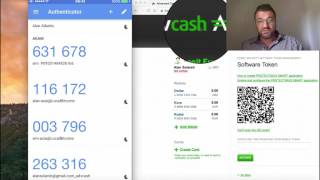
Alan Solarsh walks through installing Google Authenticator on your phone to secure accounts. He uses Advanced Cash as an example, showing step-by-step how to set up two-factor authentication.
Questions this video answers
Every 30 to 45 seconds.
Advanced Cash.
Chapters
Alan Solosh here, the passive income guru. This tutorial video is about installing the Google Authenticator code on your phone.
So what you do is you can just.
Move your hands down the screen. Let me do that slowly for you. Hope you can see my screen. Put your hands on your screen, scroll down, and then just type in here app Store. Okay? And you can see there it says the App Store over here. So just click the App store and this will take you to your app store in the search menu at the top. If there is anything in there, just delete it and then put in there Google Authenticator.
It should pop up. It's the first one that does pop up, give you the various different options. And this is the one that we want to be installing. Now, if you haven't installed it on your phone, it'll give you the option over here to say install. It will ask you for your icloud passwords, username and password. Just enter that into this area over here, install it, and then you can open it. Okay, so let's just open the Google Authenticator tool. So I've got lots of different codes that I'm using here. And to install a code, what you would do is you would press on the plus sign and then you have the option to either scan a barcode or manually enter a barcode. So let's do that now. So here is an example of how to install the GA code on your phone. Going to be using an example from Advanced Cash. So over here it says here, scan the barcode. So at the bottom of your phone here it says here, scan barcode. So just click it on your phone, okay? And then the camera will open on your phone. And then you just scan the token. And now if you scroll down to the bottom of the page here, it will say there advanced Cash, which is the advanced cache over here. And that is the code. Now this code over here is going to change every 30 to 45 seconds. Okay? It's going to get a new code. Now, if you don't have this code, then nobody can log into your account. So by having this code, you're preventing your account from being hacked. That somebody would need your phone and this code to log into your account. So let's enter that code in. Now see that everything works.
So as you can see, everything has worked perfectly. And I've logged into my account, which is fabulous. So let's log out of this account.
And make sure that we've done this correctly. So we're going to log in. We've installed the GA code. And let's put in the password which is going to be the GA code authenticate, which is now different. It's different number. It's now 80497. So I'll just move my screen a little bit so that you can see there. There it is. 804 907. And I'll press continue. And as you can see, I've now logged into my account seamlessly. And that's fantastic. So now my Advanced Cash account is secured from hackers. Nobody can get into my account except the person that has the phone and that would be me. If you lose your. If you lose your phone and your phone gets stolen, you would need to contact Advance Cash to verify that you are the person that wants to enter into your account or enter into the account that you're trying to get into. And they will then ask you for KYC documents or FICA documents to verify that you are that person. Then they will remove the GA code. Then you will have access to account. I hope that helps you. If you've enjoyed this video, please subscribe to my channel. Please like and comment on my video and please share this video on social media and have a great day and have a fantastic passive income day.