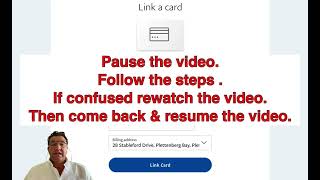
A short how-to transcript by Alan Solarsh (the "passive income guru") demonstrating how to link and verify a payment card in a PayPal account. The video walks viewers through Account settings → Money/Banks & Cards → Link a new card, entering card details including the CV (last three digits), then verifying the card by retrieving a four-digit 'PP' code from the bank statement after a $1.99 temporary debit (refunded later). The presenter gives interactive pause prompts and closes with usual channel CTAs.
Questions this video answers
Alan Solarsh
April 4, 2023
$1.99
$1.95
A transaction marked 'PP' followed by four digits (PPxxxx)
Chapters
Alan Solar here, the passive income guru, in this video tutorial explains to you how to link a card in the PayPal payment gateway.
Right? So if you haven't created your account on PayPal, please go and create that now. Then you can come back here and you can resume this video. So you log into your PayPal account and then you cl. You mouse over your name and you click on Account settings. So please pause the video. Please go and do that step now. Once done, you can come back to this video and resume the video. Now, my account is a business account, so your account may look slightly different to this, but try and follow along and find the the icons that I'm using to link the card. So once you're on this page, you need to click on the Money Banks and cards icon on the left. So please pause the video. Please go and do that step now. Once done, you can come back to this video and resume the video. Now, you won't have any cards linked over here. It' just say cards and then link new cards and you click on the link a new card. So please pause the video. Please go and do that step now. Once done, you can come back to this video and resume the video. Now, on this page, you need to fill in the details of your card. So I'm going to pause the video. You go and do that step now. So please pause the video. Please fill in your details now. Once done, you can come back to this video and resume the video. Right? So after you filled in your details, including your security code, which is the last three digits at the back of your card, it's called the CV number. Then you can click on link card. So please pause the video. Please go and link your card now. Once done, you can come back to this video and resume the video. Then you can click on the done button. And then what will happen now is that you have just linked your card. Now, you need to verify your card. So you need to find your card that is in the that you've just linked, which is this one. And you click on the edit button. So please pause the video. Please go and do that step now. Once done, you can come back to this video and resume the video. The next step that you need to do is you need to confirm your card. So you just click on confirm card. So please pause the video. Please go and do that step. Now. Once done, you can come back to this video and resume the video. And then you can say click on get code. So what's happening now? So please pause the video, go and do that step now. Once done, you can come back to this video and resume the video. So what's happening now is that PayPal is going to debit your card with $1.99. This is the only way that they know that the card actually belongs to you. So what will happen is, is will get a transaction number or a transaction on your statement on your Internet banking to the value of $1.99. And the transaction code will be PP and four digits, okay? Those are the four digits that need to be entered into the next process which I'm going to share with you now. So when you get the code, you can then enter the code over here by clicking on Enter code. So you click on Enter code and then you'll put in the four digit code over here that you got on on your bank statement. Once you click confirm, then the PayPal will then refund your $1.95 and you can then go and purchase the robot. Okay? So if you've got that code now, you can go and enter this code now. If not, you'll have to come back in two to three days and enter that code. So I hope that you found this video interesting and worthwhile. If you have, please give me a thumbs up. Please subscribe to my channel. Please comment in the comment section of this video and then I'll see you on my next video.