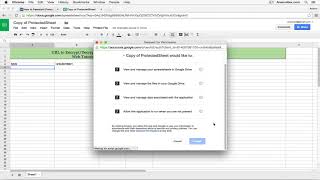
Anson shows how to password-protect a Google Sheets spreadsheet using a script from skipser.com. Copy the Protected Sheet template, put sensitive data below the green rows, authorize the script once, then use the Protect File menu to encrypt and decrypt with a password. Google Drive doesn't offer native per-spreadsheet protection, so this is a workaround.
You.
Hello everyone, this is anson from ansonalex.com and in this video, I'm going to show you how you can password protect a Google spreadsheet. You didn't think it was possible, did you? Neither did I. Because Google doesn't have this feature built into Google Drive. There's no native way to password protect a single spreadsheet. The only protection they have is your actual Google account username. And of course, if you have access to that Google account, you have access to all the documents. So. So I did some research and I found a way to password protect a Google spreadsheet. I found it on this website. It's skipser.com and they've actually created a spreadsheet that has a script in it that will allow you to password protect your spreadsheet. So you need to go to this website. Don't worry, I will post a link to this website in the description of this video here on YouTube. So you can just click on it. You don't have to enter the whole address. And then on this website, there are actually instructions for how to do this, but these instructions are a little outdated and it's actually easier than the process that they go through on the website. So I'm going to show you the easier way. So, on this website, we just need to click on the protected sheet link and it's going to open up a new tab and it's going to ask us if we want to make a copy of it. And of course we do, because we want our own version that only we have access to that we can then encrypt. So I'm going to click yes, make a copy. You'll notice that it opens up a new spreadsheet. We want to enter all of the data in this spreadsheet below the green lines because these first two rows aren't going to be encrypted. Everything below is. So let's say, you know, we had a spreadsheet with our Social Security number. I would never, by the way, put your Social Security number in a Google Drive document or any online document whatsoever. But let's just say that's in here. And obviously we want to encrypt that because it's some very important sensitive data. So we have our Social Security number in here. Now, there's two parts to this. There's one part that we're just going to have to do the first time in this spreadsheet, and then we'll never have to do it again on this spreadsheet. And then there's the encryption part where we create a password and enter our password, which every time you want to lock the document you will have to do that. So the first part of the process is to go up here to this Protect File menu and just click Encrypt File. And the first time you click this, it's going to need authorization to run. It needs access to our Google Drive so it can encrypt our documents in Google Drive. So we're going to click OK and then we're going to click Accept. This is the only time you'll have to go through that process with this specific document. Now we can encrypt the document. So I'm going to go back up to protect file and I'm going to click Encrypt file again. This time it's going to ask us for a password. Now before I enter my password, I want you to keep an eye on this data that I have in my spreadsheet. Now it's a Social Security number and this is the number I'm going to enter a quick password. I'll just call it Test. I'm going to click OK and watch what happens to this data. Oh, whoa, it's encrypted. So obviously that has nothing to do with the initial information that we put in here and we can't see that data. If I click on the cell, you know it doesn't show up up here at the top. That data is inaccessible to then access that data again. And if you want to edit the document, you're going to want to do this as well. You're going to go back up to protect file. You're going to click decrypt file. It's going to ask for your password. We'll go ahead and enter our password test, click Submit. Boom, there's our information. If we want to then password protect it again, go back up to protect encrypt, create a password can be the same as before.
Click Submit and it is then encrypted again. So this is the workaround until Google introduces a native option, which I can't believe they haven't done it yet. Very simple to do from a programming standpoint, but this is your workaround to password protect a Google spreadsheet. So I hope you found this helpful. Go ahead and check out the Skipser website. They have some good stuff on there. Obviously this article is one of the things that I found and if you enjoyed this video, I would really appreciate a thumbs up here on YouTube if you want to see more technology tips and tutorials. Remember to subscribe to my YouTube channel. That's all I have for you for today. This is Anson from ansonalex.com.