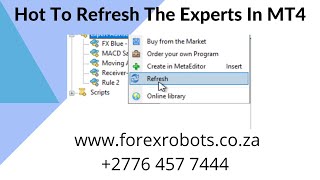
Alan Solarsh walks through saving Expert Advisor presets before refreshing the Experts folder so your trading settings don't disappear. Log into the VPS, save each EA's inputs with a clear name including pair, timeframe, and magic numbers, then refresh and reload the presets onto each chart to verify everything stuck.
Chapters
Alan Solos here, the passive income guru in this video tutorial explains to you how to refresh the experts section.
Right, so before you get started, well, firstly let's log into the vps. So please pause the video. Please log into the vps. Now, once done, you can come back to this video and resume the video. The first thing that you need to do is you need to save your, your, your template that you have.
Or your preset rather that you're using on each of the charts that you have. So what you need to do is you can click on the smiley face. Now if there are trades here, you won't be able to click on the smiley face. So what you can do is you can right click and you can click on Experts and you can click on Properties. So please pause the video. Please go and open up your, your input section. Now once done, you can come back to this video and resume the video. Make sure that you're on the input section and where, where it says inputs. You can then click on the save button. But before you click on the save button, you need to know which chart you are working with. So you can just scroll down here and you can say Gold Magic 1 and 2. So you can go here and you can say save and then you can say Gold Magic 12 and then you can click on the save button. So please pause the video. Please go and do that step. Now, once done, you can come back to this video and resume the video. And then you can please click on the Cancel button. Do not click on the OK button. So click on the Cancel button. So please pause the video. Please go and do that step. Now, once done, you can come back to this video and resume the video. Right now you need to do the step for each of the charts that you have.
That you have the robot running on. So if you, let's say have Euro US dollar, let's just load it, okay? And we'll make this this one three and we'll make this one four. Okay, so let's say you've got the robot running and you need to go to this chart. So you click on either the smiley face or you'll right click and click on Experts and you click on Properties. And then you need to click on the Save button. And this one you will call EUR USD.
Let's do that again. UR USD Magic Magic 3 and 4. And then you click on the Save button and then you click on Cancel. So please do this for each of your charts. Okay, once you've done that and you've Saved all your charts.
Let's say you've got a gold trading on maybe 15 minutes, and you've got a gold trading on a 30 minute. So let's change that. So we'll go there, we'll Change that to 30 minute. Then you would then click on. So let me just load the robot. You would then click on and you would say save and you'd say gold, 30m magic.
Whatever, five and six, whatever your magic numbers are. Okay? So please make sure that you save your experts correctly so that when after you refresh it, you're able to load the correct preset onto the correct chart. So the more information that you have in the file name, the better it is for you. So you can even put your lot size. You can say lots of 0, 0, 0.0 or rather 0.25. Okay? And then you can click on the save button and that's it. Okay, now that you've saved your, your, your presets, let me just show you what's. What's happening. Yes, let me Change this to 0.25. 0.25 on the gold, on the euro US dollar and on this one, what are we trading at? 0.02. So on my euro US dollar, I'm trading 0.25, and on my gold, I'm trading 0.2. Now, how you refresh your experts is as follows. You click. You right click on the experts and you click on Refresh. So please pause the video. Please go and do that step. Now. Once done, you can come back to this video and resume the video. Now when you click on the refresh button, okay, when you, when you go back to your inputs, your everything has been reset on your robot, including your lot size, including your magic numbers. Okay, so this is where you would say load and then you would choose your gold chart that you your gold preset that you had saved. In this instance, it was my gold preset that I saved. And you can see there that the lot Size is now 0.2. My magic numbers are 1 and 2, exactly what I had saved in my presets. Okay? So please take note that when you refresh your Expert, the Expert is reset back to factory default. And you will now need to go and set up and load your preset. So please pause the video. Please go and refresh the experts folders. Now, once done, you can come back to this video and resume the video right now. Now that you've refreshed it, please load the correct preset on the correct chart. So please pause the video Go and do that. Set that step. Now. Once done, you can come back to this video and resume the video. Once you've done that, you can click on the OK button. So please pause the video. Go and do that step. Now. When it's done, you can come back to this video and resume the video. And then to double check you can just click on the plus the smiley face. And then you can click on this section. Make sure that your lot size is correct. Make sure that your hedging settings are correct. Make sure that your magic number is correct. So please pause the video. Please go and make sure everything is set up correctly the way it was previously. Once done, you can come back and click on the OK button and then you can carry on trading. Right? So the, the last step. I should have actually made this the first step. But the last step here is if you click on the magic number and you click on the commons or rather the about section, make sure that the version number is the same version number as what we are telling you the version number is. If it's an earlier version, then you haven't.
Either I haven't loaded the correct robot or you have not refreshed the experts correctly. So please make sure that you are that you're using the correct version of the robot and everything lines up the way it's supposed to. So I hope that you like this video. If you do, please give me a thumbs up and you can give me a comment in the comment section. It helps boost this video so that other people will know now how to refresh their experts advisors correctly and I'll see you on my next video.