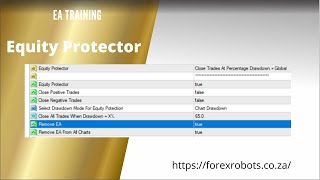
Alan Solarsh demonstrates the Equity Protector, a feature that closes trades when account drawdown reaches a user-specified percentage to preserve a portion of capital. He gives an example preference of 65% drawdown (which would protect the remaining 35% of capital), explains that the Equity Protector must be set to true to function, and walks through settings: options to leave profitable (positive) trades open, to close only negative trades, choice between chart-specific vs global drawdown, and whether to remove the robot/chart when the protector triggers. He notes recovery timelines (roughly 3–5 months depending on risk settings) and emphasizes double-clicking to access dropdowns for each input.
Questions this video answers
February 16, 2024
65% drawdown (which would leave/protect 35% of capital).
Equity Protector must be set to true.
Chart drawdown and global drawdown.
Positive (profitable) trades are left open and only negative trades are closed.
Chapters
This video tutorial explains the Equity protector, right? So the equity Protector is there to protect your capital in case your hedge doesn't kick in. Now the only reason why your hedge wouldn't kick in is because if you've used high risk settings and the robot can't open a hedge because you don't have enough equity in your account. So protect. So, so to protect your account, we've developed what is called the Equity Protector that will then close out all your trades at X percentage drawdown and protect X percentage of your capital. Okay, so where it says here close all trades when drawdown equals X percentage, I like to keep mine at 65% and that means that when my drawdown is 65%, what will happen is the equity protector will kick in and I will lose 65% of my capital and I will protect 35% of my capital so that I can carry on trading with your 35% capital. You can get your account back to its original state within 3 to 4 to 5 months, depending on the risk setting that you're using. Okay, so let's go through the settings so that you can understand how to what this Equity protector does and how it works. Okay, so your equity protector must be set to true. So when you double click here, all these settings here have drop down menus, but you have to double click to get to those drop downs. So make sure that your equity protector is set to true. If your equity is protector set to false, then your equity protector is turned off and it cannot protect your capital. So here we've added some extra features where you can close positive trade trades. And if you've got positive trades. So let's say you reach an equity, your your drawdown reaches 65% and you the pair that you're trading is trending. What you can opt for is you can opt to leave your positive trades open. So if you set your positive trade to false, it means that your all your positive trades, trades that in plus and in blue will be left alone and only your negative trades will be left to close. Okay that's if this is set to true. So if your close negative trades is set to true, then only your and this is set to false. Then only your trades that are in negative will then close out and you will then hold those trades that are blue, which is a very nice feature. So here you can say select drawdown mode for Equity Protector. Here you can choose what you want. You can either have chart drawdown or global drawdown. So previously what it was, it was set to global, but now you can set it to chart specific as well. So if you want your chart to. Let's say you only want your chart to reach a drawdown of 20%, then you'll change this to chart drawdown, and. And you'll change this to when your drawdown reaches 20%, close out either all your trades on that for that chart or close out only your negative trades or both negative and positive. If these are both set to true. Okay. And then over here, you can either leave the. Leave the robot on the chart or you can remove it when the equity protector kicks in. In. So when the equity protector kicks in, either your chart will either your robot will remain on the chart or it will be removed off the chart. And once your equity protector is hit, you can either remove the chart, remove the robot from only this chart, or you can remove it from all charts. It all depends on you and how you've set up the robot. So I hope that you understand this video. If you don't, just rewind it, go through the inputs and make sure that you understand all settings of the robot, and I'll see you on my next video.