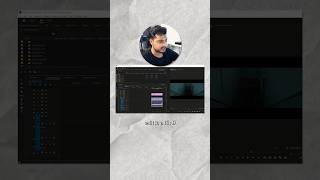
Areeb Mirza shows how to add black cinematic bars in Premiere Pro. Create an Adjustment Layer, apply the Crop effect, set top and bottom values, then stretch it across your timeline so all clips get the bars.
Chapters
Here's how you can add these black bars in Premiere Pro so in my latest post I've been using the anamorphic lens by Siri which if you edit in a 169 timeline will give you these black bars. But if you're using a standard lens, here's how to add black bars to your videos. Right click on your media browser any empty space and then click on New Item and then click Adjustment layer. Now place the adjustment layer above your track. Now head over to your effects panel and type in Crop. Now drag and drop Crop onto the adjustment layer. Now here's where you can play around with the bars. You can either do it manually or type in a number on your effects control. You can also adjust the frame of it since you still have footage underneath the black bars. Now after that I recommend putting a couple layers above and locking it. You can also just stretch it out throughout the whole timeline. So any footage you put underneath the adjustment layer will automatically have black bars.