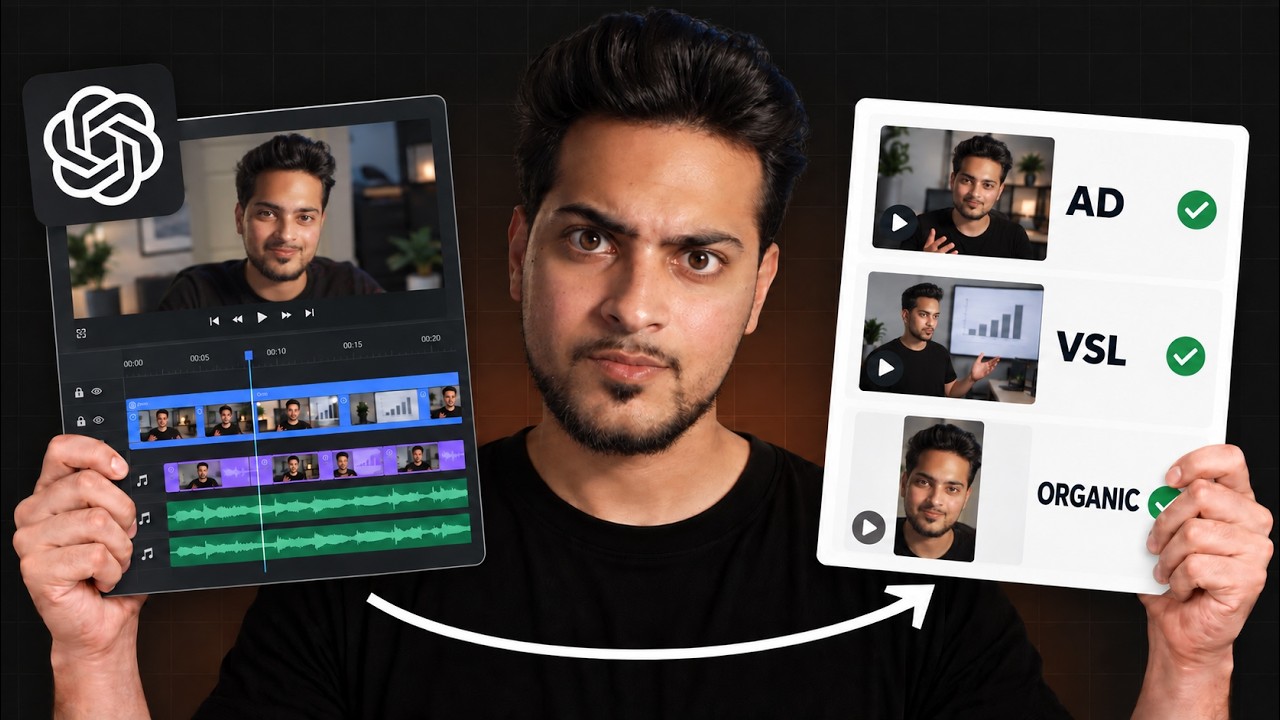
Areeb Mirza explains Proxy Recording: creating low-resolution 'proxy' files alongside high-resolution footage to enable smoother playback and faster editing workflows on computers that struggle with 4K. He describes two ways to create proxies — within editing software (Premiere Pro, DaVinci Resolve, Final Cut) or directly in-camera (example shown for Sony cameras where Proxy Recording is off by default).
Chapters
You guys are sleeping on Proxy Recording. Listen, you have a good camera, but your computer cannot handle the 4K files you put in your editing software if you don't know what Proxy Recording is. Basically, Proxy Recording is the process of capturing lower resolution video files alongside high resolution footage. These proxy files serve as lightweight versions that can be used for editing, enable smoother playback and faster workflows. So now that you know what that means, there are two ways to activate Proxy Recording. Number one would be in your editing software. Yesterday we talked about how we can create it in Premiere Pro. If you use Premiere, I would recommend you check that out. But you can create it in either DaVinci final cut. Whatever editing software you use, there should be an option for you to create proxies. The number two method is creating it straight out of your camera. On Sony, it's very simple. To record it, you click on menu, you go to recording, click on the first image quality and then head over to Proxy recording. So on here you'll see Proxy recording is turned off by default. You can turn it on and as soon as you turn it.