8 Google Ads Columns You Must Watch: Ultimate Google Ads Metrics, Stats & Custom Columns Setup Guide
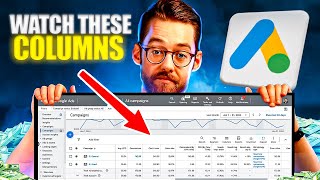
In this instructional video, Austin LeClear walks viewers through the exact set of Google Ads columns they should monitor to evaluate and improve campaign performance for both lead‑generation and e‑commerce accounts. He begins by emphasizing the three core metrics—conversions, cost per conversion, and total cost—and explains why accurate conversion tracking is essential. He then details additional performance columns (impressions, clicks, average CPC) and how cost‑per‑click and conversion rate together drive cost‑per‑conversion, offering practical advice on bid adjustments and incremental budget scaling (≈20% steps). The video highlights the importance of the Status column, especially “limited by budget” and “limited by search volume” signals, and shows how to use Google’s budget‑increase estimator. LeClear introduces latency in conversion reporting and demonstrates how to create custom columns—Conversions by Conversion Time, CPA by Conversion Time, Conversion Value by Conversion Time, and ROAS by Time—to get up‑to‑date metrics. He also covers competitive metrics (Search Impression Share, Top Impression Share, Absolute Top Impression Share) and how they inform decisions to increase bids or budgets. For e‑commerce accounts, he adds columns for conversion value and ROAS, stressing the need to track revenue‑based performance. Finally, he explains how to configure these columns, save them as a custom column set, and consistently review them to decide when to scale or cut back, ensuring campaigns remain profitable.
Chapters
Which numbers do you need to keep track of inside your Google Ads account? This is a really common question that we get asked on account reviews, on consultation calls. So today what I'm going to do is share with you exactly which columns you need to have open in your Google Ads campaigns so that you can see how well your campaigns are performing, which campaigns are driving conversions, where there are opportunities for expansion and growth, and where you need to start cutting back and tightening up your spending so that you can drive a better cost per conversion and a more profitable account. So without further ado, let's jump into an example Google Ads account so you can see exactly which settings and which columns you need to configure to keep a close eye on the performance of your campaigns and continue to see success from your Google Ads. So the columns that you have set up in your account will differ slightly depending on whether you're trying to drive leads, as in conversions in your account, or or you're trying to drive E Commerce sales, as in conversion value or direct purchases through your Google Ads account. So to begin with, I'm going to show you a lead generation account and the columns that you need to configure there. But then second, I'm going to jump over to an E Commerce account and show you the differences and the different columns that you need to have set up and showing each time you log in. So I'm inside a lead generation account right now, and before I go through all of the different columns and how to actually set them up so they're showing each time you log into your account, let me just take a step back and remind you of what is actually important when it comes to lead generation. So what do we really care about when it comes to generating leads? We obviously care about leads that we're generating, but what are the components in that? Well, number one is obviously how many leads did we get, right? How many conversions did we drive from the spend that we output into Google Ads? So that's obviously the first column that I'd be looking at inside of Google Ads, and that is the conversions column. It is important to know that you obviously need to have your conversions set up and tracking correctly in order for this column to be delivering accurate information. And we're going to have a separate video on how to set up your conversion tracking for lead generation. But number of conversions over a certain time frame, that is a crucial metric. Number two is how much did it cost me for each of those conversions. So there's another video that we have on how to Calculate your cost per lead goal. I'm going to have it linked up in the corner right now. But once you've calculated what your cost per conversion needs to be in order to be profitable, then you need to make sure that you're keeping an eye on how much conversions are costing you inside your account. So that's where this second important column comes in. And if I only had to pick two, it basically would be these two. And that is cost per conversion. And cost per conversion, again, is telling us what is it costing us to drive the actions that we're trying to from the ads that we're spending money on. Now, the third column that is obviously extremely important inside of Google Ads is cost. What did we outlay in order to drive the conversions at the cost per conversion that we have set? So this is important for multiple reasons. One is one of the other columns here, which is set up by default, which you're going to see when you log in and you're looking at the campaign settings is budget. Budget is what we're telling Google we want to spend per day. Now, Google has a tendency to not spend exactly what we've asked it to. It will either underspend if the campaign settings are too constrictive, or it will overspend if we give Google too much room to maneuver. And so we need to be keeping a close eye on what we actually spent over a specific time frame so that we know whether or not we're on track for our budget and whether or not it makes sense to start to scale up what we're spending each day. So again, high level, what are we actually focusing on when it comes to our campaigns? We're looking at what it's costing us, how many conversions we're driving, and what it's costing us per conversion. Those are the metrics that are really steering the ship here. But what are some of these other columns that can inform us on what we should be doing these campaigns to improve performance or where there are opportunities to expand? So let's go through the next few. Obviously here we have status. This again is a default column and it's going to give us a few different pieces of information depending on the situation in the campaign. So, for example, if there are disapprovals in the campaign, it will tell us that. Or if in this case here we are limited by search volume, that basically means that Google has run out of search terms to show our ads for within the parameters that we've set in the campaign with the keywords that we've set up. So there aren't more searches. And if we wanted to drive more volume, we're going to have to expand our targeting. And we've also got limited by budget. Now, limited by budget is a important notification to be keeping an eye on, because if we've calculated our cost per conversion, and we know what it's going to be in order to be profitable, what we need to be hitting in order to be making money, and Google tells us that we're limited by budget, that basically means that for roughly the same cost per conversion, Google thinks that it can drive more of those conversions if we're willing to increase our daily budget. So in other words, we're holding this campaign back, we're constricting it because of what we're limiting the daily spend too. And if we are willing to increase our budget, then Google is able to drive more conversions for us. However, if we do decide to go down this route, and if you click on this, if you see it in your account, you can actually see how much more we need to spend in order to drive more conversions and what the impact will likely be on the cost per conversion, this is a good time to take a pause and figure out where we want to plan to take this campaign. Because if we're scaling something up that's not profitable, it's only going to get less profitable. But if we are gradually increasing what we're spending in this campaign, and then we're allowing the algorithm to adjust and maintain a similar cost per conversion, then we can start to drive dramatically more conversion volume from our campaign. So this is a really useful tool in order to direct you in doing that. And Google tells us that we're limited by budget. That basically means that for an incremental increase in the current cost per conversion, Google thinks it can deliver more conversions from our spend. It just requires us to be willing to spend more on a daily basis. So if I click on this, you can see that Google is giving us some idea of if we increase our daily budget, how many more conversions will drive. And this is actually very useful. So even though this is definitely a guide and by no means will you necessarily hit these cost per conversions as you continue to increase budget, it does give us some idea that if we do want to get more volume and we are hitting our cost per conversion goal right now, there is the potential to drive more conversions if we're simply willing to increase our daily spend, and if we're willing to be patient and gradually increase that spend over time rather than ramping up too quickly and Blowing our cost per conversion sky high. So if you are going to increase your daily budget, it's definitely important to do it slowly but surely in increments of no more than about 20% at a time, so that your cost per conversion is maintained as you grow your campaign. So let's continue down these list of columns. So impressions is obviously important. We want to see that our ads are being seen by people. And clicks is obviously important. If a campaign is getting no clicks, especially for a day or a couple of days, we know that something is potentially wrong that we need to go in and fix in that campaign. The next two numbers that are really important though, when it comes to determining what we can do to improve performance, are cost per click and conversion rate. So when we were looking at the cost per conversion before, and when we're thinking about how we calculated that cost per conversion, right, based on your numbers, based on the value of a customer, we work out that the cost per conversion that we need to be profitable, let's say, is $50. Now, if we look at this cost per conversion here, this is made up of basically two numbers. The cost per click times the conversion rate. So if we want to improve our cost per conversion, we need to figure out how can we improve those two metrics, either reducing the cost per click or increasing the conversion rate. So reducing the cost per click with a manual campaign is as simple as reducing your bids on the keywords inside your campaign, reducing your cost per click on a targeted bidded campaign or a bidding algorithm based campaign such as Target cpa, that basically comes down to reducing your cost per conversion goal. That basically is going to influence Google's bidding algorithm to bid lower per click to bring down that cost per click in order to try to hit your cost per conversion goal. Now the challenge comes in when it comes to reducing cost per click, when you start to bid so low that there isn't enough volume to actually sustain the campaign. So let's just say all of the clicks are getting bought for $10 or higher, and, and you're bidding $6. You might be willing to pay $6 for a click, but there aren't any clicks going for that price. So you actually do need to bid higher in order to continue to get volume and to continue to get impressions and clicks in that campaign. So if your objective is to still maintain volume, but also to drive a profitable cost per conversion, the other metric that you then need to start focusing on improving is your conversion rate, which is in this column here. So it is important to keep A close eye on your conversion rate. It's a good idea to be comparing a certain time period compared to a previous time period. So for example, last month compared to three months ago, if I've made some changes to my page, if I've made some changes to my campaigns, what is my conversion rate looking like? And if you can improve your conversion rate, let's say from 5% to 7 and a half percent, all of a sudden you've improved the performance of your campaign by 50%. And that's going to allow you to hit a profitable cost per conversion. But it's also going to allow you to spend more more and drive more volume and be able to stay profitable as you start to scale your campaign up. So next we have a few more columns that are really useful, especially when it comes to campaigns that are driving leads that don't take action immediately. So what do I mean by that? Well, let's say someone is in research mode and they come across your site, they take a look around and then they go away, they disappear, they think about things, they maybe look at some alternatives or some competitors. Then they come back and convert a few days later. What that means is that the original click that drove that person to your site and the actual conversion took place on different days, potentially different weeks. And that basically means there's some going to be some latency in the reporting of that conversion in your standard conversions column. So that's where these two columns, conversions by conversion time and CPA by conversion time, which I'm going to show you how to set up in a second, which is a custom column. These can give you a much clearer idea of where conversions are actually at in that recent time period. So if I look at this account here, you can actually see that Google is even telling us that there is some latency in reporting because of this delay between when someone originally clicks on an ad and when they end up converting. For this date range, this bid strategy is projected to receive 26 more conversions and 7,000 more in conversion value. It takes up to 13 days after impression for most of your conversion data be reported. So in other words, there's a couple of week delay on a significant proportion of our conversions. So that's basically why if you're looking at very recent data, a week, two weeks, even up to a month, it's sometimes better if Google is giving you this notification in the graph here, which I've brought up by clicking on this arrow to bring up your conversions by conversion time column. In fact, here what we can see is in the last 30 days or so, the conversions column is reporting 73 conversions, but the Conversions by Conversion Time column is reporting significantly more, nearly 90 conversions. And the cost per conversion is differing quite a bit as well. So if our cost per conversion goal was $90 based on the incorrect or incomplete data over that recent time frame, we're actually over that cost per conversion goal. So based on that, it looks like we're unprofitable. But if we take into account the latency and the delay in the reporting of the real conversion data that's coming through, we're actually beating our $90 conversion so we can continue going full steam ahead. So how do you create this CPA by Conversion Time column? Well, that is very easy. It's actually just a custom setup. If you click on columns here and click on Modify columns and go down to custom columns and here you can just do create a custom column. I've already created it, so I'll just go into it here. So all you need to do is type in cost divided by Conversions by conversion time and I've named it CPA by Conversion Time. And if I hit save now and I go out of this and I hit Apply, I can now see that CPA by Conversion Time column which is going to report for me up to date cost per conversion based on the real time data in the account, not based on when the original click necessarily happened. So that's going to be reporting more conversions over a recent time frame. So the last couple columns which I have up in my account are these three, and these give us some indication of where we're at in terms of the volume that's possible to hit in these individual campaigns. So what do I mean by that? Well, we have here Search Impression Share, Search Top Impression Share, and Search Absolute Top Impression Set. So Search Impression Share is basically the percentage of the time that we're showing for the terms and the keywords that we've told Google that we want to hit inside this campaign. Search Top Impression Share is the percentage of the time that we're appearing in the top four spots, which is basically at the top of the Google search results. And Search Absolute Top Impression Share is the percentage of the time that we're appearing in the number 11 spot for searches that we're targeting in this campaign, this particular campaign. If our cost per conversion is 90, which based on the Conversions by Conversion Time column we're hitting, and our Search Impression share is only 20%, that basically means that we should probably be getting a little bit more aggressive with this campaign to drive more conversion volume, as long as everything else is on track, it's essentially Google telling us that there are lots more impressions and clicks that are out there to be had for the current targeting that you have set. And if we have room within our cost per conversion goal to continue to push a bit harder and we can sustain maybe a slight increase in our cost per conversion in order to get additional volume of conversions, then it can be worth it for us to either increase our daily budget, which would be what I would do here, because this campaign is limited by budget and therefore we could be spending more per day with the current cost per conversion goal, or if we are not limited by budget, but we still have a low search impression share, if we are beating our cost per conversion goal, as I've said that we are here, then I would be looking to increase the cost per conversion goal inside our campaign. So in other words, I'd be looking to go into the bid strategy, type clicking on this, going to the settings, and basically looking to increase our target CPA from 115 to, let's say 125 or 130. Not too much so that Google overshoots and all of a sudden we're super unprofitable, but enough so that we're giving Google's bidding algorithm a bit more room to maneuver and a bit more room to bid a bit more aggressively so that it can continue to increase the volume that we're getting from this campaign. Because we can see that this impression share metric is telling us that there are more impressions and clicks out there for the terms that we're trying to hit. And if it's working, if these leads are good quality, if we want more of them, we're going to have to try to push into that in order to continue to grow this account and grow this business. So to bring up all of these columns, all you need to do is to go to the columns button here, click on Modify columns and check the following boxes. So under performance, we obviously want impressions, clicks, cost and average cpc. I typically will have cost first, then impressions, clicks, and average CPC after that. Next you want to go into the Conversions tab and check conversions cost per conversion, conversion rate, and then also conversions by conversion time to see those conversions that are coming through on the date that the conversion actually happens. Next, underneath competitive metrics, we're going to want to check Search Impression Share, search top Impression Share, and search absolute Top Impression share. And lastly, if you want to double check the bid strategy that your campaign is using, which is sometimes useful for us when we're reviewing an account. You can click on attributes and you can go into bid strategy type to bring that up, or you can go into the campaign settings at the campaign level. And again, the last metric that I mentioned here was under custom columns and that is CPA by conversion time, which I've created and which I outlined how to set up before. So once you've got all of these set up in that order, you can hit apply and you can see these columns are all here and will show up in your account each time you log in. If you want to make sure that these always appear, you can click save your column set and you can name this column set up official tracking so that each time you come in, you can click on that column set and view all of the key metrics in your campaigns and in your account Foreign so if you're an E Commerce business, you're going to want very much the same setup with a few small adjustments. So you're still going to obviously want budget status, cost, impressions, clicks, average CPC conversions cost per conversion as before, and you're still going to want conversion rate, but now you're going to want to really keep a close eye on conversion value. Obviously conversion value is purchases and this is what needs to be configured in the revenue tracking inside of the Google Ads conversion settings. And then you're also going to want to have conversion value divided by cost. So this is a standard column that you can pull up and this is basically your return on ad spend. For every dollar that you're spending on ads, how much revenue are you producing in your campaigns? This is absolutely crucial, especially when you're trying to drive profitable revenue, when you know your margins and you know what return you need in order to be profitable. And then you can make sure that your campaign is staying on track at that return as you continue to grow. The other two columns that I would really recommend an E Commerce business have set up in their account are these two here. And these again come back to the latency that I was mentioning before. So you can see in this case, for example, for this date range, this bid strategy is projected to receive 32 more conversions and 19,000 more in conversion value. And it takes up to nine days after impression for most of your conversion data to be reported. So again, latency is very common, especially with higher value E Commerce purchases. And so for that reason you definitely want to bring up conversion value by conversion time and return on ad spend by time, which is a very similar custom column. Let me show you how to set that up right now. So if I go again, go into columns, click on modify columns and go into conversions conversion value by conversion time. Again, that is revenue that you've driven from Google Ads on the day that the purchase took place, rather than the day that the original click happened. But for the return on ad spend by time, which is basically your return on ad spend, taking into account that latency, you can click on custom columns. And then here you can see if I click on this little pencil here, roas by time. And here you just want to have conversion value by conversion time, which you can select divided by cost. And when you set up this custom column in this way, it's going to give you up to date conversion value of a cost or return on ad spend metrics so that when you're looking at what the campaign is driving, you're reacting to the correct campaign data and you're not responding to data that's incomplete or out of date because this is really up to date return on ad spend numbers. And that's actually what you should be responding to and optimizing the campaign around and not the delayed data that will come through in a few weeks. So there are a lot of other metrics that you can look at inside of Google Ads. There are metrics around the type of conversion you had, there are the networks that you've been showing on. But when it comes down to results, and that is obviously the most important thing for, for me, for you, for anyone running Google Ads, we want to be focusing on the metrics that are directly affecting the results we're getting from the campaigns, how many conversions we're getting, how many sales we're driving, and what our cost per conversion or return on ad spend is. So, so long as you can have these metrics up in your account and you're checking these regularly, if not daily, these are going to be the metrics that are going to basically determine whether or not your campaigns are succeeding or failing, and whether or not you have the capacity to start to ramp up and scale your account. Definitely go into your account right now. Go ahead. Make sure you have all these metrics set up so you can review them easily, save them as a custom column set, and then you can come in and check them every time you log into your account and you can make sure that your campaigns are on track as you continue to optimize for results. So with that being said, hope you've enjoyed the video today. Let me know if you have any questions in the comments below. And looking forward to seeing you in the next one.
More from Austin


Google Ads Negative Keywords: The RIGHT Way to Find and Add Negatives in 2026