Google Ads Editor Tutorial for Beginners - [Step-by-Step]
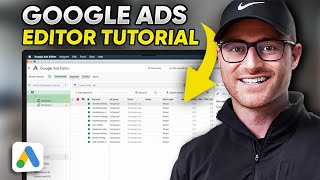
Learn Google Ads Editor, a desktop tool that lets you manage campaigns faster than the web interface. Bulk edit headlines and URLs, duplicate campaigns, adjust budgets and bidding, then post changes back to your account in seconds. It's built for handling large updates like Black Friday promotions.
Chapters
If you work a Google Ads account, you should be using Google Ads Editor. Not always, but in a lot of cases it's faster and you don't have to deal with, you know, the lagginess of the Google Ads interface on a web browser, which seems to have been happening over the last couple of years. So a lot of people get afraid of actual actually using the Google Ads Editor. I'm terrified. I am going to show you how to get going with it. It's very simple. I'm going to give you some quick tips and tricks and then hopefully save you some time while you're working a Google Ads account. So let's dive in. Okay. I'm not going to show you how to download it. It's very simple. Just type in Google Ads Editor in Google and you'll find your route to actually downloading it. Once you do download it, you need to add your account. Now I already have a bunch of accounts here. They're more than likely going to be blurred out to, you know, keep the stuff confidential. But what you would do is you hit this ad button and then they have a sign in and basically it's connecting Google Ads Editor to your MCC or your Google Ads account in order for you to actually download the account metrics and data. And so I am going to, and I already have, you know, my account stuff downloaded. So I'm going to bring up a real account and then show you how to get going from there. Okay, so I have an account that I already have downloaded and I'm. I want to start making changes in here. So now I'm hitting this download button and it gives me the option to download campaigns that are already downloaded campaigns I select. So this actually you can go one by one or you can just do all campaigns here I am going to do basically active, so I'm hitting select Active. So these are all of our active campaigns and I'm going to hit. Okay, okay, I have my account downloaded. This gives me basically all the campaign campaigns that are live right now that I did download. And in here, you know, I've got my performance Max campaign. I've got some search campaigns, a regular standard shopping. So in here I can kind of go through then and see all of the campaign settings on, on the right side, left side I can navigate through ad groups, I can navigate through the keywords and targeting the ads themselves. There's recommendations, ad assets, etc. So this is really great when you want to start making bulk changes. So like for instance, let's say I have this Regular search campaign. And I need to go in and make bulk changes to ads. I can literally grab all of the ads here and I can actually go ahead and just create a change. Or you can do a replay, replace text. Okay, so in this example, I could take, you know, finding and replacing text for my headline. So here, find text that says free trial. Replace it with no rest. Free trial. Well, instead of going inside of Google Ads on a web browser and going one by one through your ads or even trying to, you know, edit in bulk in there, you know, you can just simply load this up. You can see how quickly I'm moving through all of this. I can choose all the different headlines I would want to find those in and make those changes. You could also quickly make URL changes, right? So if I need to change the final URL and I need to have this blurred out, but I could easily go in and do this. So let's say there's a major web change and you need to do landing page changes or whatever and you have to change a bunch of your ads. Very simple to do if you're doing sales. Black Friday, Cyber Monday's coming up. If you're doing any of that, this is very easy to create those ads and in bulk change them. So let me actually show you how to do a quick ad change as well. So I'm in this sectionals, right? I'm going to go to. Let's just kid and pet friendly. I'm in this ad group now. And then I'm going to go to the ads. Now I can easily just make a new ad, right? So here I can come in, fill my headlines out, and actually build the ad out itself inside of editor, which again makes it super simple to do. So here's your descriptions and pass and everything else. Or, and I'm just going to delete that. Sometimes it's super nice. Like if I'm already going to use a lot of the same copy, but I want to make just a few changes. I can just hit command C on my keyboard, or you could right click and hit copy and then I'm going to hit command V and I have now copied and pasted this ad over, right? But let's say I'm just here to make a few quick edits. Like I want to test different headlines and I want to remove different headlines and that's a part of an ad test I'm doing. Then boom, I can come in here quickly, do that, and then make that change. Now I don't want to do that. So I'm going to hit remove right now. But you do see how quick that was. Like inside of the actual interface on your web browser, to copy and paste an ad sometimes can take a full minute or two, just because Google's a bit laggy at times. So this, you can just kind of breeze through a lot of these changes and save yourself so much time. You also have again, keywords and targeting here. So if you wanted to add further keywords, we could go in here, add new keywords. If you wanted to add further negative keywords and apply those in bulk, and you could simply come in here and do that too. So anything you can do basically on the interface on your browser, you can, you can do inside of the editor itself as well. Also, let's say I do this sometimes. Let's say you want to build a full campaign. And so I click this campaign, right? And I'm going to go up to the campaign level. This is the nice part too. You can see all of the data of your campaign. So I click this one individual campaign and I'm at the. I have keywords selected. So I'm seeing all the keywords of the campaign. This is nice. You can see the location targeting. You can see negative placements. And again, you could also see all the ads from here, too. But if I want to go back up to the campaign level, I'm going to click campaign down here under this Manage tab. So hit campaign. Now, let's say I want to copy this campaign, which I'm just doing, right? And the reason I'm doing this because let's say this campaign has all of the settings I already want. I just want a new campaign that's similar because maybe I'm doing sectionals and we're doing, you know, deep seat only. So this will be for whatever reason I'm doing maybe a campaign structural change. But again, this campaign here has all of the campaign settings that I already want. And so for instead of me going through Google Ads on a web browser and you can copy a full campaign over, but sometimes it takes forever, it's a hassle. Or building one from scratch. I can come in here, copy and paste right? Now let's say I don't want all of these ad groups. Then I just go down here and let's say, all right, I don't need all these, so I'm just going to delete them. So there's deep seed only. No, now I'm starting basically from scratch. But it has the same negative keywords. These will be blurred out probably it has the same negative keyword list, has the same location targeting, it has the same ad assets attached to it that I want, which you can take a look at through here, right? And then it has the same bidding strategy too. So let's go up, let's go back to campaign. Boom. And then I'm on deep seed only again, right? So deep seed only. And then boom, here. So here's my budget. It's the same budget I would want. It's the same bid strategy. Right now it's a maximized conversion value. It's only on search. I didn't want search partners or display network here. And tablets are at minus 100. I wanted to exclude them in this scenario. And so it has literally all of this done for me. So I just created an entire new campaign in, you know, what a minute, if that. And so now if I want to add a new ad group, so here we can quickly do that. So it's just deep seat sectional, boom. And then if I want to add some keywords to it, I just simply do this. Now it's keyword deep seat sectional. And then I'm gonna add that as an exact match. Boom. Done. Very, very simple. And again, if I wanted to do ads, here we go. Now instead of creating a brand new ad here, I could go take one from my regular sectionals campaign and. Cause if, let's say, hey, you know, the ad copy is very similar, I just need to add more deep seat language here. Then I'm just going to copy and paste that over like I just did and then come here on this right side and briefly go and edit that, add some more. So super simple. It's so quick. And all you do then once you're finished is you come up here and you hit post. So you're going to post your changes. So in this case, it would create one campaign for me with all of the settings that I needed to. I hit post and then it uploads it to the account. There you go. Very quick, easy way of using Google Ads Editor. I know there's a million different other things you could do inside of Google Ads Editor. I just wanted to create something very simple and get people comfortable on how to use the tool. A lot of people are afraid of it. I don't know why. Just looking at it seems very complex. It's not. You saw me click around very quickly. I was able to create a campaign and mess around with some ads. Very, very simple, super efficient. So hopefully after watching this, you are now comfortable and can save yourself some time using Google Ads Editor. I have more videos coming. Lots of great content, a lot of great plans for this YouTube channel. So I hope to see you on the next video.
More from Austin
Google Ads Negative Keywords: The RIGHT Way to Find and Add Negatives in 2026