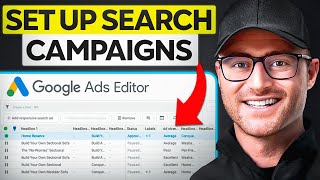
In this tutorial, Austin LeClear walks viewers through the complete process of building a Google Search campaign using Google Ads Editor, both manually and via a Google Sheets upload template. He begins by downloading the account into Editor, selecting active campaigns, and then creating a new campaign shell, adjusting key settings such as budget, bid strategy (switching from Max Conversions to Max Clicks for demonstration), location targeting, and network options. He adds an ad group, an exact‑match keyword, and a responsive search ad with placeholder headlines, descriptions, and final URL. After reviewing the proposed changes, he posts the campaign to the live account, emphasizing the need to triple‑check settings in the web interface. LeClear then demonstrates a faster workflow: populating a pre‑made Google Sheet template with campaign attributes, copying the rows, and importing them into Editor via the “Paste text” feature. He reviews the auto‑suggested settings (e.g., default United States targeting) and adds keywords separately using a keyword template. Finally, he posts the imported changes, again urging a post‑upload audit. Throughout, he promotes his mentorship program (PPC Copilot) and a free account audit service (Grow My Ads), providing links in the video description.
Chapters
In this video, I'm going to show you how to set up a search campaign the right way using Google Ads Editor. Let's dive in. Okay, so first you're going to need Google Ads Editor downloaded, obviously, in order to use it. And you're going to then download your account. Now, Google makes it super easy. As soon as you load Google Ads Editor, it's going to ask you to sign in to your account. You'll then link your Google Ads account to Editor you can, and then it's going to ask you to download that account. Now you can choose the campaigns you want to download. You can download the entire account. You have the options of doing that if you're working in a preexisting account that you've worked in before, such as me. In this example, what you do is you hit get recent changes, more data. And then here you can choose all campaigns. You can choose campaigns you've already downloaded, or you can individually select campaigns. Right. So here, what I'm going to do is hit this little. These little three buttons there. I'm going to hit select all. Actually, no, I'm not. I'm going to hit select Active, and then I'm going to hit. Okay, it is now going to download all of my active campaigns currently at this minute inside of my Google Ads account that I would see that are enabled if I logged onto Google Ads in the actual interface and in a browser. Okay, so now my campaigns are downloaded, and some of these may. Well, most of these names I can keep available in regards to not blurring it. I was just making sure there's no, like, confidential information being shown. Okay, so how would I create a campaign inside of Editor? Well, you can do it in two ways. One is you actually work inside of Editor, and that is for a search campaign. I'm simply going to hit add campaign here. And then it just kind of creates this sort of campaign number eight thing. Yours will, will be different depending on how many campaigns you have. I'm now going to click here. So I, I'm under this manage box. I'm at the campaign level, and this shows me all of my active campaigns. If I change this to like, ad groups, it's going to show me all the ad groups in this field, et cetera. So here I'm gonna go to campaigns, and I'm going to click campaign number eight because this is my new campaign. Right now all of your settings are on this right side here. So I'm going to change this to test search. Then just like you have all of Your campaign settings when building a campaign out inside of the Google Ads interface which by the way I have a complete step by step tutorial on how to do on this very YouTube channel. So I will link to that video in the description below. I'm not going to go through all of the settings of creating a campaign. I'm more showing you in this video how to utilize Editor but I'm not showing you the correct way and all the correct settings. So if you want that you can a get that from the YouTube videos I have on this channel. Especially in regards to search I have the whole step by step tutorial on on creating a search campaign or I have a group called PPC Copilot where I do Q&As. I have course material in there, I do ongoing trainings that link to that group will be in the description below. Again PPC Copilot if you want more one on one access to me to be able to ask me questions and get mentored on Google Ads for further help. So if you want all of that and all the nitty gritty details of doing this correctly, the correct settings and all of that, watch that or to go or go join PPC Copilot in this video I'm just going to show you how to utilize editor. So in here though I do want I'm going to add my budget and I'm going to change some of these settings right bid strategy. They have set to max conversions. I'm going to turn this on to max clicks for now just for this purpose. Don't read into any of my settings right now. I'm just doing this for the sake of going through some of this include search partners. I'm going to disable disable and I'm all good on the rest of that. Location targeting is set to United States targeting method. I'm putting people in a regularly and so I'm changing that and boom, we're all good. Okay, so the campaign shell is built but there's no ad groups or keywords. So what do I do? Well now I go to ad group, I add an ad group. Someone hit test and then now I need a keyword. I'm going to add a keyword. So now I'm going to hit test on my keyword and I'm going to make it an exact match. Okay then I'm going to need an ad right so responsive search ad. Well now I can create a responsive search ad. So I would go through headline one and then you have to have three. So I would do test one, test to test three, test one for my descriptions. Test two. So there's my descriptions and then a final URL test.com and boom, I have an ad now, right? I'm literally done. Now obviously this campaign would do nothing for me because I've just filled out a bunch of test data. But how would I actually post this? Now I simply am just going to hit this post button at the top right corner and then it's going to be selected campaigns because this is the campaign that I just built. And now you see, you can kind of see what changes will be made. So it's going to say it's creating one campaign, one ad group, one keyword, one location targeting, which would be the United States in this case, one responsive search ad. All I do is hit this blue post button and boom, it uploads it into my actual Google Ads account that I would see if I were in the interface in the browser right now. Make sure if you do this, you go and triple check every setting in that campaign inside of the interface because editor it, a lot of people work quick within it and then make mistakes and, and so you always want to triple check every campaign setting in the interface after you post this. Okay. That is how you set this up within just Google Ads Editor. I'm going to show you an even faster way by using a Google sheet. So let's do that. Okay. I am in our Google Ads Editor campaign upload template. This is available to the members of PPC Copilot in our resource section. If not, I'm sure there's templates online or can kind of look at the headlines here if you want to create this. So it's kind of like a shopping feed. It's attributes that you're filling out that Google knows. So you have to, you know, you can't mess with these campaign or sorry, these column header titles because that would screw everything up. So Google knows what campaign means, it knows what targeting method means, it knows what network means. So you can't mess with any of that. Just like a shopping feed, the attribute has to be set accordingly to how Google will read it. But you can now build all of this out in a sheet, copy and paste upload into editor. Good to go. So it's super, super fast if you know what you're doing. So here I've got campaign, right campaign type, my campaign status. I've got budget, budget type, networks and then a few other settings I like. I have my ad group, I have a bid strategy type. Now I start with max Clicks in the template because it's just the easiest bid strategy to use for this template. I will show you how to edit that once we're back in editor, just like I showed you when you're building a campaign inside of editor. And then we have a responsive search ad with some headlines and descriptions filled out. So here I am simply going to copy these attributes. Here I'm going to go into editor and there's two ways of going about it. A, you can go into make multiple changes and paste here or you can go into account, you can go into import paste text. And so I'm just going to do that. This brings me to the paste text feature. Then I'm going to go through and make sure everything looks good. And it does. And then I'm just going to hit process. Okay, so now it says hey, you've changes made one at one campaign, one ad group on responsive ad. I'm going to hit finish and review. You'll notice it's highlighted in this blue color. And that's because Google's proposing some changes. So I'm going to go through and I'll sort of flag those. Right. And so first let's go at the campaign level. I'm going to choose this new one that I just pasted in, right. It's called Search Test. And here there's a few things. Then some of this stuff you can just sort of ignore like include search partners, include display network. Just like Google does when you build out a campaign inside of the interface, it wants you to get pushed into some of these greedy settings that they have. So I'm just going to, you can ignore those or you can ignore this stuff at the bottom. Like I'm going to. I'm just checking my settings real quick though. So I have my budget. It's fine. The campaign's pause, it's on max clicks, which is fine for now. And then are we targeting. So this is something that Google is going to be proposing because I didn't add targeting, right? So why didn't I add targeting? Well, because of the way some of those attributes are set up. It auto suggested the United States so I'm actually okay with that. And then it's auto suggesting. And then I'm checking my responsive search ad here real quick too. Everything looks, everything looks fine to me. This is exactly what I set up. Not missing any attributes. So we're good there. Now it added, remember in my actual sheet, I don't have the United States in here. So it's auto suggesting that which is Part of the reason why it's proposing some of those changes, that's fine. And then ad group, it's saying I need a default max sort of CPC in here, even though I'm on max click. So I'm just going to do that anyways. But otherwise everything looks good. So just going to review this one more time through this and we're good. So I'm just going to hit then keep. All right, and so we're all set. Now, I don't have keywords, right. And the reason being is because keywords you kind of want to upload or need to upload separately if you're building a full campaign out in this structure. So we have this keyword template here too. It's very simple. The, the attributes you need here though are you do need to specify the campaign and ad group that you want the keyword going into. And then here we have the match type. They call it something different in the attribute. It's not called match type there. So here I have search test is the campaign I just built. Ad group is test keyword is I'm going to add as test and I want it an exact match. So all I'm doing now is hitting this and obviously I don't need to do this. If I'm just adding one keyword, I could easily do it here, but in this case all I'm going to do is make multiple changes set here or even just to show you, even if I did it at the campaign level and I go to this account import paste text and then I hit paste. So campaign ad group keyword and then the match type and then process this will now. So I'm gonna hit finish this will now show me the keyword that's in here. So, so I don't need this. I can keep all. We're all good there. And again we're on a max click bid strategy right now for that. So there you go. All I did is built this out real quick in a sheet, a Google sheet through a template that we have copied and pasted everything in. You just double check the settings here. And then just like before, you're going to hit post, you're going to make sure. Okay, cool. We got campaign, ad group, keyword location targeting, responsive search ad boom, hit post. And again, as soon as that post into your live account that you would log into in the browser, triple check all the settings. That way you make sure you don't add or have mistakes that get added. So don't just rely on editor or always triple check everything once you post it, live in your account or you're going to spend some real money on it. Okay, there you go. You now know how to use Google Ads Editor to create a search campaign the right way. Either manually using Editor or doing the nifty trick of using a sheet copy and pasting and then importing and hope you got great value from this again. If you want more one on one mentorship for me, my courses, my training, go check out PPC Copilot. The link to that group will be in the description below. I would love to see you inside IT and upgrade your Google Ads knowledge. If you don't want any of that and you just want some experts to take a look at your account, we do that too. Have my team here at Grow My Ads do a free audit. If you qualify, we will look at your account, give you recommendations, practical recommendations on how to improve your results. So if you don't want to spend more time learning and you just need some experts to get under the hood to help you with your account today, go get a free audit. The link to go get that free audit will be in the description below. So go check that out and if you don't want any of that, that's fine too. We'll see you on the next.