Kodi FS instructions
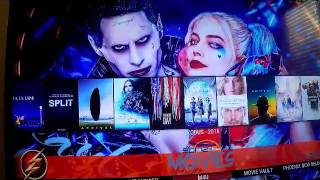
Billy Malady shows how to set up a Fire TV Stick with Kodi, navigate with the remote, and stream movies and TV shows using add-ons like Exodus and SportsDevil. He explains the circular OK button's edge shortcuts for 10-second and 10-minute jumps, warns against risky add-ons, and recommends keeping the power cord plugged in to retain settings.
Chapters
Welcome to your Amazon TV Fire Stick jailbroken with Kodi. This is what your box should look like after you've taken it out of the plastic. Next thing you do is go ahead and take the contents out of the box. When it's open, the two main things that I want you to look at is this piece right here. This is your remote control. I've already put the batteries in it for you so you don't have to worry about that. And this piece right here is the Fire Stick itself. Take it out of the paper. All right, you're gonna see it plugs into your HDMI port. Also in here is a power cord, a plug, and an HDMI adapter. So what that is— some TVs are pretty tight when you stick it into the back, and and you can get the HDMI adapter, plug this into the HDMI adapter, and the flexible cord into the back of the TV. Now, the, the Fire Stick does not have to have power. It can run off the power of the TV itself just by plugging it in, and when the TV comes on, it has power. It does work better if you have the power cord because the settings that you set, like if you want to set the weather and certain settings, they will save. If they don't, they they reset every single time. Now I have TVs that have both, and I can tell you that I like the ones better that have the power because my settings save. And the one TV that I could not get to a power outlet, it still works just fine, and that happens to be my main TV. So there is no problem if you cannot have a power outlet. I've plugged the cord into the adapter, the adapter into the power. You take this, you plug it right into the Fire Stick. In the back of the TV, you see I have 2 HDMI ports. This is for my PlayStation. This is my open, and I made this— that is the number 1 HDMI port. This just slides right into your HDMI port just like that right there. Now some TVs have an HDMI port that go in sideways like something over here and it gets really tight. That's when you'll use your flex adapter which is included in your box. But from this TV, it just fits just like that right there. This is the Fire Stick coming on. Oops. Firestick first boots up, you need to connect to your wireless network, and this screen is going to pop up for you automatically. Choose the network that you're on. That's my network. I'm already connected, so So you just hit Enter, it's going to pop up your password screen, and type in the password for your network, and then hit your OK button, and then you are now connected to your network. Alright, you're going to get this screen here. This is the screen where you're going to have to enter your Amazon ID account in. And you're just gonna have to do it just as like you're using a keyboard, using the remote control. It's a little time-consuming, but it's not so bad. After you enter your Amazon ID, which is usually your email, you click Next, which was down here, and then it pops up, enter your Amazon ID. Once you finish entering your Amazon password, scroll down to sign in, and with the center button, which is your OK button or your enter button, hit that, and it tells you that it's registering your Amazon TV Fire Stick. This says welcome screen and says this registered is to you. Do you want to use this account? You can hit continue, yes, or or you can change your account. In this case, this is me, so we're gonna hit yes. Would you like to save your password to Amazon? I personally do not do that. You can choose yes, I do no. This is your Amazon Fire TV screen when it boots up. Now this heading up here is gonna change. It's different every single day, every single minute actually, and this comes from Amazon. So this is the Fire Stick as it looks. You can see you have apps and games, Netflix, music, Prime, YouTube, DirecTV. If you're a member of Prime, you can go to any of these Prime original series and watch them. Like, uh, I'm happy to— I'm, I'm watching Sneaky Pete right now, which is an excellent series. All you do is click it It tells me which episode I'm already on, and then you can just hit yes to watch that. There's your back button with a little circle, so we're just going to go back. And there's other things you can do in here, and you can subscribe to any of these. Sling has become really popular. Sling is like cable except you only pick the channels that you're interested in, which is what we've always said about cable TV or DirecTV. It's like, man, you know, I want this, I want this, I want that, but I don't want I don't know, the Food Network. So this one, you only— you pick the channels that you want, but that's not what we're going to be talking about today. So back to this home screen. When you boot up, under Recent, you should have this diamond with a white K inside of a blue box. That's the Kodi screen. That's the application that I've added for you that I want you to put all your time on. If it happens not to be there because it's reset, because it's lost power, you just want to scroll down. You using the circle here. You got this little circle on the remote control. Hit this little circle to down under Apps and Games and scroll over until you find the Kodi, and then you're going to hit it. And from this point forward, it's going to end up in your recent. If you don't see it in here, just go to See All, scroll to the end, See All, hit your Enter button, and then all your apps that are available on the Fire Stick are going to show up, and your Kodi is going to be in that, and you can just select it from right there. In our case, hit our home button, it's under recent. So we're gonna— you can see the square how it highlights. We're gonna go to Kodi, we're gonna hit OK, and this is what your Kodi screen should look like, or something very similar to it. Okay, so this is what our Kodi screen looks like when it comes on. Your background may be a little different. This one, at the time of this filming, this is what it looks like, and it changes a lot. Now my overscan is not set right because I haven't set this one up for my TV, but up in your top right-hand corner you have the weather, the date, things like that, and the time. So you'll want to adjust the overscan on your TV to fit your Fire Stick. My main one is set up. All right, but this is what the screen looks like. I'm going to give you a quick overview of things. So this is the movie screen. On your remote control, you have all your buttons. We'll talk about those. This button right here is your back button, which takes you back one screen. This is your home button. Now the home button always takes you back to the main Fire Stick screen. So I don't like to use that one a lot because— and you hit it by accident and it's aggravating. So then you got to go back to your Kodi screen, hit Kodi, and that's going to boot us back up and it takes us back to that. All right, this button right here is your menu button, and we'll get some use of that. You've got your rewind, your play and pause, and your fast forward. Up here you have your Alexa. We'll talk a little bit about that. And this is your circular OK button. The middle of the button is like hitting enter. That's your OK button. You can— the size of the button is how you scroll around. If I hit the right-hand side of the button you're going to see it rotates through the screens. But these buttons also have use during, during movies and TV shows. Anyway, when we boot it up, we're on our movie screen. So as you can see, it says we're on movies. Up here across the top, you have some icons that have some popular movies at the time. And if you hit the down button on the remote, it's going to take you down to the submenu where you have Exodus movies Exodus is one of the main providers of movies, and it's probably my number one choice. HD Box, which is box sets. Specto Movies is my number 2. 24/7, M4U, Movie Vault, Phoenix, Yes Movies, and Movies Section. So you can play with those. I spend most of my time in Exodus. Spectre. You can also just go up to the top and I'll show you how this works. As you can see, Split is out now, Arrival, Rogue One, Patriots Day, Hidden Figures, Passengers, and just kind of go through some of the most popular movies that are out right now. When you're back on this main movie tab, all you really have to do is when it pops up is just hit the OK button. It's going to take a second, uh, and then you have a submenu. Now, if my TV overscan was set right, you could see that this is really on Exodus, and that's what yours will tell you. So here's your options. First, for some movies, you have genres. You can pick year. Like, if you hit year, you say, hey, I want to see every movie that came out in 2014. So it's pulling up that database, and there you go. Gone Girl, Whiplash, Interstellar, John Wick— those are movies that came out in '14. And you can do that for every year. Genre I skipped over, but you know what that is. Yeah, genre, you want action movies, animation, comedy, crimes. Uh, if you want to, you know, movies with a certain person in certain languages, uh, what people are watching at this very moment, the most popular movies, most voted movies, uh, movies that's been at the box office, Oscar-winning movies, movies that are in the theaters right now, uh, and then new movies. So some of these overlap a lot, um, and then people search and then search in general. So if there's a movie that you want to, uh if you want to look for, you go under search. And I'll just show you this. Like, last night my daughter was interested in the new Justice League movie that came out direct-to-DVD. So J-U-S-T-I-C-E space L-E-A-G-E. E-A-G-U-E. And when done, just go over to Done, hit Enter. It's going to search for a second, and it's going to pull up every movie that's got the word Justice League in it. And as you can see, that's what— that was the one, Justice League Dark. So when you find the movie you want, you hit OK. And this is Exodus, so it's loading up the providers. As you can see, there was over 30 providers that provide this movie. And this is in real time, so you're seeing how fast or slow this really is. It's a different way to watch TV, so So 98% complete, and within 30 seconds it loaded all the providers. And then those providers are going to pop up, and here they are. So you can watch it in 1080p, you see it gives you a little picture of the icon over here. You can watch in HD. And sometimes, depending on how far you go down, it'll give you options for SD. And depends on your internet connection what you should choose. We'll go ahead and choose 1080p. So you pick, you highlight the one you want, and you click OK. If you, if you choose an option and if it buffers, meaning that you'll see what buffering is, it means it's having to load a lot and play really slow, then there could be a lot of people on that particular network, you just may want to back out and scroll down to another provider and pick that. So we're going to pick the 1080p one. It's loading up, and as you can see, it's starting to play. All right, we're gonna hit our back button and come back out. This is the back button, remember, don't hit the home button. Back out, back out. Um, movies that are in theaters, that is one that's of interest to a lot of people. Hit in theaters. There's, uh, XXX: Return of, uh, Xander Cage, La La Land, Split, which is a new movie that just came out. So I do want to show you something about Split because you will run into this, especially when a movie first comes out. There are some really high-quality movies that first come out, and there are some bootleg-type copies that get out there on the internet. And some are really good and some are not. And you'll have to make that decision. But usually within about 3 weeks, the movie has been updated and it's really good. But like I said, some come out excellent within a couple days. Others, it may take 3 weeks before it comes out. Definitely by the time it hits DVD, they're HD quality. So if you go down Split, you can see now what's interesting about this one is there's another movie out called Split, about a bowling movie, and that's what these first ones are up here. And you'll see that when you do it, it's like, yeah, that's the wrong link. But if you go down to CAM, which means somebody actually somewhere videoed this with a camera, has it, has this movie. So you may see this every once in a while. It says, hey, I need an authorization. You just hit cancel, just hit your OK button and hit cancel, and it'll continue to load. Cancel again, it continues to load. So I'm glad this actually happened because this does happen every once in a while. All right, let's load it up. All right, Rival, Rogue One, the Star Wars, Patriots Day, Hidden Figures, and some of these are fairly new. So let's look at Hidden Figures over here. It shows you the icon. What's also interesting is if you hit your menu button right here, hit your menu button, it pulls up a couple things about it. So let's— you can go to information. Hit information, and here it tells you some information about it: the director, the writer, the genre, the release date, what the movie is about. You can scroll over to trailer, hit your trailer if you're not sure if you want to watch the movie. So you load the trailer up, you can see that it's loading. And you get your trailer. All right, whoops, see, I hit the home button by accident versus the, the pause button. My fingers were in the wrong spot. I told you that could happen. Go back to your Kodi, but it will take you right back to where you were. So this time I want to hit I would want to hit the back button. Let's go down to, let's see, what else? Just so you understand everything. So I just showed you information button, uh, the accountant. Okay, it's loading up. 'Cause there's another feature that I want to show you. Showed you how to get information. Hit your 3 dots, your 3 lines, and you can pull up— you can get information about the movie and then look at the trailer to see if you're interested in it, or you can just read the plot line to see if that sounds like something you're interested in. If you haven't seen The Accountant, that was an excellent movie, by the way. Alright, so we're going to go down to— I'm just going to pick an HD version, number 4. Hit OK, which is the circle. It's going to load up, and the movie starts to play. So one of the things that I wanted to tell you about the remote is the outer edges of the circle. The right edge of the circle jumps you forward 10 seconds. The left edge of the circle jumps you back 10 seconds. The top circle jumps ahead 10 minutes, and the bottom jumps you back 10 minutes. So I'm going to show you how that works. Just— you can see where it is on the screen. You see the remote. I hit the top button. And it jumped ahead 10 minutes of the movie. Now if I did— if my overscan wasn't off, you could see that. You could see the actual, uh, the actual jump. And now it started to play. If you hit your right button several times, you jump 10 seconds at a time, and it'll go really fast. All right, so to keep from any, uh, copyright violations, I'll turn that off. But I wanted to show you that 10 seconds, back 10 seconds, 10 minutes, back 10 minutes. So that's how Movies works. Let's continue to back out using our back arrow button, and you can play with all these right here. One thing that I also— well, that's on TV, sorry. Back out. All right, so that was Movies. You can just go down straight to Exodus, or you can just hit your icons up top. And as you go across these icons up top, kind of gives you that same information up there, right? You can see what the movie is about, and it kind of puts your top-rated movies up there. If you scroll down to the submenu Exodus, it pulls up the same menu we just saw. Back out of that. Spectro is the other one that I like to use. You hit that one and you get a very similar type menu, but they are different and they pull from different sources. All right, so we're back on our main movie screen. As we scroll across, you can see you have TV shows, uh, kids shows, uh, little kid shows, toddler world, uh, ladies night, supposedly all ladies movies, chick flicks, ladies lounge. Makeup tutorials. Man, heck, I didn't even see any of this. Ladies section, culinary, soap operas. They kind of grouped them for you. Grit, which is war and Western movies. Fan favorites, including fitness. Let's see what fitness is. Oops, there it is. Oh, okay, you've got, uh, ATHLEAN-X, which I'm familiar with. Muscle and Strength, uh, Fitness Blender, Body Health, Zumba, 30-minute workouts. There's the, uh, full Insanity videos. Very nice. Okay, back out. Keep scrolling across. Comedies, LMAOs, sports, and I'll come back and show you a little bit about sports. IPTV, no idea what that is. Just all your different add-ons, which I'm familiar with some of these, like Evolve. Hit back. Under, I think it's Goliath. Yes, it's under Goliath. That's where I see, that's where I use MyFitnessPal at. You've got most of your Beachbody stuff. Beachbody Hardcore, Zumba, Insanities, and things like that. So let's back out. Back out. That was under My Add-ons, and if you go down there, there's, there's a bunch, there's some other add-ons that are on there. Music, Extras, Audiobooks. These are things I really don't use too much. Programs, you should stay away from Programs. You should stay away from Systems. Back to your movies and then TVs. So we'll look at TV again. Up here you've got your most popular TV shows. If you hit the TV icon, just hit OK, it pulls up your Exodus TV show. You can do what people are watching again, what's coming on today, the new TV shows, new episodes. I like TV calendar. I hit TV calendar and I say, hey, what's coming on today? Sunday, and then you can see everything that happens today. Some cases you can actually play it before it comes on in your time zone. In most cases you have to wait to about an hour after it comes on in your time zone. All right, so back to TV shows. What people are watching, we already said all that. Most popular, let's hit most popular TV shows. And let's find something like Game of Thrones. People like that on HBO. You would, uh, again, you could hit info to see what Game of Thrones is all about, or you can just hit OK to play it. Now this is one of the things I like best about the the Kodi Fire Stick is you get every season. So if you wanted to start binge watching and say, hey, you know, I never saw Game of Thrones, but I'm interested, I hit season 1 and then it lists every episode. Now as you watch an episode, you'll get a little check mark in the box so you don't have to remember if you watched that episode or not. So I think that's a great feature. Back out, back out. So that was TV shows. And pretty much, if you want to search for a TV show, let's try to, let's try to think of something in the past. Let's go with Brady Bunch. I hope it's not The Brady Bunch because you got to be pretty exact sometimes. Oh, and there it is. Everything that has the word Brady's in it. So, whoops, The Brady Bunch. You can see the picture over here. And then you can go back and get all 5 seasons of The Brady Bunch. And you can do this for all of your whole favorite TV shows. So that's why I say you don't need a DVR. This is like having a giant movie and TV library. But that's TV. Up top you have your same icons. Alright, I want to scroll back down and I wanted to hit sport— I mean, kids and sports and ladies, they all work the same way, but I wanted to do sports for a little bit. See what we have here. Sports. So if I want to hit basketball, it's a little slow loading up. There we go. But you can see, um, some of the games that are playing today. I'm not sure what link this is. That may have been yesterday's game, so I'm not sure, but You can see the different sports. I usually just scroll down and go to pro sports. To me, that's the easiest. And you go to NBA games or football games. Yes, this is the one I'm used to, and it tells you Who's playing today, what time the game starts, and if it's, you know, like, hey, it hasn't started yet. So I don't know if there's any games out there today. I know the NFL is not playing today. There is an archive of games. You got some things up top. You got your icons. You got NBA, you got baseball, Reddit, and pretty much the same things we just saw down. But there's different sports things you can try. Pay-per-view events, golf, UFC finest, Pyramid Sports, Castaway Sports, Extreme Sports, and Project D. All very good stuff. I think I've pretty much went through the entire thing. There's some here you can just play with, like if you want to play with Bob under my add-ons. It's just got some different, different things. For the most part, there are some— there is some good stuff on Phoenix, but you know what, and there's some good stuff on Evolve, but stay away from programs, stay away from system. Those that just get you in trouble if you don't know what you're doing. But you know what, under Movies and TV, and this is really what you're here for, it's— which— where'd it go? It's Spectre and Exodus and these icons up here. And that's pretty much the main things you're ever going to do. So feel free to play around with some of these other ones: HD, 24/7, Movie Vault, Phoenix New Releases. Under TV, you know, you can play with most popular, just— but for the most part, TVs and movies is, uh, what you're here for. And, um, and of course, I use it a lot for, uh, live sports. There are other things on here, like if you were to go to, uh— and the more you play with some of these, the more you'll, uh, the more you see, like, um, IPTV. Some of these is you can pretty much get if you go up here and we hit Discovery. You're going to get live TV, which is what's on the Discovery Channel. So you do get your live channels as well. Um, I don't use that as much. Um, let's go back here because this one's important. Under My Add-ons Sports Devil, forgot about him. That's one of my favorites. So I like to go down to Live Sports if I— if Pro Sports isn't working well for me. I like Live Sports under Sports Devil. And then I like LS Hunter TV. LS Hunter TV. Click OK. And a couple of these others work really well too. Then you want to hit— you got to be careful about football. You want NFL because football— this is a European link. Football to them is soccer. But I go to basketball. And this is where I watch most of my Grizzlies games if I can't get a good ProSport connection. I've never had trouble out of these. ProSports is my first choice. SportsDevil is my second choice. And the beauty about like watching a basketball game on this right here is, you know, again, there's no commercials. When they cut to commercials, you're seeing the live feed from the stadium. So you're seeing the halftime show and the game giveaways and everything that they're doing. So you can see there's basketball games all over the, all over the world. So Russia, Romania, Turkey, United Kingdom, Germany. And if there was any games for us, you would have our games. Like, there's an NCAA college basketball game, there's an NBA game right there, and then you would click that. But it's probably not playing right now, so we're not gonna see anything. But good, you get to see what it looks like. It pulls up the different links, and you would just pick a link. And there's nothing on because the game is actually not playing right now, but that's how that works. So we're going to back out, and that was under My Add-ons up top. And I've never used a lot of these. I do use SportsDevil, and you can play with some of them to see what they are. Oh, and that's all the add-ons up there. Gobble gobble is good for live TV, I was told. Excellent. All right, that is a quick overview of the, of the Fire Stick. I do want to show you one more thing. If you go back to home and back to your main screen and you do have a Prime account, you can do things like— even if you don't have a Prime account, you can use part of it. You hit your Alexa button and Weather, please. Weather, please. I forgot to hold the button. If you have Amazon Prime, you can play all your Amazon Prime music, you can say, "Play Beyoncé." Shuffling songs by Beyoncé. Which we do that a lot. If you have Amazon Prime and you want to watch an Amazon Prime movie, "Play Sneaky Pete." And there's Sneaky Pete. So again, I'm gonna hit my home button, take me back out. Remember, Kodi is what you're looking for. If it's not under recent, come down to your apps and games, scroll over till you find it. And if it's not there, go all the way to see all and you'll find it there. So I hope that gives you a good overview of the capabilities of the Amazon Fire Stick that's been encoded with Kodi. If you have any questions, give me a call.