Snapchat 101 - How to Setup and Use Snapchat
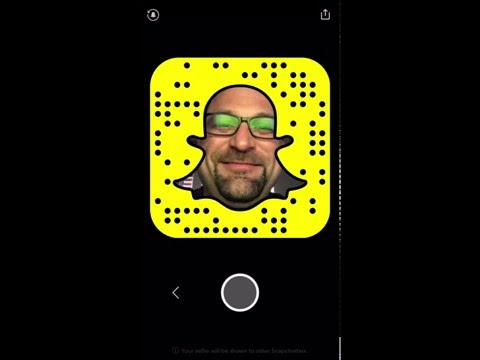
In this tutorial, the presenter walks viewers through the entire Snapchat experience, starting with the opening screen where users set up their profile and add friends via username, address book, Snapcode, or nearby. He explains the trophy gamification and the friends list. The video then demonstrates the private direct snap interface, showing how to send text, photos, and up‑to‑10‑second videos, how messages disappear after viewing, and how to save snaps by holding them. Next, the presenter details the main camera screen: using flash, switching cameras, adding emojis, text (including font styles, colors, justification), drawing, and applying filters, including location‑based and custom filters. He shows how to add snaps to a 24‑hour story, how stories are built, viewed, and managed (view counts, timestamps, deleting, downloading individual snaps or the whole story to the camera roll). The tutorial then covers the Discover section with brand‑paid content and how to navigate friends’ recent updates, explaining the chronological then alphabetical ordering of snaps, and the requirement of mutual following for private messaging. Finally, he highlights advanced features such as long‑press face filters, face swaps, and summarizes the five main screens (setup, direct messages, main camera, stories, Discover). The video ends with an invitation for questions and a friendly sign‑off.
Chapters
Hey guys, we're today going to look at how to use Snapchat. I want to show you the ways that Snapchat can be used. It's the Snapchat 101, if you will. A lot of people ask me for how to use Snapchat, not, not exactly what it's used for this session. Maybe we'll get to that in the future, but right now I just want to show you how to use it. So here we go. All right, let's get started on the home screen. Now, what is gonna be a little bit hard for me to show you is the ways that I'm thumbing through the screens or I'm switching between screens. So I'm gonna share with you what I've done, how I've slid through the screen with my thumb so that you can follow along. The first thing that you wanna do is come to this screen, the opening screen. The opening screen is really where you use and set up everything that you're going to need for Snapchat. So by clicking on this little icon, the one that's moving of me here, you can see that I can actually click on that button down below and it's going to take different shots of me, which is what creates the animation. And that gives everyone an idea as to who I am when they're thumbing through and looking to follow people. Now in the top right-hand corner, you can see there's a little arrow up. If I wanted to, I could save the image in the lower left-hand corner, and that's going to save it to my phone so that I can actually share that image out on Twitter and Facebook and all my social media. Now, in order for people to follow an image, all they have to do is come back here and click Add Friends. And you can have all these different options. So these options allow you to add by username if you know their— if they gave you the exact username, you can obviously add by an address book or you can add by the Snapcode. Now, it's not going to work very well to add myself to a Snapcode, but you can see here, lol, I'm trying to add myself. It's not going to work. But if you did— here, let's add Jennifer here. She's a good friend of mine. She'll pop up because it sees her in my address book and it knows that I'm already friends with her. So now I've added her to my address book. You can also add nearby or share username. But going back to Snapcodes, that's a great way to take a picture of a Snapcode and be able to follow someone. So coming back to this screen here, now you've got a couple more options that I wanted to show you. At the very, very top in the center, there's a little trophy, and if you click on that trophy, it's just very— it's just fun. It's like a little trophy case. And as you solve certain things, send snaps, reply to snaps, do different things, it's going to show you that you've won a new trophy. So it's kind of cool. It's just fun. There's nothing more to it. It's a little gamification. And again, my friends. So you can click on my friends and you can see everyone that you are friends with in Snapchat. This is my list of friends in Snapchat. As you get started, you may see a much smaller list, but you can grow these, these people up into snappers. That you snap back and forth with. Okay, so I'm going to go ahead and flip my thumb up, which brings us down to the screen here, the main screen. I'm going to flip my thumb to the right, which brings us over to the private snaps. Now, private snaps are a great way to see— as you can see, I've got snaps here with different friends, and each of these friends are snapping privately to me, and that is the farthest left screen. So now I am on the farthest left screen and I can snap. Literally, here's my friend Chris Strub, who is a great snapper, wonderful snapper. I can say, hi Chris, and that is going to send that text just to Chris. So Chris will only see that. Now I've got other options here too. I can click down in the lower right-hand corner. I can send him some of these fun little icons. I can actually take a little snippet of a video, but be careful when you do this because it is live and it does not give you the ability to edit the video. So here. Hey, Chris, how are you doing? Good to see you, man. Cheers. So that just sent that to Chris and he's going to see that as a little animation with some sound. Now, I also have the ability to actually send a video here that I can snap. Not the most flattering picture, but I can send it just to Chris and take it that way. I can take a snap, or if you push and hold, then you can see the little red circle is actually recording a video up to 10 seconds. So you can record all the way up to 10 seconds, any video. Okay, I didn't go all the way because I let it go. So you can go 2 seconds, 1 second, all the way up to 10 seconds. Now that video is ready and I can send it to Chris. So let's go back to the private area. I'm not going to send anything more to Chris, but One other thing I did want to share with you is that you can send images. So if I want to send him an image of me working out here or, you know, one of my, one of my images that makes sense, perhaps you want to meet somebody somewhere or you did something fun, you can send that image to him. So let's go back over to the main screen here. Again, we're back now to the private snaps. This is the direct message snaps. If you want to go back and search, you can. By person. So if you have a long-running list of private direct messages, then you can go back and see all the people that you've done. Now, I really like this area because this is something that I use quite a bit. It's the H2H in Snapchat, if you will. It allows people to really send you something fun or interesting. Now, the other thing I'll share with you too is that once you share this with Chris and he sees— once Chris sees this, it's going to disappear. After he looks at it. So when he goes away from the screen and then comes back again, it will not be here. The only way that you can actually make these things stay— let's say he shares his email address or his phone number— is you click and hold. I'm gonna click and hold the sun and see how it says saved. Now next time I come back to it, the, the sun will be there. Now Chris, it looks like Chris may be actually texting me because there's a little blue button there, so he may be texting me back right now. But either way, I've now saved that sun, so when I come back to it in an hour, it's gonna be there. Okay, so we're back to the main screen here. Let's talk about this main screen. The main screen is really interesting. You can click again on the top here, the very top where the ghost is, and that's gonna take you to your, to your main screen. So, or you can take your thumb and you can, you can just move it down and it's gonna take you back to that main screen as well. See, there it tells me that Chris sent me a private message back. Now you can also look at the at the flash. So if I want to take a flash picture in the top left-hand corner, I can turn the flash on and off. Obviously it works just for the side that has a flash camera. In the top right corner, you can take this, take your camera here and you can flip it. So I can see that I'm recording this video here on my screen and I can see everything and tell you exactly what I'm looking at, or you can see what I'm looking at. Now, if I want to double-click the screen, it does the same thing. It reverses it back. I don't have to click the top right. I can just double-click the screen. Pretty cool, right? Now in the lower left-hand corner, you can see it says 2. Now the 2 means that I've got 2 messages. Now I've got one from Chris and one from Eric. Now those are unread messages. Remember, when you look at the message, it's going to disappear. So I save them up when I'm going to really be able to answer them and, and remember what I'm responding to. Sometimes it gets a little bit nuts if you respond to somebody— sorry, you You see their message and then you go to respond to them a day later and their message is gone. So I keep it there until I can really reply to them and make sure that I answer. Now, again, you guys know how this works down here in the, in the bottom. It just took an unflattering picture. Let me take a flattering one, or at least a little bit better. Okay, so that's, that's a little better. Now, in the lower left-hand corner, you can see you can measure how many seconds this photo is going to stay up when people view your Snap Stories. So that's really important to know because sometimes you want it to be a little bit longer if it's going to point them maybe to a website or an— or something that's going to require them to write something down. Maybe longer is better. And maybe if it's just something fun you're doing during the day or a story, you can make it a little bit shorter because it's not really something that's as important that it stays up longer. Now you can control that. You can also take a picture and you can click the button just to the left with the arrow looking down. You can click the little arrow down and it's going to save that picture to your camera roll, which is great. Now that means I can post it to Snapchat and I can save it to my camera roll. So if I wanted to, I could, I could post this to other, other social networks using the photo that I just took here. Now I can also click in the top right-hand corner. So look at the top right-hand corner, there's 3 little icons. Let's, let's take the left icon. The left icon is all your emoji. So if you wanted to click on emojis, you could do that, and then you can move it around. You can pinch and zoom on to make that even bigger, right, or smaller, and you can move it wherever you want. So any emoji works that same way. The same thing happens for the one to the left with the, with the T. That's, that's your text. So I can say teaching Snapchat and it creates this little bar here. See that bar? Now I can use my thumb to move it up or down. So if it fits in a certain place, I can do that. Or the other thing I can do is I can click the T again And it's going to make it into this more text-oriented font that I can then move around. Now I can take my thumb, both of my thumbs, and I can, I can flip the, flip the words. I can make them bigger. I can make them smaller. I can even tap on it. And then once you tap on the words, you can see up in the top right corner you have some options for colors. So I can make it a different color. And all you do is you just move your thumb up and down the color wheel. Color bar and it changes the colors. Now, one more thing. This is just a tiny bit advanced, but really fun to do is that you can actually click it one more time and it's going to center the text. So each time you click it, it rotates it from, from this one to left justified to center justified. And again, you can move it and slide it and do whatever you want with it by using both thumbs or both 2 fingers and moving things around. So just click on whatever it is you want to move. And move it with your thumbs. Got it? And then the next one that you have on the top right is something to draw with. And again, you can choose whatever color you want and then, and then you can draw with your thumb once you've chosen it. And obviously I did not go to art school, so this is not my best art drawing in the world, but we're going to do it anyway. So now I just drew with that and maybe we want to create an arrow down to a URL or we want to create some kind of action that we want them to take, you can do that here. So anyway, that's, that's how you create a snap. Now here's the other cool thing. If you flip to the right or to the left, you're going to get even more options. And here it is. I'm going to, I'm going to click out of drawing. Let me erase that last one. I'm going to click out of drawing and I'm going to flip to the right and it's going to give me different filters. So I can do different filters on top of, on top of the photo. Now it also is going to give me cool, cool filters that, that lay over your photo. So you can see here, here's one that says I'm in San Jose. So there's a filter for that. And sometimes when you're at events and this is starting to get advanced because you can actually make your own and I'll cover that again in another video, but you can, you can slide over and create your own filter that you want to use. Now these are unmovable. You can't move the filter, so you kinda want to make sure that you don't crowd it like I've done with the icons behind it. So maybe you want to move your stuff out of the way so that it's not as busy. I would never make something as busy as what I've just shown you here. I'm just trying to show you everything that I have that Snapchat can use. So anyway, we're gonna pick one that's just, you know, San Jose. I've got a nice little arrow already there. Now here's the cool thing. I want to now share this chat— sorry, this snap. So what I want to do is if I wanted to share this as part of my story— now a story is something that lasts for 24 hours, so all your snaps combined become a story. So if I wanted to do that, that little icon on the lower left with the plus and the square, I would hit that and it would just simply add it to my story. In the lower right-hand corner, the little arrow allows me to click on it. Now I can add it to my story and I can also go share it with somebody specific to make sure that they see it for sure. Now be careful here because you don't want to spam people with stuff that they don't want to see. So, you know, it's, it's much like sending a direct message on Facebook or on Twitter. They're going to get a notification if they have that turned on. And they're going to see that little number in the lower left-hand corner showing them that you have shared something with them. So make sure that you do something that's really relevant to them. Maybe you did a video and you want to say, hey, how are you doing, Chris? And you send that just to Chris. But this is more generic, so I'm just going to send it to just my story. Now, if I did want to send it to Chris and my story, I could just click both and it's going to make sure Chris sees it and my entire community if they go through their snaps and look at my snaps. Then they will see my share. So I'm going to go ahead and share this with my story by clicking the lower right-hand corner where the arrows are. Now that just shared that to my entire story. Okay, before we move on to the rest of the area here that we just arrived to, these are all the different snaps that you can go view. But before we do that, I'm going to show you how you have started to build your story. So if you go into my story and you click in the top right, and then you, where the 3 little bullets are, then you can see that you have plenty of options here. First of all, you can see all of your different snaps. So starting at the bottom with Happy Friday and then moving up, we had some fun last night with some friends and we got to try and taste some Cuban rum, which was really good. And then moving up, you get to see like what the timeframe is for all my different snaps. You can see that for your snaps. So every time you take a snap, you can see how many views you got, over on the right-hand corner. What kind of text do you put on there? See, some of them don't have text on there. It's just a picture, so there's no text. And then some of them, you know, have the— or all of them have the timeframe, so you can see what time it was done. Now even more so, you can click— I'm going to click on this very bottom one and look at the— look at Happy Friday over on the right on the 125 where I have 125 views. I'm going to push on the 125. And I'm going to see that I have 125 people that viewed this snap and I can see their names and see exactly who viewed the snap here that I have. Makes sense? Now while I'm on this screen, I also have more options. I can delete the snap. Let's say I want to go back, I did something I don't like. Up in the top right corner, I can delete the snap with the trash can or I can— this is a video that I made— I can actually click the one to the right of that, the download button, and it is now saved that snap down to my camera roll. Pretty cool, right? Now I can also do it from this screen too. I can where I'm just viewing the snap itself. You can't edit the snap once it's been done. Once it's been released, there is no editing. It has to stay the way it is. Okay. And then the other thing I'll show you is that at the very top here next to my story, it says my story over to the right. There's a little arrow pointing down. I can download the entire story. So I'm going to do that and see how it's downloading all my snaps from the last 24 hours and it pushed that into my camera roll. So now if I wanted to go back, I can share the entire story and it's going to take you through it as a movie and outside of it. So if I wanted to go share it on Facebook or Twitter or YouTube, then you could do that. So it brings it out of Snapchat and into other things. Now let's move on to stories themselves from other people. I'm going to click the 3 little dots here to bring that back up again. And you can see that there's different Discover stories from brands that have paid to push their content to you. And then down below, you've got recent updates. Now, the recent updates are things from the friends that you are following. If you don't follow them, you won't see this. The other thing I will tell you is that if you're not following them or they're not following you, you cannot send a private message. So they have to be following you in order to be— or sorry, you have to be following them back in order to see a private message. So I can come to my friend here, Keenan, and I'm going to click on this and see his snaps. Now, if I want to skip through the snap because let's say it's 10 seconds and I only want a faster snap, I can click it. And now it's moved on to Ryan Bell, the next person, because Keenan only had 2 snaps. So I'm now looking at Ryan Bell, who is a great snapper, by the way. He runs live video conference, a big conference on, on this stuff. So anyway, I can click each of these and, and see his snaps. So I'm actually literally thumbing through. If I was actually doing this the way I normally do it, I would have my sound on and I would be listening to them and I would be letting them play through. And then I could also thumb through it faster if I wanted to just click it with my thumb. It'll go to the next snap. The other thing is if I have had enough of Ryan I can just use my thumb and I can move over to the right and it's going to move to the next person. So I can go to somebody that maybe I want to see just simply by sliding to the right. There's Mia Voss, great friend of mine. See that little thing down at the bottom that says chat? I can thumb that up while I'm watching her snap and I can say, looks like fun. And on her end, She's going to get a message, a private message from me. See, it says chat sent on the top, and then on the top, it's she's going to on her snap. She's going to see the image, the snap that I answered, so she knows what I'm talking about, and the the the response or the chat that I sent her. So she will know exactly what I'm talking about because she has context because the image or the video actually goes with it, and then and then she'll see it, and then she can reply back or or not, and say yeah, it really was fun, and here's why. So that's the human-to-human part. So you can just again, you can thumb through each of these. It starts out by hours, as you can see, as I'm thumbing down. So it'll tell you how many hours away was their last snap. Now that's an important feature because if you want to go to the top, that means you have to share more snaps. So since somebody— let's see here— since Kate Hudson, I follow Kate Hudson for whatever reason, I saw her snapcode and I followed it. But the last time that she did it was at 12:09. So I'm not going to see her Snap as much if I'm just up here at the top where Ryan Bell was 24 minutes ago. So again, the more you Snap, the higher you are on their timeline. Hopefully that makes sense. Now the next thing that you should know is once you get underneath the times, you're now into more of an alphabetical order. So if you want to go back and you want to watch something or rewatch something, these are old Snaps and I can, I can I can use this to actually thumb through on the right by alphabet. So it gets more alphabetical the better you go scrolling up and down. Hopefully that makes sense as well. Now you have one more option and that's to push one more time to the right. And that's where you can discover all the paid content that Snapchat has allowed people to make snaps. Sorry, I should say brands to make snaps for their network. So you're going to get a lot more branded content, but every once in a while I click over. I tend to find my friends a little more interesting and they do different things over here. So you can see I can actually download an app straight from here. It gets a little bit more like the functionality, I think, of Facebook over in the branded area. So it's kind of fun if you wanted to check that out. So there are, again, there are a total of real important— the important screens, there's 5 screens. When you go up to the very top, thumbing up to the top is your main setup screen and your add friends and setting up your profile. When you move your thumb up, it goes down, it goes to the screen— hi again— it goes to the screen where you get to see yourself and/or you can move it over by double-clicking to the screen and see that we have a video to watch on the other end. I can take video pictures or do some fun things. I'm going to throw in one more thing for you that's really fun. If you click and hold on a face. See what it just did there? I'm going to— I clicked and held my thumb down, pressed it down hard until it found my face. Now at the bottom, it came up with these different filters. See what I did? So I can click the scroll, my thumb over to the filter, and it does all these fun little things. You may have seen them on the snaps before as I was thumbing through. Like, I think Ryan Bell had one. So you can have fun with that. They even all the way over to the right, if you have 2 people you can do a face swap. You put 2 people's faces in and then you can do a face swap between the 2. So it's kind of fun. My, my kids and I have a lot of fun with this. There it is. And there's my snap. I'm not going to share that one. It is not very pleasant. So there you have it. That is Snapchat. Again, you've got 5 total screens. Thumb all the way up for your main screen, the setup screen. All the way to the down, down you've got four screens. You've got the direct message screen. You have the main screen. You have people's shares, share or stories, and then you have the branded content. Hopefully that helps a little bit. Send me your questions. Send me your thoughts. I'm really looking forward to hearing from you. I hope this was helpful. Thanks again. This was just again. This was Snapchat 101. Hopefully you got a lot out of it. I know I had some fun making it, and all. Talk to you soon. Cheers.
More from Bryan


AI Didn't Make Leadership Harder. It Made Fake Leadership Impossible | CODA Keynote | H2H 2.0

Why AI Makes Connection More Valuable | BOLD Awards Keynote Trailer | Human-to-Human H2H 2.0