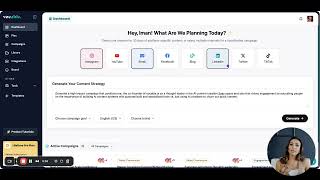
Iman Oubou walks through adding a brand to Vocable. Enter a website URL, let the system scrape it to auto-fill topics, keywords, industry, and tone, then edit and save. Your brand shows up in the dropdown.
Chapters
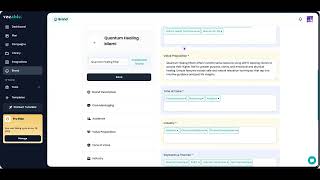
In this video we will walk through how to add and save a new brand. As you can see, I already have one brand already saved and now I am going to create a new brand which will take me to this screen where I can add a brand using my website URL. Or I can also create a brand manually or I can view and edit my existing brands. So let's create a new brand with a.
Website URL. You type in your website link here. Oh and make sure you include the HTTPs and then hit the continue button.
Now it's scraping your link and pulling in the right information to set up your brand profile. And there you go. This is the brand profile. It put together with different aspects of your brand including topics, keywords and themes, industry, tone of voice, messaging, audience, etc.
You can make edits to each section as you see fit and give it more or less details. And then when it all looks.
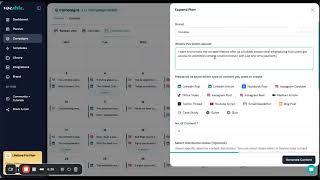
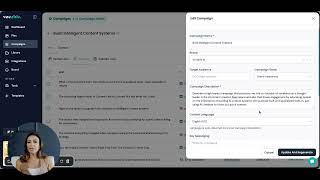
Good, click save. You should get a confirmation that your brand was successfully created. To double check, click on the brands dropdown and you should see your new brand added there. So now every time you come.
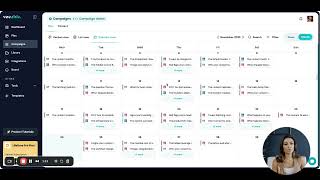
Back to view your brands, your most recent brand will be displayed. And that's it for today's video. Hope this helps you easily add a new brand moving forward.