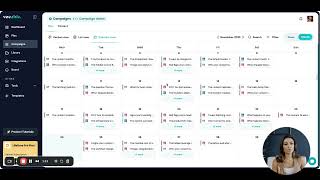
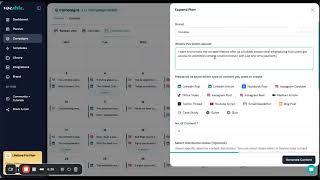
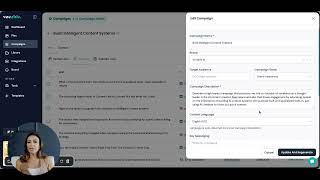
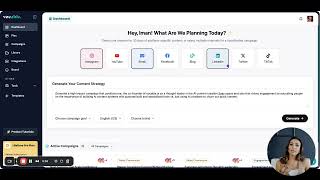
Walk through Vocable's three ways to organize your content plan: List View for filtering by status and deadline, Kanban View for task-style management, and Calendar View for spotting gaps and dragging items to new dates.
Chapters
Okay, so once you have generated your campaign, you are dropped into your content plan, which by default you can review in List View. This view allows you to group posts by status, content type and deadlines. You can also change the content type of the posts. For example, if you decide you like this angle better off as an Instagram Post instead of LinkedIn post, then you can simply click here and then pick the type of content you want. You can also change your deadlines directly from this column query. There is also a bulk delete feature if you'd like to delete a few briefs at once. In addition to grouping your content, you can also filter out your posts using these filters which will then only show you the posts with your specific filter. Kanban View is even more visual which is great for people who manage content like actual tasks, but my personal favorite is Calendar View. This is where everything comes together. I personally love when I can visualize the content I have planned across every week and month, which lets you spot gaps, balance your cadence and stay ahead instead of reacting last minute. Here you can also drag and drop content across days of the week to better manage your content calendar. This is where you really start seeing that Vocable is also a content management system, not just another writing tool. It's perfect for managing multi channel content at scale and staying organized and on track with your content creation process.