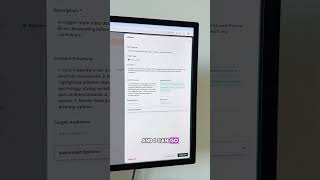
Iman Oubou walks through editing an existing Vocable.ai campaign without starting over. Rename it, update the core 30-day message, adjust the timeline, change content types like LinkedIn posts or TikTok videos, refine your audience and goals, then hit Update and regenerate.
Chapters
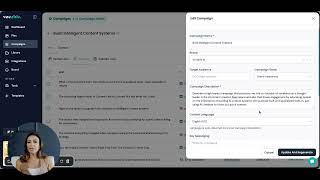
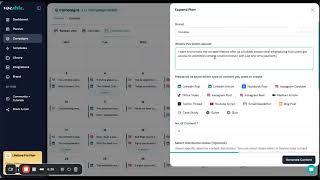
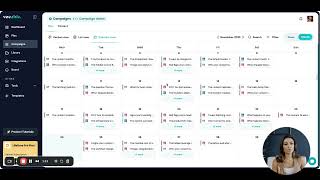
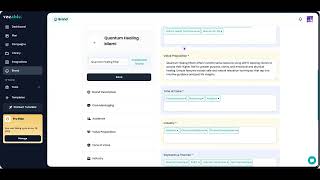
All right, now let's talk about one of the most powerful parts of Vocable that most people don't realize they can use the ability to edit and regenerate an existing campaign without starting from scratch. You can simply click on your campaign if you want to just change the name. You can do so easily by clicking on the campaign title and just typing in your new title. If you want to edit and regenerate the content plan, go to Edit Campaign and a drawer will appear in which you can make the necessary edits. Let's say you want your campaign to lean more toward a new positioning angle. You can simply update this section with your new directions or prompt. Think of this as the core message powering your 30 day plan. You can also adjust the campaign timeline if you want content for only a specific launch window, or you want to expand the campaign into a quarter long content plan. Or maybe once you reviewed your calendar, you realized you want more LinkedIn long form TikTok videos instead of carousels, or you want blog posts added into the mix. You can add or remove content types here with one click. You can also refine your target audience, the brand the campaign belongs to, and your campaign goal. This is especially helpful if your positioning or ICP shifts mid month. Once you've made your updates, hit Update and regenerate. Vocations will recreate your entire campaign, but with your new messaging, new dates, new content types, and new goals. Now that you've seen how easy it is to update a campaign, let's jump back into how you would continue planning, drafting, editing and publishing your content from here. See you in the next video.