Discover Jane EHR: The All-In-One Chiropractic Practice Management Solution
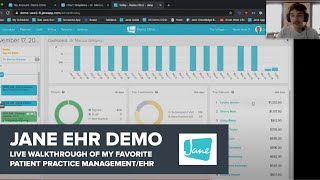
Jeff Langmaid walks through Jane EHR's chiropractic tools: scheduling, billing, insurance claims, charting templates, and patient intake. The demo covers appointment booking, invoicing, smart charting with auto-text, body diagrams, and the patient-facing online booking portal.
Chapters
Thousands of practitioners around the world trust Jane for their ehr needs. I knew that with beautiful design, a company culture that sets them apart in a patient centric focus. It was different, but I wanted to get into the nuts and bolts of exactly how Jane operates on a day to day level. I had the opportunity to sit down and go through a complete Jane demo. I wanted to take you along for the ride.
Here it is. I'm going to just give a little context here. We're going to be playing around on the Jane demo clinic today. Just to give you an idea of what Jane would look like in a populated environment with patients in it. All of our treatments already booked there, stuff like that. I'm gonna be playing with Marcus Gregory here, he's our resident chiropractor on the demo clinic. So you can come into our demo clinic, play around, get hands on with.
Jane before you even try it.
So other than that, when it comes time to like book an appointment on.
Our side of things here, on the.
Left hand side, this is kind of.
The start to a patient's visit.
If we come in, maybe a patient's coming in for like a new patient.
Visit here, I'll click on the left side.
On our 30 minute visit, look into the schedule. Jane's gonna reserve that for the next.
10 minutes for me.
So in case like I'm offering these times online, patients can't scoop in and sweep up that spot or anything like that. So I can type in my patient's information. Maybe Zachary is coming in.
Excuse me.
If my keyboard connects perfect, we'll have Zachary here. He already has a profile, we can just click on that. All of his information is gonna show up some basic stuff like how many upcoming appointments he has, what kind of.
You know, phone number is on there, if he has an account balance, that sort of thing.
Other than that though, if he has a new patient, we can also create.
A new patient right from here.
You can enter in his first name, last name, that's all that's required. Otherwise though, if you enter in his.
Email address, like if I enter an example here, you'll also see Jane's prompting.
Us to save and send them a welcome email. That welcome email would basically get them.
To the patient side of Jane, which.
Looks a little bit like this, and they can fill out intake forms here, see their upcoming appointments, book appointments online.
That sort of thing.
So without having your patients having to go through and jump through hoops, you can just give them one button to.
Click on and ease them into the process.
Great. One other Thing you'll probably notice here is that Jane's constantly checking for duplicates. So if your patients already have their.
Names and last names in there, Jane.
Will try and do her best to avoid duplicates.
So we can just say this is the patient we're looking for. Cool.
Otherwise though, with insurance in Jane, if you have the insurance plan, you're also able to copy your codes from a previous appointment. So if you want to copy your billing codes, insurance information, your diagnosis codes as well, you can just do that without having to enter them all again. I'll just select none though, and we'll.
Enter them from scratch. Cool.
I'll click book an appointment that's going to turn it from gray to blue in my schedule here and basically I'll.
Be good to go.
I have all of this information on.
My appointment panel on the right hand side here.
I can arrive the appointment, I can no, show it. I can see some booking info, that sort of thing. Moving to this appointments panel on the right hand side, I can copy this appointment to another time, move it to another time.
It won't work with this one.
But if I say click on this.
Richard Ryan appointment over here, if I.
Want to maybe book like some reoccurring appointments, I can also click on these.
Little arrows pointing to the right.
Set some, like, parameters for when I want this patient to come back. So if I have some sort of treatment plan for him, I can say every Thursday, every week until, you know, December 19th or whenever I like. Jane's gonna then list the times below down here. This one's already booked.
That's great. These two in orange are.
There's a conflict in my schedule, so she'll offer me some other times to book those in, but I'll just select some other times. They're all blue. Now I'm good to go.
I can book this patient in for his next three appointments too. Great.
And you get to. You get to decide how long a patient appointment would be in the schedule, depending upon type of appointment.
Yeah, exactly. So I have on my left hand side here, I just have two basic ones like subsequent visit and new patient visit. You can create these as much as you like. You can set up so that your patient's only in there for 30 minutes.
But it's booked in your schedule for 45. So you have like some post treatment.
Time, that sort of thing. So there's lots of options on customizing it. I have the most basic version of this right here. Excuse me. But yeah, you can definitely customize these.
To whatever you would want your patients to book. Gotcha.
And what's the difference between the gray and the blue appointments again?
Yeah, so that gray appointment, when I click into the schedule here, it basically just reserves that time. So for the next 10 minutes, patients wouldn't be able to go online and scoop up this 12 o' clock appointment until I actually go in.
Book the appointment. Right. It just basically reserves it for the next 10 minutes. Cool. Yeah.
Otherwise though, going through Zachary's appointment once again, I'll scroll down to his notes section. The notes section is where you can type any sort of internal notes about a patient. Maybe he's going to be 15 minutes late, add that to his appointment, you'll see this little note message pop up.
You can see his note right here on his appointment.
You can also star this note. So Maybe he's always 50 minutes late. There's always someone.
Right?
You can have that little message pop up on all of his records going.
Forward, regardless of when you type in that note. Okay, yeah.
Otherwise though, we also have the billing info. So if you need to play around with the invoices here or see what's invoiced for the appointment, the billing info is your best friend here. So you can see it's currently uninvoiced.
But once I arrive the appointment at the top, you'll see this turns to unpaid.
An invoice is generated. It has a little number associated with.
It and I can click in and edit that.
One other thing you'll notice once I arrive the appointment is that it turns green in your schedule, indicating that it.
Actually showed up, which is why we've generated that invoice.
If you also wanted to maybe offer like a discount or something, you can enter an adjustment here. You can throw in an adjustment like maybe I want to offer a seniors discount or something like that. I can take 10% off this price.
Here and we'd be good to go.
I can also change this adjustment to something else if I wanted to. So maybe this is like a flat dollar discount. I wanted to take $10 off or $15 off.
You could you also do it in.
Overrides if I want. Maybe since he's late, I'll charge him $150 today. You can do that too. So there's lots of options on the invoicing in Jane as well. Whether it's setting your own prices based billing, based off like billing codes, or.
Using these adjustments to set your invoices physical and digital. You could print it or they could pay online.
Yeah, so we can either have the invoice here. We can print this and you can send like a pay balance email to them to, you know, upload their credit card with Jane payments. They can then process that. We could also print this for them.
And it would show up in a printed form here and we can send that off too. Great. However you like.
Otherwise, though, moving down from this billing.
Info here, we can also head into the insurance info section.
Insurance info is on our insurance plan only. This is where you'd add in your billing codes and your policies for your patients.
So we'll start with adding a policy here.
You can see I already have a Blue Cross Blue Shield one that I'm.
Billing to, but I'll add a new one just in case for I'll choose.
My insurer that I'm billing to. Once again, Blue Cross. The only absolutely required part of this whole thing is your subscriber member id. Otherwise though, all of the rest of this information, you can enter it in.
Whether it's like policy group plan number, the prior authorization number, whatever you might need for your policies, you can enter those in.
If you're more of like a CMS 1500 person, we've also mapped which box.
These populate to on each of the forms.
So you can see this one's box 11. If I go down to the policy.
Maximum, so, and so on and so forth.
That's great. And if somebody was doing a, like in the States here, they were involved in an auto accident and it was going to be the carrier that was like their car insurance company that would also go in the same policy items.
Yeah, exactly. So you could either create like your own insurer, like the actual motor vehicle like insurance that they have. You then head down to the policy, just say this is an auto accident, and then it would be populated onto.
That CMS 1500 the same way.
So you can submit these electronically. Then all of your information will already be populated, or you can even do.
So by paying if you need.
Great.
Yeah. So everything on here, once I enter this information, that'll all be good. I can then save that to the patient's profile and so I don't have to enter this all over again. Each time they come in, it'll just be saved.
And I can use this going forward.
Once I have that saved. I can also add in some billing codes here. So maybe I want to start with like a 97110. I'd like to mention these pull from a database of about 75,000 different codes. So whatever codes you might need to Enter.
You can add them to your account, assign a rate, and then bill them to your patients.
Great.
I like to enter some diagnosis codes here. I'd like to mention I'm not also.
A doctor, so these probably aren't right.
But you can see I enter the billing codes in enter the diagnosis.
If I enter another billing code here.
For example, you'll see these populate down below in like a waterfall effect so that I don't have to enter them.
In over and over again too.
But that is basically our insurance section. If I also wanted to enter in like a copay or something for the patient, maybe there's some responsibility. Say there's like $25 copay. You can do that.
Jane's gonna do the math for you.
And you can get the patient total.
Down here and have that patient pay off.
Great. And when somebody has, let's say you see a bunch of patients in a day and it's a mixed bag.
Right.
But there's quite a few that do have insurance. Do those batch get sent out at.
The end of the day?
Do you send them out individually? How does that work?
Great question. So when every time you add in a insurance policy to a patient's appointment here, so you can see this little briefc indicates there's an insurance attached to it. I can then hop to my billing.
At the end of the day.
The billing tab up here, scroll down on the left and I have all.
Of my unsubmitted claims listed in one single folder here.
So I can go in, I can click select all. If I wanted to have 18 items selected, I'll just do it for once.
As it'll look a little bit quicker.
Here, I'll click View Submit selected. Jane's gonna run me through like a pre flight checklist basically to make sure all of my required information is in there.
If I'm missing my NPI or the.
Patient'S birth date or something like that, she'll let us know in this section. But once that's all good to go, everything's clear for takeoff. I can generate the submission for two claims. That'll compile it into one single downloadable EDI file here. I can then download that file and bring it to office Ally claimmd, availity.
Whatever clearinghouse you might like out of R4.
Great.
Yeah, you definitely can do this as an end of day activity or an end of week activity if you wanted to, depending on how much submissions you actually do.
Yeah, yeah.
But that is basically the admin side of Jane. The only other thing I wanted to show is just our paying process. So let me just click on Zachary's appointment one more time. I'll click pay at the top of the appointment here. Since he's actually arrived, we've generated an.
Invoice.
And you'll see Jane's going to list all of the patients outstanding invoices on his accounts here. So you can see like October 26th.
We have October 27th.
All these ones that he hasn't paid for. We can choose which ones we want to pay for or not just by.
Clicking these little check marks here.
But Jane wants you to receive your money. So we'll click next. We'll pay off the entire balance and then we can choose our payment method. Whether it's cash or if you want.
To process your credit card directly through Jane payments. You can do that here. Okay.
Yeah, so I'll just choose cash just.
For the basics here.
With cash, I'll just say, okay, $145. Jane's not going to outright take this payment for you. She can't process it. She doesn't have physical hands to do. You would have to process this yourself. But in your reports to report that.
You received $145 in cash.
Otherwise, though, these pay buttons down at.
The bottom will show up.
I can click pay and not print a receipt.
Pay and print receipts or pay an email receipt.
Whichever one I select, Jan's going to.
You know, either email it, print it off for me, or so on and so forth.
So they say that receipt's been emailed.
Zachary is now owing $0 for all of his appointments.
And you can see this little dollar.
Sign at the top of the appointment here indicating that he's paid for his portion.
Yeah, that is basically the admin side of Jane when it comes to paying.
For an appointment, entering those insurance codes.
Booking the appointments in, all that fun stuff. Is there any questions before we hop to the staff tab?
Yeah, that seems super straightforward and intuitive. I like the layout of being able obviously to see the calendar and your appointment visits, but then having the breakout bar on the right hand side with that pertinent information where you can really, at a quick glance, get a good idea of what's going on with the patient is nice. Instead of necessarily having to dig in menu upon menu upon menu.
Yeah, exactly.
So I think that that just is a great workflow. When I look at it and I say, okay, this is something where in the hustle and bustle of people coming in, checking and checking out in most offices, it's busy. Right. And being Able to quickly identify the status of a patient, I think is so critically important. And one of the biggest pieces of that is the. Is the financial. Right?
For sure, for sure.
Who's paying, who hasn't paid, Your accounts receivable. Don't get all crazy.
Yeah, for sure. And one other thing I wanted to mention. I mean, our whole motto here is to kind of get you to spend more time with your patients and less time with your charting and like your.
Your emr.
But if you did want to dig.
A little bit deeper, all of that.
Can also be done from the schedule. So if you go into, like, if you want to see something about Zachary's.
Past appointments, you can also just click View by his booking info here, go into his profile, see any messages he's.
Been sent, take a look at all of his billing. All of this can be done, like.
Within one sort of screen here, as.
Opposed to clicking through multiple different ones.
And wasting your time. Yeah.
Other than that, though, if that's all good, we can hop to the staff tab here. We can talk about some charting. I'll just use Marcus Gregory, since we've already signed in as Tim.
I'll go into his chart template section here.
And chart templates are basically like the building blocks of taking your.
Your daily notes.
So with our chart templates, I have my templates created here. I don't have any, so we can.
Create one from scratch.
But if you had other practitioners at.
Your clinic that have created some that you want to use as well, they'll.
Be listed in the other template section and you'll see who created which one.
You can make them available to yourself or not, so on and so forth.
Other than that, though, I'll create a new template just from scratch here. Give it a name, maybe like daily.
Note.
Add some items on.
I can click this little Rubik's Cube.
Button to start adding some items and building the framework. So, like, maybe a chief complaint at the start is a good idea. We'll throw in like a range and scale for like a pain tolerance scale or something like that. Maybe some checkboxes and a body chart.
Just for good measure.
So you can see I'm just adding on items. Each item is also individually editable. So if I want to click into.
This range and scale here, I can click in, change this to pain tolerance.
Maybe 0 is going to be like ouch, and 10 is going to be.
Like bring it on or something like that.
So you can see, you can enter in your own options here. Change it up however you like, whatever Fits your clinic, however goofy you want to be, like mine, and so on and so forth. One other thing that we actually just recently released, and we actually hosted a webinar about this on the weekend. It's for our smart charting, our smart options and narrative. So if you click on smart options and narrative here, you can basically create like some sort of macros in Jane, basically. So instead of having to type in all of your notes, you can just click buttons and Jane will kind of.
Make that work for you.
So with our smart options and narrative, I can keep this as. Maybe I'll just keep that as smart options for my label. I can choose different styles of buttons.
And how these appear.
So if I wanted buttons like it is back here, I could use checkboxes, I could use drop downs. You can see on the background here how these are kind of changing their style. I can also have these displayed as like options like this or even as a narrative so that Jane kind of creates a narrative for me when I.
Select these different options too.
So maybe I'll stick with buttons. We'll create a narrative here saying the patient is experiencing.
If I spell that right. Perfect.
And then we'll use our subject. So our subject is what we're kind.
Of the area of treatment.
And then the choice is going to be their. Excuse me, their kind of answer to.
That area of treatment.
So our outro is going to be during their visit. So our subjects, these could be neck, back. And maybe we need to put in.
Like headache or something like that.
Our choices could be they're feeling worse. The same, better, more pain, less pain. Whatever you want to add for your choices here.
But I'll just keep these as these.
So you can see the patient experiencing.
Worse neck pain during their visit.
So if I save that when I go into our smart options and narrative, I can say neck pain, they're feeling worse. The patient's experiencing worse neck pain during.
Their visits, Their back could be the.
Same and their headaches could be better. You can see how I'm just selecting options now. Jane's going to create a little narrative for me. So when I export my charts, we.
Can have a little written out function here.
Yeah, that's great. Could you do multiple of those smart option boxes?
You definitely can. So if I just wanted to add on more items here, I can add another smart option so I can literally just click on different buttons. Jane will write out the entire chart for me so I don't have to.
Spend my time writing out the chart too.
Yeah, that's fantastic.
Yeah, It's a pretty cool little feature we actually just came out with. So I highly suggest, if you haven't already taken a look at this, if you're using Jane, take a look at.
Our smart options and narrative. If you aren't using Jan, give us a call. We'll talk to you about it. It speeds up your charting immensely, but I'll save this chart here. So we now have a little template to use.
One other thing that also kind of.
Speeds up your charting in Jane is cool Feature is our phrases, and phrases.
In Jane are basically our way of creating little shortcuts that we can type in.
So maybe our phrase in this case will be they're feeling better.
So we'll say function. We can type in better, but this.
Will expand to saying function has improved since last visit.
So instead of typing out that whole sentence, I can type forward slash better when it comes to my charting, which I will show you in just a second. And I can also speed up my.
Charting in that sense too.
Yeah, that's super convenient.
Yeah. So if you already use like an autotext expander outside of Jane, you can also import your shortcuts from other things too, or export them to use for your other practitioners. You can create your own shortcuts here.
And all the phrases that they relate to. Great.
The last thing I want to touch on, just to kind of speed up your charting here, is our chart template library here. So with our chart template loaded here, you can see it has about 16,900 different templates across all of the disciplines here. All of these are completely community created.
And uploaded by the practitioners.
If I want to maybe go into.
Chiropractic specifically, we have just under 3,300.
I can take a look at all of the different work that people have made.
Maybe this one here, full case history exam. There's 2076 people using this.
I can get a preview, like a pain tolerance scale here, all the different items that they've added. Maybe I want to look at the cervical spine exam. You can take a look, either get some inspiration or even just add this to your account. Once you add it to your account, that will save it to your templates. And then you can go in, customize this template as much as you like. You can, you know, until the cows come home, really. So you go in, you can take in this, all of these sections out here. We don't want to talk about that.
Save it.
Scroll down to the nerve tension test.
Take these out.
We don't want to include notes, so you can see I'm adding things from the template library and then just tweaking.
Them to fit my own clinic really.
And whether that's adding on your own.
Items, adding those smart options and narratives.
That we were talking about, the headings.
Body charts, whatever you like, then we'll save.
Once we save all of our information.
Is good to go.
We can then head and actually use.
These templates to chart.
That's great. Do you find that most docs, if you had to guess, do most stocks start by utilizing somebody else's template or do they build from scratch?
That's a good question. I usually see. I mean, it depends on the doc, obviously. I like to recommend using this chart template library. It's got a lot of really great work that other people within the disciplines have already used or that have already made. And you can just tweak it to your own liking. So I can't say for sure which one people use more, but I would recommend myself to use that template library. Not everyone likes creating templates as much as I do. But if that's all good with our chart templates and our phrases, we can hop to the Day tab at the top here. The Day tab is a crucial tab in Jane. I think it's highly underrated. It basically is like the practitioner's home base. If you're signing as a practitioner, you can get this Day tab here you have your dashboard on the right hand side shows you some appointment and financial based metrics. If you want to see your utilization, how much your schedule is being booked.
By each day, your total billed amounts. You can split these up by the last year, quarter, month, week.
You can also see your top patients and who's spending the most money with you, the top treatments as well as.
Your chart statuses in case you haven't started some of them. Like that, but with that on the left hand side we have our calendar for the day.
So say 10:45 comes around, Gabe shows.
Up for his appointment. I'll click on Gabe's appointment here and.
That brings me directly to our chart entries. This is going to be Gabe's entire medical record here. So I can see everything that he's come in for. All of my charts for him. I can create a new chart entry.
Just up here on the top right.
I'll select that daily note that I.
Created and we can go in and start filling out this daily note.
You might remember I was making those phrases. So if I want to type in better, I can type that in, hit Enter and then my little phrase will populate up there. We also have some other phrases in our demo clinic here that are kind of fun. So if you wanted to maybe do.
Like, a little skeleton joke, you can do that, too. Or even, like, a little prescription, we can prescribe them a nice bourbon drink, too.
So there's lots of options of what your phrases can be, whether they're, like, you know, ingredient lists like this or whatever you might have. You can do everything from having, like, short little sentences and then connect those phrases together or even have, like, full.
Paragraphs for, like, a plan of care or something like that. Yeah.
So I'll just go through the rest of the chart here, fill up my checkboxes, choose my favorite ones. I like to also mention each of.
These are editable when you're actually charting, so it's not going to affect your actual template.
But if I want to maybe include.
Notes on this patient's, like, checkboxes here, I could.
And then I could type about those.
Notes, so on and so forth.
Yeah, that's great. That's dynamic.
Yeah, it's pretty cool. With the body chart as well, we.
Can use our pointer tool here, point.
Out different points of the body. Jane's going to create a little note box down below so I can talk.
About the right shoulder.
I can click again and talk about.
The right elbow.
And I can then, you know, put in my little better function as well. Further, with the body chart, you can.
Use the pencil tool to draw on.
The actual chart here, you can either use a mouse and keyboard or, like a tablet with a stylus or something like that. Jane works dynamically on pretty much any.
Device that can open a browser.
Otherwise, though, maybe I want to change the colors here and I want to, like, draw an arrow or something like that to a specific point on the neck.
Or, like, if I want to circle this elbow here, so on and so forth.
Really, it's up to you on what you want to use with this body chart, but you can kind of see.
How it's dynamic and all that.
Further, if you wanted to even make this a little bit more dynamic, you.
Can also change the image of our body chart.
If you didn't want to use ours.
You can change it to something else.
Maybe you won't be able to see this. I'm just pulling a file from my computer here. Maybe if I want to upload this range of motion for the spine, I can upload my own image here, and.
Then I can draw and chart on this. Yeah, yeah.
So lots of options with the body chart, too.
And finally, we get to our smart options and narrative.
You can then say, you know, the same.
Worse, worse.
And you can even have multiple selections.
For one of them. So you can kind of see here.
This allows us to play around with the.
And create our own narrative here just by.
Without or without having to type in ourselves.
Yeah.
At the bottom of the chart here. A couple other important things to note is we can add on items individually to like this chart, so it doesn't affect our template. So maybe we want to add in.
Like a little note box here for.
Plan of care or something like that.
Click to edit, type in a plan of care.
And then I can maybe even type in like my little phrase that I've created and have that populate there too.
Yeah, that's awesome.
Yeah. Other than that, at the very bottom here, you'll also notice I can edit.
The billing codes associated.
One of the cool things when you're charting from the day tab, it actually attaches the chart to the appointment.
So you'll see that this is the.
November 17th appointment at 10:45, which allows me to actually edit the billing codes.
Associated with the appointment too.
So I can add a policy here.
You didn't see this before, but maybe.
If I want to copy from a previous appointment, like October 26th, I can just copy that. All of my billing codes and my diagnosis codes I entered from there will populate directly here.
And if I need.
You can definitely do that. Attach all their policy everything from their patient responsibility, their billing codes, diagnosis codes, all of that's going to copy over as well. Though speaking of from a previous appointment, if we don't only want to attach those billing codes, we can also duplicate.
The entire chart from our previous appointment.
So if I go down to like this 10-26-1, I can click on the little drop down menu, click duplicate. And then Jane's going to create a.
Working copy of the chart that I just duplicated.
So I can then go in, I can change the different adjustments I made.
So on and so forth. And I can sign off on it too.
Yeah, that's great.
Yeah.
Lastly, on this chart here, just so I can get through the last little bit, I can click on this little cog here.
I can print or export this chart.
It'll create a little printed copy. I can change either the chart styling to be like a letterhead, all of.
My answers will be in there, my narrative will be there, all that fun stuff.
So I can print this out, send.
It to an MVA company or whatever it might be.
I can also export this.
I can Delete the chart since it's in draft form. I can also change the author.
So say if I have a, you know, one of my admin doing the work for me, they can start filling out my chart. They can then change it to me and I can sign off and review it.
Then I don't have to do the whole chart.
I can also change the patient. So maybe I was charting for Gabe this whole time. I meant to be charting for Zachary. Honest mistake.
You can just change the patient here and not have to redo the entire chart too.
Nice.
You can also make these visible to.
The patient if you want them to see that in their patient portal. You can confirm and then send them a little email. They can then see the entire chart note on their side of things. In a completely HIPAA compliant environment. You can also revoke in any time too. And finally, you can sign off on the chart here just by clicking sign.
So we'll sign off on that chart.
You'll see.
This is now a locked icon indicating that we've signed off on the chart.
Attached to this appointment.
Little lock icon is here too. We can click in. We can't change anything here. We can make amendments if you do.
Need to make an amendment though.
The last thing I want to touch on. We can also filter and export through all of our charts, create medical alerts. But more importantly, on this day tab here, like I said, it was the practitioner's home base. So if you're like a solo practitioner, maybe you don't have a front desk or anything, you can click on the appointments the first time to open the chart entries, but if you click on.
It a second time, that opens this.
Appointments panel that we're dealing with in the schedule here.
See, really, you can do everything that.
I was doing in that schedule, all from this single tab.
While charting for the patient. You can take their payment, you can arrive their appointment, you can take billing code notes, you can adjust the invoices.
That they're paying for, all that fun stuff.
Yeah.
So I like to, again, I like to call this a home base for a practitioner, but that is basically the.
Quick demo of Jane today.
If there's any questions. I'd be happy to answer those though.
Yeah. One question that I have is I know we weren't going to dive too much onto the patient side, but I'd love to just take a look at the online scheduling capability.
Yeah, I'd love to.
So that docs can get a feel and I can get a feel for it for that matter, because I think that's just such a critical part of marketing a practice in the modern day is being able to have the opportunity and availability for a patient to hop on and be able to schedule. And it saves the staff time, it provides convenience for the patient. And I know that that's an area where you guys do have done a great job, but I don't think I've been able to really dive in.
Yeah, I'd love to dive in for sure. So I'll hop to the patient side here. You can see I'm logged into the Jane Demo clinic up here. If you sign up for a Jane Clinic, you can customize the branding and the different colors here. So they won't even see the Jane.
Logo, it'll just be your stuff.
But heading down, your patients can see any sort of upcoming appointments they have. They can fill out any sort of intake forms that get sent to them automatically, stuff like that. I'll touch on this in just a second here. Once we actually book an appointment though.
And to book an appointment I'll click.
On book an appointment down here or up here.
And that brings me to our online booking site.
When you sign up for a clinic at Jane, you create your own online booking URL. Ours is this demo-usw26.janapp.com Yours would be.
Like your clinic name.jnep.com so your patients.
Can then go to that website. And we have two locations listed here.
So if you wanted to see everything at the village or at the district, you can.
Or if you want to maybe book into a specific practitioner's schedule, you can.
Click on their picture over here.
So click on the village. We get to like our landing page for the online booking site. You can see all of the different.
Disciplines we list on the left hand.
Side that we offer. If I go down to chiropractic, maybe we have a little description of why chiropractic is beneficial to our patients. We have our practitioner who is operating this chiropractic discipline and then the actual.
Bookable treatments that you can click into. So if I'm a new patient, I'll see, okay, new patient visit, I'll click there.
And from here I can then see all of the times in the schedule.
That I could book in this 30 minute visit.
So say 8:45 on Thursday works for me.
I can click 8:30. Perfect.
We'll book that.
And that's going to be reserved for the next 10 minutes.
I can then go ahead and book more appointments. If I click on maybe a subsequent.
Visit, you can see If I click.
On 8am here, my 8:45 is still saved. I can click on to the next week and maybe book at 8:45 on.
The next Thursday as well for a subsequent visit. That's great.
So once I'm done with my booking, I'm happy with what I've booked. I can click Complete booking here. Jane's going to say, hey, thanks for booking. Here are your appointments that you booked November 19th and November 26th, with all.
The date, time and location, which treatments.
And if I need to make a.
Cancellation here, I can if I accidentally.
Booked one of these as well. Your patients can type in any reason that they have for their visit. So maybe they're coming in for like.
Some lower back pain.
They can save that reason and that's going to show up as a little.
Note on the appointments.
So when they come in you can.
See why they're coming in before they even arrive.
Further, we also have some tips for getting ready for their treatment with the items below. If there's any sort of post booking information you want to send to a patient, like if they're coming in for.
A new patient visit, you need them to bring like some specific things.
You can write that here so it'll show up. Otherwise though, they can also fill out their intake forms.
So I'll click here.
They can fill out the intake form.
It's split up into three different steps.
The first being profile information. This is like your basic contact info, street, address, city, all that sort of fun stuff. You can include or exclude as much of this as you like.
Any answers that the patient answer here.
Is going to populate directly into their.
Patient profile as well.
So you don't have to go and.
Copy and paste this stuff Anyways, so I'll click continue.
The next section is going to be our questionnaire section.
So this is like the meat and.
Potatoes of your intake form really. Whether you want to build this out with checkboxes or note boxes, ranges and scales. It's very similar to building out a chart template. In fact, we even have a whole bunch of intake forms on that template library that I showed you. So you can even pull from that library, slot these into this questionnaire section and then have your patients fill this information out. Anything they answer here is going to populate into their medical record. So any questions that you have outside.
Of the profile fields can be right here.
And then the final step here is.
Our clinic consents where they can opt into our marketing emails as well as.
The actual clinical consent.
So like accuracy, consulting, information, privacy Sharing cancellation policy. These are just our defaults, but you can customize these to whatever you might need to. Nice.
And finally, and lastly, on our intake forms, you can see the little signature box here. So if you want your patients to digitally sign, they can draw their signature.
They can also type it here using one of our fun fonts. But with that, I'll submit the intake form.
We're good to go. I can head back to my account now. And as a patient, I can see I filled out my intake form. I can go to my upcoming appointments. I can see my upcoming appointments here. If I need to make a cancellation, I can since it's outside of our.
Cancellation fee period, that sort of thing too.
But yeah, that's basically a quick run.
Through of the patient side.
Is there any questions about that?
I think it looks great. What would be the feature and the benefit associated with that feature that you've been most excited about seeing released over the last three to six months?
Oh yeah, I think that smart charting and narrative. I've really grown fond of that. We just refreshed our insurance workflow and working on the US side of things now actually having the capability to track stuff like percent co insurance and track EOBs way more powerfully than we did before. I'm really a big fan of that too.
Nice.
Yeah, that helps.
Formerly we didn't have our insurance for the US super well, but now it's a lot more robust and you can create fee schedules, everything. I live in Canada, but there's something.
About US insurance that's just so fascinating to me.
So I think the physicians on this side might have a couple different words.
But that is basically Jane in a nutshell. When it comes to booking online booking your patients in, charting for your patients, that's kind of like the life cycle of an appointment. I'd love to chat with anyone that has any questions about this. If someone wants to call us and do it like book a demo with us, I'll do this one on one for them. No problem. They can ask whatever questions they might have too.
Hey, what's going on? If you loved that video, be sure to subscribe to this channel. The evidence based chiropractor puts out videos all the time at the intersection of marketing and research, showing you how to grow your practice while also growing your knowledge base. So if you liked it, be sure to comment down below or hit subscribe and I'll see you in the next video.