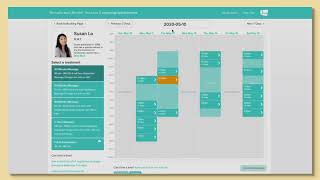
Elle walks through Jane's EHR for chiropractors and multidisciplinary practices, showing online booking by treatment or practitioner, timed booking holds, integrated payments, and patient account features like appointment history and intake forms.
Chapters
Hey there. This is Elle from Jane and welcome to our demo site Here on my Jane Demo Clinic. I'm working with a multidisciplinary practice and I have two locations. Let's go straight into the village here and we'll look at a few different booking options on my locations page. As a patient, I can simply scroll through to be looking at the different disciplines, the different staff members and the different treatments that are on offer. I'll also have a little menu on the left hand side. So if I want to go straight into, for example, chiropractic, you can just click that and Jane will jump me down the page. Of course, I can also just scroll up and down as needed. When it comes to booking an appointment, patients will typically have two different options. And this is something that you can customize based on how you like to book in your clinic. One option would be book by treatment. This allows a patient to select, for example, a 30 minute massage and be seeing the availability for all massage therapists and booking with whoever is available at the time they would like. Alternatively, patients can choose to book by practitioner. So my example here for massage therapy, if Susan is my preferred massage therapist, I can click directly on her name. And now I'm seeing the calendar with just her appointments and her availability to finish booking my appointment here, I can use the navigation arrows at the top to jump through seven days at a time. I can also click into this little calendar if I'd like to go ahead to a more specific date. Once I find a time that suits me, I'm just going to click on it. So how about we Choose Tuesday at 12:30? Once I select my treatment time, I get this little heads up display. At this point, Jane is holding my appointments for 10 minutes and I could choose to maybe go through and book more appointments in one go. I can back out of this if it was an accident. And when I'm ready, I can choose to complete my booking. On my demo site. I've enabled JanePayments. JanePayments is our integrated credit card processing that allows you to store patient credit cards on file and then charge those cards at any time. One of the really nice things with Jane Payments is that it does integrate into the online booking side like this. So what I'm asking my patient to do is to please put their credit card on file. So I have a secure payment method and I'd be able to charge that at any time that I liked. I could also choose to be actually taking this payment upfront during the booking process and the Third option would be to take a deposit if I wanted to. I'm going to save this card and proceed with my booking. I've now come to the thanks for booking page. There'll be a couple of options here for your patient. Towards the top, Jane is reiterating what we've just booked. So just confirming the time and the date, what sort of session and who it was with. And then there's a couple of things I can do here immediately after my booking. The first one here would be what is the reason for your visit? So if as a patient I'd like, I can type something in here, maybe I'm coming in for a sore shoulder. If I save this year, you'll be able to see it right on that patient's appointment. As a patient, I can also choose what sort of reminders I would like to receive. Within your Jane subscription. You can have SMS reminders like I have here. You can also have email reminders going out to your patients. And then the very last thing will just be the cancellation policy, which is something that you would set in your Jane account and we just let the patient know what that is right here. Another area that a patient can access online is their MY account. Your clients would have a username or a password and they would be able to sign into Jane at any time and access their My account. There's a couple of really handy functions in here. So what we're looking at right now is a list of my upcoming appointments. On the left hand side is a list of all the other areas in my MY account so I can see my appointment history, including cancellations. I can access any intake forms that might be pending. I can review documents that have been shared with me by the practitioner. Something shared through the documents area could be an image, a PDF or perhaps just a note that you have typed and would like to share with the patient. Patients can also access their contact information and be adjusting that at any time. They can add additional credit cards on file and possibly pay any outstanding balance. They can adjust their reminders whether or not they'd like to now not receive the SMS reminder or add in additional reminders. And they can also update their username and password at any time. All right. I hope the demonstration today of Jane has been helpful for you. If you do have any questions, feel free to reach out to us here at Jane or send us an email to supportainapp.com.