Christian compares Jobber and Copilot's dispatch boards for scheduling and routing. Jobber's map view has UI lag and limited optimization controls, while Copilot offers more filters, a floating map, and one-click route optimization.
Chapters
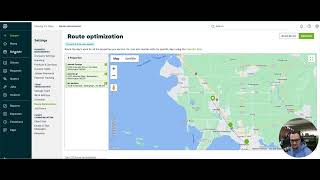
What's up, Copilot family Christian here with tech support, sales and consulting. Today we're going to be doing another comparison video between Jobber and Copilot. And our topic is going to be kind of the dispatch board slash scheduling. Jobber kind of tries to do both in one. So we're starting here on their platform and I do have their free subscription or free trial I should say, actually for the grow subscription. So that would be the equivalency of Copilot's enterprise. And just taking a look at this is into their scheduling under their filter. As you can see, you can do a monthly weekly day or a map view and list view. So we're going to do the map view pulls up here. You see, these are my. These are my daily visits. And you can kind of drag and rearrange these however you'd like to do. So to change up the order of your route for the day, there's no necessarily like, you know, quick button to optimize your routes within this. You actually have to go to your settings page within this too as well. So you see I have three different visits. I generated a couple different.
Customers within here. Set up some recurring visits when you go into the actual settings. We'll go here.
You see, under team organization, I can kind of come down and choose route optimization and it pulls up the same exact interface as when you're on the actual schedule in map view. From here I can go ahead and click on optimize route. And I only have two permitted daily routes. I don't know if this is just because I'm on a free trial or if that's what you're actually permitted to for the. What they call the master route. So when you go into your settings and you optimize here, this becomes your master route.
And then this is it. So what I can do here is I can click and remove this from the route. I can clear and reset this route. Oh, looks like it just froze.
All right, looks like it just froze.
Cool. I just reset the route. Now I can start the route from here.
A little laggy. Click to this next position. Click to this next position. And that's essentially me editing the route and creating a route the way I would want to do it. And then I can save the route.
Oh, there it goes. Finally. Fantastic. So that would essentially be, you know, me optimizing my route for the day. Let's go back to the schedule real quick.
Couple cool thing features. One thing visually, this thing's very beautiful. And you can filter here up at the top you have more actions. You can add jobs, requests, more visits. Here's a couple filter options as well. You can look at who's assigned to an actual job. As you can see, there's different colors on the pins here as well. So gray means it's been completed, orange orange means it's unassigned. I mean, does it have a time frame that's attached to the actual job? And I have time frames attached to my job, so that's why you're seeing them as green right now. But that's about it. That is essentially their route optimization or dispatch board. If I want to see what this looks like in a list view.
I can go ahead and pull the list view. But now I don't have the visual of the actual map, which can kind of get, you know, annoying if you have a large amount of visits for the day, Maybe you got 40 to 60 visits and you want to see the map as you're making changes within the list view. That would be nice to have. But you can see this in list view here. I can, you know, do a global search for these, what have you.
One cool thing that I like as well is being able to go from the satellite view as well on here, zoom in, check things out. When you actually click on the job itself, this is what the, the job looks like. I can view the details and pull up as if I was in the schedule and then mark as complete. Here I only have a couple more options. The same thing as the more actions up here.
But yeah, switching over to copilot. So I'm in our team and dispatch here. You can see it's visually a lot different. A lot more options, a lot more filters to generate. So it's going to be able to support probably larger businesses. With that being said as well, if you go into our schedule tab, this is where you'll be able to kind of see in a day view, week view, month view, all events, recurring and multi step.
I have all these different filter options that I can do. But going back to our dispatch board because we want to compare the map in specific today.
As I scroll down just a little bit. Now, if I want this map to be visual the whole time, I'm kind of in my list form down here. I can click, click this float map, then scroll down and you see that the map's now fixed. So I can do some, maybe some changes. I can kind of grab and change the sequential order of which or maybe I can click hold shift and come down on the dispatch and select a few of them and make a change to them. Whatever you actually want to end up doing, you can still see how it's changing, what it's looking like when you make those changes on the map. With the float map capability, once you want to, you can also filter by crew.
So this is what Crew 1's doing for the day. I can filter by Crew 2 or I can choose to filter all crews. If I want to set and start a in location in start location differently, I can do so from here as well.
But all said and done, once I actually want to optimize, it's really just a click of the button. Once I know that my visits all look correct and in line, I can just come up here, optimize and save.
Optimize to the fastest route.
And there we go.
If you guys haven't checked out Copilot University, I definitely recommend to do so. We do have a map and dispatch.
Segment on that as well. It's a little bit more in depth. Shows you how to create those in terms of a workflow. Hope you guys enjoyed this video. Talk to you soon.