Christian compares client portals in Yardbook and Copilot CRM. Yardbook has no dedicated portal but offers quick payments. Copilot's portal gives clients a dashboard with financial statements, property lists, and lets admins edit what clients see.
Chapters
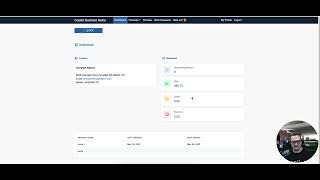
What's up, Copilot family, Christian here. Today we're going to be talking about client portals. Another comparison video between Copilot CRM and Yardbook CRM. So we're going to start with Yardbook. I've done some Google searching and I've navigated this software and I can't seem to find a client portal. I don't think they have one. But one thing you do want to point out is the ability to still process payments via credit card. So we're going to go and go to customers or not customers, rather we're going to go to quick payments. This is where you'll be able to kind of fill out that information and run those payments. Then in your dashboard, you can see there's a reports at the very bottom here where you kind of run those reports and look at the history. So that's kind of where you can navigate what you're sending and whatnot through Yardbook. Let's go and jump over to Copilot. So client portals, again, like I said, very valuable. One thing I want to show you guys within Copilot is the quick access to be able to quickly access a client's portal. Maybe they, you know, they can't navigate it very well or what have you, and you want to change information on there for them.
Cool. Once we're in this client portal, so this actual, you know, interface here is going to be changed. We're going to be finalizing this, making this a little bit cleaner and more condensed. Some of this really important information here on the bottom, like this timeline that you see here and some of these settings and properties, we're going to place this at the very top. So that way when you click into this customer's page, you see all the critical information at the top here. So like I said, client portal being a very valuable function, you can just easily access it with a click of a button here.
So this is what the interface looks like for our client portal. Very simple, very clean. Definitely not too big of a learning curve for your customer to learn. The dashboard here has any statements financially, what they've paid, credit and past due. Also the list of properties that they have here. So you can see this customer has two different properties here. Next we're going to go over to the financial tab where you can essentially see all the history of the invoices, estimates.
And payments. Right. Documents as well, if you've sent this customer any documents. But all these things that you can kind of view and check out for the customer while you're in communication pictures. This is before and after pictures from previous visits that you've sent to your customer. And last but not least, least very important is the work request form. So maybe you went into our settings, you attached a URL from our Copilot software page to your website, and now your customer is able to essentially sign into their client portal from there. Fill out this work request form here, which in the future is going to be fully customizable to the user based off of maybe services that you guys provide. You want to make it a checkbox or whatever and have them be able to check off multiple boxes. Maybe they want multiple services and the frequency of which they want the service as well. So this whole, this whole page here, this whole form is going to be customizable to the user here in the near future. But back to my topic, essentially they'll be able to sign in, create a work request form, push it to you guys, you'll get notified here at this bell and then maybe you have automation set up after that, or what have you. You created a visit without necessarily having to communicate with the customer, right? Very valuable to have a client portal. I hope you guys enjoyed this video. I look forward to helping you out soon.