Homeworks Full Product Demo
Christian from HomeWorks walks through the full platform for admins, sales, and operations teams. The demo covers scheduling with a "God button" for rapid job creation, automated sales workflows with 7-day close sequences, and a mobile Field Force app with offline mode and e-signatures. HomeWorks integrates with Stripe, PayPal, and QuickBooks, and includes 100+ templates plus ChatGPT for multilingual content.
Chapters
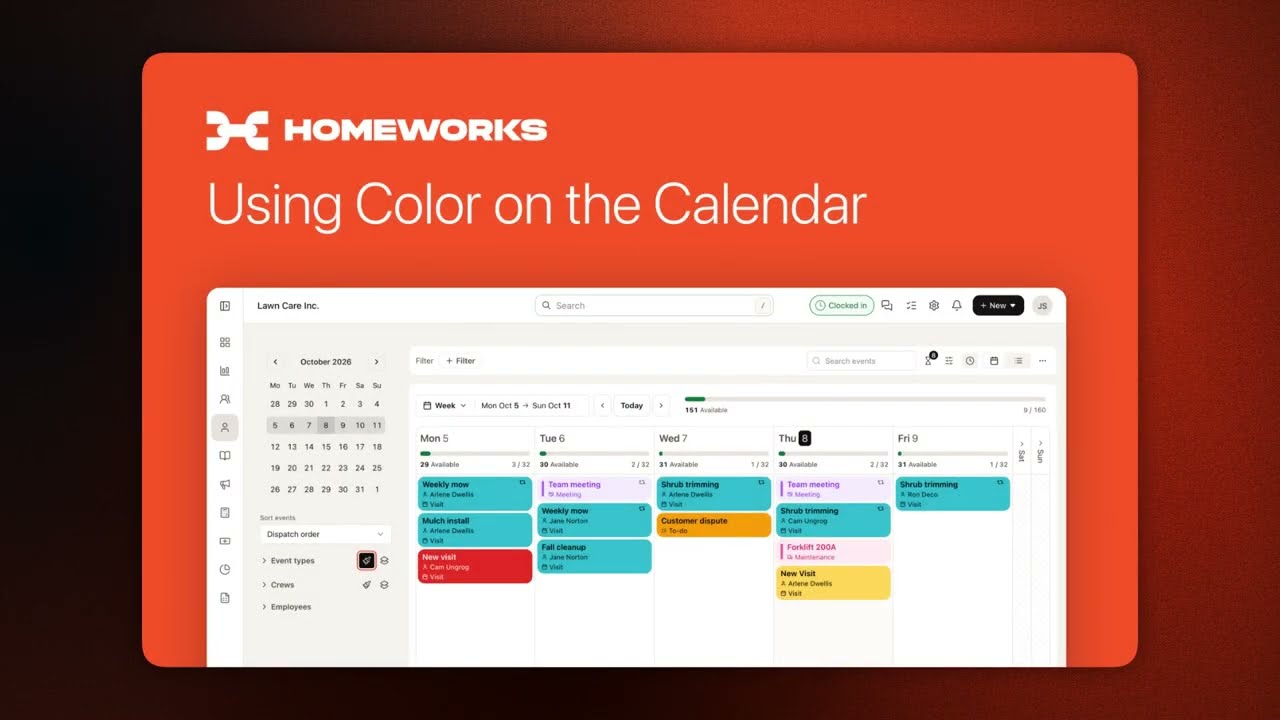
Hey everyone, this is Christian with HomeWorks, lead consultant of the team here. Thank you for clicking on this video. Like, subscribe, comment, check out some of our other resources and YouTube videos. Today's going to be more of a long-form video, kind of breaking down what HomeWorks has to provide as of right now. And today we're going to be covering over 3 sections of what we believe help a home service business scale without breaking, and that's going to be sales, operations, and administrative perspectives. Hopefully you find this insightful. This is a broad overview demonstration, so if you really want to dive deep into the product, especially from your perspective of your industry and unique workflows, there are some other resources. If you head over to home.works, there's going to be a resources section here where you can find our HomeWorks Academy. In the academy, made by our technical staff here, you're going to see a video curriculum, and this is a free resource of everything about the product, from vocabulary to settings to managing customers to managing your employees to mobile apps to reporting. It's all going to be here for you guys. So this is a great resource to get started with. You can also roll over to our website where we're just at, and you can sign up for the free version of our software. This is very limited in features and functions, but paired with our HomeWorks Academy, you can get, you can get great insight on what we have to provide here, both product-wise and the community. The next option, and I am biased, this might be the best option, but this is getting a demo, whether it's actually booking a demo with me or it's checking out the other demos that we have, kind of like this one but in more short form, breaking down specific things like our Field Force app or things in regards to administrative roles or sales roles, kind of in short snippets. But today is going to be more of a long form, and this is done by Abel and the product engineer and design team. So hopefully you find these resources really helpful as well, but When you book a demo with me, it's going to be more personal. We're going to dive into your business and your team and your service and your goals and what you guys are trying to achieve. And then we'll specifically spot check the CRM to cover these things that you need to make sure that we're a good fit. And then we'll go ahead and roll you into onboarding. And this is a chance for me to kind of talk about the customer success team that we have here, the customer experience team that we have here. The first thing that we want to do is we want to transfer your data over for free from your current software. So we'll set that up, we'll transfer data via a CSV sheet from you guys from your current product. And then what we'll do is we'll book you guys for a Friday meeting to be welcomed in with all the other new business owners to answer questions and to go over what to expect and how we help you. And then what we want to do is we want you to connect with Mike Andes. We have a live Q&A event with our founder almost every Friday. Kind of just being able to help you guys breach some roadblocks that you have in your business, whether that's pricing, hiring, other strategies for marketing, you name it, we cover almost all topics in the home service business realm. Okay, let's get into the software. So I want to start with the admin perspective. Okay, and I do have a list over here that I'll periodically be poking over just to make sure that I cover everything for you guys. And the first thing I want to do is the gear icon in the top right-hand side takes you to your settings section. And again, this is a broad overview, and so if you guys want to dive into this deeper, feel free to sign up for that free version and check it out. The Your Business profile is just basic information about your business and what is your logo. This logo gets automatically attached to all transactions that you have inside the product. Your preferences section— maybe you're in Canada, you have a different You know, base currency, timezone, you have a different customer, an invoice or estimate start number that you want to start at. When do I want to send automated texts? What are my push notifications that I care about? Where do I want to start my route and end my route? Some scheduling options too, as well more talking about availability when you guys aren't working and just some other really cool preference settings. Then you have your, your billing history section. This is your plan that you're currently on, and I can swap to anything anytime I want to because Home HomeWorks doesn't apply contracts to your subscription and what cards on file and order history. Next, we connect with Stripe. So Stripe allows you to process both credit card and ACH, uh, direct bank transfer. We do have the ability for PayPal, and of course you can mark invoices as paid via check, cash, Zelle, and other sources as well. You do have the ability for it to auto-create an invoice, auto-send an invoice, and auto-charge an invoice, creating almost a full billing, automated billing process, including maybe capturing Google reviews, surveys, or anything else post-service through automation capability. The most important section, in my opinion, is going to be invoices, estimates, and receipts. And this is going to be the visibility to the customer from the estimate and invoices. What do you want them to see versus what you see? What notes and terms and conditions do you want to auto-create when you create an estimate or an invoice? Because that stuff is usually generic information and you want it to be templacized. The next section right here is just kind of going over, hey, your invoice is ready. Hey, your estimate is ready. And what do those default templates look like? You'll create those in our beautiful email builder, which we'll take a look at today during this video. And you'll set this to be your preferred default template so that way it auto-creates and auto-sends for you. Using that template. You have some receipt options too as well. Do I want to text stuff? Do I want to email stuff? You get to decide that. And then you're going to get into some more technical settings. Right now we're looking at global settings for everyone. We do have the ability to set these settings at the customer level that will override your global settings, which is nice. It allows you to be more flexible for your customers. Maybe you have different settings for residential versus commercial customers. Right? These are late fee rules, exact amounts or percentages, and you can have multiple rules. These are going to be your auto sending of invoicing, which is the frequency that we're going to be doing this daily in batches, weekly, or maybe monthly, both at the top of the month or at the end of the month. And we do support level billing or your subscription model contracts as well. Right here is going to be your deposit thresholds. As you can see, my setting here is anything at $1,500, we do require a 50% deposit. This can be exact amounts as well. You can set this at the customer level, which is nice when you're preparing maybe for a large commercial estimate and you want to send it out and maybe get a higher deposit from them for materials and other things like that. These are some other hide or show settings, requiring a payment source on file, automatically using that property location for its tax rate. How do I want to apply credit that is already existing on a customer's profile. So definitely check this section out. It will allow you to create your administrative automated workflows. Um, you got the client portal. This is classic. A client portal is a must. You will put this on your website for people to be able to log in, see everything that you guys have done with them, their financial statements with you. And we'll take a look at this in just a little bit. Then you're going to see custom naming. Flexibility is a really important thing here at HomeWorks. Custom naming. If you're in the cleaning industry, if you're in the landscaping industry, If you're doing poop scoop, it doesn't matter. Have some of this stuff be the lingo that you guys use on a regular basis, and you'll see some more custom naming in the list items visibility section as well. We do sync with QuickBooks Online. Uh, there are videos in our educational curriculum that help you sync your account. Our technical staff is always on hand to help you as well, but this is pretty self-explanatory and it's very easy to sync your QuickBooks account. I already brushed over us helping you import, but we do have an importing, um, you know, video for you in our HomeWorks Academy as well. Whether you're coming from specific CRMs that we've created videos just for you to ensure that you know how to export and import from those CRMs and how to do so with customers versus properties versus your items and service catalog that you don't want to rebuild again, that you can just bring over from your current software. So super helpful of products here or, or sections in the software for you guys to make sure that you get that data in here. But remember, we'll do it for you. Yeah. The next section is going to be your work request form. We have to capitalize on our leads. We're not talking about sales yet, but this is a big section for us to cover in regards to sales. So they will go to your website, they will fill out this form. This is the code snippet of putting on your landing page or your website. And then the best part about this is that it'll auto-create a customer profile for you and come into the software and then indicate, hey, someone new just came in so that way you guys can get to that customer in a quick manner. This is lead response time, but we'll get into this a little bit when we kind of COVID the sales perspective. And then last but not least in this setting section is going to be list items visibility. This allows you again to be more flexible, custom verbiage, custom categorizations. Of various things. We're going to get into this in just a second. This is our off-seasons. Off-seasons are fantastic. We'll get into it a little bit more in just a second, but these are custom off-seasons based off of where you're at in the country and when is your off-season. Pretty self-explanatory. Customer types— these are people that you're dealing with. These are people that you might mass communicate in the future, and you have a cool filter system to be able to filter down to who you want to offer things— cross-sell, upsell. And so this allows you to make sure that you have your customer types here. To-dos. These are side tasks. Some CRMs don't even have side task or task management capability. Homeworks— we have you guys be able to have to-dos, but then we create custom categorizations of to-dos in preparation for you to delegate these different tasks to people who never become the bottleneck in your business. And we'll talk about how this connects to automations in a little bit. These are meeting categorizations. Same thing. Interviews. I also maybe have one-on-ones with my guys. I have sales meetings that I do and conduct, right? All these things will be custom categorizations in preparation again to delegate to a specific leadership head in your business. And these are your customer sources. We need to know which customer sources are actually giving you guys net new customers, and so that way you guys can pull reports and kind of put more energy into these various sources. Okay, this is the settings overview. The next one that I wanted to kind of talk about is just some kind of intuitiveness functionalities, some updates that we've made to the software. The first one's going to be your quick search. This is a global search for customers, employees, things on schedule, and account settings for you to easily find things without having to navigate the sidebar menu here. One of my other favorite features that we've added quite a while ago is going to be tree branch functionality. It kind of acts as tabs. So if you are an admin role in your business and you operate from the calendar view, the dispatch board, you check out the customer section, and then you'd like to be on the invoices section all day long, you can navigate to those pages very easily from right here. So I can go right back to the work request form that we were at, or I can go right back to the customer section, right, where we're going to be importing our customers. So very easy navigation capability with our tree branch functionality. Okay, the next thing I want to get into is just the customer's page. So if you head over to our customer section, we can quick search. And as you can see, as I start pulling up Lauren, it pulls up her name for me, and I can click here, click into Lauren's page here. And this is your customer's interface page. We have communication, all documents, images, specific automations just for this customer that I've set up. Again, that flexibility point, it's a really important aspect of our CRM. This plus create button here allows you to kind of create anything for this customer right here. So if you're on a phone call with them, we can create a side task, we can create a sales meeting with them. I can log our conversation so I don't forget anything. I could even create a side task right here from this conversation as I'm documenting it. And this is an open note field too. So if you have multiple property managers and you want to put the details of what the scenario is for this customer and their properties, you could put detailed information here for you guys to resort to. Other key things here is CC emails, multiple contacts, and what type of customer is this person? Like we just talked about when we went through the settings section, and maybe I wanna tag this person 'cause when I give them that intro phone call, I wanna start tagging them for future mass communication, right? Some other cool things to point out is just the kind of job history. You'll see that this is a timeline of anything that you've done with this customer, and you guys can see the card information that's on file. If this person had multiple properties, you'd see that here, but this person just has one. So we can support commercial work, allowing you to have separate aerial measurements, key property notes, and things like that for all the assets that this customer might have. These are just basic customer page things, but the thing that I wanted to get into again with you that I brought up earlier when we were going through the settings section is the custom technical settings, late fee rules. Auto sending of invoicing. We do have more here, some hide or show settings. And then you have your customer client portal where you can require them to have to log in, or we're gonna remove that barrier. So when I shoot them a text, they click a link and then it spits them straight into their customer client portal. And of course we can change passwords for people. I get that often on my demo calls. Hey, can I change the password for my, my customer? Yes, we can do that. And we can also decide to require a card on file or not. Maybe this person pays cash or checks, so we don't want to require that on their next estimate and confuse them, right? You can access their portal very quickly by clicking that green button right there. Okay. And this is the dashboard. We redesigned this to be extremely simplistic so that way anyone, including the people that aren't technically savvy, can understand their client portal. You got financial statements here, contact information, payments, what's on schedule. For the asset right there. And you also have the finances section where you can see everything. You can see documents, payments, invoices, and estimates. And you can see before and after photos of work that I've ever done for you. And you guys can also see the work request section. So I can actually ask for more work from you guys, which auto pulls into the software and then notifies your sales rep too as well. So they can get to that person. Again, lead response time is so critical. They can give you guys reviews. And under the My Profile section, you have payment information as well. And then you have some other preference settings from the customer's perspective here. This is the client portal. This is a must. Again, the simplicity of it was kind of the major focus for the team here. The next thing I want to get into is actually scheduling. So if you guys want to, this is the God button is what I like to call it. It's the +New button, but I call it the God button because you can do almost anything from this button here. A team and resources, finances, events, customers. So I would create a visit right here, or even schedule a to-do or a meeting, or even an equipment maintenance task so you don't forget, and then your truck blows up and it becomes a 3-day ordeal. So you can keep track of everything inside of here, from meetings, side tasks, to even taking care of your equipment. So first thing I want to actually do in regards to scheduling is actually talk about scheduling from An estimate. So you have some quick filters right here for your estimates to find specific ones very quickly. This is an accepted estimate from Mr. Tai here. And one of the cool— again, I'm going to bring up the word flexibility options that we have here— is these have multiple line items, or this estimate has multiple line items. As you see here, I can wrap all these line items into one visit, or I can say, hey, we're doing everything on this line item. Quarterly, for example, or weekly or whatever, by pressing Create Visit right here. So it's going to wrap all the line items into that scheduled job. If I need to separate, like this is a biweekly mowing service and this is a one-time deck and patio pressure wash, and we're going to do this quarterly and we're going to do this once a year or twice a year, I can individually on each line item slide over and press Add or Create for just that visit. And if you do project-based work, this is very helpful because you might actually explain an estimate to a customer as phases to a project, allowing you to say, hey, this first phase, this is going to last an hour and crew 1 is going to do it. The second phase is actually going to be on Saturday. It's going to be 3 hours and this crew is going to do it. That's the point there. And let's go and open this up real quick. This is the interface to actually schedule something. So we're just going to schedule a biweekly mowing service. Very easy. You guys can color code your services as well, which is really cool. So you can color code services, color code customers, color code crews, all again the flexibility aspect of the software. You guys will be able to scroll down here, and this is the actual frequency section. So single visits, but it's a multi-day job, so it's project, right? I can also do recurring. That opens it up for daily, weekly, monthly and yearly services, one time a year, two time a year. And as I get to the yearly and the monthly, you can see I can do specific dates of the month. I can do the second Monday of January. I could do every other month too as well. So I can see here, I say, hey, this is the first of every month, but I can do the second Tuesday, for example, of every 3 months. So a lot of specific settings. Again, the software was really created for maintenance, but we're diving into being able to support more project-based as well. So lots of really cool, reoccurring settings. But again, let's go ahead and do a biweekly service. So I just put the 2 here. This is biweekly and we'll keep it on Tuesdays. I'm not going to put a time on there, but if you do do that, you can. And then you have your customizable off season. Before we get to the off season, we have some other supportive features here. This will allow you to say, hey, I need 36, 34, 32 cuts within a contracted period of time. Or I can say, hey, this person's going to be getting maintenance from me forever until they call and cancel. And then this is where the offseason really comes into play. So then I can say we don't cut during our winter timeframe though. So once winter hits, bang, they're off schedule. And once winter is done, bang, they're right back on schedule. And as an administrative role, I don't have to recreate these schedules every year for every single customer, right? Saves hundreds of admin hours. Depending on the size of the business, of course, right? Custom visit forms or checklists. These are super helpful. Then you're also going to be able to put in information like, hey, this, this, and this need to get done in this specific way. I can assign crews or singular employees or create a custom crew by just kind of grabbing all my employees based off of who I know is available for the day. And then right below here, one of my favorite things about HomeWorks is the video attachment. So now I can attach videos and photos to this job for my team to understand how the job should be conducted. One thing that I did kind of briefly skip over, but I need to go back because it's one of my favorite features that we just recently added, and that's going to be called the waitlist. The waitlist is AKA the chaos mitigator, is what I like to call it. It allows you guys to still sell jobs, accept estimates, but even when you're booked, and you don't know where you're going to put this person on schedule, we can kind of chamber that job on our waitlist, okay? And you'll have the earliest date that you can complete that job. That would be obviously today, but then you would put the latest date as well. Maybe your standard operation procedure is I don't want this person sitting with an accepted estimate longer than a week, okay? So once I create this, and you can see the budgeted hours that you've set here is going to be based off of the budgeted hours from the estimate when you first put together that estimate in that service. Okay, once I create this job and I just put it on the waitlist, as you can see, I'll head over to the waitlist and I can actually see all my waitlist jobs here. And I have this very cool filter that allows me to filter by name, by who's responsible, by budgeted hours. So really quick capability to be able to find these jobs and mass schedule them or schedule a singular one. Right? And you can see these, these priority statuses here are going to be based off of the earliest and latest date that automatically rolls it into a due soon or overdue. So you can easily pull jobs like cleanups or one-off mows or things like that off your schedule. And you can, from the scheduling perspective here, this weekly view that you're seeing, I do have a waitlist ability to pull this out here and then be able to look at where I actually have availability and then plug these jobs. So just press add, April 7th. Let's go ahead and add that, right? So I can go ahead and add these jobs very easily from our waitlist. Okay, so that's a little bit into scheduling. Unscheduled work and waitlist, I just kind of covered the waitlist, but unscheduled work is a very simple way for you guys to just cross your T's and dot your I's. These are all accepted estimates that have a specific status at each line item level on if it's been scheduled or not. And as you can see here, I have a customer service category, just different filter options, but I can see the status of if these have been scheduled or not, or if they've been partially scheduled like this one here. We can talk about that more on the demo or in our resources if you guys really want to cover this. I have more to cover today. Invoice and payments. So we went over the settings, we talked a lot about a lot of automated, uh, you know, invoice creation, invoice sending, auto charge, but you still may do things pretty manual. So we have an invoices section here with some quick filters for you guys to be able to go ahead and click these and follow up. We have action buttons here for you guys to charge cards, for you guys to combine invoices. So if you have a commercial customer or someone who has multiple rentals, you can say, hey, I don't want to send them 5 invoices, I wanted to combine those invoices to one for them to pay on, making it easy for the customer, adding payments. You guys can print things off. You guys can mark as paid via many sources. And to find specific invoices is just, again, we crush and filter systems here at HomeWorks. Uh, lots of ways to differentiate different customers or transactions. Okay. When I select these people here, I can now charge their card or ACH that's on file in mass manually if I need to. Okay. That's pretty much the admin role. There's more to it. Book a call, check out our resources, but I do want to kind of roll into sales. Okay, from the sales perspective, adding a new customer. Say I'm out in the field and I need to add a new customer. I can click the +New button here, add this customer, and again, the flexibility of HomeWorks is one of my favorite things. If I am in a quick situation where I quickly need to add this customer in, I can add Kevin. I can add Kevin as a specific customer type if I have the time to do so. If I wanted to, I can add Kevin's last name. I can add Kevin's phone number if I want to, and I can also add Kevin's email, kevin123@gmail.com, right? From right here, this is sufficient. It will let me go to the next step. So again, you can quickly do this. You can even add customer's address here too as well. And then you, you can also get pretty deep if you have time with your customer. You can really set up their preferences. You have invoice notification method, different templates that you might want to use, invoice resending methods. And if I open this up, it opens up into even more settings like those technical ones that I went to at the customer level, late fee rules, auto sending, and a bunch of other settings as well. But I can again just press save and I have to put a real email in here real quick. So let me go and remove this space. Kevin123@gmail.com. Sweet. So now we can go ahead and create this customer. And this is cool. This is the, again, the intuitiveness of the software. It's going to go from, hey, you've just added this customer, now we need to add a property. So it's going to take you straight into adding a property for Kevin here, and it's going to take you to this interface. And then from here we can start typing in the address. So I'm just going to create a random one, 123 Street and we're going to go ahead and be in Philadelphia, for example. Yeah. So we're going to put this person in Philadelphia. At this point, if you know this person is in the north side of town and you want to assign a specific crew member to them based off of that crew handling that side of town, you could do that very easily. You can also add specific customer pricing or property pricing and then add a photo of where you want your crew to park. And this is the house. Don't do the neighbors for free is what I like to say. So they have some property images to make sure they're at the right property. From here, we can go ahead and move forward. When I press save property, it's very intuitive. It's going to ask you, would you like to do a property aerial measurement? Would you like to create the estimate? Is there any other properties that this person might have? Do you want to just skip all this and go straight into creating a visit for this person? So from the sales perspective, you might want to create the estimate, right? So once I create the estimate, We have a lot of really cool features in regards to items and service catalogs. So let me take a step back, head to the items and service catalog so you can understand how to even create your estimates. And again, we can import your existing catalog or price book into the product. One of my favorite ones that I like to highlight on my meetings, favorite features, is going to be custom categorizations. Custom categorizations are what they sound like, so you can differentiate different types of work that you guys do, pull custom reports on these categorizations, and it's very easy if I go to pest control right here, and it'll go and load to all the jobs under just the pest control division. I can easily bulk price increase from this section along with pulling revenue reports. Another cool thing that you guys can do is you guys can keep track of inventory. And so for inventory, real quick, So once I've filtered to that categorization of pest control, I'll see all my treatments that are under here, and then I can go and grab these and I can bulk price increase a fixed amount or percentage very easily to do so. Do I want to affect everyone that currently has this service, or do I want to only affect people that are net new? We have that capability. The next step is inventory items. So this allows you to categorize different inventory And then one of my favorites, it's kind of like estimate templates. We call it packages. It allows you guys to create your good, better, or best, or your gold, bronze, or silver package, or, hey, I do these relative projects all the time. And so I don't want to create this estimate from scratch. I want it to already break down all 5 phases to the project, to my customer for me, and then I can make some tweaks to it, right? Or for example, it's my full service package. I have, 4 different services in here to do property maintenance, it'll auto-pull in here. And when this gets accepted, I can now schedule each frequency that is different for each service. Okay? So these are some really cool features to help the sales rep that's out in the field to create the customer and go through that pipeline of getting them closed. And once we get to an estimate, you guys can add a line item like mowing, for example. And we do have price matrixing systems. So if I do an aerial measurement and I want to go ahead and pull in a calculation of 5,800 square foot, depending on your, your pricing and everything that you've created for your rule sets, it'll spit you a price point, let you know how long your team's going to take to execute, and then your margins on that job. And packages, like I was talking about before, it's very easy for you to drop in a package. This is my pressure washing package that I'm going to go ahead and drop in right here, and I'm going to maybe professionally recommend their house wash. Yeah, so now I can recommend their house wash, hit them with the Amazon people get this with that. And if you guys do need to make any net new service that you guys have never done before, you can create that on the fly very quickly. Okay, so that's a little bit into the estimate creation. The next thing is the terms and conditions will auto-populate, and then I might want to attach a photo or a video to this to further explain how this work is going to be done on this person's property and help sell my job. Okay, once I send this out text or email, it's going to go straight to the customer. They'll click it, and it now takes them to their client portal. This is what the interface will look like from the customer's perspective. You see all the line items. You have flexibility to put photos in the line items if you'd like to as well. Everything's selectable. You see the highlighted green recommended button here, and then all the media attachment is on the right-hand side. It becomes a nice slideshow for your customer to be able to view what that work is really going to look like for you guys. Okay? And then down below here, they can say, hey, you know what? I don't want the mulch install. I'm gonna go ahead and have my grandkids do it, for example, right? So they're gonna deselect that. Collapse it if they wanted to, or they can go ahead and open it up. And as you can see, the price point will change here. But if they're at the top of the, the estimate as well, they can see the interface change right here for how much it's going to cost as well. You'll also see here, remember I had a deposit threshold. And so if I have a deposit threshold, I can get a 50% deposit or an exact amount or whatever. And this pops up kind of just letting you know, hey, we do need a payment source on file. Hey, there is a minimum deposit threshold. So when someone goes to accept and pay, they can drop those things. Yeah, decline reasons, really great sales tool. They have to tell you why they're saying no to the software. That'll fire off an automation to text your sales rep to call and negotiate with this person, hopefully increasing your close ratio. Yeah, requesting changes is pretty standard. And then again, when I press accept, I can go and have them pay in full. It's a 12-month contract for the full maintenance, 12-year, a 12-month program. They can pay in full. Right? Or hey, they're just going to have to pay that minimum deposit, and once they press continue, well, now we need a payment source on file. So now they're going to give their card or the ACH direct bank transfer, right? And then they'll go ahead and pay that amount. So that's how you kind of create that new customer. You take them through aerial measurements, you take them through whatever you're doing, you create the estimate, and then you send it out to them, and then you get paid. And now it's time to go ahead and schedule, which we kind of already went through. In regards to the admin section that we just went through. I want to kind of COVID real quick work request forms. So from your website, all your leads will flow there, and under customers and work request forms, this is where all that new work will show up for you. And we do have an automation where that fires off to text your sales rep, auto-creates a side task for them to make sure they get to that customer if they're busy. Again, lead response time, close ratio are the KPIs that that will affect. and then they can come in here and say, hey, this person wants mowing, and maybe I want to do an aerial measurement. So I'm going to go to the calculation aerial measurement section, and at this point I can type in that customer and their selective property, and I can do some aerial measurements to help maybe plug in my rate matrixing system like we just showed before. And I can save these measurements. Then I can use this tree branch functionality and go right back to the section and schedule an assessment. Maybe this is a project, you need to go walk the property and build the estimate on site. Or we can just convert this straight to an estimate. Maybe you skip that estimate process and you just create a visit. Or maybe I can give them an initial phone call and view their new profile that the software has auto-created once they filled out that work request form. So I love that it will auto-create the work request for you, the customer portal page and the customer page for you. Then we have advanced automations to really cover your communication aspect. Estimates, automations— let's dive more into automations. Okay, automations is really going to help all operations, sales, and administrative. But the best part about HomeWorks is that we actually give you 100 templates. These are the same templates that a lot of Augusta Nation uses, Mike Andes' franchise. And we do want to kind of COVID the baseline of scenarios we know you run into because we're in the industry as well. So when visits are completed, before visits happen, capturing Google reviews, different statuses on estimates, decline requests, changes, or accepted meetings are added. If people need to be reminded about these meetings or side tasks. So there's tons of different already built automations that you guys can just toggle on or toggle off. You guys can also just edit them for, for you guys to change how it sounds or looks. And then right here, these bunch of triggers, these default automations are based off of triggers, runtimes, and actions. When this happens, when does it go, and who and how do they receive it? Okay, very standard. That's why we call them the default or legacy automations. We do have sequence automations. These handle a lot more capability. Okay, this will cover the, hey, if this happens and this happens or this happens, then this guy and this guy get a message, right? I call these the moneymakers or they'll just buy back your time a little bit more. Okay, let's go into that sales perspective. So if I send out an estimate, we give you guys one of our favorites, the 7 days to close. So now it will follow up on an estimate for you over the next 7 days until that person reacts to the estimate, accepting it or declining. So say on day 4 is when they accept the estimate. So now it's not going to send them 5 through 7 because they accepted it. and it's actually now going to pass them to an adjacent automation that now delegates a task. So if this person accepted the estimate, then now your admin manager who schedules is going to get a push notification, a text, or whatever you create, and that customer's gonna get a thank you. Hey, we're gonna get you on schedule. Okay? If they decline, again, goes right back to your sales rep. Go check out the reason why this person negotiated or, uh, declined rather. Let's negotiate. And let's close. Okay, that's just one example. As you can see, we have a lot of different options. Card has failed— how do I want that logic to communicate after that? Um, you guys have your work request forms, right? So once the work request form is submitted, hits up the customer, hits up a specific employee to get to that person, right? Customer review asks. So there's so many here that we give you guys, including upsell templates and things like that for you guys to dish out. And that's a nice transition into upsells. Okay, we have an upsell section here where you're going to create and manage all your upsells. These are different templates that you guys create based off of services that you're trying to push. And so you can control which employees have that ability to communicate, have that ability to see, and have the vision to be able to cross-sell and upsell. And when they're out in the field, say they're operating from a dispatch board perspective like this, they can open up a job, and say, hey Dustin, did you know that we do mulch? You didn't know that? That's crazy. Let me get you information. They can scroll down to the bottom here, hit this upsell button, and now have easy access to be able to push specific services. This will be a text or an email template explaining the service and why they should get it, and it gets automatically sent to their phone. And at this point, you can actually create a review status for that upsell. So now you in the back office get a notification to make sure that you say yes to being able to send this upsell or cross-sell to this customer, because obviously your team can overbook you by just pushing out a bunch of work. Okay, it's a little bit into automations, a little bit into the upsell capability. I know Mike's locations grew, I want to say anywhere from 28% plus when we added this feature or functionality. So if you can sell jobs, this is not a feature to just kind of brush by. This is a very important feature for you guys to scale your business, especially when you guys are in the adolescent stages of scaling your business. You'll see a shopping bag icon next to every job that has been upsold, who did it. Give these guys compensation for selling and keep scaling. Okay, next I really want to go over two-way texting, texting capability. Is super important. Everyone's on their phones too much these days. You guys actually, since we're on the dispatch board, can communicate right here. So you guys can send out an email or text to anyone that you're servicing that same day, and you guys have all your different templates that you have access to to be able to communicate. Okay, if anyone texts you from automation or just a conversation, you guys can control all your notifications just right here for just text only. These are notifications for everything else. And so when I click this, this is actually going to take me to my texting interface here where I can actually see all my texts and I can control them or organize them from open versus done chats. So create a simple SOP, standard operation procedure, to say, hey, is there anything I can help you with, Lauren? No, done chat. And just kind of organize those. We do have emoji capability and merge tags. Merge tags are critical to personalize these texts. It'll autofill personal information, account information, appointment times, and portal links and things like that. Okay, if you do need to go to a customer's page from a conversation that you're having, you can click their name, takes you straight there. Then I use the tree branch functionality to come right back to my conversation I'm having. We can go ahead and text people by creating groups, texting employees and crews from here. And you guys can also create your templates here, which again give you a bunch of templates with some emojis and merge tags that are already creating some scenarios that we know you guys run into. Okay, the next thing I wanted to go over with you guys is a very powerful email builder. A lot of people in HomeWorks are creating vaults of different type of offers that they're going to be giving out to people throughout the season. But this is just an accepted estimate. Hey, your estimate has been accepted, we appreciate you. Just a template to kind of show you guys some of the visuals, what the body and text would look like, a merge tag that would be applied for this scenario. And again, the formatting of this is completely customizable. You guys have the ability to change the formatting, make it a list view. Maybe you're sending out some type of contract and you want people to be able to opt in or opt out with a button. You guys can promote your social media too as well. Put that at the top, put that at the bottom with links behind it. It's up to you. Or maybe you just want to promote a recent project that you did with a video that might sell within itself. So there's a lot of cool capabilities. One of the best ones is our integration with ChatGPT AI. We have some people from all across the world, including like Quebec writing in French or some people in Southern California writing in Spanish. There's a lot of really cool capabilities with this AI integration. Write these up and send them out throughout the season. And win more jobs. Okay, next, what you guys are going to be able to do too as well is go to your customer section once you create your templates and filter down to a specific audience to reactivate people. We want to be able to reactivate old customers, cross-sell and upsell to existing, and extend the lifetime value of the recurring customer. At the end of the day, we want to keep people around. So one of my favorite things to do with this filter system is show you a very basic perspective. So if I go, I want to talk to a customer type, okay, we'll start there and we'll say residential. And then I also want to talk to people who maybe have a specific card source on file. And maybe I also want to talk to somebody that has a specific tag and we'll go ahead and do this person has pets. Okay. And I also want to talk to people who are from a certain side of town, north side, south side, you get it. You could put in the area code. Okay, and the next thing that I want to do is I can go ahead and pull by a bunch of different things. I want to pull by recurring last service date, I want to pull by recurring scheduled, I want to pull by a specific estimate that has a package. But the easiest one that I like to do— I apologize for clicking on that— the easiest one that I like to kind of show people is the service and date range. So I can now pull up all my items and services that I provide, and then I can go ahead and come into here and I can pull the last time that that person got this. So is this someone within 30 days? Is this somebody that I talked to last year? I did services for last year. And so you got a kind of custom range that you can set here. But for this scenario, maybe I want to talk to people that I've done maintenance mowing for in the last 30 days, and we're going to go ahead and cross-sell them into our new pet waste removal service, right? Because they don't pick up the poop anyways. And so now what we can do is we can go and grab these people, filter these people, and I can go and send out a mass text or email. Our software can send 1,000 emails per hour. We've been at over a 95% deliverability rate— fancy stuff for saying it doesn't go to spam. And then you grab that template breaking down the pet waste removal service. Okay, so these are some really cool sales tools for you guys, uh, sending out blasts. We cover email builders, two-way texting, automations, estimates— a lot of really cool tools. If you guys want to see more book a demo, check out some of the different resources. Okay, last but not least, from the operations perspective, there's a couple different pages that you can really operate from, and I want to show you all of them today. The first one's going to be— it's from a calendar view. You have the today view, just like so. You have the weekly view, just like this. And then you guys are also going to have the standard monthly view. Okay, all of these views have a budgeted hour capacity breakdown, letting you know what your capacity is and what you're booked out till and what's scheduled, what's available, and the difference between single and recurring work. Another key thing to highlight is again filter systems. As you can see, HomeWorks really likes to do filter systems for you to find specific jobs by employees or by crews, by items and services, by specific tags, and invoiced or not, open, on-site, or closed, or recurring versus one-time. We brought up the waitlist here, very helpful for operations and admin. And you guys also have some color coding from revenue-producing visits versus side tasks versus meetings versus these equipment maintenance tasks. And we just have all these different filters to find specific jobs. The next thing operationally that I would like to talk about is going to be the multi-step program. The multi-step program is for chemical applications. So if you guys do have a normal chemical application, I'm going to roll over to this example here that I have for you guys. This multi, this multi-program template allows you to kind of create— I have a 5 to 7 step fertilization. I can grab this, I can search who's going to be getting this service. So this is upon the acceptance of the estimate and ready to just quickly dispatch. Essentially this multi-step program. I can go and press Create Event, and right here it already knows how many rounds, uh, of applications they're going to be and how many days in between each round as well, what specific chemical is going to be sprayed at each round. I can either decide to just save and generate and put it on schedule, so it's automatically going to put all these different services here with the X amount of dates, or I can decide to put this on the waitlist, and then I can pull each round off the waitlist based off of where I'm at in my season. It's up to you guys on how you guys want to, want to operate this chemical application sign. The other operational page is going to be the dispatch board. This is my personal favorite, okay? It's my personal favorite section to operate from. This dispatch board allows you to manage crews. This is just today's worth of jobs, but you may want to pull up a week, a month, a custom range worth of work to do some route density work. What you guys can also do is see some filters. Event types. These are all revenue-producing jobs, but if there were side tasks and meetings, you would see that as well. Color coding by service type allows you to prepare equipment, kind of understand what's actually being done for the day, and that'll maybe allow me to say, hey, you know, this person just called in sick and I want to take a certain amount of these jobs or certain specific types of jobs and assign them to a different employee and crew that I know can handle them, right? I can also move events from here with this action button. Very easily by just kind of grabbing a couple jobs and then pressing move event. And if I'm going to move this event moving forward, like for a maintenance example, this person's asking for me to do their yard on Thursdays moving forward. So then I can go ahead and hit this button and it's going to change that biweekly frequency, maybe to Thursdays moving forward for me, right? Another option you guys also have is route optimization. This is a must, especially when you're dealing with multiple crews. And so it's very easy to do that inside of HomeWorks. You guys will go and click the Order Stop button will optimize it. And then what I can also do is I can save this route. This is the same Tuesday route every Tuesday. I want it to save in this sequential order so I can hit the Save Routes, or I can have it save every other week. It's up to you based off your scenario. And then from there, we can go ahead and see stats on what to expect for this route— budgeted hours, money we're making, drive time, and how many miles would I essentially put on my vehicle if I were to execute this route. Okay, the other perspective that I wanted to show you guys for operations is our app, brand new app. It's called Field Force. And the best thing about this app, in my opinion, is that it does not require cellular service in order for you to operate on it. Okay, it also has a Spanish version, which is very helpful. And so when I log into the interface of the app, both iOS and Android, this is what it looks like. So you'll first see this clock in, clock out button at the bottom. They can go ahead and clock into the business. If they aren't very technically savvy, this is the product for them. But they also have an in-app onboarding that can teach them if they do forget. You have the chat support team, help articles, and you can see I can select English versus Spanish. Okay, the route's going to be right in front of them. So you can see here all the jobs that I have in my route. At the top, I can see 6 days worth of work over here. And then from here, we can just execute our jobs. And so you have a biweekly residential cleaning example here. Okay? The first thing that I want to do is I need to get directions on where I'm going. So in the top right-hand side right here, I can get directions on whatever maps I'm using. And then once I show up to that job, I might want to check out the property notes. Okay? This is going to be gate codes, pets, park on this side of the road, key information about this property that I want my guys to be attentive to. And this is going to be property media. This is going to be the house. Please don't knock on the neighbors or do the neighbors for free is what I like to say. Okay. And then what you guys can also see is customer information, basic contact information. And then next we need to see what the boss wants us to do. So we slide back over from property to the— okay. At this point, I'm going to check out visit notes. These are going to be, hey, this, this, and this need to get done in this specific way. You guys also have option for them to see the line items. This is the work that needs to be done and fulfilled. This is the line items that were accepted on the estimate, and they can see a description as well from the customer's perspective from when they saw those line items. You got dispatch board notes. This is one of my favorite features as well. I can essentially let the team know in the back office or from the dispatch board perspective and kind of let them know what's going on. So for example, if I say, hey, The customers aren't home, dogs are left out. This is me communicating to the back office dispatch board specialist, admin manager, whoever that is, and it's date and time stamped so that you know which employee made this remark and when they made it. Okay, it's also ways for you guys to communicate about a phase of a project. For example, before and afters are an absolute must. I can pull up the before and afters. One of my favorite things about HomeWorks is going to be the, uh, the add description section, or not really about HomeWorks, but about this specific section in HomeWorks. Okay. So I can add a description to explain more on what this actual service was. Maybe it's an irrigation, um, you know, you guys were messing with an irrigation, uh, zone or something like that. You guys want to break it down a little bit more, or, uh, maybe this is a flower bed maintenance that you want to explain what you really did in the flower bed. Really cool stuff there. And then down below are going to be event details and media. These are photos and videos that might help your team execute the scope of work correctly. No more micromanaging. Just attach that video from when you guys originally sold that job, breaking down how you want it to be completed. And they can also put these videos and photos in here for you as well. At the bottom here is going to be visit forms, custom checklists, dropdowns, whatever. For this job, I have an employee signature. So this employee can say, hey boss, I've done everything that you've wanted me to do. I can sign my name, I can save it and submit this. And at the very bottom, of course, last but not least, is going to be time tracking this actual job. They can see the estimated time it should take to finish it versus its actual timeframe. There are a couple other things and they're worth highlighting, and that's going to be the ability to skip because some softwares do not have that. It will ask the reasoning why, mostly for maintenance services. And then we do still have the ability to cross-sell and upsell. With our upsell feature. And so you'll see right here, I can go ahead and click this three dot, it opens up, and now I can text, I can call the customer, and I can also send them an upsell. So now I can go ahead and hit the upsell button. I can decide which one that I want to send, and we can say mulch. And now I'm going ahead and I'm going to send this specific template to this customer for them to accept. Okay, last but not least is going to be completing the job. Intuitiveness of the software, it automatically just says, would you like to go to the next event. And I would say yes, it takes me to my next event. Okay, outside of that, guys, I did want to show you one more thing in regards to Field Force, and that's going to be the custom checklist, the visit form. So you guys can create on top of the e-signature custom checklist like this. Like, I mowed at 3 inches, and this was done, this was done, this was done, and this was done. And I also maybe want to add that signature. Okay, for those who really want to establish some more in-the-field SOPs. And this, in a sense, is more operations and kind of concluding operations. The only thing I really wanted to add in for you guys, for those who do it, and that, that's going to be snow removal. Okay, we do have quick dispatch snow removal, and it's very easy to go and dispatch these. You go to the quick dispatch section here, and then you guys will kind of control your routes based off of many things. I see people do it based off of equipment, based off of north, south, east, and west route. So you can go and grab that route once it snows. Everyone's already in here. We already know what service they're going to be getting— salt and de-icer and the actual removal. Maybe some of these require hand shoveling, or maybe I just create a whole separate route that's just for hand shoveling. I can add anyone net new, add any net new services, and who's also responsible for this northern route here. I'm going to dispatch the time that it actually snowed, and then at that point, I can easily add it to my schedule because most of the time this service is an emergency. And then you can roll to the routes section where you actually will see the difference between the route that I've already dispatched. And now there's a whole new route here just for snow removal. And it's very easy for me to come here and then go ahead and filter by snow removal crew 1, the crew that's responsible. And then as I color code my service, I can see that nice ice blue, and then I would probably optimize this route for the best order. Okay, so that's how you do snow removal. Hopefully you guys really enjoyed this video. Again, if you want some more granular details, want to make sure that this is a great fit for your unique business that you have, check out some of the resources, book a sales demo with me, check out some of our other videos, reach out to the contact form. We really appreciate your time, and hopefully we get to meet you very, very soon.