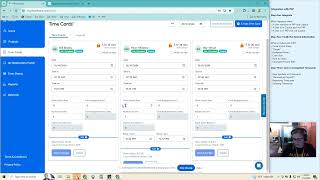
Ray walks through connecting P4P to Copilot CRM: entering credentials, matching users by email, syncing time entries with automatic breaks, pulling job budgets and crew rates into P4P, and locking timecards once you generate payroll. Toggling hourly-rate sync lets you override rates like base wage of $18.
Chapters
Hello. In this video we're going to go over integrating P4P software and Copilot. So in P4P.
Start by going into the drop down and integrations.
Where you log in. Here is going to be your copilot credentials.
And this is the organizational credentials, not a specific user.
Okay. So you can see that two of them were matched perfectly. There's no icon here. That means that it found this email in both P4P and Copilot and matched them together. This one it only found the user in copilot. So it's going to create a user for us in P4P. That will still happen if there is a Bill Brasky in P4P and the emails are different. So you want to make sure that the emails are the same before switching. Excuse me, before integrating. Before I leave this page, I'm just going to update this to 6 budget hour limit. Okay.
So if we go to users here, you'll see there's an extra one that is not blue. Blue means it's integrated successful successfully with copilot. This user was not found in the copilot side.
Okay. There's no Marty. We will still be able to make any time cards with this user and run payroll as normal. It's just not going to find that user in the copilot side to be able to pull over any data.
So the same happened for this user here. Because there is no login enabled for this user, it did not make an automatic one on the P4P side.
Okay, so next we are going to verify the synced information. So if we go to the time tracking first.
Okay, so we're going to see right is me. So there's going to be a couple extra weird ones here.
We'll see Bill, MO and Mo. So I do see multiple clocks for mo. They are going to have a break added to their time card to account for this gap in time. And then Ray and Bill will also have their time cards. Bill will be a completely easy to make one with no break. So go ahead and see how that looks on the P4P side.
Okay, so you'll see that there are. That is that break that we saw from MO. And then Bill does not have any breaks. He did not clock out at all.
All right.
Now we can see how all of the squares are blue. That means it's currently pulling the data from copilot. If there are any changes made on this end it would reflect on their time cards. I click generate payrolls.
It's going to lock in all of these Time cards. I can unlock them and have the resync happen. However, if I were to do that after adding manual information.
It will get rid of that because it does not match what is being pulled from copilot.
It has refreshed over it.
Let's see here. So let's go ahead and do a couple of the jobs and we can see how it pulls over that information.
Okay, so this first one is a 0.5 budget hour. MO it is assigned to MO.
Okay, so his is currently synced.
I refresh, it should show up.
Okay. And then there's the hourly rate, the budget hours and the crew. There is only him assigned, so it's just gonna be one.
This one is a 1.8 budget hour assigned to Bill.
Okay, so this one is locked. That is why we're not seeing it show up here. I can choose to unlock this. It would have overridden anything I had entered. But now it is showing up here.
Okay, and this last one is landscaping. Fifteen budget hours and it's split between three people.
Okay. So when I complete this.
It's going to show up here at the bottom. So 15 budget hours. So what we want to draw attention to is this rate is 0. It is pulling that from the items and sources. As you remember, that was a landscaping job. And so here's landscaping.
If I want to update that, I just want to update the rate charge to client for P4P. So let's say I want to make this $15.
I can now go back to P4P. Refresh.
$15.15. BH. That's not very smart. I'm going to do 20.
Okay, so now we're going to see the hourly rate is 2015 total budget hours. And there is three crew members. We'll see that reflect on this one as well. Ray was part of that three man crew. We're not seeing it here because his is locked. I can still choose to unlock his. And we can see those added here. I'm going to generate the payrolls.
And now all of this information is locked.
So we can also delete a time card. So in this scenario, Ray, that's me. My time cards don't need to be in here.
I am the manager. If I delete this, it is now gone. There's no way for me to unlock it again. That timecard is not going to show up. So unless I go into.
This manually and create the timecard again, there's not going to be any time card regenerated from copilot for that user.
Okay. The last thing that we would want to check is the hourly rate. So as you can see here, the base range for Bill is showing up as zero. That does automatically pull over from Copilot if we have that box checked in the integration and go back to that really quick so we can see. So it is syncing the copilot hourly rate. That means Bill does not have one listed for his hourly wage.
Let me go to Bill.
So to adjust that, I can either add the dollar per hour compensation here or if I'd prefer to not have it listed in Copilot for whatever reason, I can turn that part of his sync off.
And it will use the base wage defaults that I had entered into his user on the copilot or on the P4P side. So it's not going to show it here because that's what the copilot was. But when you go into the settings, the base wage is 18.
And now it is showing 18 here. Okay, I'll do generate payrolls one last time. And it is locked in.
All right. We have many more.
Improvements coming down the line, but this has improved the functionality and the syncing process between copilot and P4P.