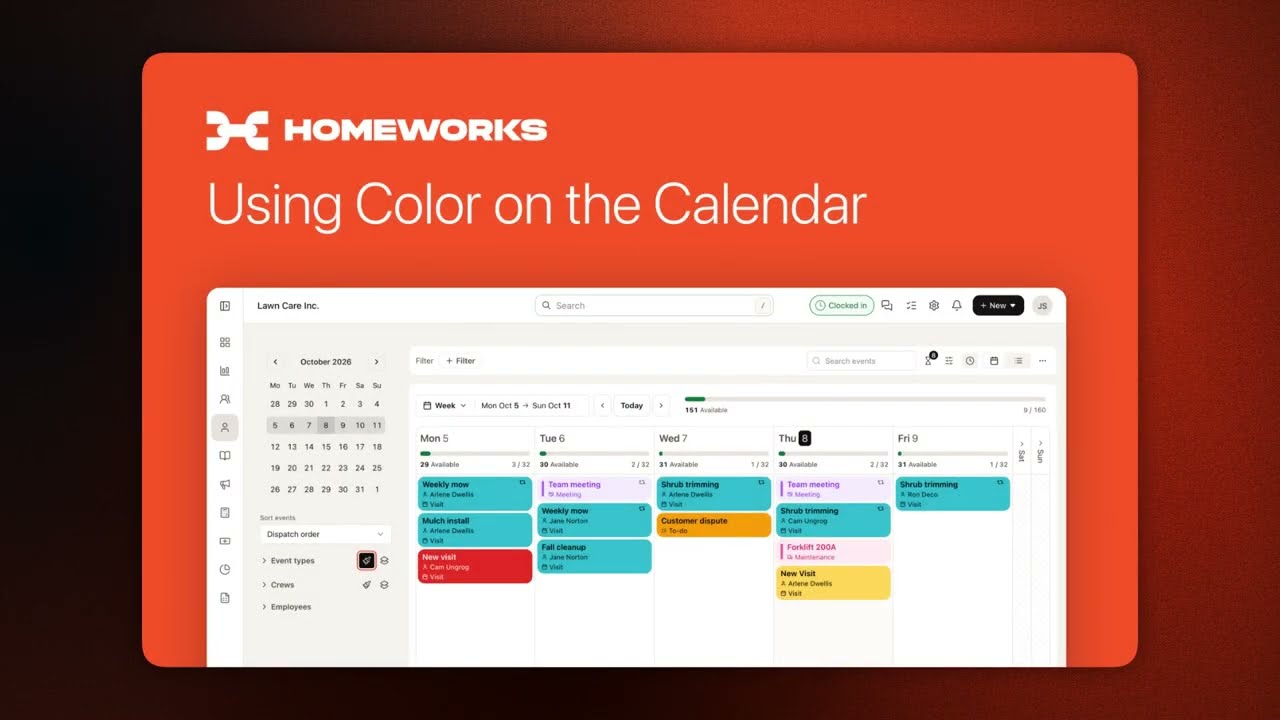
Watch how to select visits on a map, optimize their order, and save that route to repeat every week or every other week. Click individual stops, lasso-select groups, or right-click to deselect. Once you save an optimized order to a crew, apply it automatically to recurring weeks.
Chapters
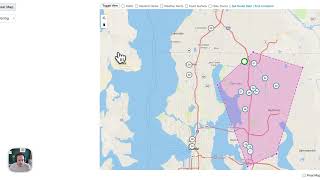
Today we've made two major updates to the dispatch board that are going to help you with your daily routing and saving those routes. From week to week, we'll walk through some changes to the map that are going to make it easier for you to select individual visits for your route and the ability to save your route for a future week, either every single week or every other week so that you don't have to start from scratch every day. So let's look at the map. You can see that when I load the dispatch board, all of the events are showing up on the map before I even select anything in the table. Now, you can see that they're all gray, which means that they haven't been routed yet today. So let's start with our typical workflow and select some visits that are within an area so that I can assign them in order. Now I can see that these events are selected and they're selected in the table as well. This is how our dispatch board has always worked. If I come here, I can optimize and save. And you'll see that after I do this, they all get their order 1 through 11 here. So so far, this is what we're used to. I can go ahead and assign this to a crew. This is my east side crew. But now I know that this is exactly the order I want. Maybe I've moved a couple things around to make it perfect, and I don't want to have to redo this every Monday. So for this Monday group of events, I'm going to apply this to future weeks. Now, in this case, these are all my weekly mo's, so I'm going to apply this order to every week moving forward. Now, when I do that, it's going to save this for each of those events for every time they show up on that Monday schedule moving forward. So it takes a minute to do that and I can go to my next Monday and I'll see that same group of events, but now they have that same order already applied. So from here, if I want to make changes to any Monday route, whether that's adding one in or adjusting it, I can do that. And it's only going to be for this Monday unless I decide to save that again for the future. So maybe this week this one event is going to get added in to this route. So let's go ahead and select all of these again. And now I want to actually select this visit to add to that route so I can just go ahead and click on that visit on the map and that actually selects it. So you can see this last one is selected in the table. So I don't need to go and find the event on the map and figure out which one it is in the table. I can just click it to select it. Let's do that here too. So I click to select this. Now if I actually don't want this one selected, I can just right click and it's going to remove it from the selection. So to show that again I can come down here, visit number 11. Let's right click on that and it's deselected. So now I have events one through 10 and one additional event. Let's go ahead and put this one at the top and we'll save this order. So we'll order sequentially and save. And now they're going to be 1 through 12 now. So I want this to be my new route moving forward. So maybe that first visit is always part of this east side cruise. I can again assign this, apply it for every week moving forward. So that gives you the ability to take your route that you've optimized for a day and then apply that for every week. Or if you're on more of a bi weekly schedule, you can apply that for every other week. Now, there also have been some small changes to the styling. You can see, when I select a visit, it's always going to show up in the bottom left corner here. So it's going to stay out of the way of your view. But any pin that I click on, it's going to pull that up with the stop number, the visit name, the customer, the address, and the budgeted hours. So with these changes, we're hoping that it's a lot easier for you to select the exact visits you want on the map. Whether it's clicking them individually to select right, clicking to deselect, or using the Lasso tool like you always have, you can optimize them and of course you can still rearrange them in the table by dragging and dropping. And then once you have a route that works for you, you can save that route for every week or every other week using the new options here.