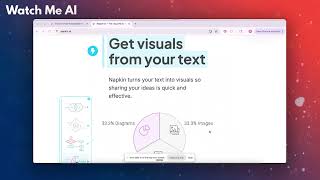
Mollie Amkraut Mueller shows how Napkin AI turns text into visual diagrams. Paste newsletter content, highlight a section, and the tool generates a diagram like a five-part anatomy of a request-for-introduction email. Switch styles, apply brand colors, and export as image, PDF, PowerPoint, or clipboard.
Chapters
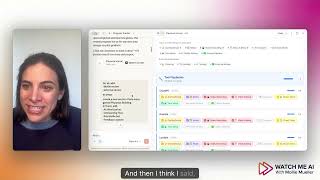
Welcome back to Watch Me AI. This is a quick demo on a tool called Napkin or Napkin AI. And this tool is really great at taking any text that you give it and generating professional looking, clean visuals that bring your content to life. So I'm going to give you a quick demo of how this works. This is a new napkin that I just created and this content is from a recent newsletter of mine where I talk about how to write a great forwardable email and how to use AI to do it. So you can use literally any kind of content in here. I just copy pasted this into this napkin. Napkin also lets you generate content with AI or import from files. So so lots of options here. But let's show you the real cool stuff. Once your text is in this napkin, you all you have to do is highlight it, click this little blue button here and the AI will think up what it thinks the right visual diagram is for that content. So in this case, this is the anatomy of a great request for introduction email. So I'm breaking it down into five sections and so it knows that and it's giving me this 1, 2, 3, 4, 5 section visual that just makes it a lot easier for a reader to grasp that concept really quickly. Now this is the first suggestion that the AI has given, but if I go over here, I can go through all of these other suggestions that are all different visual styles for that exact same content. And if I don't like its suggestions, then I can go down here and click through all of these different categories that it has and figure out which one I might be more interested in. So you can do that. Let me just, I'll choose this one.
Once I've clicked it's now giving me color options going to go with this because I've actually already put my branding into the brand studio so it knows the watch me AI brand colors because I've put them in here. And so you can do that with your own brand. You can choose your brand colors, you can have it infer them from your website. But anyway, this is, this is already in my brand. So I can now do that for any section of this content. I've just done it for the anatomy section, but I could go down here and do it for you know when to send the RFI the section on how AI can help and it'll generate a different visual concept based on that content. Now what do I do with these? Well, in addition to changing the colors and some other visual elements of it, what I also really love about this is how easy it is to export. So if I click export on this diagram, I can export it as an image, as a PDF, as a PowerPoint, or I can just copy it onto my clipboard. So I will often take these and chuck them straight into a Google Slide or into a LinkedIn post and it is ready to go. You can even change color, mode, et cetera. Okay, that is a quick demo. I hope you get to try this one out.