How To Set Up Shipping Profiles In ClickFunnels | Training Tuesdays #008
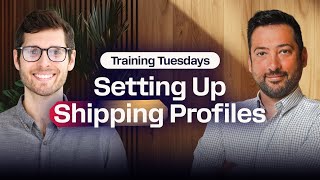
Todd Dickerson walks through setting up shipping profiles in ClickFunnels to cut abandoned carts. Mark products as physical, add weight (like 0.8 lb), create zones, then set tiered rates: $4.99 for under 1 lb, $6.99 for 1-2 lb, $8.99 above that. Use actual scales for accuracy.
Chapters
Foreign.
What's up, rockstars? Dante here. Great to be with you guys today. Hey, listen, what we're going to show you today in our training Tuesday, we have tested on hundreds of funnel hackers and the results are the same every single time. As soon as you set up a real shipping profile, abandoned carts go down, customer satisfactions go up, along with our margins. So today we're going to show you how to immediately add more margins to your business through proper shipping profiles. This is not just for e commerce business owners. This is also for experts. Many of you experts have books. You have a giant box of hope that you send out to people. These shipping profiles are going to change the game. And with me, as always, I have my great friend Aaron to walk us through the tech. Aaron, how are we today?
We're doing great. Dante, how are you doing?
I'm so good. When I came in this morning and I saw what you had planned to talk about, I literally got goose pimples, man. So I'm excited to watch you today.
Yeah, that's absolutely. I really want to talk about shipping profiles today because it's just one of those things that you might not immediately think about when you're setting up your E comm shop, right. You have so many ground, so much groundwork to lay with all of the details of your individual products. Then you're going in and you're sorting through your product photos and they got to be perfect as well. Then you got to get a custom domain connected and then you're choosing or you're building out your theme. And so you finally, you have this beautiful e comm storefront and then someone's ready to purchase it. And you don't have shipping set up. Right. So I want to take a look at maybe some of the granular details that everyone's not really thinking of and then kind of inform them that way when they're moving forward with building out their products, they're ready to also ship them them in the correct way. So with that being said, I want to jump over into the platform. So let me share my screen here. All right, perfect. Now I'm here in my workspace. Now, before I actually jump into shipping profiles, I want to go over to products first because I want to talk about inventory and shipping from that side. So I'm going to go up here in my top left and I'll tap on products, all products. And you can see I have several different products here in my profile. I have all these drop shipping products and you can see the inventory is not actually being tracked. But I want to focus mainly on my hoodie. Now if you guys were with us a few weeks ago, we did variants and this is the hoodie we built with all the different color variants. So it's almost like a continuation of that training. Let me tap in here and the main section that I really want to focus on is going to be inventory and shipping. So if I scroll down here, you're going to see it right here. And as of now, this is not fulfilling at all. Right. I don't have the fulfillment required box checked and it's actually being categorized as a digital product because the physical product is not checked. So let me go ahead and adjust a few things here before we set up our shipping profile so that this product can actually be shipped out. So first thing I'll tap on fulfillment required and that's going to open up my inventory. Now currently I have zero inventory. I can see my default location is zero. So I want to make sure that I have some inventory. So I'm just going to update this. Let's go ahead and just say I have 10 ready to go right now to ship out. So I'll save that. And one more thing I want to bring attention to is this. Continue selling when out of stock because let's say your, your services are custom made, right? Made to order products per se. Maybe this is something you want to check box because you're not necessarily tracking inventory, but you know you're always going to be fulfilling the item and it's a physical product. So this is really good to just check mark if you're not tracking specific inventory.
And you might also be airing over your products, you know, flying them over instead of shipping them over. So you probably, if you're doing that, you can restock your inventory in just two days. So no reason to stop sales.
Exactly, absolutely. And the last thing to just check mark here is of course the physical product. So we want to make sure that that's checked. And weight is really important because you're going to see when we get into the shipping profiles, there's a few different ways we can set up. We can base it off of weight, we can base it off of value. And if you set it to weight and your product is set at zero, well, guess what? Of course that's going to be the lowest shipping possibility. So I'm just going to hypothesize here. Let's say this weighs almost a pound. So with this being finished up and the products being more corrected here on the inventory, Side, I'm going to save this. All right, perfect. So this is now saved. Now I'm going to just wait a few seconds and I want to jump over to my product page. So this is the actual page with my hoodie here. And it's purchasable. Right. So I'm going to give it a quick refresh. And now I'm going to select it. And let's see what happens when I go ahead and fill this out. Let's see. Oh, I think I got that address wrong, but let's go ahead and just put anything in here. Getting the Click Funnels address here. I knew, See, I got it wrong. I put North Bavaria and I knew that was wrong. All right, there we go. So West Bavaria and let's do Idaho. And that's in Eagle. All right, perfect. So as I fill that out, you can see this actually just loaded and now it's saying free shipping. So what that means is I don't actually have my shipping profile set up because it's offering free as of now. So now I'm going to jump back to my workspace here and I'm going to get out of here. Perfect. And now I want to go to my shipping profiles. And you're going to find that in the workspace settings down here on the bottom left. So if I tap there, of course I have all the different options here on the left. And here it is, shipping. It's got the little truck beside it. All right, and here is where I can configure all my shipping profiles. Now right off the bat, I have one and it's applying to all my products. And this is just the general profile that you're going to have in your CL ClickFunnels workspace already. If I tap on this gear and actually go into it, you can see right at the top, I'm offering free shipping. So your current you have shipping rates that are set to zero. And this will imply that customers will enjoy free shipping. Well, that's great. But shipping comes straight out of my wallet, so I want to make sure that I'm offsetting those costs. So if I scroll down here, I can see these are all my drop shipped, but below that is my shipping zone. So I can see I'm shipping from wherever I have it set up. And then I'm shipping to us and it's free shipping setup and rest of world. So let's go ahead and specify this a little bit more. I'm going to go back to my shipping profiles and I'm going to create a brand new one. So I'm going to start from scratch, tap this button and let's give it a name. Now, hypothetically, here, let's just say I'm shipping to only the U.S. so of course you can give it a couple different names, but let's just say this profile is only going to be US Shipping. So let's do US Shipping. And I can select the products here, but I'm just going to create the profile because, you see, you can actually select the products when you're inside of the profile. I should probably make it the correct name there. All right, there we go. So now I have my profile set up. Now I want to select the product. So I'm going to come in here, I'm going to select my hoodie, and I can see I have 10 available like I set in the inventory. I'll select that and I'll give it a quick update. And now this specific profile that I'm about to set up will apply only to my fitness synthetic hoodie. Now, if I scroll down, here's my shipping zones. This is where I set up where I want to ship it to. So let's go ahead and create a shipping zone and we'll just name this US and I'll go ahead and search for that. That's wrong. Clicked Enter thinking it would just update. Okay, there we go. Let's go back here and get into this. Let this populate. All right, so I don't want UAE or uk, Only the United States. So check that. And we can see there's 66 of 66 regions selected. Now you might say, whoa, there's 50 states. What's going on? Well, of course, there's outlying regions so we can send to the Virgin Islands, for example. Guam's also under there. So you can go in here and select per state. If you say so let's say you're only the lower 48, for example, I'm going to scroll back down to the US. There we go. And I can drop this down. And now I can see all of the specific states. So if I only wanted to ship to, let's just say Arizona, I would uncheck everything and just have Arizona checked. And that would essentially say this product can only ship specifically to that state. So that's exactly how you ship up the area where you want to ship it. Now, like I mentioned, I want to ship anywhere in the US So I'll just go ahead and click update. There we go. Okay, and now I want to add a rate. So what Do I want people to pay for the product during shipping? If I tap on here, we have free shipping, but I'm going to go ahead and just add a new rate and let's say flat rate shipping at 4.99. Now there are conditions you can set. Remember I was mentioning how you can set the weight on a product?
Yep.
If I turn this on, this is exactly where I can set all of that up. So maybe I want to ship one hoodie at 499, but if it goes over a single pound, maybe I want to bump that price up to let's say 699. How would I do that? Well, if I come in here, I have 499, but I want to base this on a weight. So let's say 0 to 0.99. Now if I create that, that's going to create a flat rate shipping. And we can see the condition is.02 up to 1.99 pounds. So anything under a pound will be flat rate.499. Let me go ahead and add another rate and let's call this over £1. So I'd probably go back and rename that last one under one pound just to make sure that everything's in the same realm. But let's say over one pound. And at this point I would do 1.00. And do I want to limit that? Do I want to continue this? Do I want to go £2 and over £3 and over? Whatever you want to set. Basically the idea here is that you can get as granular detailed as you want with the shipping profiles. So for this one, I'll just do 1.99 and I'll create the rate. Now there's one thing I want to take note here because this is great, but if there's anything that's over £2 at this very moment, I don't have a shipping rate set up for that. So if it's over £2, it would either it would actually resort back to my free shipping or tell me shipping is just not possible. So I want to make sure that I come in here and add a third rate and let's just do 899. I'll add a condition and let's say 1.99. No max limit. That way every weight is equally quantified for.
Ah, so if we don't put a max limit, it's just the sky's the limit.
Exactly. So I might be shipping out 500 pounds of hoodies at 8.99 in the future. One more Thing I do want to just mention is under this conditions, you can do weight, but you can also do order price. So if I were to go here and maybe you want to say, you know, anything under $50 would be 4.99. So you do like 0 to 49.99. And then I would set that. This is also how you can do free shipping if you purchase over a certain amount. So you might go to a website and it says free shipping over a hundred dollar orders. So, so at that point you would say minimum $100, no maximum. And then you would do free shipping. So just a little insight into how to create some shipping different shipping profiles there. All right, so now with this setup, I should be able to see if this hoodie, remember I set it at 0.8 of a pound, so it's under a pound, so it should be 499. So with this now set up, I should be able to go back to my store here, give this a refresh. And now let's go ahead and fill this out again. There we go. And just like that, I can see my flat rate shipping. It's there. I select it and my price increases with that shipping amount. So with that being said, that is essentially what I really wanted to cover with shipping profiles and that's the ins and outs of it. So, Dante, I just kind of want to ask you, is there anything that you feel like is necessary to add to this or anything we want to talk about in relation?
Man, I have to be honest, I don't really think so. You covered that beautifully, especially with the different models. Typically for like maybe like a Black Friday for instance, if we're going to do a store wide spend 50, get free shipping. You showed how to set that up. That's amazing. I just like to highlight, let's say you're selling hoodies and you want to offer free shipping on three hoodies or more. You can easily set that up too. And in that sense, we would use weight, you would not use price, you would use weight. I, I guess I just want to throw a word of caution on price because when you set your shipping based on price, well, what happens if you run a 20 off special, right? It can really, it can mess with your shipping rates. It's not difficult at all. But, but most times when people are starting out and they're setting up shipping rates, they'll just do it by the weights of the product. So it's really, really, really important to know the exact weights of your product. I'd recommend going to like a local UPS or a FedEx or any. Any sort of shipping store. Use their scales. Take your product and use their scales to find the exact weight of your products themselves.
Yeah, that's really well said. Well, I believe that about wraps it up. Anything additional before we want to head out of here? I know one thing. One thing I want to mention. Sorry, is if you, the viewer, have any idea on what you would love to see on a training Tuesday, feel free to drop a comment. Because Dante and I are accumulating all of the comments that come in, and we're saying, what are people looking for? We want to make sure that we're hitting the points to help everyone. So if there's anything you're struggling with or just maybe have questions about, feel free to drop a comment. Because we're more than happy to set up an entire training Tuesday dedicated to your topic.
A hundred percent. If I could just reiterate and echo what Aaron just said. This is. This is by Funnel Hackers, for Funnel Hackers. So please let us know in the comments what you want to see. Or maybe you have a biggest hurdle right now. Maybe you have something that's slowing you down or holding you back. Let us know what that hurdle is and let us create the things you need to get over the hurdles and back to doing big things.
Absolutely.
Absolutely.
Well, with that being said, I believe we're about to wrap it up. So thanks for your time, Dante. Thank you, everyone, for watching, and we'll see you next Training Tuesday.
Thank you all. This is a blast.
More from Todd

How to Set Up and Send Your First Newsletter In Daily Draft | Coaching Corner #044