Using AI to Build Courses, Workflows, and Funnels | Coaching Corner #033
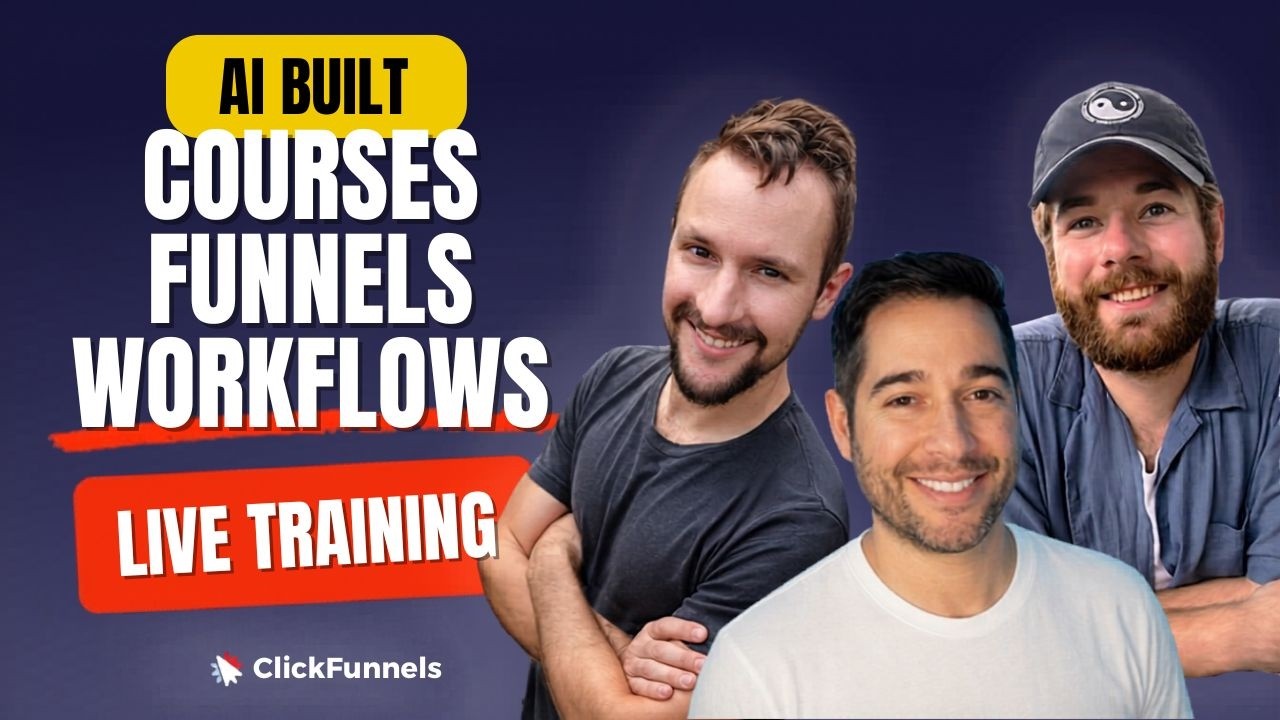
David and Speaker B show how to use Claude, Manus, and Market Secrets AI with ClickFunnels' API to auto-generate courses, sales funnels, and workflows. They build a women's self-defense course and a three-step funnel live, then set up abandoned-cart emails and weekly blog-email sequences, all in minutes.
Chapters
Hey, hey, hey!
Oh, I'm muted. What's up, guys? Hey everybody, happy Tuesday! What a, what a fun time to be alive. Another Tuesday, another, another week of Coaching Corner. I know everybody's looking forward to it. Rob, we got a special guest again. We're at Rob, he's hanging out with us.
Special guest Rob, he's come to give us the download today's topic, right?
I've turned to special guest Rob. I'll take it, I'll take it.
I'm always happy to be back.
I mean, this is, this is going to be a fun one. This one I had to join. Tagline. Oh, oh, okay.
Rob just said, hey, we need, we need shirts. ClickFunnels Corner. This is going to be a fun one.
This is going to be a fun one today. Who would buy that? Who would buy that?
Drop it in the comments.
I would wear that, uh, every time we do these sessions, to be honest.
Yeah, I would wear that all day.
Man, oh man. Okay, so he wasn't lying. Today's gonna be a fun one. Dave's been geeking out over this. Rob's been geeking out over this, and I have been enjoying as well myself.
I can't, I can't lie.
It's pretty interesting. And I'm not, not gonna keep hanging it above your head. Today we're talking about what, Dave? What are we talking about today?
What's how, how to, how to use AI to actually build courses, funnels, workflows, and products all inside your ClickFunnels account. And it's wild. So you can just make a couple of connections between ClickFunnels API and the MCP to your AI and just tell it to start building these things in your account and it actually does it. It's wild.
It actually does it. That's, that's the big one right there, that it actually does the thing. Yeah.
So here at ClickFunnels, we're doing everything we can to make your life easier as a business owner, as a course creator, an info product developer. Um, and just to help you make more money online and in, in person, right? And help you and your family get more freedom in your life.
Wow, what a big mission. What a big mission too. Uh, okay, we're gonna simplify it. We're gonna take one step today and just show you kind of what this is. David threw out a bunch of like words out there. We said MCP, we see the API, we said AI. We have a lot of different things out there that we kind of touched on here.
We've got our own acronyms here.
Now what does that even mean for the everyday folk, everyday guy that is just trying to build funnel, you know, get things out in the world. What does it mean in simple terms? Can you break it down for me?
Yeah, yeah, yeah. So it just— the AI, the MCP are— sorry, the API and the MCP are just different platforms that expose endpoints that can communicate with your AI. I'm trying not to use—
okay, we're gonna make it one step even simpler. We're making it so you can make edits, changes, create things inside of ClickFunnels without even having to be inside the platform.
Yeah, that is just, uh, yeah, they're just a communication, uh, you know, leapfrog to your ClickFunnels account.
Rebecca, so you can, yeah, you can, you can create courses, you can go in and update or find contacts inside of your workspace, you can create funnels, you can create workflows, you can update work. The list goes on and on. Like, there's so much you can do without ever touching ClickFunnels physically. You can do it all through like Claude or Manus or uh, even Market Secrets AI if, if you are using that currently. So fun times. What a fun time to be alive. Um, to summarize, yeah, we're walking through using AI to build inside of ClickFunnels 2.0. We're going to show you the tools, um, both inside and outside ClickFunnels as far as how it looks and what you actually do to, to make this a reality.
Um, yes, let's show the goods, huh?
Let's show the goods. Yeah. So let's, let's go ahead and just unveil the thing that we're talking about today.
Pulling the curtain back. Here we go. So what is a recent development is that you can now tell an AI to build even a workflow and attach it to funnel steps from an AI. Okay, it's awesome. And it does it all in the, in your ClickFunnels account. So here recently what I did was I used Manus to, to build a course. A product, a funnel, a workflow, product image, course image, content, like lesson, actual content. All of it. That's it. That's it.
That's all you did. That's crazy.
That's all right.
Lesson in one prompt. Like how long did it take you to have that all built out?
Not one prompt. I had to, you know, have some, some going back and forth with it just to make sure that I was using the right tool. So You guys can skip all the pain that I went through. I wasn't using the MCP plus the— or sorry, the API plus the MCP, and we'll show you how to set both of those up. But yeah, with them, with their powers combined, you can do just about everything.
All right.
So it actually builds the lesson content here as well. It can build and attach a lesson thumbnail image. And I had a hypothetical. I haven't actually put this before Manus just yet, but I'll bet you that you could connect a video creator to Manus, like HeyGen, and say, you know, use my, uh, use my avatar over there to build actual lesson videos for these lessons. And I bet you— oh, that it would just link it, link it in there.
Oh, that's actually—
I bet, yeah, I bet it would do it.
Oh, you're breaking my brain right now, David. Okay, all right, uh, that's actually a good idea. I, I didn't think about that. How can we manipulate other platforms at the same time? With all these connectors. Right.
So let's take a look at everything that it's done so far. Hold on one sec. Let me— okay, that's fine. All right. So we want just the regular.
Okay. And here we go.
Hopefully it'll show just the plain version so you get to see it all. Oh, that's fine.
Okay.
So here's my custom one that I made. Got the image right up there. I didn't really attach any images to the modules or the lessons right here., but no big deal. You can attach the image to your lessons if you want. And then we dive in and there we go. Complete. Go to the next one.
Right?
Nice. How cool. Okay, so let's show—
starting point too. I mean, this is like you just getting started with it. You can go and refine it, but it, it—
that's some—
that, that initial starting block way faster than you drag things around, click and add elements, add rows, add sec— like It just does it.
So what it did also was it created the products, it created the funnel. So the funnel over here is called Empowered and Safe. This was for a women's self-defense course.
Nice. Yeah.
Here was the sales page.
Oh, did you give any direction after the fact? Like come back and like give it— I don't know.
I did do, I did do a little bit. So at the beginning, the, there was no background image, there was no background images. Okay, so what I did was I used an outside AI combined with ClickFunnels' internal AI, and I made it even better. So I came in here and I started having a conversation with, uh, the ClickFunnels AI, which if you don't know is this little spinning top, shiny top looking thing right there. Oops. Using this Omni.
Oh, okay, got it.
On the left-hand side.
Got it.
Yeah, and I just told it to add some background images. Add some background images, and it did it.
Got it.
And then I just adjusted the settings for it.
If you guys want to know more about the internal AI funnel builder, uh, we actually reviewed this. It's probably been, what, like 20 episodes ago? I don't know. Yeah, uh, we do have that. I'll put it in the show notes or in the the link area in our slides for you to review.
And if you don't, a quick way to find it is just click on the ClickFunnels logo and you should see a purple banner up here at the top, and then click opt in if it's your first time. And then once you've opted in, then you'll start to see it like this, and then you can build a funnel completely with AI and also edit the pages inside.
Yep.
Okay, so it built a 3-step funnel here, a 3-step sales funnel. It actually created the products. Now the one limitation, uh, that it has is it can't attach the product to the page, so you still have to do that. You have to do so much manual work It's not, man, your fingers are gonna be so sore after that. I know.
Imagine using my mouse to click on anything. I know.
It's wild. Yeah. So one of the cool things was towards the end, I told Manus to build a, or sorry, create and attach, make or attach an existing image to the course itself. And we will need that same image attached to the product. So after some thinking, it did it. It made and attached the same image to both the course and the product.
Nice.
Pretty dang cool. That's crazy. Then I, then it before already created a workflow. And then I told it just a few minutes ago to attach an email to it. And looks like we just got to get a couple of details here buttoned up.
Oh, because you probably have to tell what email you want to end up using it. The more specific you are with it, you probably get a different output. Email is not published. Publish to push. Got it. Cool.
Yeah, so that's— I didn't, uh, create it just yet, but it has created it for some other ones. Actually, let me show you an example for that. So, funny story, here we go, uh, the Hammer Bottle Hammer Water Bottle Abandoned Cart Workflow. So this one I told Manus to create inside, and it did the whole thing. Uh, one caveat, whenever you make it, uh, with a, a, an outside AI, it's using the API and to create it, and so you can't actually edit it inside of the ClickFunnels account just yet. I'm communicating with our development team to see if that's a possibility, but for now, if you want to edit it, you just got to go back to your AI and just tell it the changes that you want to make.
Cool. Change button color, add text, remove text, be specific with adjustments.
And same thing for broadcast emails. Uh, now earlier you mentioned, uh, blogs and emails. So check this out. I've actually got Manus, uh, doing a— one of my favorite things about Manus, and there are some other guys that can do this too, is it can have— it can run a scheduled task, like automatically on its own. Now, Manus can do it on the cloud. Others like Claude, you have to actually download the, the app and be paying for the service in order to actually have it on scheduled tasks. Okay, so I have this one doing every week a— let's see, block. So every week it is scanning for a a self-defense situation in it, like in actual real life, that was resolved by somebody using martial arts that they've trained. So jiu-jitsu, judo, krav maga, whatever. And then it will also— I told it to also write up an email to be sending out in, like, a companion email going out the same day, like an hour later. And both the email and the blog point back to my self-defense course. And then, you know, this one here for 4th of July, that one went to my affiliate link for the OFA, One Funnel Away Challenge.
Nice. Yeah, but it's all— it actually has a label there, right? It was created with API.
Yeah.
Regarding like the layout and stuff, I know we were talking about this a little before we started, but we didn't have time to really give you specifics, but you, you had designed the blog post prior to actually engaging with AI, right? Or is it like you went back and forth with Manus to kind of create the structure of the blog post?
Right, I went back and forth. So I just told it to write the blog, to create the blog, and at first it didn't really look all that great, so I had to tell it to left align all the text. I told it to insert some images throughout. I told it to source the images. And for some of these, for these self-defense situations, I told it to add the incident time, where it was, and the actual source article.
Mm-hmm. Okay.
Yeah. And all this stuff, it actually pulled the images from that source article.
References directly from the article.
Amazing. And then I've got a paid course here and then a free lead magnet there. But I did help to train it by giving it some, you know, legacy news articles, um, to, to go and, and look at and kind of learn the structure. So like all the, you know, most, most blog articles have all the content left-hand aligned. So I wanted it to look like that and then it saved it to the memory.
Nice. Yeah, super cool.
Super cool. Then also the email, it queues up an email to be sent out as well. I can't— oh no, not this one.
That's a—
how about this one? There.
The email doesn't look bad. Like, it's— the formatting is nice. It's presentable. Okay, man.
Okay, button goes back to the article. This one here goes to those, uh, funnels.
Yeah, I can't believe it.
It's amazing.
All right, so do you want me to show you how to actually start with this? Maybe.
That's right. Yeah, now we're diving into how to set it up for yourself.
Let's, uh, let me get this all configured here, all combobulated. And, uh, here we go. Boom and boom. Okay, let me share, reshare my screen here. Uh, there we go.
By the way, by the way, everyone, in case if you're watching this and you're following my blog articles, yes, I do read the blog articles, and yes, I do read the emails and approve of the content before it's sent out. Okay. Everyone calm down.
Okay, so we're looking at my screen here and it might be a little smaller. Maybe I can zoom in. Before we get too crazy on, on the Claude side of things and actually setting this up, let's show you how to actually find this inside of ClickFunnels 2.0, right? First and foremost, let's head over here. I'm gonna look at my dashboard. Let's pretend we're on our dashboard, so we're starting out, um First off, to get started with the internal AI Funnel Builder, you can start right here by clicking on Learn More, kind of like what David said, go through Promptive, OptiName, and all that fun stuff. But for what we're describing, you want to head over here to Add Apps on the left-hand navigation, and this will take us to the App Center inside the platform, right? Just like that. Maybe we should zoom in a little bit there too. Hopefully that's easy to read. Uh, from there, what we're looking for is going to be the MCP server, this guy right here. It's going to have a little like robot icon there. It's going to have the beta tag on it. If you click on that directly, it should take you to an instructional page kind of walking you through how to move forward in these steps of setting up the MCP, right? Um, if we scroll down, you see the how to connect here. Basically, we're going to go to our AI Assistant and we're going to open up settings and we're going to select connectors. Now instead of Claude, because that's the platform I'm going to use for the example here, I'm going to go ahead and just expand this a little bit and we're going to go to Customize on the left-hand side because they kind of move things around a little bit since then. But regardless, click on Customize and then after that we're going to click on Connectors under— on the left-hand navigation there. After that, click on Add in the top right over here in that little Gonna pop up here and then click on Add Custom Connector. Okay, now once this is displaying, basically we're just gonna paste in the values that are displaying right here in step number 3, right? Um, just copy this, click on that, boom, paste it in there just like so. And we're gonna go ahead and copy the connector URL as well. And again, paste that in here. Beautiful. After that, click on Add. Now, I'm not going to do it because I already have it added, but, uh, when you have it added, or once it— once you click on Add, it's going to have you then connect your account, which is also kind of labeled here as far as next step. Uh, oh, you get to choose or sign into your workspace and then choose which workspace you want to use, labeled right here. Regardless, when you click on Add, you'll have a little button that says Connect. Click on that, it will then take you to the area where you can select or sign into your account if you're not already signed in, or it will have you select the workspace if you're already signed in, and you can choose what you want it to actually have access to, right? That's it. Okay, so with that done, now you can actually use it inside of a chat. Basically, all I have to do— all you have to do from there is open up a chat that you want to use moving forward inside of the platform. And I kind of was already messing around with this. I, I was just curious as far as what I could do with it. And so I started off with creating a workflow inside the platform, right? If I go to Funnels real quick, we'll be able to see what's, uh, what I was basically prompting to do. I said, inside of ClickFunnels, I have a funnel that is called Lead Squeeze Funnel 1. It was updated around 2 hours ago, and I would like you to create a workflow for this funnel on the first step that essentially tags the user as a lead squeeze Lead Funnel Test 1, or as Lead Funnel, Lead Squeeze Funnel Test 1, right? And so if we go to that funnel itself and look at that directly, we'll see that it just added the workflow. You can see there's a workflow attached to that first step. Uh, you can see in the conversation it goes through the whole process of finding it and tracking it down and, uh, deciding or figuring out how to actually add the tag and stuff. But, um, if we go over to the workflow here, it's been added. By default, it will add it as inactive, but it is there. You can then prompt it inside of the chat within Claude to just make it live if you want to, or go to ClickFunnels. Honestly, I would probably recommend just going to ClickFunnels directly, double-check everything's set up properly, uh, the trigger is set up properly, it's not set up to just fire for some random events. Um, yeah, I would, I would recommend coming here just double-checking. So You go on ClickFunnels, click on settings, and then from there you can just go in and turn it on. Boom. Now it's live and it's been done. All you do is like 2 clicks really just to get to the workflow and then 1 to turn it on. That's, that's it. But let's say we wanna expand this a little bit and add on to the existing workflow, right? Just to give you a practical demonstration of what this actually looks like, I'm gonna use Whisperflow here. So don't mind me, I'm just speaking to myself, speaking to my computer. Let's go ahead and expand the workflow that we created and add another step to enroll people in the one course we have in this workspace. Boom.
Cool.
Let it do its thing and it's going to go and find the course. Boom. I don't even think it's live. Let's see if it actually— oh, and it found the course. Learn to Learn. I just created this as a test. Uh, step needs adding. Okay, how should the enrollment step target, uh, sections, uh, whole course? I'm just gonna give it access to the whole course in this example, but it asks you if you want to separate it based off of module or do you want to do it for the entire selection or entire content base. Okay, give it a second here. Now add in the enroll step. After this, it's been done. Okay, so if I refresh, let's see what we're looking at here. There it is. Amazing. It's been added. Like, I, I, all you have to do— the example that I was throwing out there with David before this is that you could be out with your family, um, I don't know, some family road trip or something, and you don't have access to a laptop, but you have access to a phone. On your phone, maybe you have, uh, the app for, for Claude or for Manus directly, right? And so you just pull it up, use dictation or voice dictation to kind of talk through what you wanted to do. You have to go create a course or update it or, uh, adjust someone's enrollment status, all from using Claude or Manus. This is just an example. Like, there's so many things you can do, but just think of the practical use cases for this. You don't have to be in the accounts. You can just allow it to go and do it for you while you're walking away or while you're doing your thing.
It's like having your own personal assistant in your pocket.
It's great. Yeah, exactly. Like, that's, that's insane. Yeah, the AI thing though, it has me thinking, and now I'm going to be thinking about the AI video creation, uh, concept you mentioned. Now my brain won't shut off about that one. That's a good idea.
Yeah, and it, it probably won't be able to upload the video to ClickFunnels. I don't know about that yet, but at least they can create it, then you can download it, and then you can upload it yourself, right?
Right. What other examples should— what, what else should we demonstrate here on this? Do you have anything else that would be cool to add on to what we've done right here with the workflow? Yeah, it could be—
oh, you can tell it to add emails and then delays and emails. Okay, I'll add a series of emails, you know, to warm people up to getting to know you emails.
Uh, go ahead and create 2 emails to that same workflow. These emails are mainly to just say, hey, welcome, and make sure that they have, or they are aware of being enrolled into the course. We're trying to start a conversation, and I want to make sure that these emails are 1 day apart. So there's a 1-day delay in between them and the enrollment step.
Nice.
That's it. Well, nice. Take like 10 seconds.
Yeah, and let's see how long it takes. And while, while we wait, for, for those of you that like to dive in and learn about the nitty-gritty, how, how do these work and, and what all can they do here, if you go to the link clickfunnels.com/coaching-corner, uh, we've added the link to both documents, the API and the MCP. It'll give you the list of all its, of all their functions.
So this one, there you go, that link right there. Boom, head on over there, people, enjoy.
Yeah, uh, and you can always ask your AI once you've connected it to also tell you what it can do.
Yeah, that's— you know what, and I was experimenting with that as well. You— it kind of gives you a rough overview of— you can ask like specific areas of the platform what it can do, or just in general, and it will expand upon it for you. Yeah, one day. Welcome email one, delay, done. Okay, let me refresh. Cool. And they are there.
Oh my gosh, awesome!
What do they look like if you're doing it through MCP? So, oh, okay, you did mention this because we're doing it through MCP. In order to update these emails, we have to do it through the chat over here, basically inside of Claude moving forward. Uh, for now, we'll see, we'll see as we expand. But for now, if I want to preview it, I can. Cool. It has the proper merge tag in place. It has— nice. I didn't ask it to add any links or anything, but if I wanted to, I can be specific, say, hey, add a direct link to the email, and it should go and do it, right? Yeah. Yeah, but that's it. It's added it.
It's pretty wild. Uh, what else?
The future is here. I don't know what else to say.
Future is here. All right, so, uh, for you agencies out there, for you funnel builders, this should make it really easy for you to approach businesses and say that you can help them to create a full course funnel product all of it together. And, you know, you can build these things at lightning speed now. And, you know, they're obviously going to need a little bit of tweaking and refining, but this gets you probably 70 to like 80% done and it helps you hit the ground running off to a much faster start. Yeah.
If, if you want to learn more about this stuff, check out— I still recommend coming here either way just to understand a little bit more what it can do. This is very technical, but we have API reference documentation if for anybody who wants it or needs it or wants to go down that rabbit hole.
Um, did you show how to connect the API access token?
Uh, no, no, I've only done MCP. Show me the magic, man. What?
All right, let me—
so here, I'm gonna pull my screen down.
Okay.
All right.
So, uh, in order to connect your ClickFunnels to the API, um, and, and it's going to be using accessing that API reference doc, here's what you got to do. Uh, we go down to the bottom left and we're going to click on our team, and then we're going to hover over that team and click team settings.
Cool.
And then we're going to click on developer portal. And we're gonna click this little yellow button that says Add New Platform Application, and this will be the name of your AI. So you can call it Claude, and then you can give it specific permissions if you want, or just do full access. And then there you go, it gives you an access token that you can paste into Claude. That way it It gives it permission to access it through all those API endpoints. And then it may ask—
Yeah. Yeah.
Well, it may ask you some more questions like, what workspace do you want it to access? And so just tell it and just go through whatever it asks you to give it, right?
Nice. Easy enough.
It gives you instructions on how to do it. So most of it's dummy-proof at this point. Like once you get that, actually just treat AI like, you know, an assistant, and it'll tell you what exactly what it needs to make these connections happen.
Yeah, if you do need help with this, um, well, we can kind of walk through it with you if you want. Just hop over to open office hours here and there, and, uh, tomorrow, anywhere. Just kidding. Monday, Wednesday, Friday, we'll be there hanging out. You come ask questions and, um, we can enjoy it together. I don't, I don't know, have fun with it. This is just a cool little open playground that we just kind of reintroduced. Uh, yeah, have a good time.
It's great over there. So, uh, unfortunately we lost our special guest. Something must have happened, but he made an appearance.
We'll have to circle back with that.
Yes, hopefully Rob was here. Rob was here, made it on the thumbnail.
Um, cool. That's it.
Uh, by the way guys, if you have any questions for us that you would like to see covered on one of these, uh, Coaching Corner episodes, then just drop it in the comments Or you can email us at outreach@clickfunnels.com.
Beautiful. Okay, that's it guys. That's all we have for you this week. I hope you enjoyed. I say that's it like we didn't just like throw a mountain at you, but I hope you figure out how to climb quickly and it is something that's enjoyable for you afterwards.
Yes.
That's probably a terrible reference. We'll just go with the throw the mountain at you. I know we covered a lot in a little bit of time.
Yeah, that's true. Firehouse.
Firehouse. Yeah, that's our motto.
Hopefully this makes your life a bit easier to, to manage your business. Yeah, and to fund some stuff.
Beautiful. Have a fantastic rest of your week. We'll see you next Tuesday.
Bye everybody, see you later.
More from Todd

How to Set Up and Send Your First Newsletter In Daily Draft | Coaching Corner #044