Master HTML 5 #3: HTML Editors
You need a browser and an editor to create HTML pages. Start with free tools like Notepad++ for syntax highlighting or Komodo Edit for code completion and preview. Only buy expensive editors like Dreamweaver once you have advanced skills and the budget for it.
Chapters
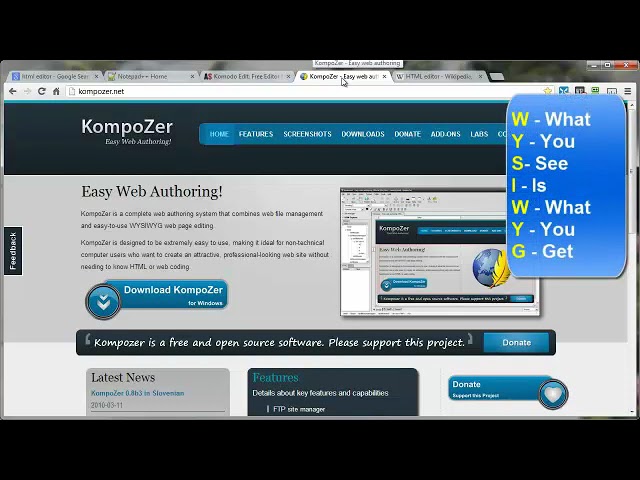
In order to create HTML pages, you will need at least 2 things: a browser to view your creations in and an editor to create them with in the first place. This video is going to cover the editor part of those 2 items. Now when it comes to choosing and using an editor for your HTML pages, you've got a boatload to pick from. As demonstrated here in this Google search results page for HTML editor, there's a little over 1 billion options to choose from. Now of these 1+ billion options, you have free and you've got paid ones. Now one of the more popular and expensive editors is Dreamweaver, which I believe a few years back was purchased by Adobe, which are the folks that make Photoshop and a few other programs. Now if you already have Dreamweaver or any other HTML editor, then good for you, you're already set. If you do not have an HTML editor, then I suggest do not go out and buy one until you reach that level of web design expertise where you actually need it. and by then hopefully you'll have plenty of money laying around where you can afford it. Now you can get a bunch done with just the free Notepad that comes installed on your computer, but it lacks a whole bunch of helpful items that you can get with some of these other free options like Notepad++, Composer, or my new favorite, Komodo. Now if we check out Notepad++ or Komodo, these are both fantastic in their own right, but they both require you to have some type of coding background. Have some ideas to what the codes mean that will eventually produce a given effect like larger text or colored background and so on. But with Notepad++, at least ways it gives you what's called a colored syntax where with your default Notepad program on your computer it doesn't color code anything. But in both instances though you will have to have some idea or some background in coding to know what the eventual display will look like. Likewise with Komodo, you have to have some kind of background in coding for you to be able to know what the eventual display is going to look like, but it's got a whole lot of cool features that something like Notepad++ does not have. Now with Komodo they do have a paid option. I think it's a little under $300. You don't need it. Everything that you're going to need to get started with you can get with the free version. And with Composer you can get this at composer.net. And by the way Komodo you can get this at activestate.com/komodo-edit. And with Notepad++, notepad-plus-plus.org. And with Composer, it's composer.net. Now the big difference here between Composer and these other 2 is that Composer, like Dreamweaver, is what's called a WYSIWYG editor. That stands for what you see is what you get. And this comes in really handy if you know nothing at all about coding. Because with a WYSIWYG editor you're able to just type into the editor box what you want and with a couple of clicks of some formatting buttons you can have that text or that image do a lot of cool stuff. And in the background the program itself, in this example Composer, is creating all the code that the browser will need to be able to decipher and display the way you want it to. Let me show you what I'm talking about. Oh, and by the way, while I'm in my browser up here, let me also point out at Wikipedia, if you do a search for HTML editor from wikipedia.org, you'll end up on this page here, and it gives you a whole lot of information about HTML editors in general and the different types, whether it's a text editor, object editor, WYSIWYG editor, or WYSIWYM editor. And down at the bottom of the page gives you a list of a bunch of different editors, be it open source— that's free— or freeware, which is kind of free, and then you go into the commercial software like with the Adobe Dreamweaver or CoffeeCup, or if you're a Mac user, Coda and Freeway. So be sure and check these out too just to give you a better idea as to what's out there. Let me go ahead and open up Notepad++. And as you can see here, this is the HTML5 page that I've got in my work folder here, and there's really not much to it, but it does have the colors of the various elements within the HTML page, such as the tags and the attributes and the properties and values, are a little bit different in the color. So it does help you if you have some background knowledge in coding. Now if we were to open up the same page in Composer— oh, and by the way, with Composer I've got it set up by default to throw up the tip of the day, so you can kind of scroll through here or you can shut it off altogether. But it does give you some additional insight as to what's going on with Composer. Let me go ahead and open up that same document here. And we've got a couple of different looks. This is the actual preview, what it will look like for the most part on a browser. Or you can go to the source code and it will show you what the code looks like. Or one of the cool things with Composer and with Dreamweaver for that matter is that you can also do a split screen where you can see both the browser preview and the code preview at the same time. So you can make whatever changes you want here in the code area or here in the preview area, and that same change will take place here as soon as you make the save. Now one of the other benefits behind a WYSIWYG editor, in this case anyway, is you've got a lot of additional options like adding in CSS or a spell check. And some of these items you will also find in Notepad++, as well as Komodo. And let me go ahead and open up Komodo and I'll show you what that looks like. And we'll click on no. And there's just a whole lot of options you can work with here within Komodo. As this populates here, we've got some current news. You can purchase the premium version here if you wish. You can check out recent files you've been working on or recent templates you've been working on. Or you can create new file or new projects right from this window or from up here in the menu items. You can choose File, go to New, and choose from a new file or a file from a template that pre-exists within Komodo. Let's go ahead and do that. And you can see here the various languages you can choose from with these templates. From XML all the way up to C or C++. Or in this example, HTML5. Go ahead and click on Open and it opens up a pre-populated HTML5 document. You can tell because of the HTML5 declaration here. You give it a page title, add whatever content you want, and let me just show you this too. As I start typing here with various tags, it gives me this little pop-up window here where it can help me complete some of these tasks. For example, if I want to put in a paragraph opening and closing tag, I hit my return key and boom, it automatically finishes up the opening and automatically adds the closing tag. I put in some text, come up here and save and give it a name. I'll just leave it at that for the time being. Then I have this feature here that is no longer grayed out where I can actually preview my work inside of the Komodo tab, which basically just opens up a window down here or in any installed browsers that I already have. You can also come over here to Edit and go into Preferences and set your default colors or fonts, adjust your work environment, all kinds of cool stuff. And again, you cannot beat the price for Komodo, Notepad++, or Composer. And that's going to bring us to the end of this video on an introduction to HTML editors. Thanks for watching and you have a great day.