Creating a UTM URL to use within your FB Ad Campaigns
Learn how to build UTM URLs for your Facebook ads so you can track exactly which campaigns drive traffic and conversions in Google Analytics. The video walks through setting campaign parameters and reading the data that comes back.
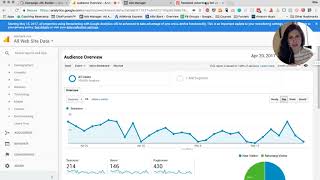
Hi, everybody. I just wanted to show you a really quick demo of how to create a UTM URL. And I'm going to click over to this screen right now so you might understand what I'm talking about a little bit more. Basically, what this URL is, is something that will help you track how people are using your website once they've clicked over from a certain campaign. So, for example, if you have an email that you've sent out that has a special link in it where they're going to go to your website, which has Google Analyt analytics installed, this will help track that traffic in a special area called campaigns on your website. And I'll show you where to find that in analytics in just a second. So, basically, different ways that you can use this URL, it's a pretty universal URL called the UTM URL. You can create it with this tool that I have shown on the screen. And it's basically just to help you track data from either a Facebook ad, maybe Google AdWords, an email campaign, a banner campaign, some sort of campaign that you're running where you want to track that paid advertising in a separate area in analytics so that you know whether it's performing well, if they're clicking through and completing goals on your website, if they're booking calls. This just helps you be able to take that next step from the paid advertising to help you really analyze down the road what's worked well for you and what's not worth investing your marketing dollars in once again. So I'm going to click back right here. All I did to find this page, I went to, I searched Google utm, and it's literally the first campaign or the first window or the first result that shows up here. So I'm going to click on that and it brings me to this page and this is where I can start entering information about how I want this to show up in analytics. So what you're going to do first is you're going to figure out what URL. If you were just to copy and paste the URL that you want them to go to, where do you want them to end up? So, for example, for the sake of this demo, we're just going to say I want to run a Facebook ad to get them to my services page on my website. So say this is the page I want them to end up on. After clicking on my ad, I'm just going to copy and paste this URL and I'm going to go back over to the URL builder tool from Google and I'm going to paste it right here. And then in the second, we're literally just going to fill out every one of these form fields right here. So the next thing that you want to do is figure out what your campaign source is. So if you're running if the what if the campaign is a newsletter, maybe it's a Facebook ad, if it's a Google Ad, if you, you know, no matter what you want to track, if you want it to track to be tracked in a special area in Google Analytics, you're just going to put that campaign source and the more detailed you can be, the easier it will be on yourself down the road once you're trying to analyze this data. So campaign medium, the examples they give are cpc, banner, email. Again, be as detailed as you want so you can understand what type of medium it is and you'll be able to sort in analytics by each one of these fields. So just remember that down the road that you want it to be as custom to the, to the campaign as possible, but also be able to remember it down the road which, which one related to what campaign. Just it'll make it super easy on yourself down the road if you're detailed. Same with campaign name. For the sake of this, I'm going to say may Facebook ads campaign term. This would be if you're going after a certain keyword, if you're doing Google AdWords and you want, you want to track just that keyword by itself, again these will all be sortable. So if you want to advertise for a certain keyword, then they're all going to be. You're going to need to remember that down the road that anything related to this keyword needs to be the same so that it's tracked in analytics. Might be more than you want to know, but I'm just telling you so you can make this as simple or as complicated as you want. For the sake of this, we're going to leave it with campaign content paid boom, done. Then this is what your generated URL is going to look like. For me, you know this, you might recognize this from just browsing the Internet and seeing it all over the place. This is how people are using it is to help them track it in their reporting software, whether it's analytics or whatever they're using. This helps create the special, special UTM URLs. So what we're going to do is we're going to copy this. You can also convert it to a short link if that's easier for you. If you're sharing it somewhere, even in a social media post or something, can convert it to a short link and then it gives you the goo gl kind of similar to a bitly link. So we're just going to copy that. If you want more information or you need more examples, if you are the type of person that needs as many details about something as you can, here's a little bit more information for each parameter. But for now we're going to hop over to the Ads Manager. I've got a pretend ad up here that I've started just to show you where this URL goes if you're creating your own ads. So we're going to pretend that I already chose my objective, my audience, my placement, my budget, all of these things that you see in the left side of your Ads manager. And we are literally on the format. We've figured out the page. Ali Bjork. Ali Bjork. Okay, that looks good. Pretending we're creating an ad, this would be a terrible ad, but that's okay. So when you're creating your ad, you're going to see this little pull down menu at the bottom before you place your order called show advanced Options and you're going to paste your URL right here and gives you a little bit more information. So URL parameters you specify here will be appended da da da da da. Basically just saying this is the URL that's going to be added to your display URL. This is where they're actually going to be going versus what's going to be displayed. So then we're going to click place order. I am not, because I don't want to advertise that. And then we're going to jump over to analytics and I'm going to show you where you would find this, drag that out of the way. I won't be able to track the URL myself because I have my own IP address filtered from my analytics results so that I don't skew my data. So I'm just going to show you how it works first. So this is the URL we copied and pasted, right? So I hit enter and it redirects me to this page. So even though that's not the URL that we're going to click on, it's literally just a redirect that will be tracked by analytics. So once you're in your Google Analytics account on the right left side, you will see these different options when you're on your dashboard. So you'll see real time audience Acquisition behavior and conversions. For the purpose of this UTM URL being tracked, we are going to look under acquisition and then at the very bottom we're going to look at campaigns. So this acquisition is basically just saying all the different ways that people can get to your website. So when we look at all traffic, I'm going to click on source medium. There are basically four different ways, four different kinds of traffic. There's direct referral, organic and paid. So we're looking for the campaign portion which will be down here. So we're going to click on all campaigns at the very bottom of the acquisition area. And the data we're seeing in this is kind of old. It's from a sales funnel challenge that I did. Gosh, it's probably been like a month ago already. So I'm still getting some visits this last month from people that are still going through. But this shows you of the people that clicked on the links from the email that they received about the sales funnel promo they are spending, they're bouncing 50% of the time. They're looking at an average, well, okay, so this person averaged 18 pages, pretty impressive. But these four people looked at three and a half pages per session. They stayed on the site an average of five minutes and bounced half of the time. So this just gives you a better idea of, okay, from this certain campaign that I ran, how did the traffic behave once it was on my site? Did they look around or did they leave right away? You know, did they sign up for another list? Did they do you know, if you have like sales that can be made from your site, you can track those as goals right here. So you can tell, you know, did they go through the entire sales process of what you would ideally like someone to do from a Facebook ad, did they, you know, so they clicked on the ad, went to your site, did they sign up for your list, did they buy anything like this data helps you be able to see everything they're doing on your site and just helps you get a better idea of, you know, long term marketing, what's good for you, what's good to spend money on. So you can see moving forward if you should continue with that type of advertising. So that's the basics, the real quick rundown of UTM URL and how easy, super easy it is to use. You can literally use this in anything you want. Like you can put it in a social media post, like I said, you can put it in an email. Anything that you want to track how they're performing once they, how they I mean, humans, obviously, how humans are.
More from Allie

Your Price Point Is a Business Model: How to Price the Offer You Actually Want to Run

Evergreen Webinars & Rolling Enrollment BTS Training from my Tiny Offer® HQ Community


The Great Trust Recession of 2025 (How to Overcome & Dominate In Your Niche This Year As a Creator)