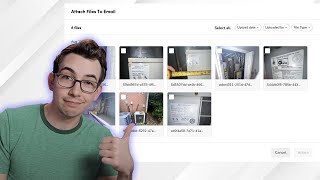
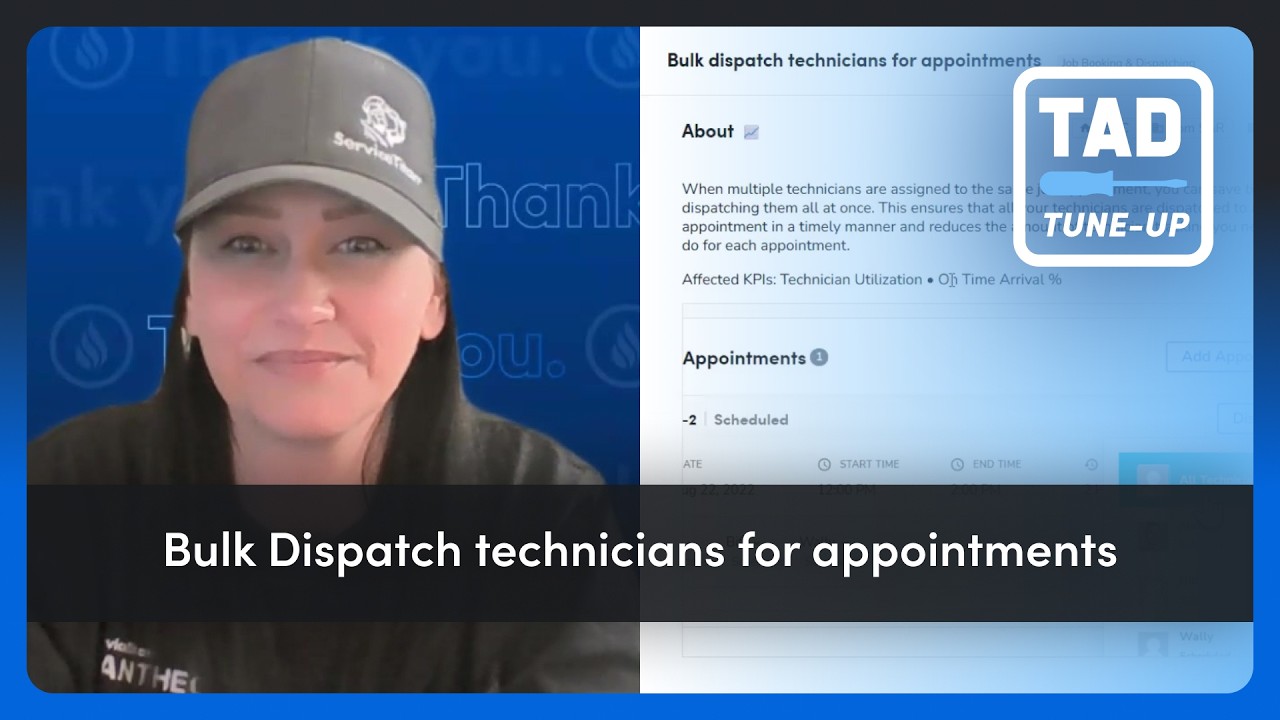
Short demo explaining a ServiceTitan release that improves how users attach files when emailing customers. The update replaces a plain filename checkbox list with an attachment dialog that includes thumbnails, filters (by uploader, date, file type), select/deselect-all controls, quick-download links, and an expanded thumbnail viewer. The feature originated from a community idea that received 130 votes.
Release notes, highlights. All right, next. And this one is a real y', all, so I'm leaving the hat on. It is now easier to identify attachments when emailing out of Service Titan. So previously, if you were emailing a customer an invoice or an estimate and you wanted to attach some pictures or videos or PDF files, you got this. Just a list of the file names. And you would check off what you wanted to send, but you didn't really have a good way of knowing what was what. Maybe if you were lucky, the technician renamed the files to make it a little bit more clear. But there were no thumbnails or anything to help you out. But now we have a very different situation. So in place of all those messy checkboxes, we now have this one attach files button. And that brings up this beauty. So, as you can see now, not only do we have thumbnails, but we also have filters. Filters. So we can filter by the person who uploaded the file, the upload date, or the type of file. We also have this handy select all and deselect all button. If you hover over any particular file, we've got this handy quick link to download it if you needed to download it for whatever reason. And if you click on the file thumbnail itself, you will get this pop out expanded view. And from that view you can just navigate back and forth if you wanted to keep looking at files in this bigger view. And you're able to select files from this view as well. So you just check everything off that you want to attach and you're good to go. And that is a significantly improved experience. This idea had 130 votes in the Service Titan community. So for everybody who voted on that idea.
Howdy y'. All. Hey, thanks so much for watching. Mighty kind of ya. If you want to check out the full release notes video, here's a link to it right around here. Or if not, here's another video I think you might enjoy. I'm just going to sit here and stare at you until you pick one. That's right. Go on. Okay. Interesting choice.