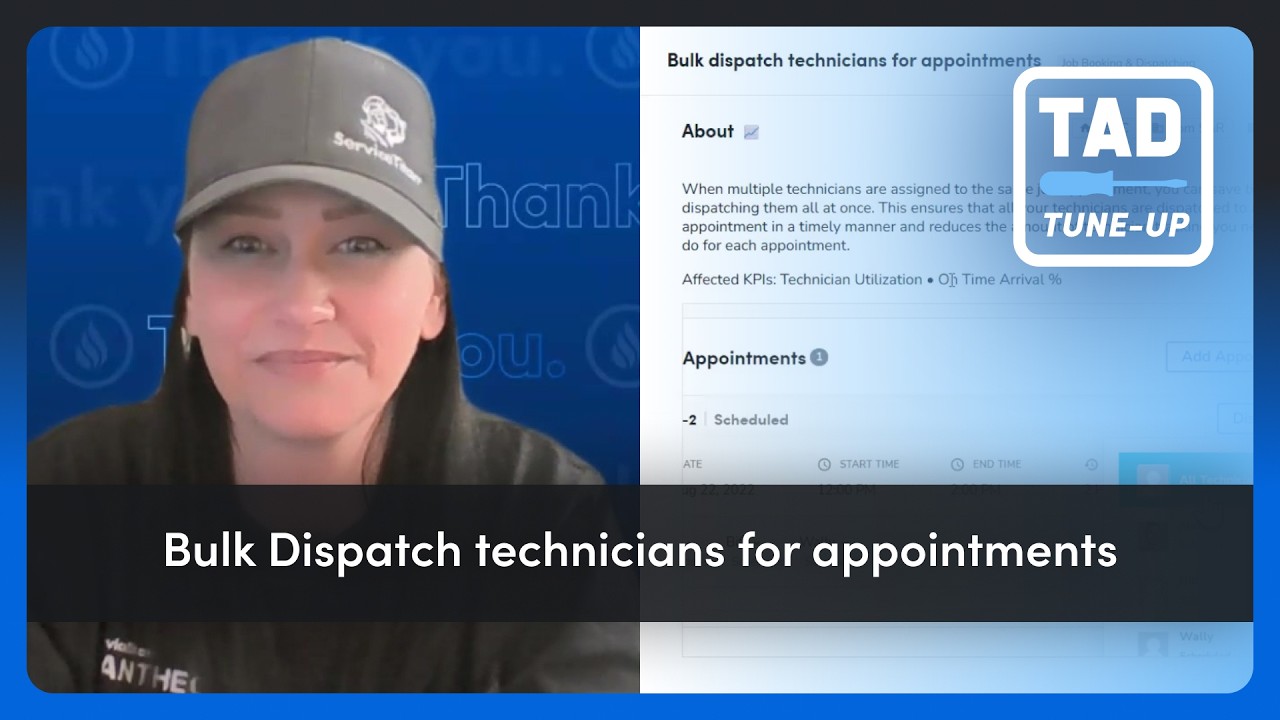
In this episode of the TAD Tune-Up Series, ServiceTitan Program Facilitator Crystal walks customers through the "Bulk Dispatch Technicians for Appointments" feature in Titan Advisor. She explains that bulk dispatching lets multiple technicians assigned to the same appointment be dispatched simultaneously, improving technician utilization and on‑time arrival percentages while saving dispatcher time. Crystal demonstrates two ways to bulk dispatch: (1) from the scheduled appointment screen by selecting “All Technicians” in the dispatch dropdown, and (2) from the Dispatch Board by right‑clicking the job and choosing dispatch. She then shows how Titan Advisor scores the practice—measuring the percentage of jobs with two or more technicians dispatched together over the past 30 days, awarding up to three points based on thresholds (≥25% = 1 point, ≥50% = full 3 points). Finally, she offers a pro tip to prevent customers from receiving multiple dispatch notifications by adjusting the "limit dispatch notifications when multiple technicians are dispatched" setting. The video ends with an invitation to join Ember sessions for live feature walkthroughs.
Chapters
Hello and welcome back to another episode in the TAD Tune-Up Series. My name is Crystal, Program Facilitator here at ServiceTitan, and I help run our customer programs for the Ignite, Ember, and Spark sessions. If you've never heard of the Ember sessions, this is where we help you improve your Titan Advisor score. Your Titan Advisor can be found by clicking on the rocket ship on your top toolbar. And Titan Advisor is like your automated best practice coach. And the best practice that we're reviewing today is bulk dispatching technicians. If you're ready, let's jump right in. So we're gonna start out on our dashboard here. And to get to Titan Advisor, we're clicking on the rocket ship on the top toolbar. We are going to be in the business section of job booking and dispatching. And you're looking under that Launch tab, and the feature card is Bulk Dispatch Technicians for Appointments, and this is worth 3 points. Clicking into the feature card, we can see the About section lets us know that this will help us increase efficiency by utilizing this feature. The affected KPIs will be technician utilization and on-time arrival percentage. And this is applicable to residential commercial, commercial service and replacement, and commercial construction. So when multiple technicians are assigned to the same job appointment, you can save time by dispatching them all at once. This ensures that all your technicians are all dispatched with an appointment in a timely manner, and it also saves your dispatcher time from having to go individually dispatch each technician. So I'm just gonna jump in to show you a little demo of how you bulk dispatch technicians. There are multiple ways that you can do this. So first, we're gonna demonstrate it from the actual job. On the scheduled appointment, I have 3 technicians that are all in the scheduled status. And to bulk dispatch them, I'm gonna come up to this dispatch, select the dropdown, and I would select all technicians. This action will dispatch all 3 technicians at the same time, and they will all be notified. The second method is to do this actually through your dispatch board. So coming to the dispatch board, you can find the job, right-click, select dispatch, and we can see all the technicians here. And again, I can click dispatch, and all technicians would be notified. So popping back into the feature card under the how to use, you'll see that we are measuring the percentage of jobs with 2 or more technicians that are dispatched together in the last 30 days. If you have over 25%, you'll get the 1 point. If you have over 50%, you'll be getting the full 3 points. Now, one little pro tip I, I want to mention about bulk dispatching technicians is the customer notification notifications is if you are looking to bulk dispatch technicians, I highly recommend popping into your settings. So let's go over to our settings here. In the search bar, I'm going to type customer notifications, customer notifications, and the one I'm looking to go to is dispatch notifications. When I click into dispatch notifications, I'm going to want to come over to the settings And the setting that I'm looking to change is I wanna limit dispatch notifications when multiple technicians are dispatched. And this is just going to prevent your customer from getting notified multiple times when you're dispatching bulk dispatching technicians. So popping back into the feature card, you can also utilize this as like a big brother card. You can always come back to this card to see how your dispatch team is utilizing this bulk Dispatch feature. I hope you found this information helpful. If you've never joined one of our Ember sessions, I would love to have you join. We go through these individual features together live on the sessions. I hope you have a wonderful day and take care.