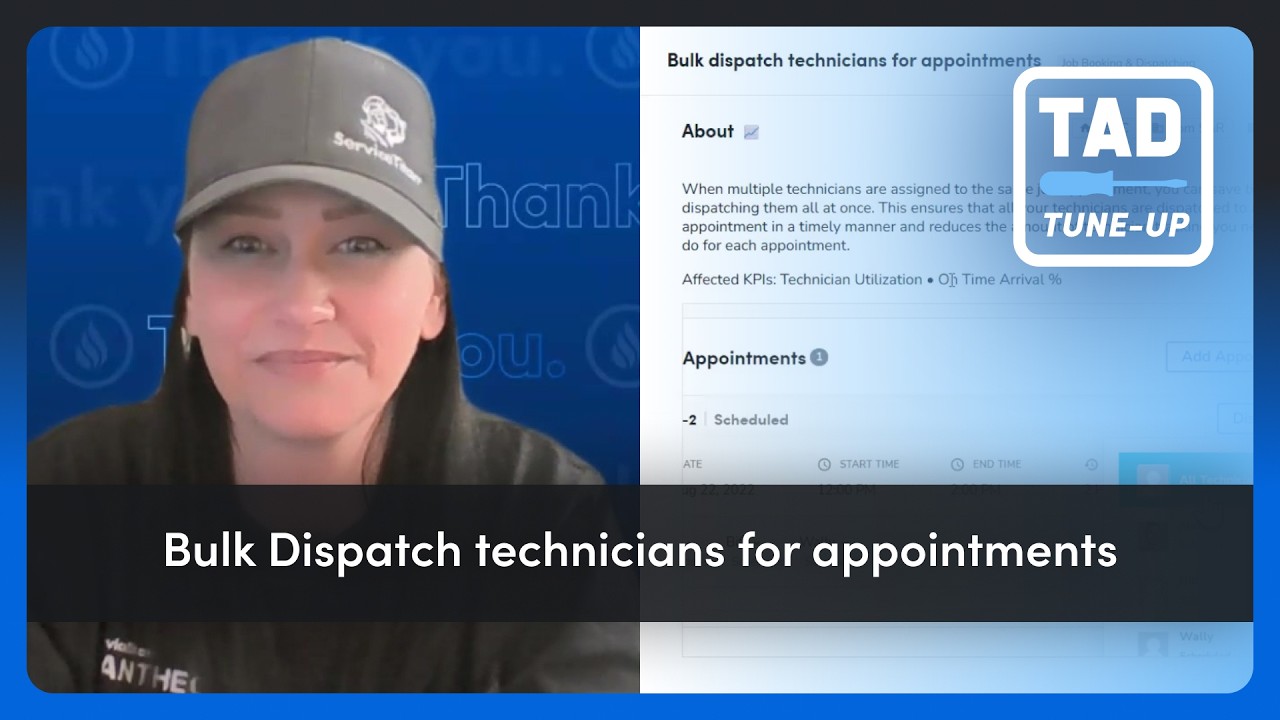
Short how-to video showing how a technician can send job progress photos from mobile by using a dedicated picture/progress-photo form. The video covers creating a form (single picture field) in the office, opening that form in the technician mobile app, taking or attaching multiple photos, choosing to email the form (with an optional step to attach the photos separately to the message), and duplicating the form to create subsequent-day submissions (e.g., "day two"). The tutorial shows both the emailed PDF form and the alternative where photos are also attached as separate files.
Quick tip.
Let's say you are a technician, you're working on a job and you want to send the customer some photos, maybe some progress photos from the job, but you're not ready to email them their invoice or any estimates or anything like that. Well, the best way to do that would be with a form. So from the office we could create a picture form. Let's say it's a progress picture form. And for this example, I'm only going to put one field on here, just a single picture field. Alright, now let's go to the tech app and see how to use it. So here I am on a job and I'm in the form section. I'm going to select my progress photos form. You could also just require this form on a job. Then I'll say choose media and say take photo. I'm not on a job, I am at my house. So I'll just take a picture of my cat. Then I'll say use photo and then I can repeat the process to attach as many photos as I like. Then once I've attached everything I need to, I can select email. Now, you'll notice here I do have the option to select those photos that I took and attach them to the email as attachments. That is optional. They're already in the form itself which I am emailing. So if I were to select these, it would just put them not only in the form, but attach them separately to the email as well. Then I would hit send and the photos are off to the customer. Now if at any point I need to send a separate form with new photos, what I could do is come over back to the progress photos form and say duplicate. Then I'm going to choose create a blank copy of this form and say duplicate. Then I could name it, let's say I'm calling this day two or something like that. Hit save. And now I have a new progress photos form where I can start the process all over again. And here's what that email looks like to the customer.
So this is an example where we not only sent the form, but also attached all of the pictures as separate attachments by checking them off. But if you don't do that and you just sent the form, then they'll only have this PDF attachment here and they can open that up and then here's what that would look like.