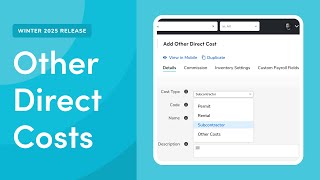
This instructional video explains ServiceTitan’s "Other Direct Costs" feature, designed to separate expenses like permits, rentals, and subcontractors from materials to improve job costing accuracy and financial reporting for commercial and construction businesses. It notes the feature is in Early Access (contact Technical Support or your CSM to join), then walks through adding an Other Direct Cost in PriceBook (Details, Commission, Inventory tabs), managing/filtering items, using Edit mode and Edit Columns, previewing Mobile View, and applying costs to estimates and invoices. The video points viewers to related documentation for deeper detail.
You let's take a look at an overview of other direct costs in Servicetitan. This feature helps commercial and construction businesses improve job costing accuracy and streamline financial reporting. Before, expenses like subcontractors, rent, and permits were lumped in with material costs, which often inflated material costs and made job profitability harder to track. Now, with Other Direct Costs, you can categorize these expenses separately for better clarity and reporting. Other Direct Costs is currently in Early Access. To join the Early Access, please reach out to Technical Support or your csm. First, let's take a look at adding other direct costs to PriceBook. To access other direct costs in PriceBook, click PriceBook in the navigation bar. Then click Other Direct Costs in the side menu. To add a new Other Direct Cost, click Add Other Direct Cost. Add the relevant details in the Details, Commission, and Inventory settings tabs. By default, the Other Direct Cost is activated in your price book. To deactivate it, turn off the Active toggle. Note that on the Details tab, you can select the cost type, such as Permit, Rental, or Subcontractor. This helps identify the type of other direct cost when running reports. When finished, make sure to click Save. Let's take a look at managing your other direct costs. Next, you can search for other direct costs by code name or description. Click Filters to filter the other direct costs shown in the table. After you select your filters, make sure to click Apply. You can also click Reset all to reset the filters. For this example, we don't want to apply any filters, so we'll click Cancel instead. You can also turn on the Edit mode Toggle to edit details directly in the table. While in Edit mode, click any field you want to edit, then make the needed changes. For example, to update the Cost type, click the Cost Type field and update the Cost type using the dropdown. If you can't find the field you want to edit, you can use Edit Columns. To add it, simply click Edit Columns, select the columns you want to add, and click Apply. You can also use Edit Columns to remove columns as needed. When you're finished with Edit mode, make sure you turn off the toggle. If you want to preview how items appear in Service Titan Mobile, click Mobile View. This opens a preview in a new tab of your web browser. After you add your other direct costs, you can add them to your estimates and invoices. Now that you've taken a look at other direct costs, see our related documentation. To dive deeper into other direct costs.