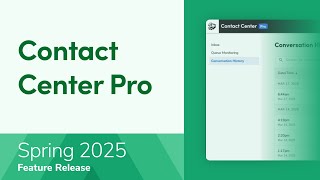
This is a ServiceTitan YouTube product demo (Spring Release 2025) introducing Contact Center Pro — a multi-tenant, multi-location contact center platform that centralizes customer communications with features like a Universal Inbox, queue monitoring, Conversation History (recordings/transcripts), and Titan Intelligence (AI sentiment analysis and Live Call Insights). The walkthrough covers admin setup (Enterprise Hub enablement, user management), agent workflows (search across tenants, book jobs), and detailed call routing options (text-to-speech, sound files, date/time rules, IVR, queues, forwarding, voicemail), with an example routing flow for open vs closed hours. The feature is in early access; organizations must contact their Customer Success Manager or Pro Account Manager to join and require an active Enterprise Hub account with at least one admin user.
You. Let's take a look at an overview of the new Contact Center Pro feature in ServiceTitan. Contact Center Pro is a multi tenant, multi location platform that centralizes customer communications with superior uptime, a universal inbox, and Titan Intelligence powered features like Sentiment Analysis. It allows businesses to manage customer interactions across multiple Service Titan accounts from a single streamlined interface while providing advanced tools like real time queue monitoring and customizable workflows. With Contact Center Pro, you can use AI driven sentiment Analysis and Live Call Insights to improve agent training and customer interactions. Easily set up and customize call workflows across multiple locations with flexible settings and custom rules. Contact Center Pro is currently in early access. To join the Early Access waitlist, please contact your Customer Success Manager or Pro Account Manager before getting started. Make sure your organization has an active Enterprise Hub account with at least one admin user. Once enabled, you'll see the Contact Center Pro module in your Enterprise Hub account. Sign in with your Enterprise Hub account. The first screen you'll see is the Universal Inbox screen where your CSRs can answer company calls. The agents have the option to search for customer and location records in all tenant accounts as well as book jobs by navigating to your Service Titan account. The Queue monitoring screen lets you view and manage your company queues. As a manager, you can track call volumes, wait times and agent performance for optimized service. In conversation History screen, you'll access past communications. You'll be able to filter the results and get all related details like call summary, sentiment analysis, call type and reason customer information, as well as the recording and transcript. Let's check the admin settings as well. As an administrator, you can configure the employee accounts in the User Management tab and change their user details. In the User Details flyout, you'll find an overview of the employee's information including their name, role and seat level. You can check the user's permissions, edit personal line details such as their phone number, emergency address and personal voicemail settings. You will also be able to assign queues to employees as well as check the audit log for any changes. Most importantly, you'll be able to create custom call routing workflows to manage how calls are routed during and outside your business hours. Let's take a look at some of our existing workflows. First, you'll need to select the numbers the rules will be applied to. These are called entry points. In the entry points fly out, you'll need to select the phone numbers of your choice from the available options. Configure your pre routing message Enter the message the customers will hear when they call into this workflow. In this case, the calls are routed to a specific queue, which is a holding area where tasks enter and get assigned based on priority. But you are free to select the routing options that best suit your business needs from the various choices available in Contact Center Pro. The Text to Speech option plays an automated message that you set up for callers. The Sound File option lets callers hear a pre recorded audio file that you upload to the system. The Date Time Rule option routes calls based on business days, non working days, and open or closed hours. The IVR provides callers with menu options for self service and call routing. The queue option places calls in a holding area where tasks are assigned based on priority. The Call Forwarding option directs the call to a specific forwarding number, and the Group Voicemail option allows customers to leave voicemails that agents can access anytime. Your call routing workflow in Contact Center Pro can be simple or complex depending on your needs. You can set up a basic workflow with a pre routing message that directs calls to a queue as shown previously. Or you can create a more advanced structure using date and time rules and an automated response menu. Let's look at an example of a more detailed call routing setup. In this example, the call starts with a text to speech pre routing message. Then the date and time settings determine how the call is routed. During open hours, calls go to an automated response menu with different queue options. During closed hours, calls are sent to an after hours queue and that's how you can configure call routing for both open and closed hours. Now that you know the basis of Contact Center Pro, please see our other learning resources for more information.