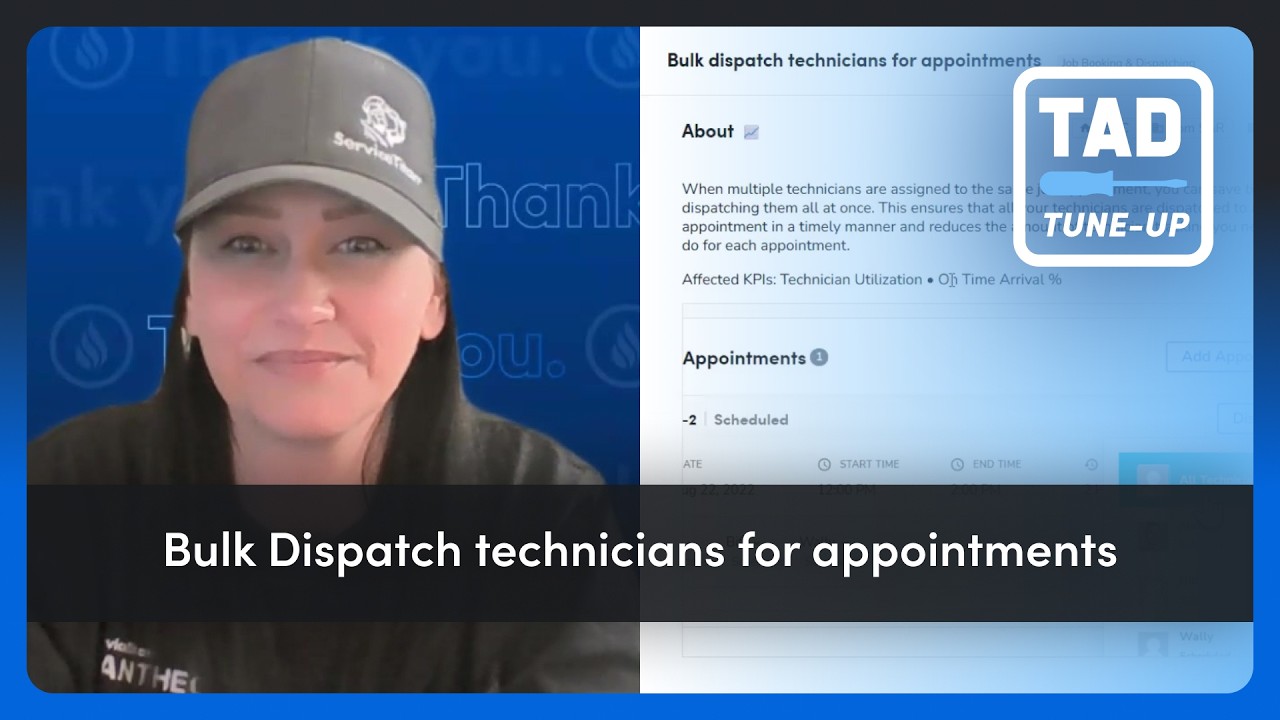
In this Titan Advisor tune‑up video, host Timmy Boy walks viewers through the Optimize Technician Routes feature in ServiceTitan. He explains that the tool is most beneficial for high‑volume businesses with flexible (e.g., 8‑hour) arrival windows and technicians who work solo or with a consistent crew. He outlines the two‑step setup: (1) verify each technician’s address in Settings → People → Technicians, and (2) ensure job locations are verified during call booking (including manual latitude/longitude entry when needed). The video details Titan Advisor’s point‑based success criteria—90%+ technician address verification earns a setup point; >97% of jobs booked with verified locations earns a usage point; and optimizer clicks per active tech (>0.1 = 1 point, >0.2 = 3 points) earn additional points. Timmy demonstrates how to navigate to the feature via the Titan Advisor “rocket ship” icon, how to launch the optimizer from the dispatch board, and notes that locked jobs cannot be moved. He offers practical tips (use home vs. shop address appropriately, avoid shared jobs or crew swaps, leverage wider arrival windows) and troubleshooting advice (manual lat/long entry). The video concludes with a recap, a call to validate addresses, test the optimizer, and join free Ember sessions for further help.
Chapters
How we doing, folks? Timmy Boy here with another video in our Titan Advisor tune-up series. Let's talk about reducing drive time and getting your technicians to the next job more efficiently. You see, if your team's running a large number of jobs per day but your dispatchers are still manually mapping out every stop, you got some room for efficiency. So today in Titan Advisor, we're looking at this feature. Optimize Your Technician Route. This will help you see how the system can handle that heavy lifting for you. Now, before we deep dive in, let's talk about who this is for. This tool is a game changer, can be a game changer for high-volume businesses with flexible arrival windows. That means customers like using 8-hour arrival windows that usually have 10+ more jobs per tech. You see, the more flexibility the system has, the more it can slash your drive time and boost daily job counts. However, if you typically run like 1 to 3 jobs per day or promise tight like 2-3 hour arrival windows, you might not see the same impact. You see, optimization needs room to breathe to find that best route for your bottom line. And a quick Timmy Boy pro tip here is this works best when your techs are flying solo, uh, or if they have the same crew all day. If you've got shared jobs, midday crew swaps, be careful. Optimizing one tech could unintentionally bump a shared appointment, cause a scheduling conflict for the rest of your team. All right, you ready to see how this works? Let's head over to Titan Advisor and get the deets. Let me share my screen here. Let's get to Titan Advisor. All right, in Titan Advisor over here, let's go up to that rocket ship, click into Titan Advisor. Now there's a couple ways we can get there, and I'll show you both. The first way, we're going to go to the business section, uh, we're going to advance up to the optimization stage. And we can see Optimize Technician Routes to Increase Efficiency. It's incomplete in this account and there are 5 points available for us. Let's open this up. Quick lay of the land. You have your title. This is the business section that it's located in, the customer type that is affected, your business goal that is affected, a brief description, my favorite, the affected metrics, which is more like the affected KPIs. Now all features will have an image or a GIF. In this case, a pretty good GIF here. You can see them clicking on the technician on the dispatch board and going right to the Optimize Technician route and the bar coming up. Let's look at the setup. This is the first thing we have to do. If you're following along and you do not see the setup in your account, make sure to look for the dropdown arrow right below the image or GIF. What we have to do in the setup is verify our addresses for technicians.. And you can see the instructions in the description here. You're gonna go to your settings, you're gonna go to people and technicians and verify the addresses of each of your technicians. And I'll show you how to do that in a sec. Our success criteria in Titan Advisor is based off 90% or more of all your technicians having a verified address. Again, we can see this is incomplete. You get 1 point for the comp— for the setup side. If I need to know more, I can click the Learn More. Let's go into our ServiceTitan account and go see how this is actually done. We're going to go up to that upper right corner where the gear icon, our settings icon. We're going to go into our people. We'll open up technicians and I'm going to edit my top technician here. Aloha. We'll scroll down to the address section. Here we go, our home address. You can see that it has not been verified. I have this button here, I can click in it and then click the verify. I'm going to select this, it's now gone. You can see that button's gone away and we'll hit save. Now, uh, a side note here, if your technicians are dispatching from home, I would use their home address. If your technicians are dispatching from the shop or business, I would verify that address. Okay, let's go back to our Titan Advisor and let's look at the how to use section. We've completed the setup. Now we have two parts in the how to use. Now this is like the behavioral side. This is where we'll see our points fluctuate up and down based on how well we use this part. In this case, we have to verify our location addresses during the call booking. And so what we're measuring here in Titan Advisor is the percent of jobs that were booked in the last 30 days with a verified location address. To earn the point here, over 97% will get you 1 point. Now in our account, it's a flat 0. And then just a shout out in anything in Titan Advisor. You have to complete the setup to earn points. I might even see a number here in the current, but if I haven't completed the full setup, I won't earn those points. So verifying the address during call booking. Let's go check that out in ServiceTitan. Uh, let's go to our call booking. Where this is done is on the service location. So we will scroll down. We are in that service location while we're booking the call. Now you can see I've typed into the address. I can click in, that will verify the address right for me. I do have another, I can click coordinates unverified, click there and again select it. If this is not populating or not finding the address, then I can do this manually in the set latitude and longitude. And so basically I would take and copy this address, go over to Google, put that into Google, and follow it with latitude and longitude. Then I can just paste the latitude and longitude right in here, and that would verify the address for me. All right, let's go back to our Titan Advisor. Let me hit go back. We'll go back up into the rocket ship. I told you I would show you two ways to find it, and this way, um, let's go into customize plan. This is one of my favorite features in Titan Advisor. And I'm going to do a search for it. So Optimize, and we can see Optimize Technician Routes to Increase Efficiency. So a couple of different ways to get to the feature. All right, we've completed the setup, we've looked at the, uh, of the how to use on actually booking or verifying the call during call booking. Now let's look at using Optimize Technician Routes. So this is the actual process.. And we can see here, we're gonna go to dispatch, select the technician with the verified address, and click that optimize technician route. So this is the actual process. And so what we're measuring in Titan Advisor is to optimize the route clicks per active technician in the last 30 days. So that 30 days is your cadence, and we could see that in both of these. All right. To get the points, Over 0.1 will get you 1 point. Over 0.2 will get you 3 points. And again, you're not gonna earn the points until you've completed that setup. So let's go see how that looks. We'll go to my dispatch board here. Hold on, let me pull this up. All right, we'll go to the dispatch board and let's bump this over here a little bit. There we go. There is that technician. We would click in the technician and we look for optimize technician route. Now I have a demo account. This is not going to work in my demo account, but this is where we would do this just like we saw it in the GIF in our Titan Advisor. Let me bounce out. Let me see some faces here. Let's do a real quick recap here. That's how you turn a complex dispatch board into a streamlined route. And like I said, to wrap this Titan Advisor tune-up video up, remember these simple facts: validation matters. For this to work, you have to both use the validate on the technician's home address and the job location. The flexibility is your fuel here. Wider arrival windows and a high volume of jobs gives you the optimizer the data that needs to actually reduce those miles. Okay, last, the conferred job stays put. Well, that's a key point there. The system won't move jobs you've already locked in with the customer. All right, now go get those addresses validated, test on optimization, and see how much drive time you can actually save. Hey, thanks for joining me for another Titan Advisor tune-up video. To learn more about Titan Advisor, you can always join us in our free Ember sessions. I highly recommend it. Hit the link below and don't forget to smash that like button. We'll see you in Embers.