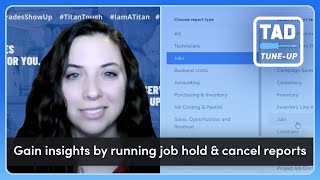
Brittany Burgess (Senior Customer Advocacy Specialist, ServiceTitan) demonstrates how to set up job hold reasons and job cancel reasons in ServiceTitan and how to run and schedule Jobs reports that include those fields. She explains the Titan Advisor workflow (rocket icon), the need to create and activate at least three reasons in each category to earn feature-setup points, how to build a Jobs report selecting Cancel Reason and Appointment Hold Reasons, filter by non-empty reasons, sort/group by those columns, and schedule the report (PDF/Excel, recipients, cadence) — recommending a trailing-30-day cadence to satisfy Titan Advisor requirements. The goal is to monitor jobs on hold/canceled to prevent lost revenue and operational overload on the dispatch board.
Questions this video answers
At least three in each category, and they must be active.
A Jobs report that includes the Cancel Reason and Appointment Hold Reasons fields.
Running the Jobs report covering the trailing 30 days (or scheduling it at least once every 30 days).
A total of four points.
Hi, I'm Brittany Burgess. I'm a senior customer advocacy specialist here at Servicetitan and I'm excited to be here with your next TAD tune up. If this is your first TAD tune up, TAD stands for Titan Advisor and Titan Advisor is that little rocket ship in the top right hand corner of your Service Titan account. Titan Advisor is basically a virtual assistant that is going to teach you how to use Service Titan better to meet your business goals. So give it a look. Today we're going to be talking about job and cancel reasons and how to run reports so that you can keep a good pulse on those and make sure that you're not leaving money on the table or in this case, on the dispatch board. So let's jump into ServiceTitan. So in the top right hand corner of Servicetitan we have the Rocketship and when we click on it, it's going to bring up suggestions for how we can use our account better to support the business goals for our companies. So don't forget in the right hand side of the screen we have your business goals. And you'll want to go in and prioritize these based on the priorities of your company. We have revenue, we have efficiency, so on and so forth. Based on the order of these, all of your suggestions will change. So make sure you do that before you start peeking around. In here. We are going to be talking about job and cancel reasons. So I'm going to go to job booking and dispatching optimization and then gain insights by running job, hold and cancel reports. As with most Titan Advisor features, you have the ability to get points for setting up the feature as well as utilizing the feature. It's important to remember that even if you are utilizing as it's asking below, you will not get any points unless all of these setup features are done first. So before we jump into utilization, we're going to talk about setting up this feature. So all we are looking for is creating hold reasons and cancel reasons so that when somebody in your office goes to cancel a job or put it on hold, it gives them a dropdown of options so that you know why that happened. It's really important to have these set up proactively so that you're able to see why are our jobs getting canceled or put on hold and are there problems in the company that we have control over and can try to fix. So we're going to set these up. I'm going to X out of this, I'm going to hit settings and I'm going to start typing cancel and you'll see cancel and hold reasons come up. Now, we have job cancel reasons on the left and job hold reasons on the right. You can put as many as you want, but to get your Titan Advisor points, you need at least three in each category, and they need to be active. Very easy to set these up. All you need to do is click the add button, type in your cancel or hold reason, and make sure it's set to active, and then save it. I already have that one here. And then you'll want to do that for both sides. Now, this is a really great opportunity to think about what your cancel and hold reasons are and write that into an SOP so that it's very clear what constitutes a job going on hold and and going to get canceled. The reason I see this is I see in a lot of Service Titan accounts that the hold column gets really, really big and we have hundreds of jobs on hold. And that can be very overwhelming. So it's very important to set the standard and let your team know. This is what we expect. This is what a job that's getting canceled is. This is what a job that's on hold is. This is a great time to kind of just look at all of that together and make some decisions. Now, once we have these set up, we also want to make sure that we're utilizing the feature. So I'm going to go back into Titan Advisor and show you what exactly that means. Now, when I scroll down, you'll see that using it means we need to be running reports to check for jobs on hold and cancel jobs. So this is saying you get a point if the number of jobs reports run within the hold reasons column included over the last 30 days is one, and that's the same for your canceled jobs. So you can either just run this report every 30 days or we can schedule it. I'm going to show you how to do both. But just remember, we need to be doing this with a jobs report, and it needs to be included over the last 30 days. So I'm going to go into reports and we're going to create a new one. Now, it did say jobs report, so when it asks me the type, I'm going to hit jobs for both. Now, none of these other KPIs matter, but I do need my cancel reason, and I also want hold reasons. It's going to say appointment hold reasons. So I have both of those selected. I'm going to hit next. I'm going to name this and choose my category, which will determine who can see it and then hit save. Now remember that any job in this report we are hoping to see why it was on hold or canceled, which means in this filter it's not going to have a job completion date, so we can't use that one or none of the information that we need will show up. So I'm going to change this to job start date and I'm going to stretch this date way back just because this is a demo account. I'm going to hit save so that all of my stuff saves and then I'm going to hit run from here. If you'd like to sort by cancel or hold reasons, you can drag this column to the purple row right here and it will sort by those cancel reasons. This is why having those cancel reasons set up is so important, because it's going to look at all of the same ones and bunch them together. And you can do the same thing with your hold reasons too. Now let's say you like the way they look here, but you just want to take out all this, all of the jobs that do not have a cancel or hold reason. So for that we're going to click filter. We're going to do is not empty and then hit filter. Now, I don't have any, so that's okay. But if you do, they're going to filter out the ones that do have or that, I'm sorry, that don't have a cancel reason or a hold reason. You can do it on both. So if you'd like, you can come in here and you can run it manually every 30 days or you can schedule the report so that you don't have to think about it. To do that, you'll hit the three dots right here. We'll hit schedule schedule flexible report. Do an email subject line. You can choose if you'd like it in PDF or Excel and then decide what is a good date range for you. Maybe you want to look at it every day and you're just looking at yesterday's jobs. That will definitely satisfy Titan Advisor. Or if you're just doing the bare minimum, no judgment, we can do trailing 30 days. Just don't forget to do jobs creation date. Adjust the business unit if you'd like going to hit next. You can select your recipients and you can do that by business unit employee in the office team on your dispatch board or technician. It would make sense to me that you have your office employees getting this report so that they can look into it. You can choose multiple or just one. I'm going to hit next and Then we're going to select the cadence. So maybe you're wanting to get it every 30 days just like Titan Advisor told you. Maybe you want it once a month on the first, or maybe you want it every day, or every five days is really up to you. Get crazy with this. You can have it as often or as little as you like. But to get those Titan Advisor points, just make sure that you're doing it at least every 30 days. Then we'll hit next and on this last screen you're able to do any final filtering. Personally, I prefer to do this back on the original report page just so that none of my filters disappear in accident. I'm not going to actually schedule this because I don't want Ashley to be getting this. So there you can set it up to schedule it, or you can just run it manually every day. And once you have all of those things set up, you should be getting full points for this feature, which would be a total of four. All right, I hope that was helpful information. Don't forget to set up your cancel reasons and your hold reasons and run those reports so that you're not leaving money on the table. Can't wait to see you next time for the next TAD tune up and if you have any questions, just drop them in the comments below. Have a great day.